To be able to have page view events fired off and passed on to Cxense Insight, the Cxense analytics script needs to be deployed within pages residing on a server that has a host name that matches the domain the customer's site is registered with. If not the page view event will be discarded.
Well, that is if you don't manage to trick the browser into believing that one of our local files is actually running on a production server. Let see how that can be done.
Set up a local web server
The first thing we need is a local web server. We will here show two alternative ways of setting up a local web server. Both approaches will start up a local web server on port 80 that can be accessed with any web brower via URL http://localhost.
Windows IIS
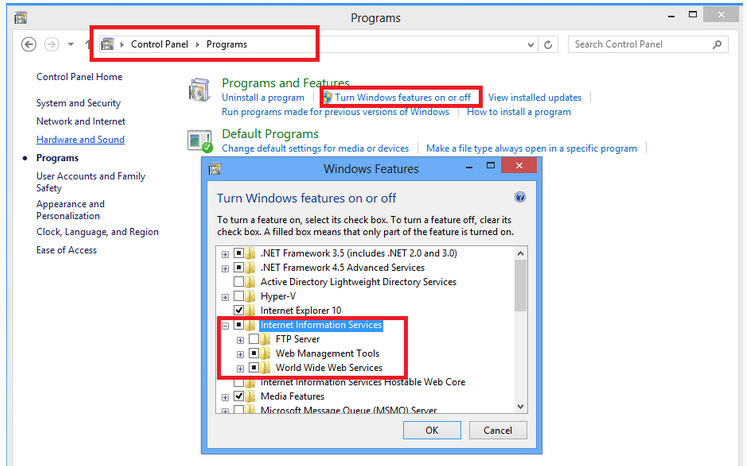
IIS comes for free with Windows, but is disabled, Enable the server via the Control Panel as shown here below.
Built-in Python Web Server
Python 2.x and 3.x comes with a built-in web server. Below you see a one-liner for running it with Python 3.x:
import http.server http.server.HTTPServer(("", 80), http.server.SimpleHTTPRequestHandler).serve_forever()
On some system a port lower than 1024 can give error, in that case replace 80 with a higher port number such as 8000 or 8080 (ports popular to use as alternatives to 80).
Configure the hosts file
The trick for getting our test code to run as if it was deployed on the production server is to fool the browser into thinking that a local test file is actually hosted there. This we will do by having the operating system tell it that it is so by manipulating the hosts file. On Windows the file is located at C:\Windows\System32\drivers\etc\hosts and assuming that the production server is located under domain gazetadaily.com, add the entry below to the hosts file (instead of www we can use anything, for instance test or myserver). This will make your browser think that your local dev machine resides under the domain gazetadaily.com and act accordingly.
127.0.0.1 www.gazetadaily.com
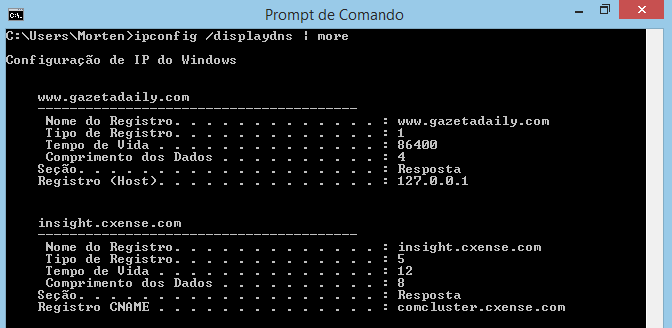
Windows will not let you save your changes unless you give yourself write access to the file. Right-click the file and click on the Security tab and give your user write access. After you have updated the file you can verify the changes by probing the DNS server using the command ipconfig /displaydns as shown in the figure below. (If the change does not appear, then you can try to provoke an update with the command ipconfig /flushdns).
Deploy and run your test code
Below we see an example test page for a site with site Id 9999999999999999999 (the site id value on line 6 is the only thing you need to change if you want to copy the example for your own use). On line 8 we send a page view event to Cxense Insight. On line 7 we added a custom parameter test with the value I was here. Later we will see how we can use this custom parameter to limit what we see in the GUI to only our test page views.
<!DOCTYPE html> <html> <head> <script type="text/javascript"> var cX = cX || {}; cX.callQueue = cX.callQueue || []; cX.callQueue.push(['setSiteId', '9999999999999999999']); cX.callQueue.push(['setCustomParameters', { test:'I was here' }]); cX.callQueue.push(['sendPageViewEvent']); </script> <script type="text/javascript"> (function(d,s,e,t){e=d.createElement(s);e.type='text/java'+s;e.async='async'; e.src='http'+('https:'===location.protocol?'s://s':'://')+'cdn.cxense.com/cx.js'; t=d.getElementsByTagName(s)[0];t.parentNode.insertBefore(e,t);})(document,'script'); </script> </head> <body> <h2>Test page</h2> </body> </html>
Deploy your code somewhere under your web server root directory. The IIS root directory is by default C:\inetpub\wwwroot and the Python web server one is whatever directory the script is being run from. In our example we have deployed the code as the file <rootdir>/testdir/testFile.html and it is by the corresponding url that we now will open the file in the browser:

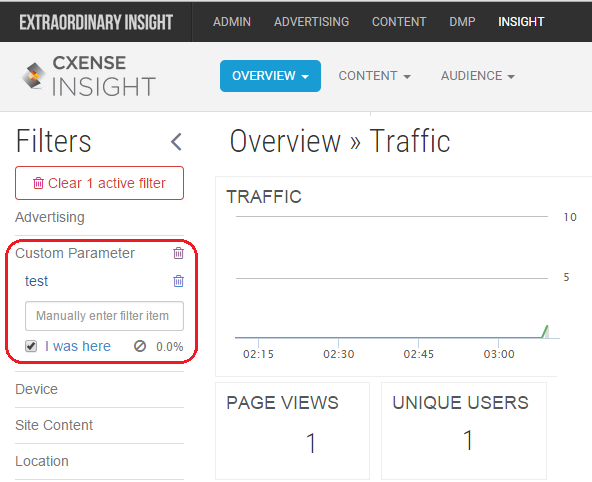
Below we confirm that the page view came successfully thrugh to Cxense Insight (notice the red circled area where we have filtered the page views for the test custom parameter value I was here to only see our test page views: