
A social account can be deauthorized for a number of reasons. An access token can expire at any point in time, which will trigger the need to reauthorize the account and get a new security token. An account will also need to be reauthorized if an admin of the social account who did the initial authorization changes the account password.
In order to complete the reauthorization process, the steps and requirements are as follows:
-
You have admin rights in SocialFlow.
-
You have admin rights to the account that you are reauthorizing:
-
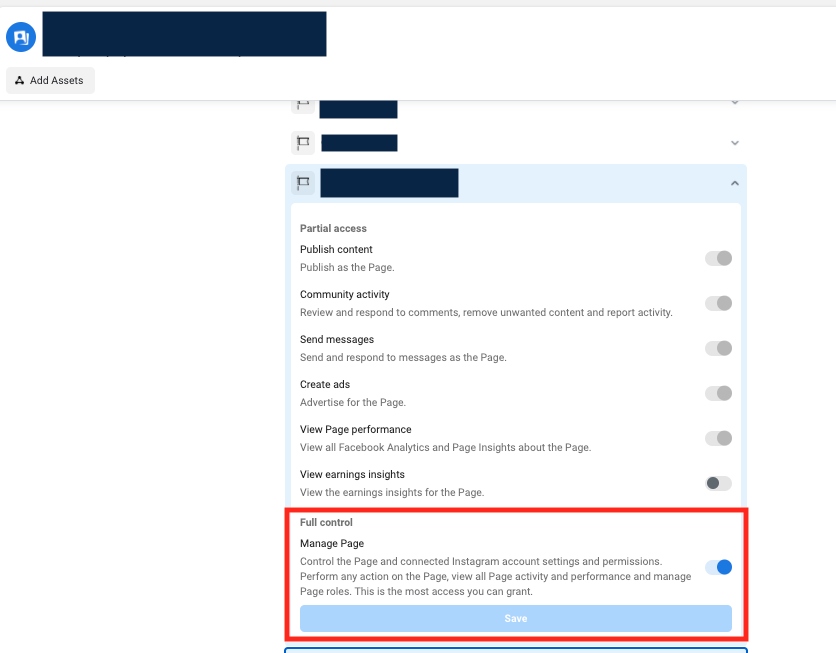
admin rights to the page on Facebook.com
-
NOTE: Facebook requires that admins also have Manage Pages permission enabled in Business Manager.
-
-
admin of the Twitter account
-
admin of the Pinterest account
-
admin of the LinkedIn page
-
NOTE: LinkedIn will require a reauth every 60 days.
-
-
If you have those requirements met, you can complete these steps to re-auth the page:
-
Head to Settings -> Application -> Social Accounts
-
Find the account in the account list that needs the re-auth.
-
Click the reauthorize button for the account(s) that you want to re-auth.
-
NOTE: Do not click delete.
-
-
Complete the Facebook Auth Flow
-
NOTE: In some instances, you will need to add permissions in the Business Integration Settings on Facebook.
-
Alternatively, you can reauth accounts in batches using the Reauthorize All function
-
Head to Settings -> Application -> Social Accounts
-
At the bottom of the account list use the drop-down list to Select An Account Type
-
Click the Reauthorize All button.
-
Complete the Facebook Auth Flow
-
NOTE: In some instances, you will need to add permissions in the Business Integration Settings on Facebook.
-