
Visual Presentation of Campaigns
To manage the visual presentation of your campaigns in the Campaign Set, select the Presentation button at the top right corner of the Campaigns list:
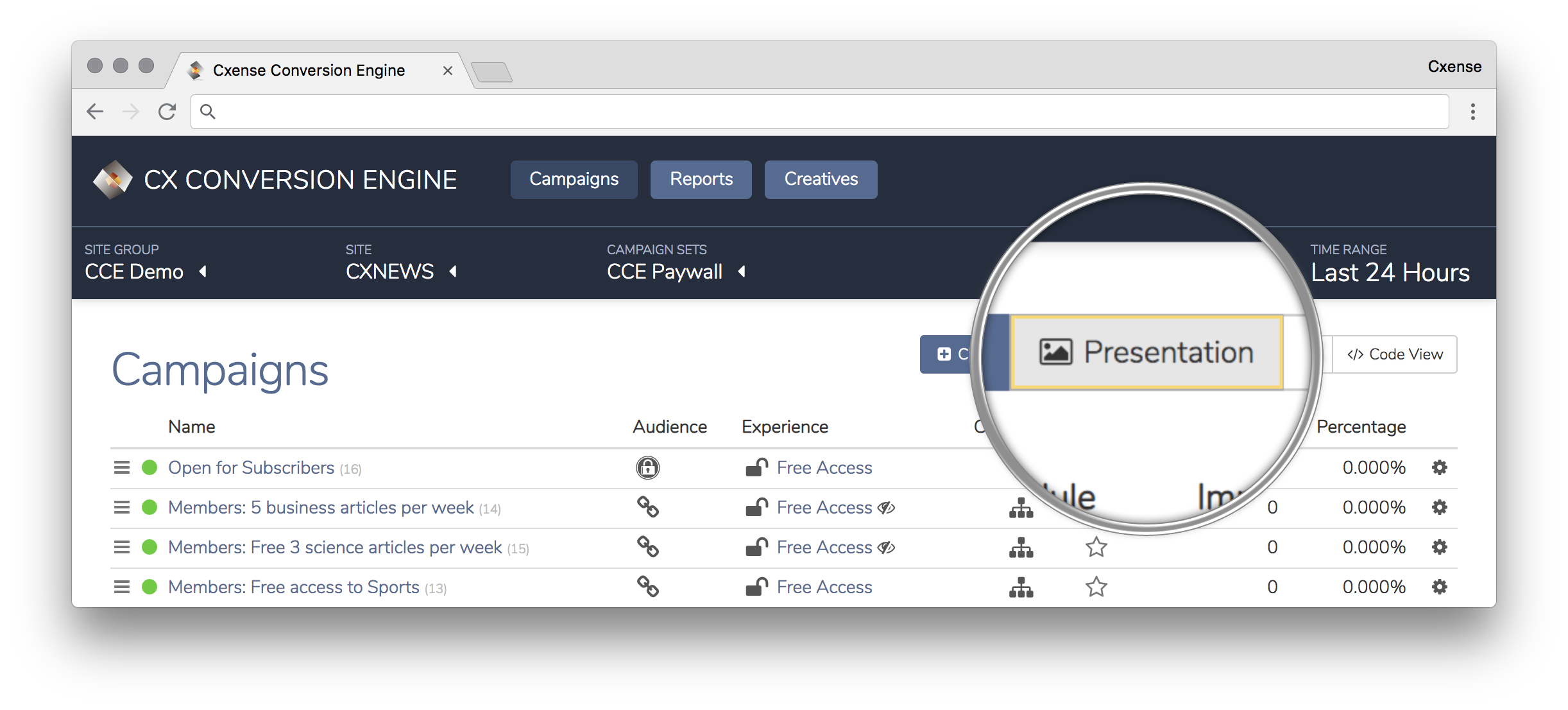
Presentation View
Presentation provides a visual preview of all campaigns created in your Campaign Set and provides the functionality to review and edit template elements, styles and custom presentation logic for each campaign created. The list of the campaigns created in the Campaign Set is displayed in the same order as they are organized in the Campaign Management view. Click on each campaign to review the campaign visuals and make adjustments:
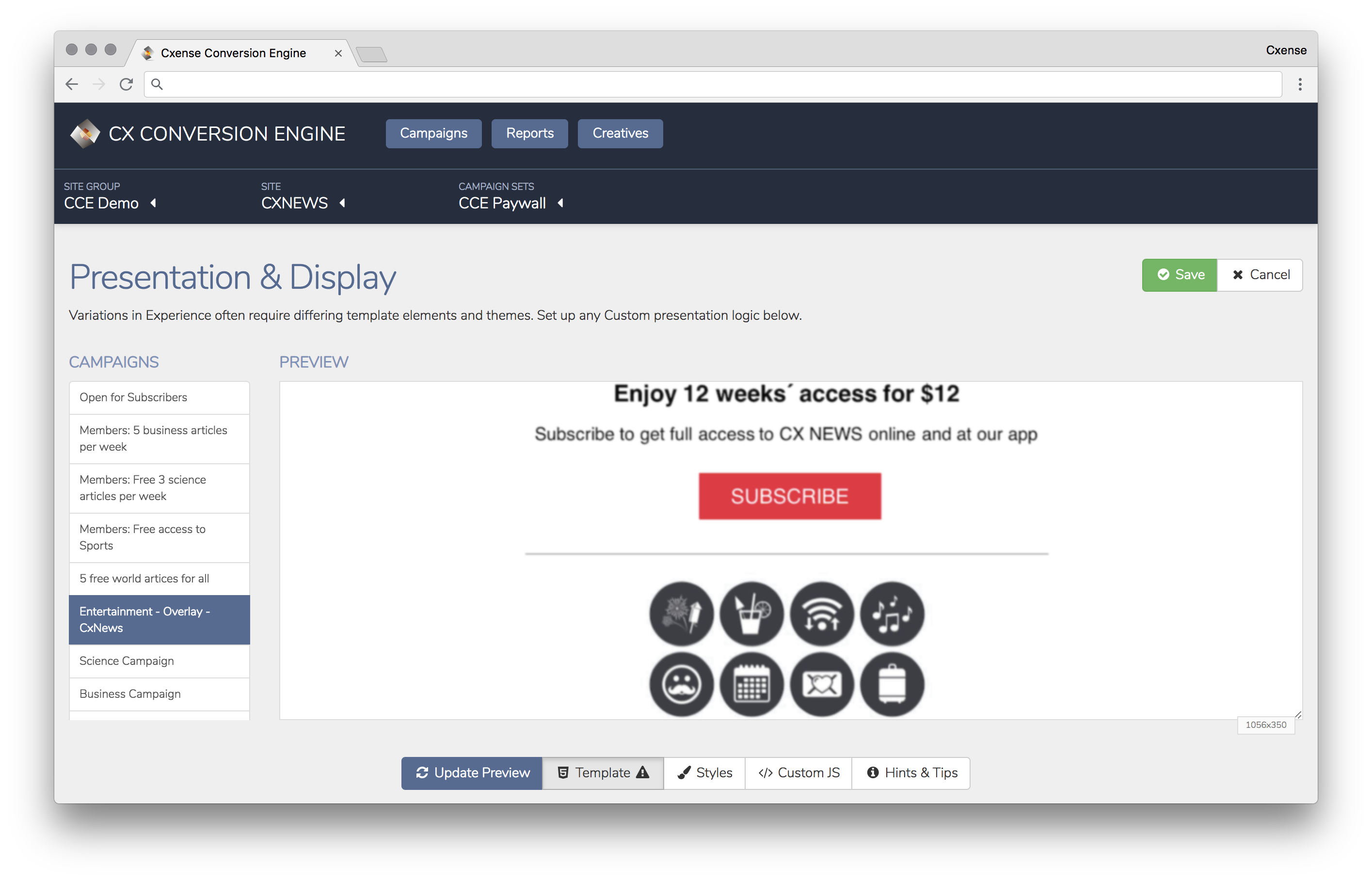
Supplementary Tools
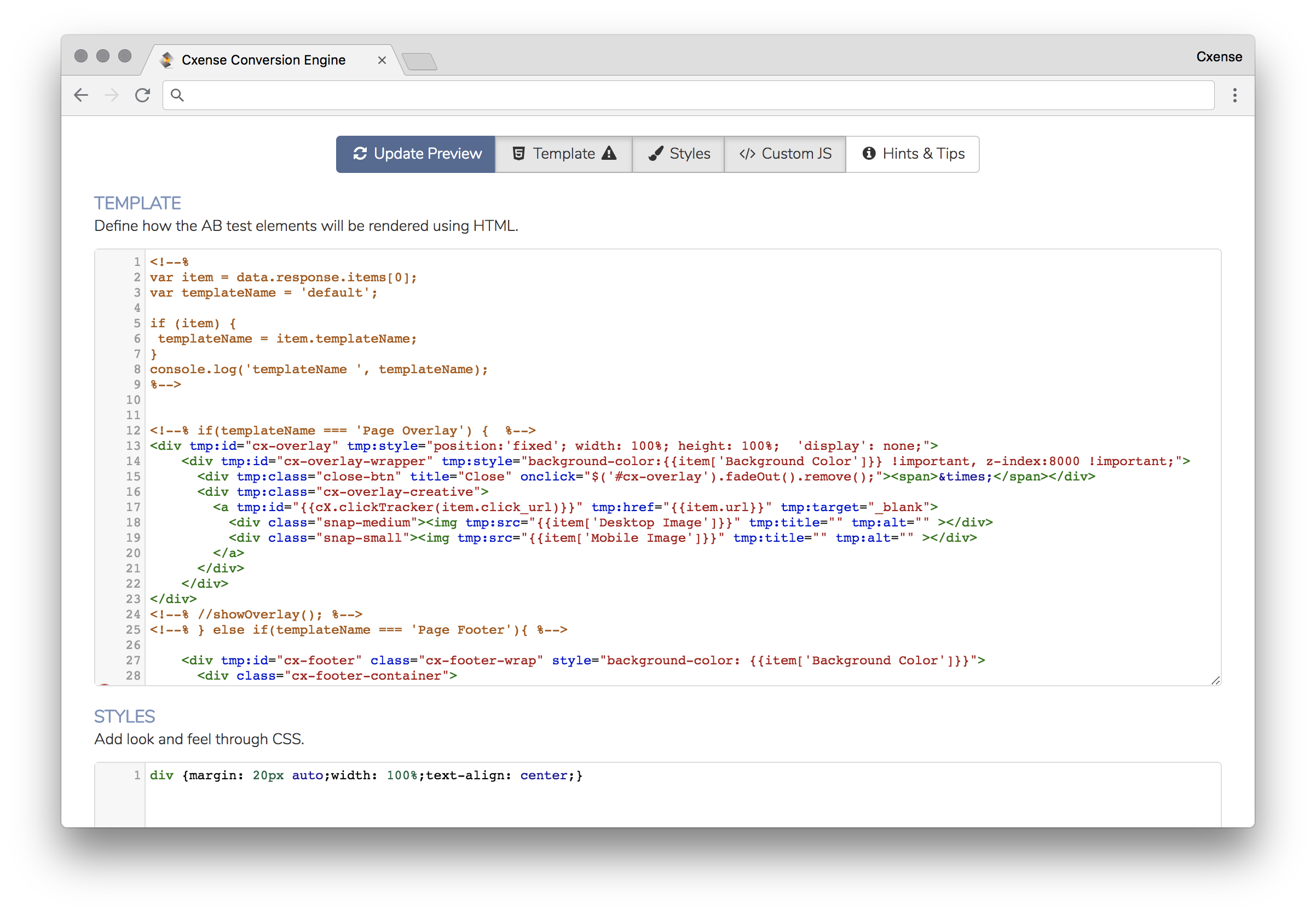
The toggle buttons below the Campaign display provides the functionality to review and edit a campaign visual presentation. The HTML template, CSS styles, and custom JS of the campaigns can be edited and added here:
The Hints and Tips section of the Presentation View will help you with the templates and examples you may want to copy and edit in your own setup.
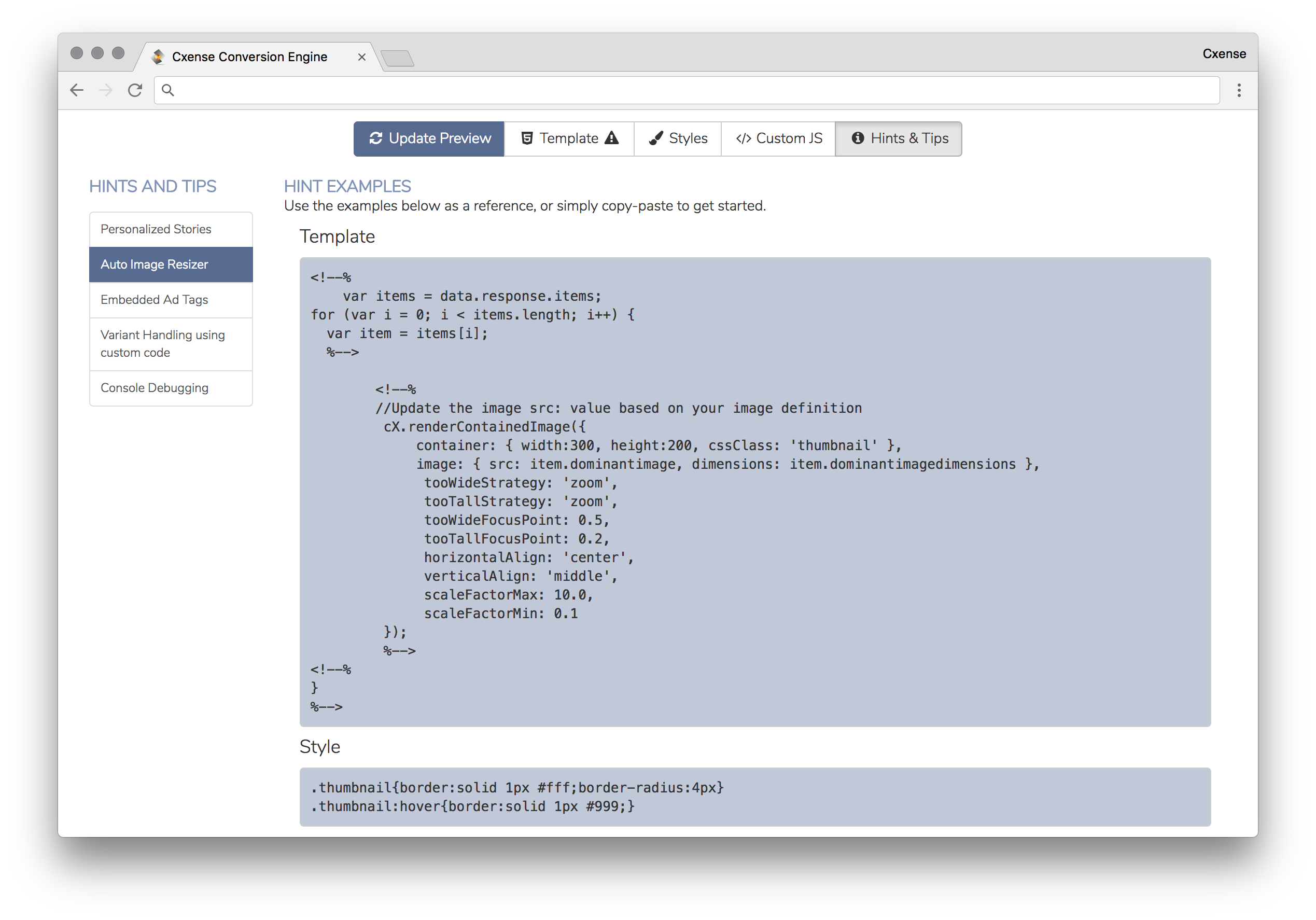
Using Live Preview
Live preview provides the ability to see your module in a live environment. It is usually important to test in a live environment prior to launching to ensure consistency of visual presentation.
|
Your module does not need to be live or deployed to use live preview. |
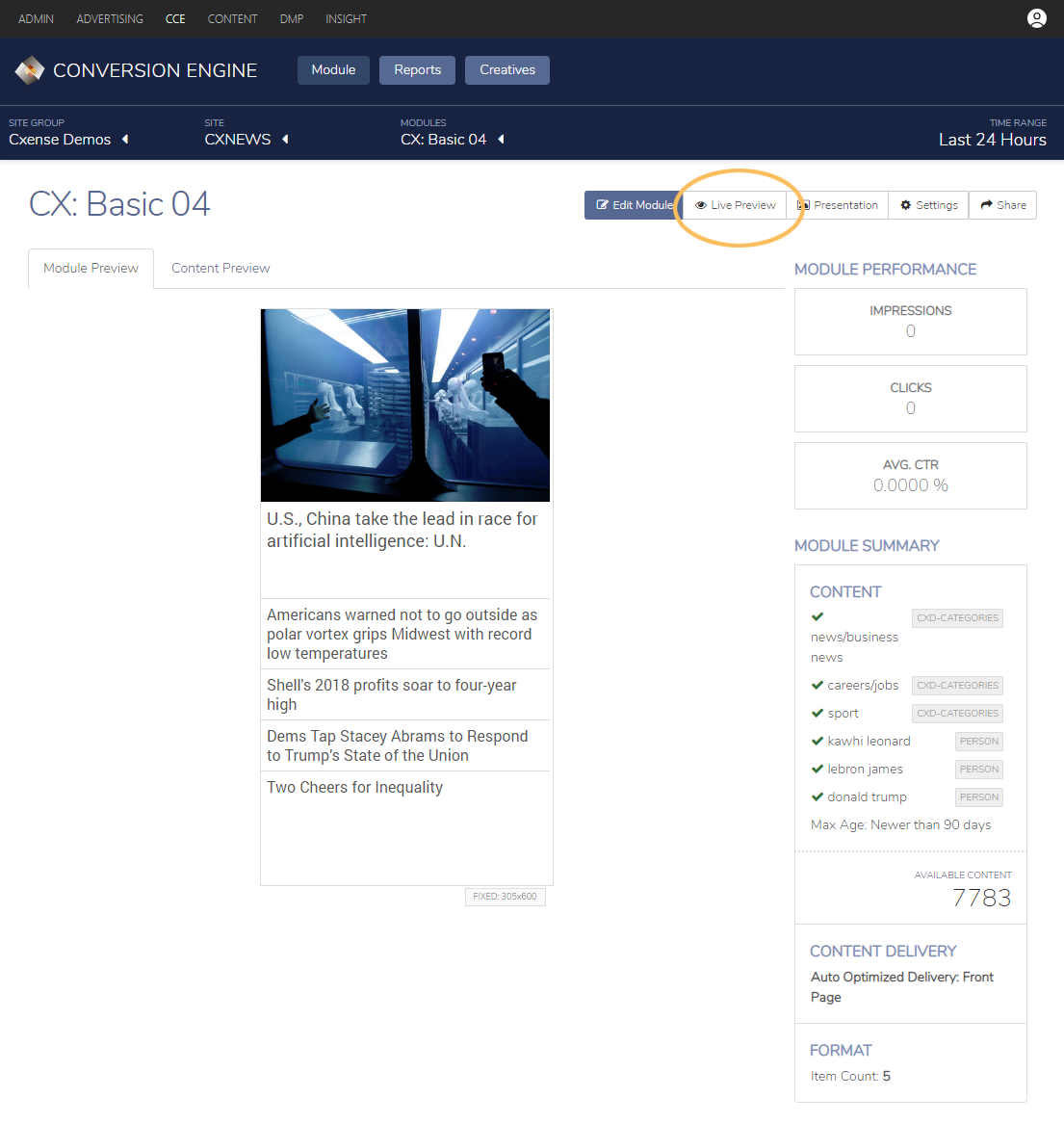
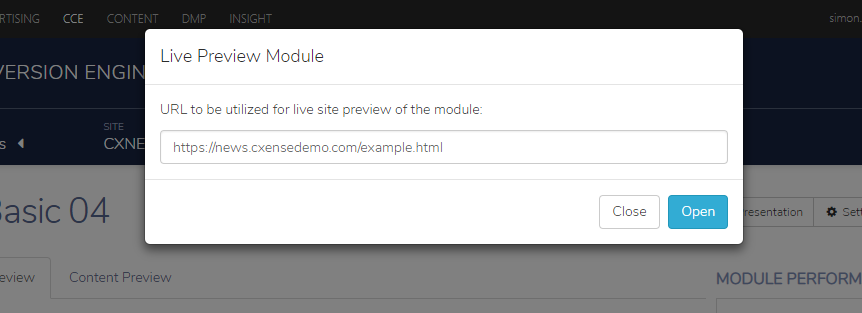
Selecting the Live preview option will display a URL field. Enter the URL you wish to see your module appear on, then select 'open':
You can also provide a base URL as a default test URL for your module. To add this, select Settings, then add your default URL:
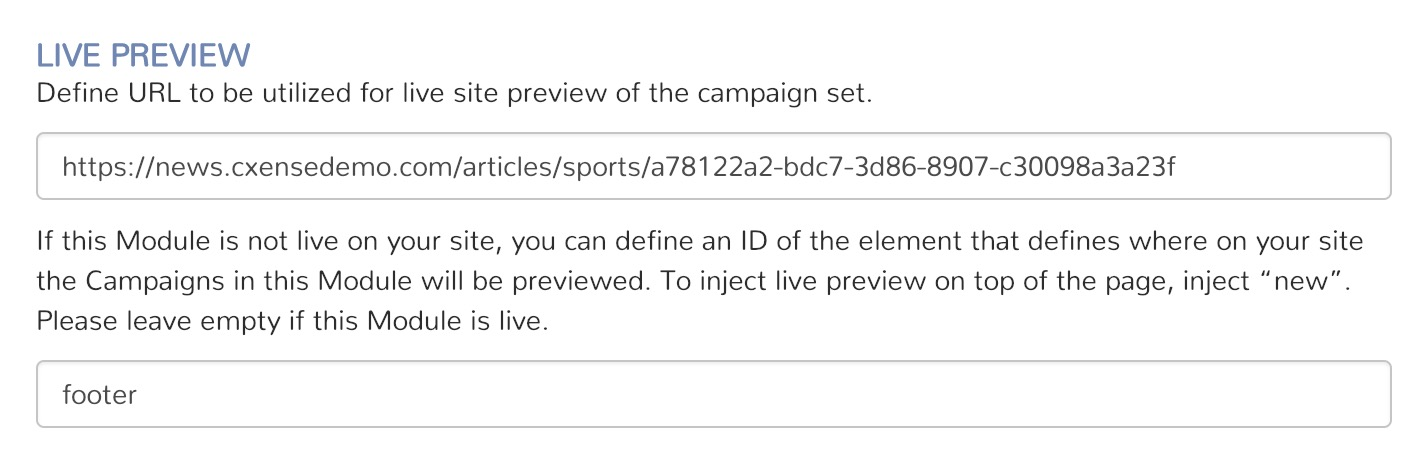
If you have a dedicated <div> element to position your module, add the ID (only) in the second field (e.g. for the element: <div id="lollipop"></div>, enter the id of lollipop), otherwise, leaving this field blank will simply add an element into the top of the URL page body.