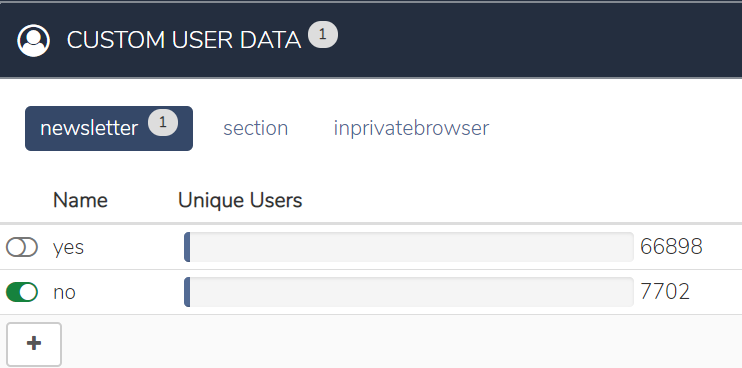
Any data available on the client side can be used for targeting. In CCE, we use the term "Custom User Data" to describe the 'context' of the User on each and every page view. This data is by design quite variable, for instance a key:value representing the User's subscription and logged in status (`user_type:non_paid_member` & `logged_in:true`), or if a specific utm parameter is a certain value (`utm_medium:user_from_newsletter`) and so on.
To enable usage of Custom User Data there are two steps needed; UI configuration and updates of scripts.
Script changes
To get actual values displayed in the 'Audience' Step(Step #1) of the campaign creation screen some actual values of the custom user data classes need to be sent you the deployed widgets. Custom User Data is sent as parameters on the context parameter of the cX.CCE.run. See the /public/widget/data documentation for more details.
The sample below will send in the value "yes" for newsletter and "sports" for the section parameter. The actual values could be populated from any existing javascript, cookies, or local storage data already present on the page.
|
|
Formerly, the code sample above was written as below, which is still valid, but the context parameters sent in this way are treated as "Legacy Custom User Data" in CCE UI (see the screenshot below). 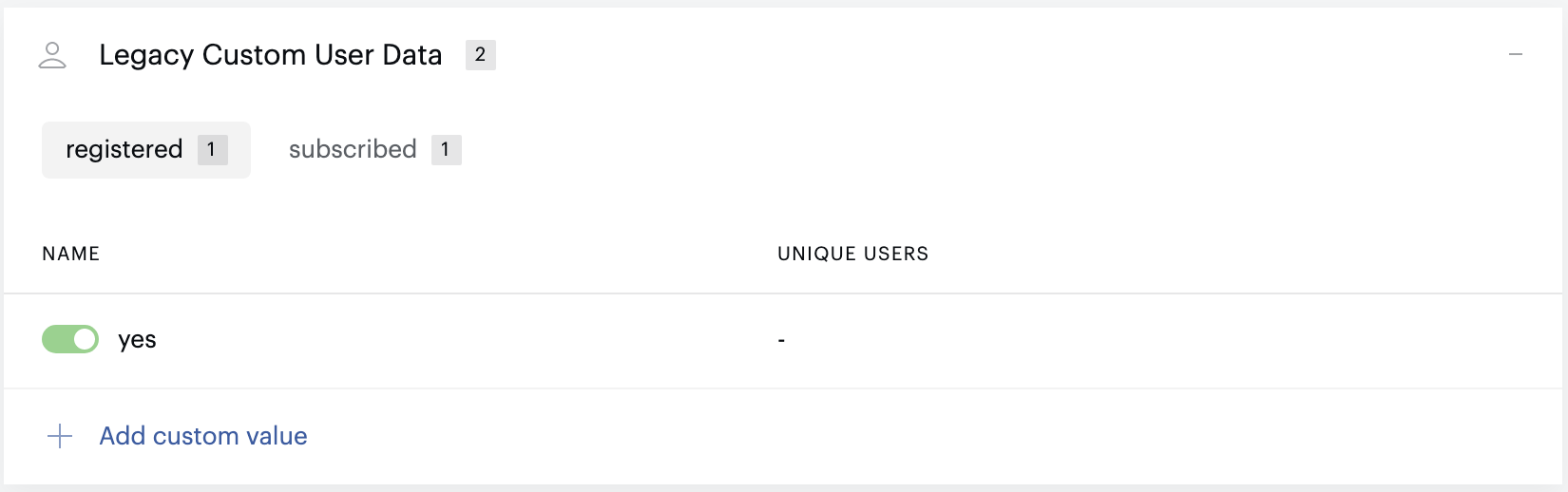
|
Campaign configuration
Once the Module has been configured the Custom User Data and the script has been changed to add Custom User Data to the module requests the data will start showing up in Step 1 of the campaign configuration. If there are values which have not been sent yet (or if the script has not been updated), it is possible to click on the "+" add values which will be targeted once available.