
Introduction
The Cxense Ad SDK for iOS enable display of ads from the Cxense Ad service in native iOS applications.
Quick Start
This quick start shows you how to get started using the Cxense Ad SDK for iOS. You will create a new iOS project, include the Cxense Ad SDK and do your first ad request.
Prerequisites
-
Xcode 8.0 or higher
-
Deployment target of iOS 8.0 or higher
Installation Guide
Cocoapods
CocoaPods is a dependency manager for Cocoa projects. You can install it with the following command:
|
To integrate Cxense Ad SDK into your Xcode project using CocoaPods, specify it in your Podfile:
|
Then, run the following command:
|
Manual
You will create a simple single view application displaying one ad at the top.
Creating a new project
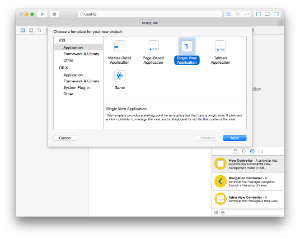
1. Open up Xcode and navigate to File > New > Project. Select Single View Application and press Next.
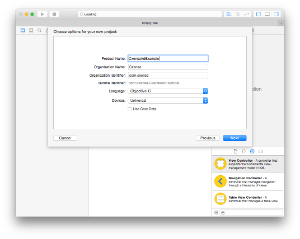
2. Choose a name for your project (in this case CxenseAdExample) and make sure Objective-C is selected as the language.
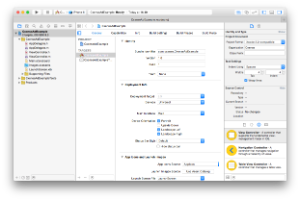
3. Choose a location for your project and click Create. Your project should look something like this:
Adding the SDK to your project
If you don’t already have the Cxense Ad SDK you can download it from the Cxense Ad website.
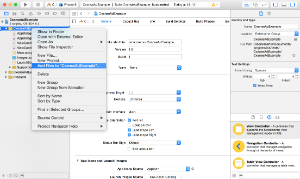
1. Add the files to your project by right-clicking on the CxenseAdExample project. Choose Add files to “CxenseAdExample”.
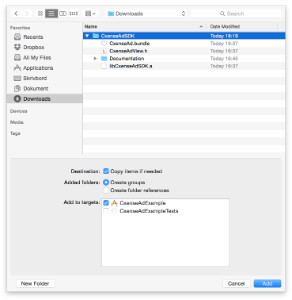
2. Add the entire Cxense Ad SDK folder to your project. Check Copy items if needed.
3. The SDK Library references the following frameworks which may not already be part of your project.
-
CoreData.framework
-
CoreGraphics.framework
-
CoreTelephony.framework
-
Foundation.framework
-
MobileCoreServices.framework
-
Security.framework
-
SystemConfiguration.framework
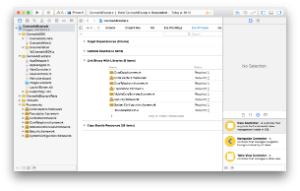
To add these frameworks, double-click the project name in the left navigation. Under the Build Phases tab, open the Link Binary With Libraries dropdown. Add the frameworks using the + button.
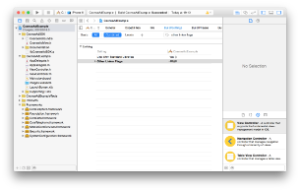
4. Add the -ObjC linker flag to your targets Build Settings
Your first ad request
Now that you have a project with the Cxense Ad SDK referenced you are ready to start displaying ads in your application.
Ads are displayed using a CxenseAdView.
-
Add the view in Code
Open up ViewController.m and import the CxenseAdView header. Create the view and add it as a subview to the controller’s view.When initializing the CxenseAdView you have to provide a frame, an environment and an ad space id.
#import "ViewController.h" #import "CxenseAdView.h" @implementation ViewController - (void)viewDidLoad { [super viewDidLoad]; CGRect adViewFrame = CGRectMake(0, 0, CGRectGetWidth(self.view.frame), 100.0); CxenseAdView *adView = [[CxenseAdView alloc] initWithFrame:adViewFrame environment:CxenseAdEnvironmentLive adSpaceId:@"123456789"]; [self.view addSubview:adView]; } @end -
Configure the ad view
- (void)viewDidLoad {
    CxenseAdView *adView = ..;

    // change the refresh rate of the view (if needed)
    [adView setRefreshRate:20]; // default is 60

    // control what network reachability need to be present when the adview fetch data
    // there might be a need to have different restrictions depending on country/region
    [adView setImpressionRestriction:CxenseAdNetworkRestrictionGPRS]; // default is GPRS
    [adView setImpressionRestriction:CxenseAdNetworkRestrictionMobile]; // default is Mobile

    // set which fetch mode the ad view should use
    [adView setFetchMode:CxenseAdFetchModeSingle]; // default is CxenseAdFetchModeSingle

    [self.view addSubview:adView];
}

@end
In the above example the CxenseAdFetchModeSingle was used. There is another mode available, CxenseAdFetchModeBatch. Please be aware that the BATCH mode is not fully tested and we recommend that you use the default SINGLE mode. If you want to try the BATCH mode anyway, you can do this by setting the fetchMode like in the example below.
- (void)viewDidLoad { CxenseAdView *adView = ..; // set which fetch mode the ad view should use [adView setFetchMode:CxenseAdFetchModeBatch]; // set batch size and batch timeout if CxenseAdFetchModeBatch is used [adView setBatchSize:5]; // default is 10 [adView setBatchTimeout:1200]; // default is 600 [self.view addSubview:adView]; } -
Start fetching ads
It is required to call start on the view to start fetching ads. If a refreshRate is set the ad view will refresh itself automatically.- (void)viewDidLoad { .. [self.view addSubview:adView]; // start fetching ads [adView start]; }
Run the app
Run the app and you should see the ad view with an ad at the top of your view (if you have provided valid adSpaceId and environment).
User ID
To make possible to use audience targeted ad campaigns in mobile applications, Ad SDK provides user tracking feature. You can see that among other parameters each API call has special parameter called "usi" (full description is available here: Search REST and JavaScript API). It designates current user identifier.
User identifier is calculated by following algorithm:
-
If CxenseAdView#userId is set, then this value will be used as user identifier in any ad calls
-
If CxenseAdView#userId is not set, then the SDK uses following identifiers:
-
If advertising tracking enabled on device, then use IDFA (Identifier for Advertising)
-
If advertising tracking disabled on device, then use device's identifier for vendor (UUID)
-
-
If CxenseAdView#userId has an empty string as a value ("") then user tracking will be disabled for Ad SDK
Customization points
CxenseAdView provides access to underlying UIWebView component. That gives an opportunity to customize behavior of CxenseAdView like adding own tricky cache mechanisms for web content caching or implementing interactions between your application and ad’s content. You can use following public method to access wrapper that contains reference to underlying UIWebView:
|
Required Libraries
|
Name |
Description |
|---|---|
|
CoreData.framework |
|
|
CoreGraphics.framework |
|
|
CoreTelephony.framework |
|
|
Foundation.framework |
|
|
MobileCoreServices.framework |
|
|
Security.framework |
|
|
SystemConfiguration.framework |
|
App Transport Security
Somewhere in 2017 Apple will require all applications submitted to App Review to have ATS enabled OR to have justification for applications with partially / fully disabled ATS.
Cxense Ad SDK supports work in applications with ATS (App Transport Support) enabled, but please pay attention that it can use 3rd party tags (creatives configured on ad server) that use insecure connections. For such cases you will need to disable ATS in your application. Here how you can do this:
-
For applications targeted to iOS 10, add following configuration to application’s Info.plist file:
<key>NSAppTransportSecurity</key> <dict> <key>NSAllowsArbitraryLoadsInWebContent</key> <true/> </dict> -
For applications targeted to previous versions of iOS, add following configuration to application’s Info.plist file:
<key>NSAppTransportSecurity</key>
<dict>
    <key>NSAllowsArbitraryLoads</key>
    <true/>
</dict>
Release notes
|
Version |
Release Date |
Notes |
|---|---|---|
|
3.2.1 |
2017-04-04 |
Support of opting-out from user tracking was added as a small addition current user tracking functionality. |
|
3.2.0 |
2017-10-03 |
User tracking was added. That makes possible to use audience targeting. |
|
3.1.0 |
2017-05-19 |
Multiple internal optimizations (networking engine was reimplemented, obsolete 3rd party libraries were removed). |
|
3.0.15 |
2017-04-22 |
Minimal deployment target was updated to 8.0. |
|
3.0.14 |
2017-03-25 |
Internal improvements. CxenseAdView’s underlying UIWebView was added to public API introducing new way of ad view’s behavior customization. |
|
3.0.10 |
2016-11-03 |
Cocoapods support was added. It is now possible to resolve new versions of the SDK automatically through Cocoapods configuration. |
|
3.0.9 |
2016-10-20 |
Public documentation update (information about support of ATS (App Transport Security) was added. |
|
3.0.6 |
2016-06-25 |
Bugfixes and public documentation update. |
|
1.0 |
2015-05-20 |
First official release of Cxense Ad SDK for iOS |