
Creatives for Your CCE Campaigns
In this section in the CCE UI you can manage and create creative templates utilized all "Personalized Offers" experiences. Please note that creatives are managed across all your Campaign Sets and Sites for the Site Group selected.
Manage Creatives
Manage creatives provides you with an overview of all the creatives that are created, stored and utilized in Campaigns across your Sites and Campaign Sets. You can filter the list by campaign name, creative type, or campaign set to get an overview of where a creative is active and manage creatives by deleting templates or creatives not in use. In order to delete a Creative or Creative Template they can not be associated with any campaigns.
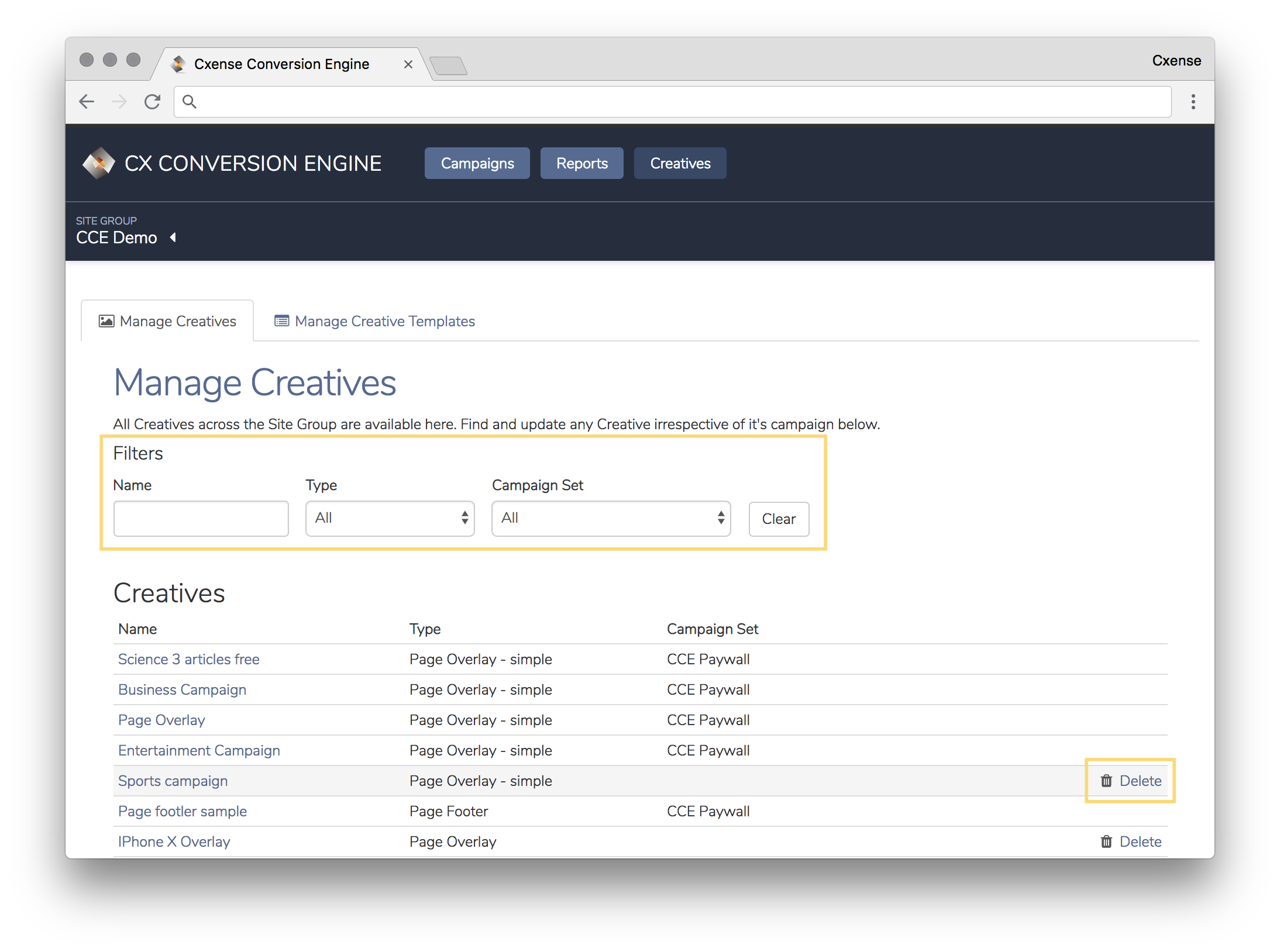
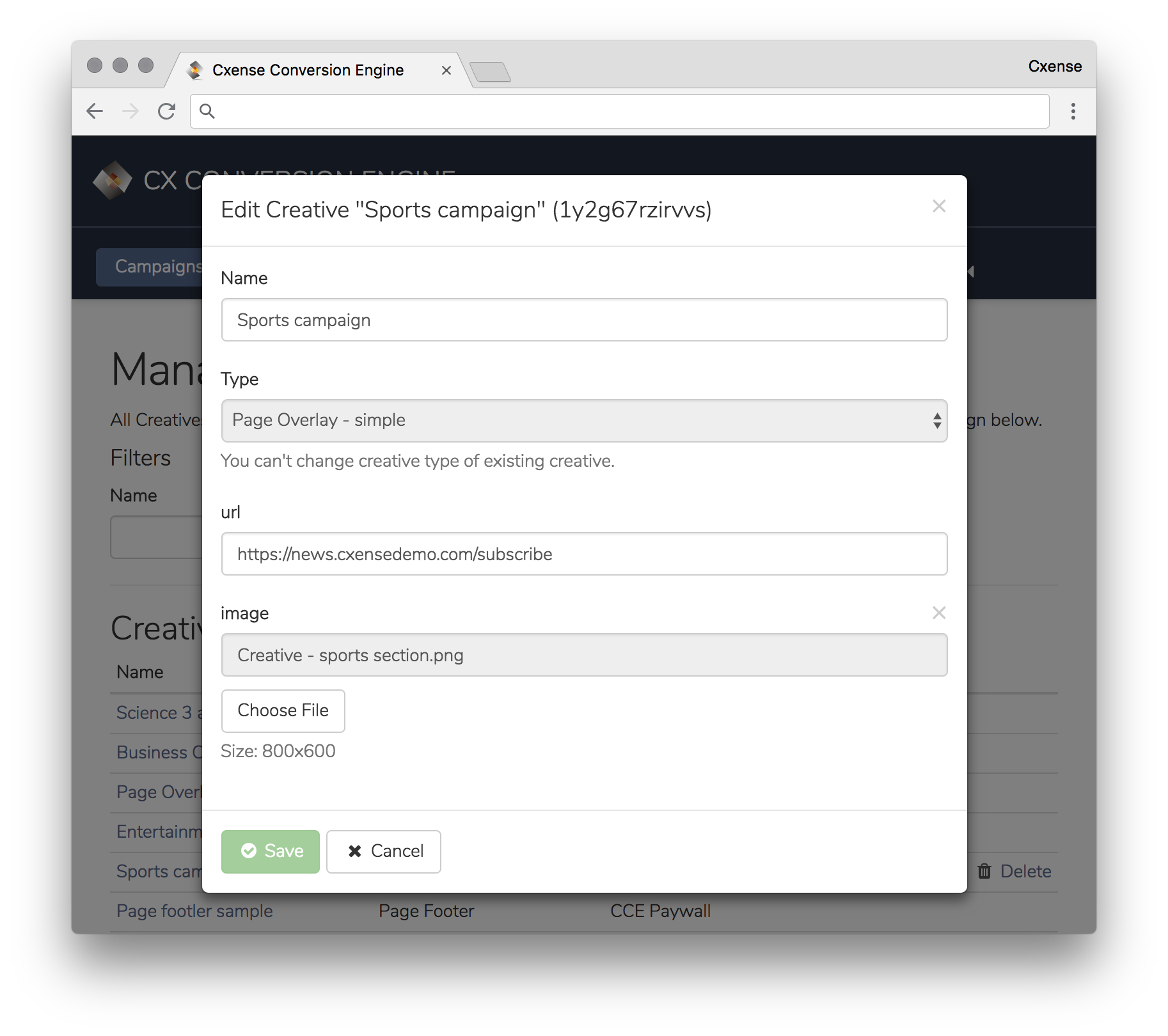
Creative Type is the name set for your Creative Template and is the field where you choose the template to used when uploading the creative for a Personalized Offer experience. From this view Creative name and URL can be adjusted from the Edit Creative menu (accessible by clicking on the creative name in the list). You can also re-upload the creative type, but please remember that the new file need to match the size set in the selected Creative Template:
Manage Creative Templates
Under Manage Creative Templates you define the Creative Types that can be utilized when creating a Personalized Offer. The Creative Template defines the form fields (image/text) that should be provided when uploading a creative. Click the button "Add Creative Template" to build a new one from scratch, or Edit in the template's menu to reconfigure the current setup. Both text and Image elements need to have unique names; for images, you also need to set the dimensions. Any element can be optional or mandatory - use the checkbox to the right of the element to make an element mandatory.
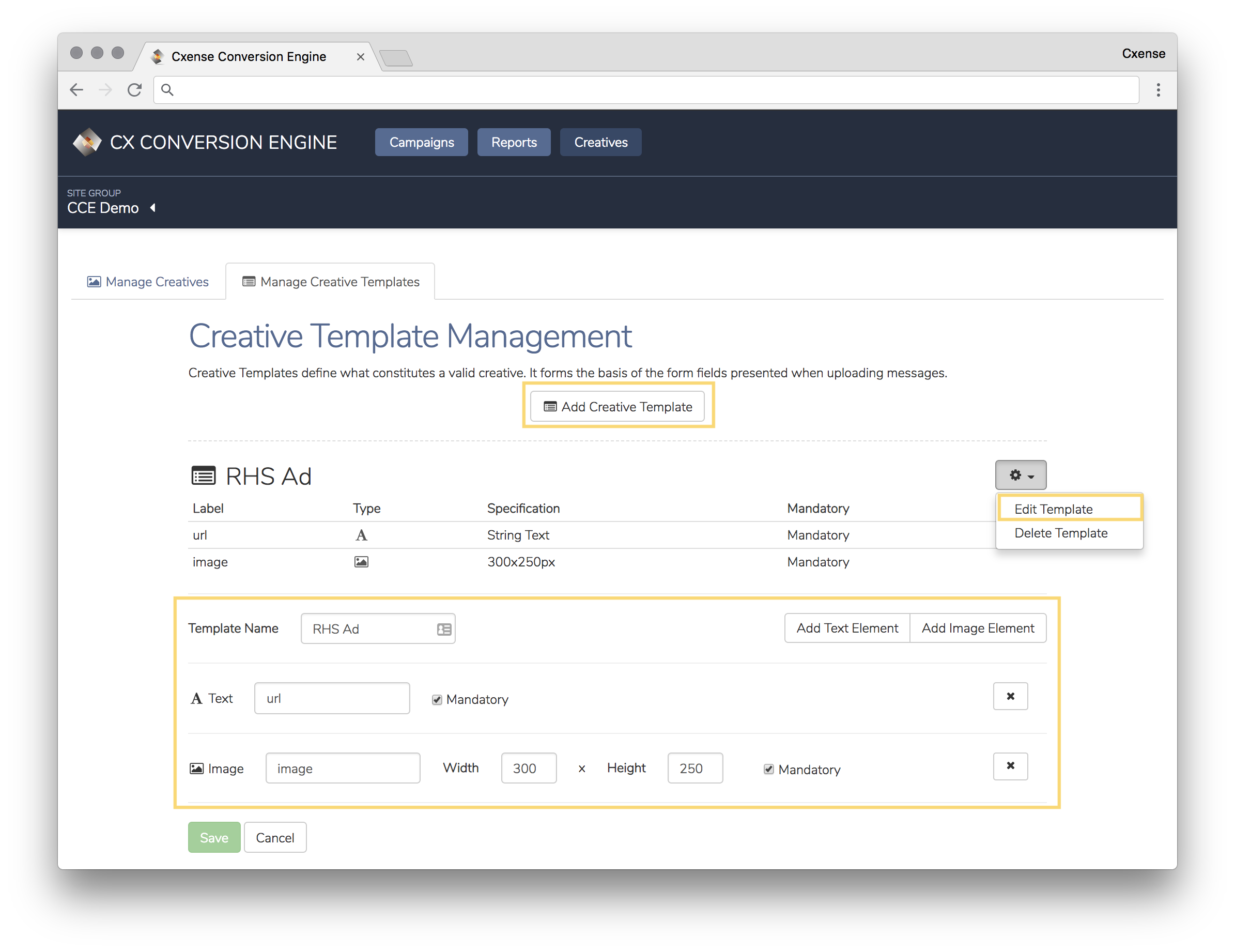
In this section, you will also see the overview of all creative templates that are already created. You can edit or delete any of the existing templates if needed, but please note that this requires that the templates are not currently utilized in any campaigns across campaigns on your site group. The Manage Creatives section will provide you with an overview of campaigns and campaign sets a template is associated with.