
This page describes how to instrument Product conversion tracking in CCE.
This feature allows you to track conversion funnels to specific products for insightful reporting and efficient retargeting. In the context of CCE, a product is an entity defined by type, length of access and renewal. With proper instrumentation, your entire conversion funnel from referral to conversion and renewal/termination will be tracked for all products defined and instrumented on your site. This tracking will also track attribution to campaigns a user was influenced by up to the point of conversion.
What is a Product and how do I define it in CCE?
Product Type and Product
Products will be defined in the CCE GUI clicking on "Products" in the top menu category.
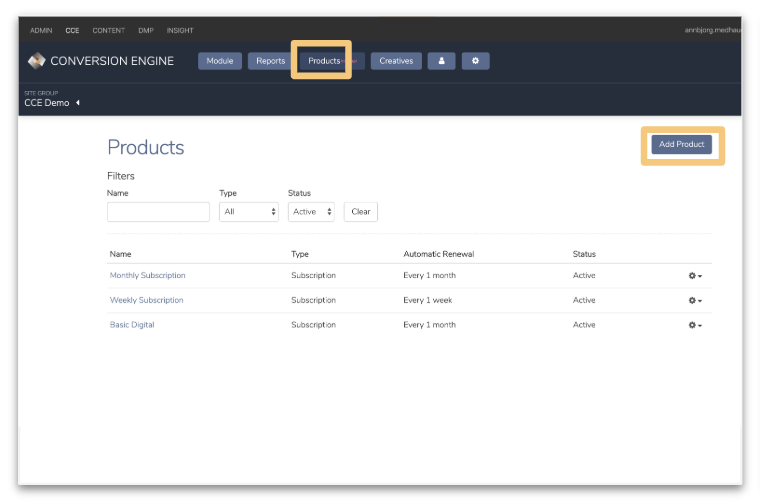
A Product in CCE is defined by type, length of access, and renewal cycle.
Product Type = The product category where currently three types are supported, Subscription, Registration, and Newsletter.
Length of access = Indication of the time period the access period will last (given time e.g. 1 month, or no restriction)
Renewal cycle = For products with a defined time period for access, an indication if the product access auto-renew for the user or not.
Examples:
-
Product "1 Month Digital Basic" - Subscription, 1 month access, auto-renew relative to user sign-up date.
-
Product "3 Articles Free Registration" - Registration, not a set access period (set in the CCE campaign), does not renew.
-
Product "Sports Newsletter" - Newsletter, not a set access period (set in by termination event), does not renew.
-
What is conversion attribution?
Cxense define a conversion and an indirect conversion (attribution) in the following way.
-
Conversion = Attributed to the last CCE campaign a user clicked on before converting to the product.
-
Indirect conversion = Attributed to the CCE campaigns a user has seen and/or clicked the last 7 days before converting to a product - this number could indicate the indirect influence a campaign have had to drive a conversion.
|
Note the difference in conversion numbers between the Campaign Performance Report and the Product Performance Report:
|
How to instrument tracking of Product Conversion Events
1) Ensure CCE has been deployed in accordance with steps 1-4 in our technical implementation guide.
Please note: Though conversions can be cross-site and attached to a site group, it's still necessary to report them to a specific site id so Cxense can validate the conversions and make sure they're coming from your websites. To validate that your setup is correct, go to the CCE Modules page, and ensure that you have all your sites available (and create if necessary) where the conversions are going to be tracked.
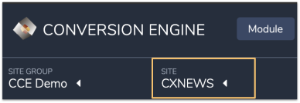
2) Define your Products.
In order to create your conversion event per product, you need to first need to define your products in the CCE GUI.
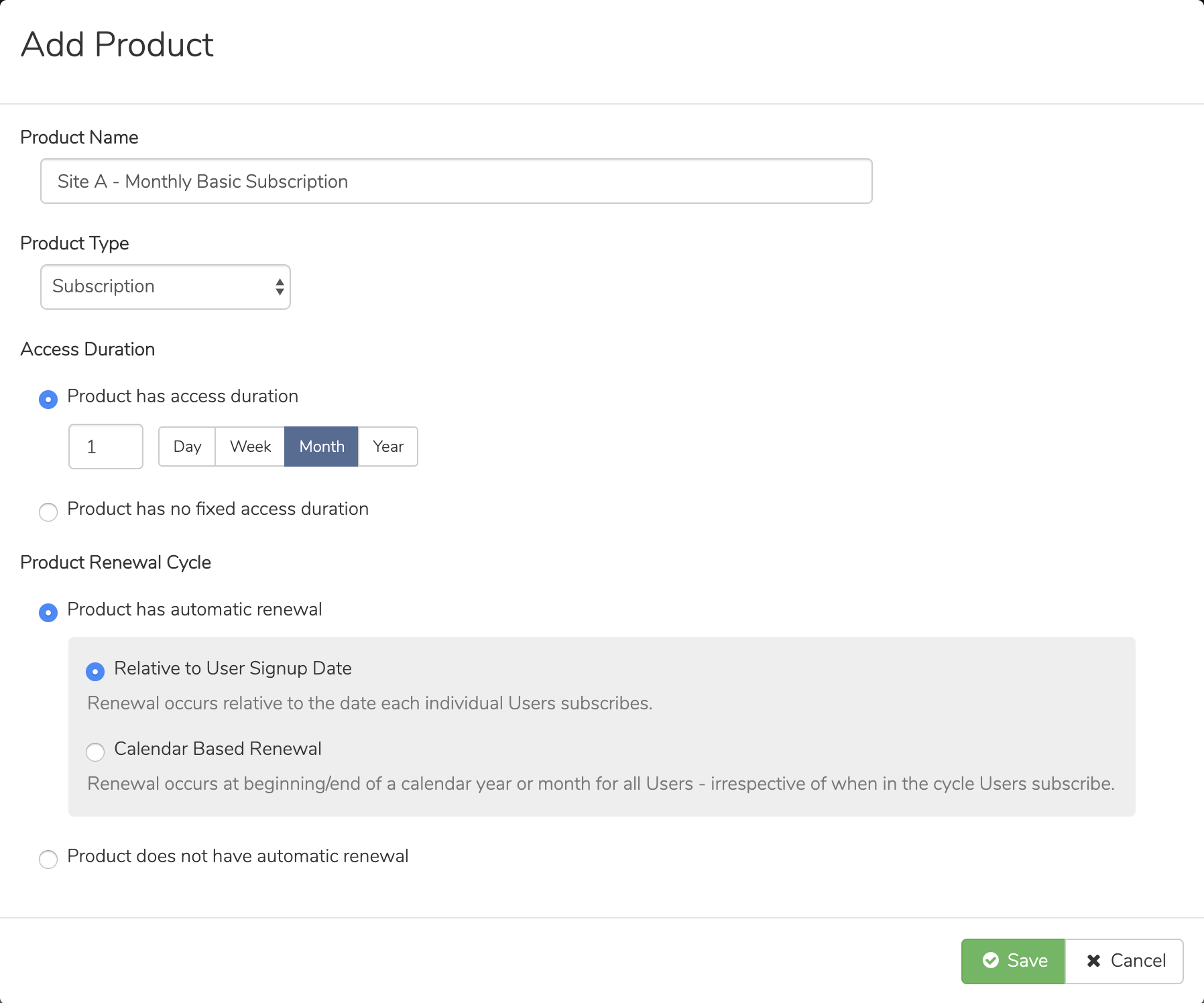
Your Products will be visible for all modules within the Site Group (if you have more than one Site Group). If you have only one Site Group, your products will be available and applicable to all of your modules.
-
Click on "Product" in your top-level navigation.
-
On the right-hand side of the Product List view, select "Add Product".
-
Enter a Product Name
-
Select a Product Type, one of:
-
Subscription - Usually a paid access Product, with a recurring payment per month. A User may unsubscribe at any time
-
Registration - Usually a Product without a cost, such as registering to join an online community
-
Newsletter - Usually a non-paid product that delivers email newsletters on a regular basis until such time as the User unsubscribes
-
-
Add information about the product Access Duration (if applicable).
Access Duration represents the length of time the product renewal cycle will be in effect. If the product does not require an access duration, (i.e. the access continues until a user unsubscribes) select "Product has no fixed access duration". -
Set the Product Renewal Cycle to indicate if this product automatically renews for a customer who does not cancel their subscription. If your product renews, ensure you select the most appropriate renewal cycle, relative to the time of subscribing, or if the renewal occurs on the same time (e.g. start/end of month)for all Users. If the product does not have a renewal period, "Product does not have automatic renewal".
|
To ensure good data quality, please see step 4b on product termination. |
Once you have defined your product(s), you are ready to instrument the tracking of the conversion event for each product.
3) Collect your Product conversion event.
In order to track conversions, you need to get a Product conversion event tag that will be available after you define your product(s) on the Products page in GUI.
Within the Product List view, press the "Settings wheel" to the right-hand side of a given product, and select "Code Integration".
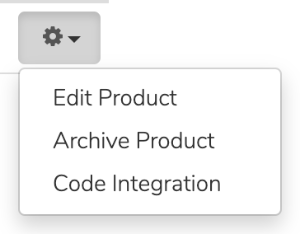
The Conversion Event Tag for your product will then be displayed.
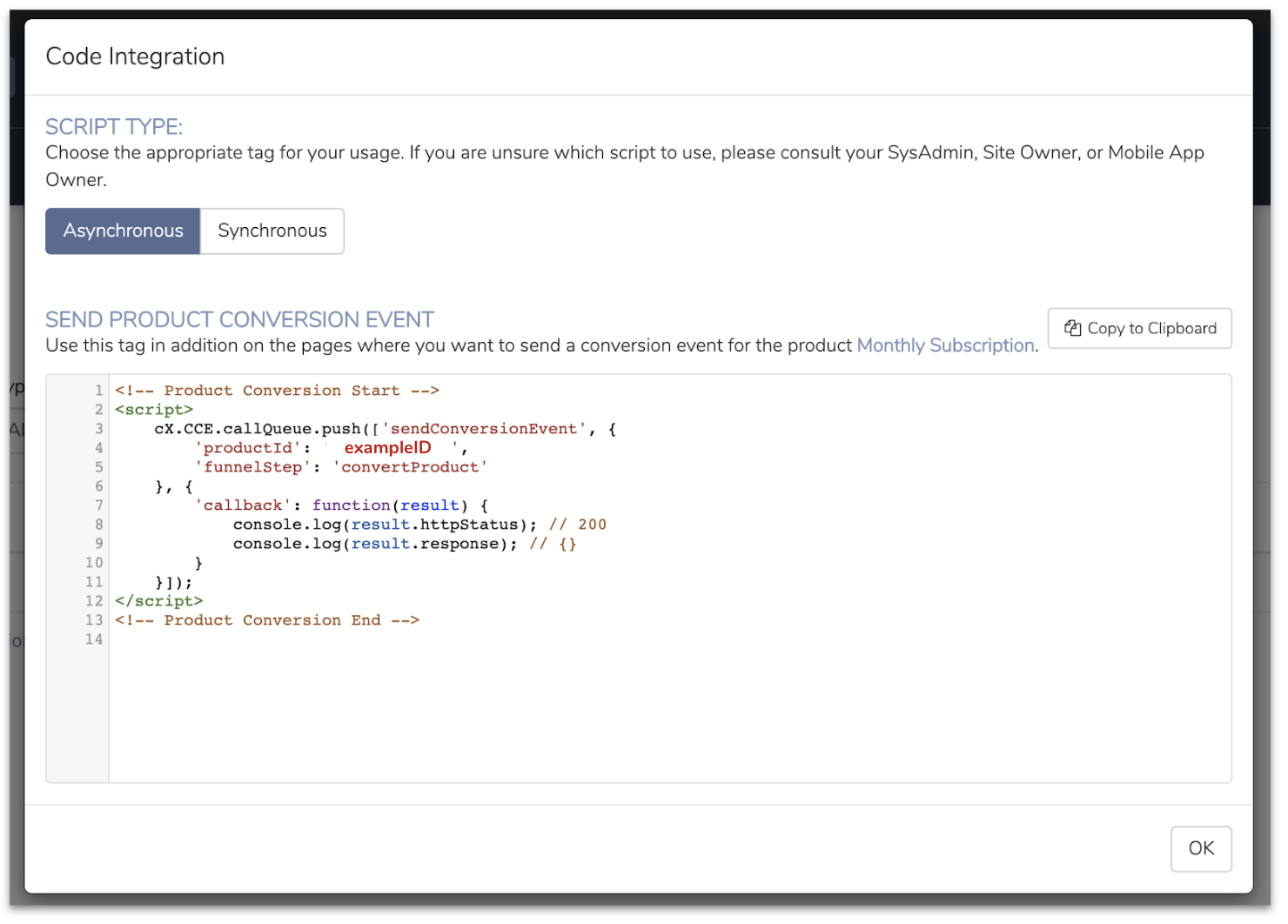
Note: If you want to define products through APIs you need to Identify and preserve the product identifier.
4a) Deploy conversion event script tag.
The product conversion event should be implemented per product on the final 'transaction complete' step for your product funnel. Send order event along with confirmation to the User. Whenever the user converts to your product, the conversion event must be sent using a special script tag available found clicking the "Settings Wheel >> Code Integration" showed above or found here in the Examples section.
Example code:
|
4b) Report termination or/and renewal of conversions.
In order to ensure data quality, accurate input for machine learning models and accurate reporting, there is also a need to instrument a terminateProduct funnel step per product to capture e.g. when a subscription terminates or when a user unsubscribed from a newsletter.
Please note, if the product does not have an "automatic renewal" selection when being defined, a renewProduct event can be instrumented manually to report renewals.
Example code:
|
4c) Report additional funnel steps if necessary.
It is recommended to report all purchase funnel steps, such as tracking account creation and credit card registration. See the Funnel instrumentation page for full details.