
Feeds aggregate products to the Publisher side. Short for 'Advertisement Feed', they are a simple mapping of campaigns and ads (via products) to Publisher adspaces.
Getting There
Select 'Feeds & Products from the main navigation, then select 'Feeds' from the LHS menu.
Overview
Consider a feed to be a "feed of advertisements" that is delivered to an adspace.
Feeds offer a layer of abstraction between adspaces and the products that supply their ads. Meaning, if a change is required to the list of products on one or more adspaces, the Broker need only update the feed and each adspace associated with it will automatically receive ads from the new list of products without requiring any further changes on the part of the Publisher.
As a feed is a grouping of one or more products, the Feed Overview page provides a summary of the feed configuration, such as the list of products associated with the Feed, the product types (CPC/CPM/Tenancy), and the Publishing visibility - that is the Publishing roles that are authorized to see the feed.
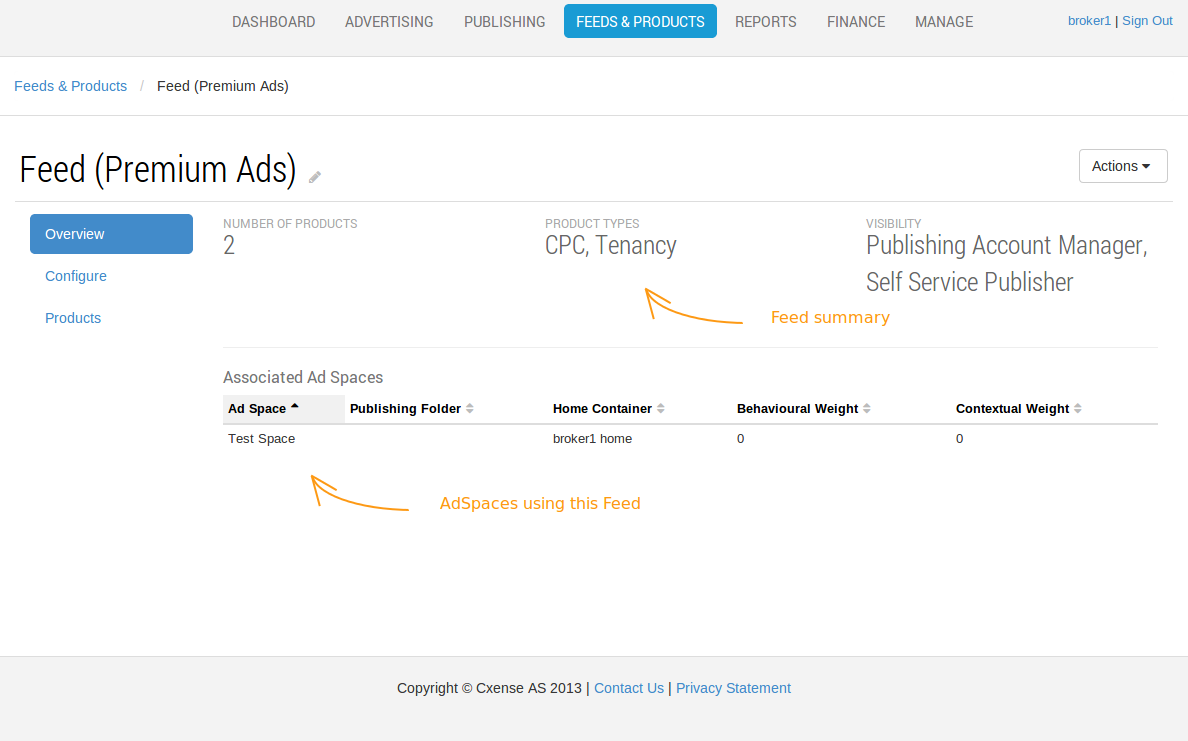
Feed Configuration
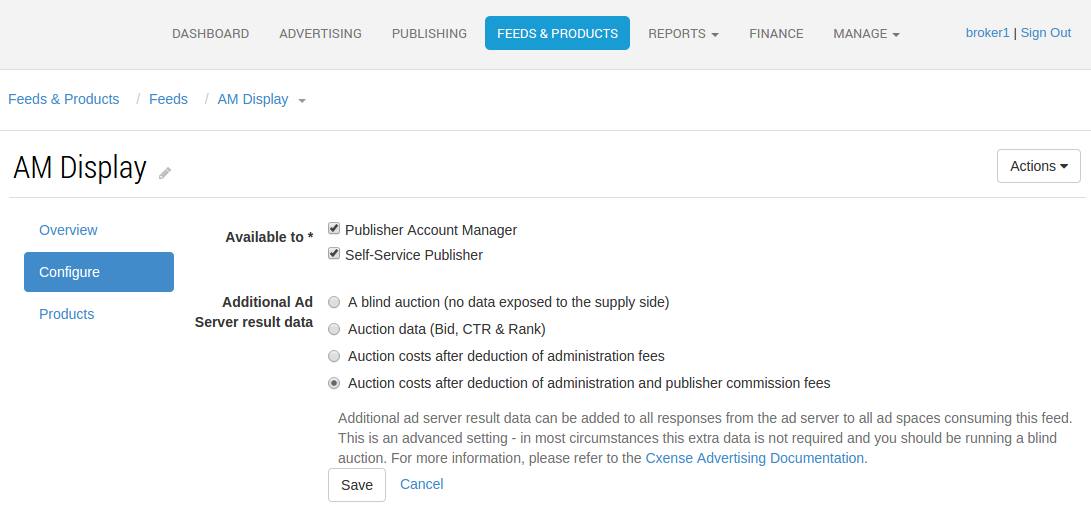
Here's more information about what the feed configuration options mean.
|
Field name |
Description |
|---|---|
|
Available to |
The publisher roles that are able to assign this feed to their ad spaces. |
|
Additional Ad Server result data |
When serving ads from this feed, the ad server will add the selected additional metadata to the ad server response. This is an advanced setting - in most circumstances this data is not required. |
|
Additional Ad Server result data option |
Description |
|---|---|
|
A blind auction |
No extra data is exposed to the supply (advertising) side |
|
Auction Data (Bid, CTR and Rank) |
The Bid, CTR and Rank is added to the auction response. |
|
Auction costs after deduction of administration fees |
The auction data is included with administration fees already having been deducted |
|
Auction costs after deduction of administration and publisher commission fees |
The auction data is included with administration and publisher commission fees already having been deducted |
Product Groups on a Feed
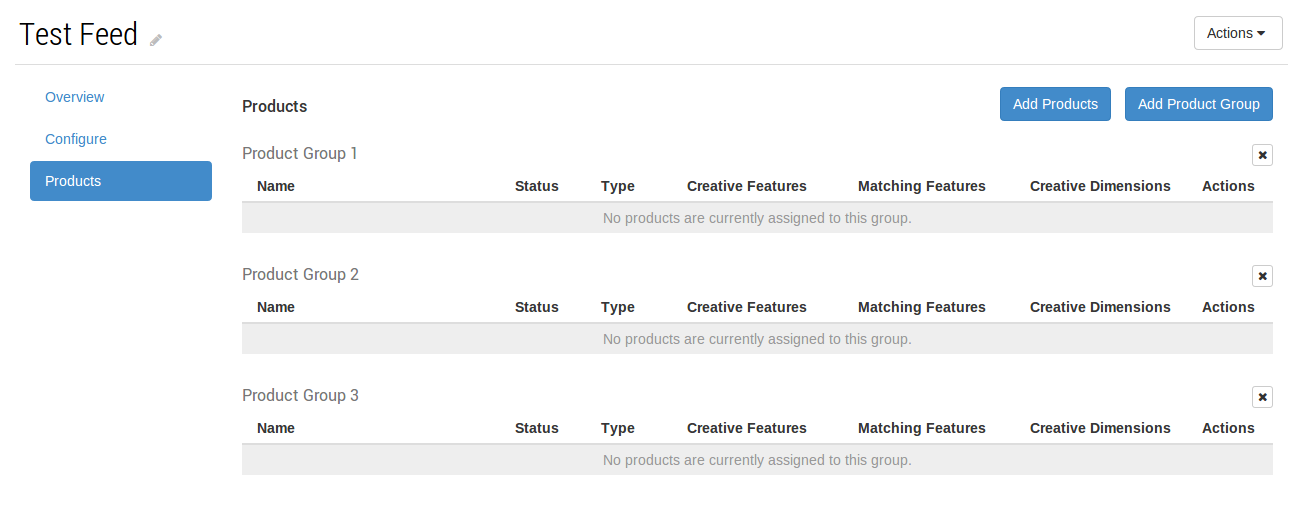
Feeds allow the creation of one or more product groups, to which one or more products may be added.
Once products have been added to a feed, you may group and sort them, using drag and drop, to refine the Product tiering. If you ever need to modify your products, product groups and/or their priority, you simply edit the feed - all adspaces consuming that feed will start using these updates immediately.
Have a new Geo-based Product ready to go?
Just map it into an existing Feed and you have instantly transformed all AdSpaces that consume that Feed.
Need to increase Priority of that exclusive Performance Product?
Drag and drop the Product into a new position or product group and you're done! All AdSpaces for that Feed now adhere to the new priority settings.
Product groups may only contain products which have compatible ranking models, see our Ranking Models page for more information on each type.
|
Product grouping |
Ranking model |
|---|---|
|
No / random ordering |
Natural Random Relevance |
|
Bid ordering |
Auction Bid |
|
CPM ordering |
Simple CPM Weighted CPM |
|
Yield ordering |
Location Boosted Yield Yield |
By default products are grouped by like cost/rank model configuration. In other words those with compatible cost/rank models will be placed into groups together.
Products can be reordered within groups and dragged between groups, of like ranking models, as required.
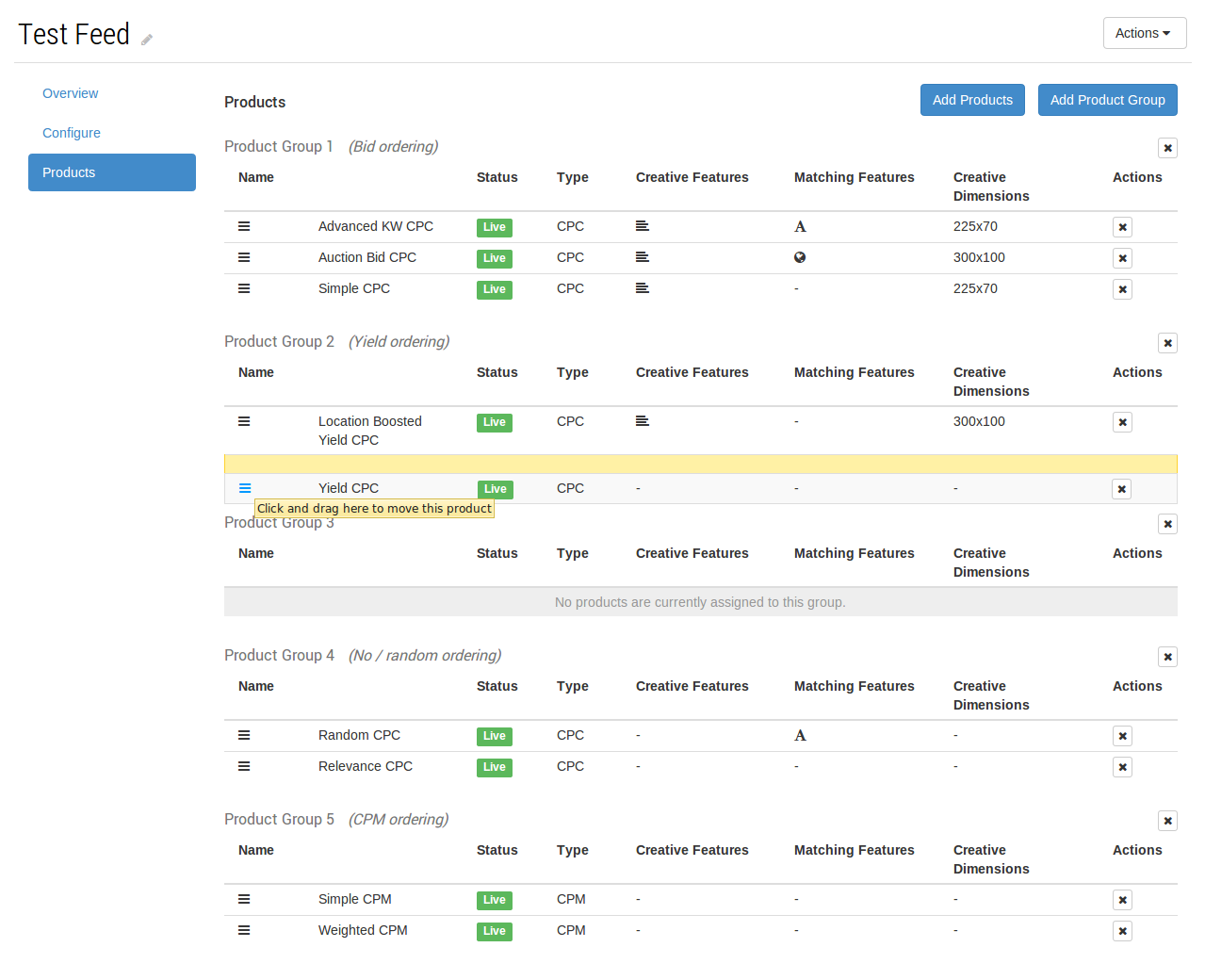
Please note, when adding new products, by default they will be added into the first compatible product group based on their ranking models. They can then be moved to any other group manually once added.
Relevance to ad serving
Product groups are tiered using their group number, so the adspace will request ads from Product Group #1 first, before making additional requests of the next product group tier.