Introduction
The Cxense Advertising user interface is divided into areas to help you navigate and perform various tasks.
You will not always see all of the user interface elements: these are displayed according to the permissions that are associated with your user role. The actions you may perform at various points in the system are determined by the current context.
User preferences
The links in the upper right of the screen can be used to set your details (name, email, password), preferences (currency, locale, timezone, rows per page) and to sign out.
Main Navigation Tabs
The tabs in the upper part of the screen are used to select the major functional areas of the system – advertising and publishing as well as reporting and configuration settings.

Object, Creative and Targeting Tabs
Cxense Advertising uses tabulated views extensively throughout the application providing a consistent interaction across major components within cXad.
All Presentation of Data tables default to Last 7 Days (this equates to the last 6 days plus today). To find out more about statistics shown, refer to the Reports pages.
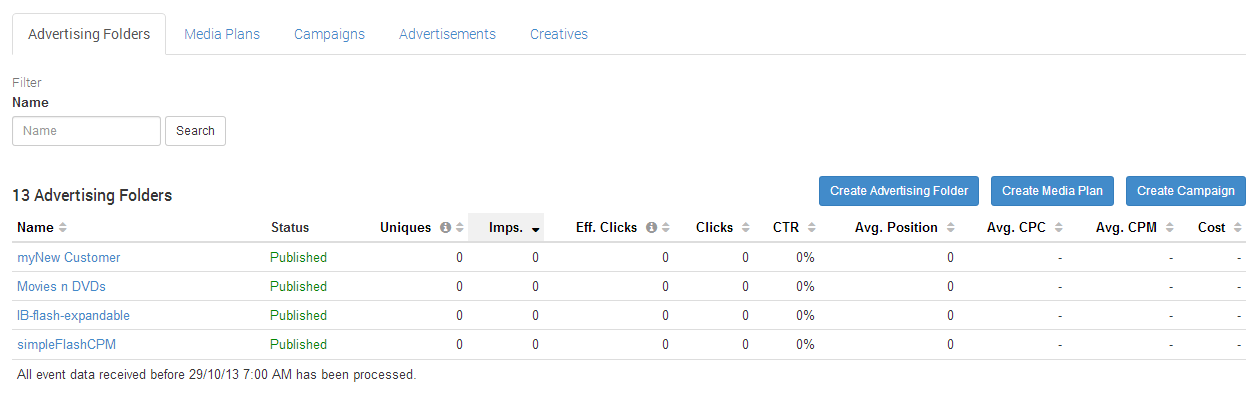
Content Tab example 1: Accounts
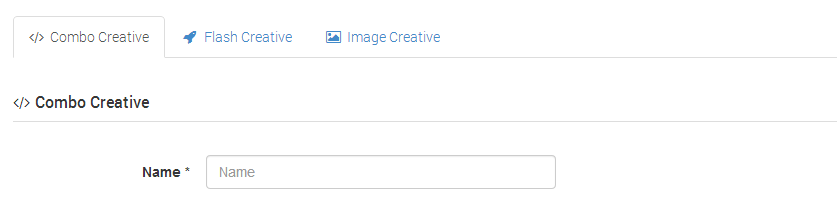
Creative Tabs
Targeting Tabs

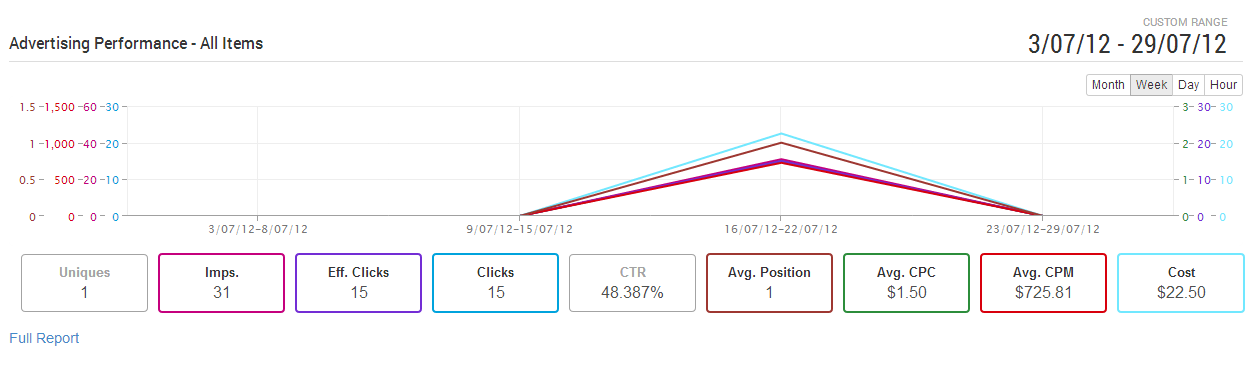
Dashboards
The Dashboard provides quick views of high level information. Dashboard widgets are presented based on the users role, and include statistical summaries and totals.
Detailed reports are located under the Reports tab.
Breadcrumb trail
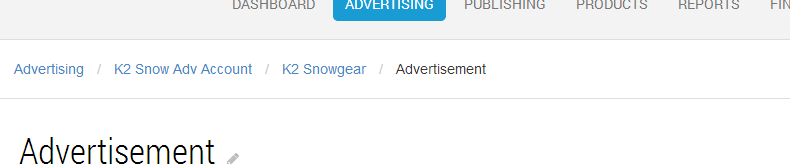
The breadcrumb trail shows you where you are in the system. As you move further down the object hierarchy in the system, the relevant items will be added to the breadcrumb trail. You can use the breadcrumb trail to navigate back up to a previous location.
In this example, the user is viewing the "Fresh Fruit Advertisement" in a campaign named "CPM Campaign". The links in the breadcrumb trail may be used to navigate back to the campaign or advertising account levels.
Date Selector
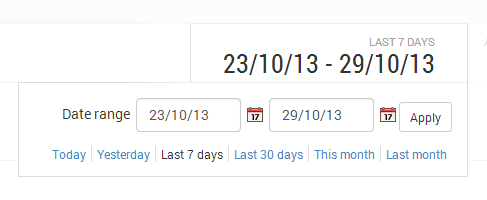
The Date selector component is present on a wide variety of pages, and declares the date/time boundaries of the current view.
Quick select options provide most-used configurations, with the ability to also enter any custom date.
Action lists
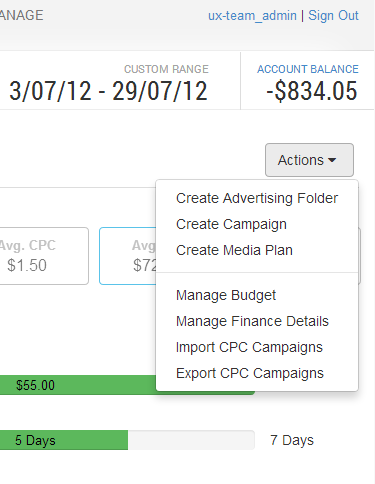
Depending on the activity you are performing, an action list may be displayed on the Top Right Hand side of the screen. The actions in the menu are determined by the operation you are currently performing and your role-permission settings.
This example shows the available actions for the Advertising view as an Advertising Account Manager.