
After you've added your social accounts into the platform, you can begin to add content. One way to get content into your Queue easily is to install an RSS feed, which would then be called a Content Source in SocialFlow.
Why Use RSS
By plugging in your RSS feed(s), your queue will always have your most up-to-date content from your website. You can spend less time looking for content to send out to social networks; just scroll through the queue or search for particular topics to find the content waiting for you.
There are no limits to the number of RSS feeds you can use in SocialFlow. It's helpful to have feeds separated into categories in order to treat and customize the content differently.
How RSS Works
Once your RSS feed is installed into SocialFlow, the system will automatically get new content from your website via this feed. The content goes into your social account's queue on the Publish page in SocialFlow, ready for you to review and publish.
RSS Specifications
SocialFlow supports the RSS 2.0 specification. The following fields are read from your RSS feed:
|
RSS Field |
How SocialFlow Uses It |
|---|---|
|
|
Used as the default message text in your queue |
|
|
The URL of the article, included in the social post |
|
|
Full article content; used by the Content template. Falls back to |
|
|
Article summary; used by the Summary template. Also used as fallback for |
|
|
Author name; available as a template field |
|
|
Used for applying labels to content in SocialFlow |
|
|
Unique identifier; ensures the same article is not imported twice |
|
|
Publication date of the article (used for chronological ordering) |
For the full RSS 2.0 specification, see rssboard.org/rss-profile.
MRSS (Media RSS) Feeds
MRSS feeds work just like RSS feeds but are specific to video content. MRSS feeds can populate queues with videos that are then published to Facebook or X (formerly Twitter) according to your feed rules. This is a great way to automate and scale delivery of video from your CMS to social channels without downloading and re-uploading videos one by one.
SocialFlow supports the Media-RSS specification and relies primarily on the following fields:
-
Media:content — the video file URL
-
Media:thumbnail — the thumbnail image for the video
To add an MRSS feed, follow the same steps as adding a standard RSS feed, simply provide the MRSS feed URL instead.
Adding a Content Source
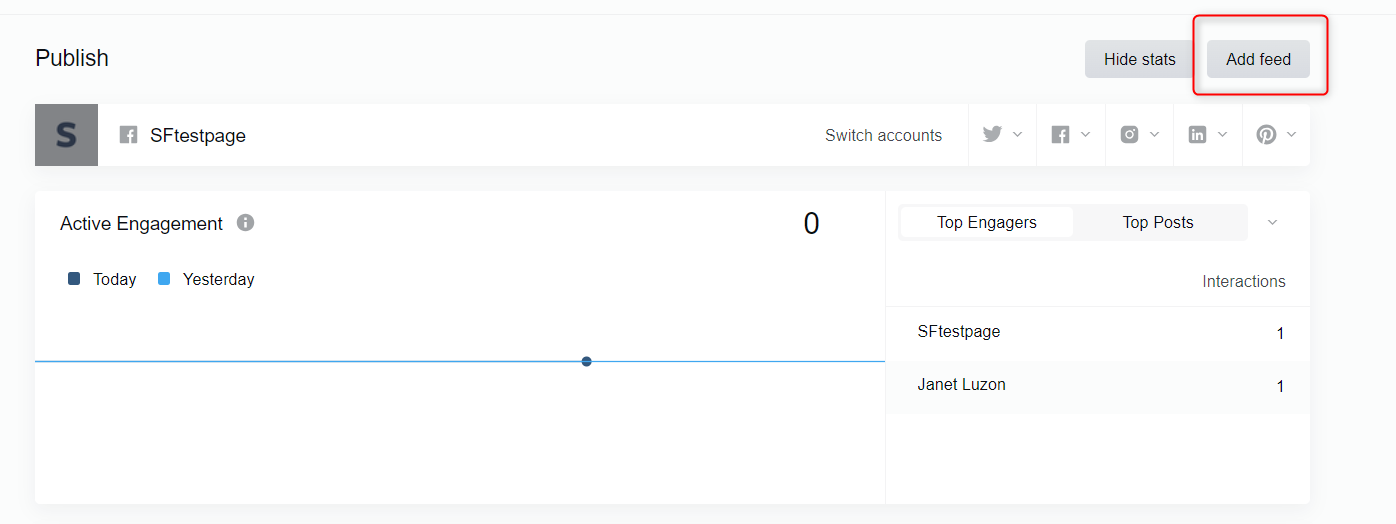
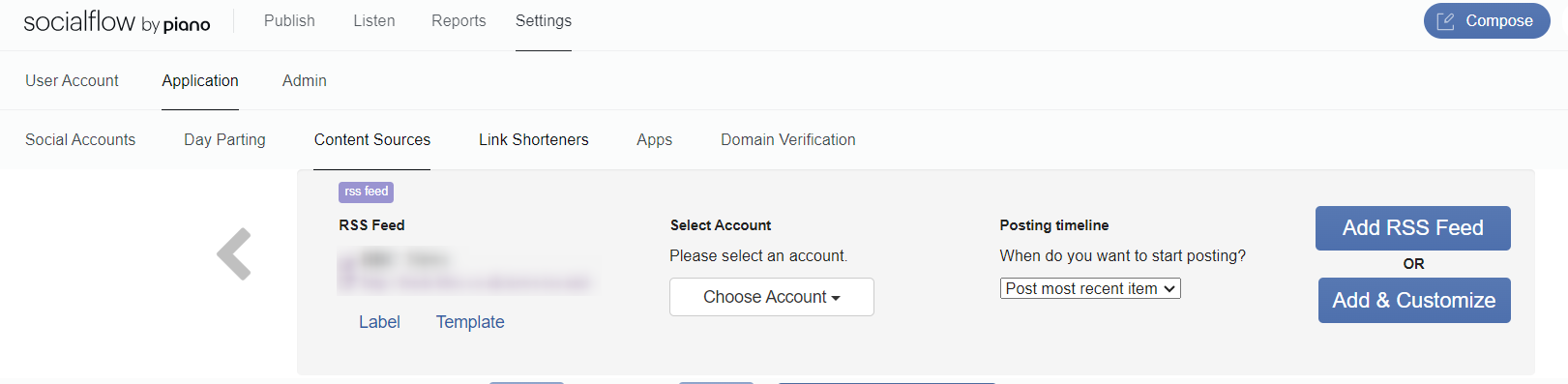
You can either navigate to Settings / Application / Content Sources or use the quick shortcut from the Publish Page.
To add a new content source:
-
Click the Add Feed button.
-
Choose where the content is coming from:
-
Feed — Choose Feed to enter a URL for an RSS Feed.
-
File — In addition to RSS feeds, you also have the option to upload content using an Excel spreadsheet file. Just download our Message Template and enter content into the spreadsheet following the header guidelines. Then choose the File option to upload it for a specific social account.
-
Copy an Existing Feed — Choose this to copy from a previously added feed.
-
-
Select Account — Using this drop-down list you can select which social account the feed will be added to.
-
Posting Timeline — Using the drop-down list you can select which feed entries are imported when the feed is added:
-
Post Most Recent Item: adds your most recently posted article into the Queue and everything after.
-
Post Next New Item: waits until the next article is published, adds that entry to your Queue and everything after.
-
Add All Existing Items: adds the last 10-20 articles available on the first page of your feed.
-
-
Add RSS Feed — will add the RSS feed applying all the default settings.
-
Add & Customize — will allow you to fine-tune the feed settings before it is made Active (recommended!).