
Introduction
The Link in Bio feature pairs your Instagram posts with a dedicated, Socialflow-hosted webpage that collects clickable links in one place. When a follower visits your Link in Bio page, they see a visual grid of your recent posts, each linked to the destination URL you specified at publish time.
When first created, the Link in Bio page starts completely blank. Before promoting or publishing to it publicly, you will likely want to customize the page with a bio, CTA buttons, social icons, and other branding elements. You can also review and add already live Instagram posts to the page before creating new Link in Bio content.
What Is Link in Bio?
Link in Bio is a third-party webpage powered by Socialflow that mirrors your Instagram posts and hosts the corresponding links. Once enabled, a page is automatically created at the following URL format:
piano.trib.al/[your-instagram-handle]
You place this URL in your Instagram profile's "website" field so followers can tap through to find all your linked content.
Key Benefits
-
Drive website traffic: Direct your Instagram audience to specific pages on your website.
-
Centralized link page: All published Link in Bio posts are collected on a single, branded page your followers can browse.
-
Customization: Edit the page profile, add social and CTA buttons, and pin or highlight posts.
-
Integrated workflow: Add a link directly within the standard Instagram compose flow; no separate tool required.
Prerequisites
Create a Link in Bio Post
Follow the steps below to compose an Instagram post with an attached Link in Bio link.
Compose Your Post
-
Click Compose and make sure your Instagram account is selected.
-
Add your image, video, or carousel and caption text as you would for any standard Instagram post.
Add Your Link
-
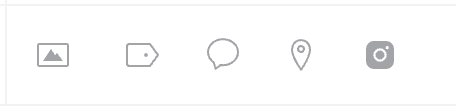
In the compose toolbar, click the Instagram logo icon (the last icon on the right) to open the Link in Bio options.
-
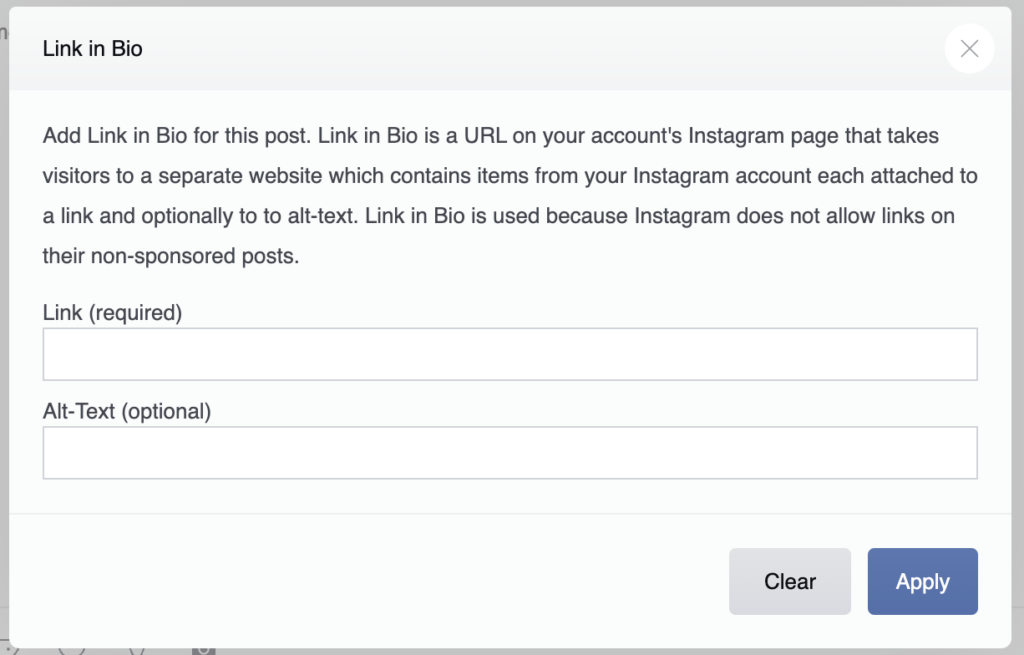
Enter the destination URL you want followers to visit.
-
(Optional) Add alt text for accessibility.
-
Publish your post.
Tracking tags configured in your account settings are automatically appended to the link, no manual tagging is required.
Example: You compose a post promoting a new article. After adding the image and caption, you click the Instagram icon, paste the article URL, and publish. The post appears on Instagram and on your Link in Bio page, giving followers a clickable path to the full article.
Account Enablement
-
Contact your Client Success Manager or success@piano.io to request that Link in Bio be activated for your overall account.
-
Once activated, navigate to your Instagram account's Settings page in Socialflow to enable the feature for the individual handle (repeat this step if you have multiple IG handles).
-
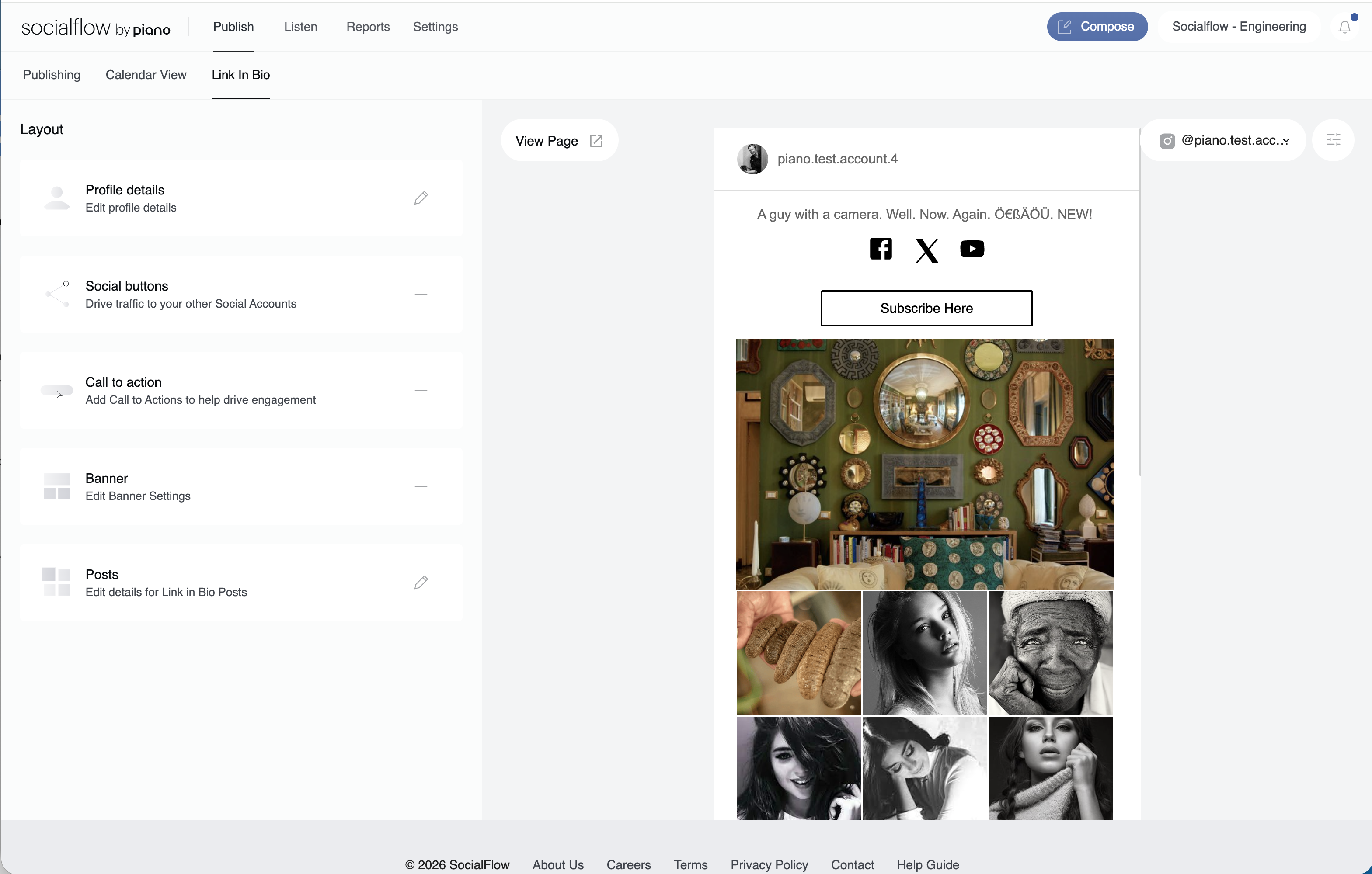
Navigate to the Publish page and select the IG handle to verify the Link in Bio tab now appears next to the Calendar View.
Now you’re ready to customize the Link in Bio page.
Testing Recommendations
-
Start small: Test with a smaller Instagram handle first to catch any issues before rolling out to a larger audience.
-
Preview before going live: Run your Link in Bio content without adding the page URL to your Instagram profile. This allows you to access and review the page privately, ensuring all content is properly aligned before making it public.
Manage Your Link in Bio Page
After publishing, you can customize and manage your Link in Bio page from the Link in Bio tab on the Publish page in Socialflow.
Page Customization
-
Edit page profile: Update the page's display name, avatar, and description.
-
Add social buttons: Include links to your other social media profiles.
-
Add CTA buttons: Add call-to-action buttons (e.g., "Shop Now," "Subscribe") to prompt specific user actions.
-
Preview the page: View how the Link in Bio page appears to visitors before making changes public.
Post Management
-
Set active/inactive: Toggle individual post items on or off without deleting them.
-
Edit details: Update the link, text, or other metadata for any published item.
-
Pin and highlight: Give priority placement or visual emphasis to specific posts.
-
Filter by active: Quickly view only the items currently visible on your Link in Bio page.
For questions, feedback, or issues related to Link in Bio, reach out to your Socialflow account manager or Piano Support at support@piano.io.