
The Manage Tab provides groups of management links, which are presented based on the roles the User has.
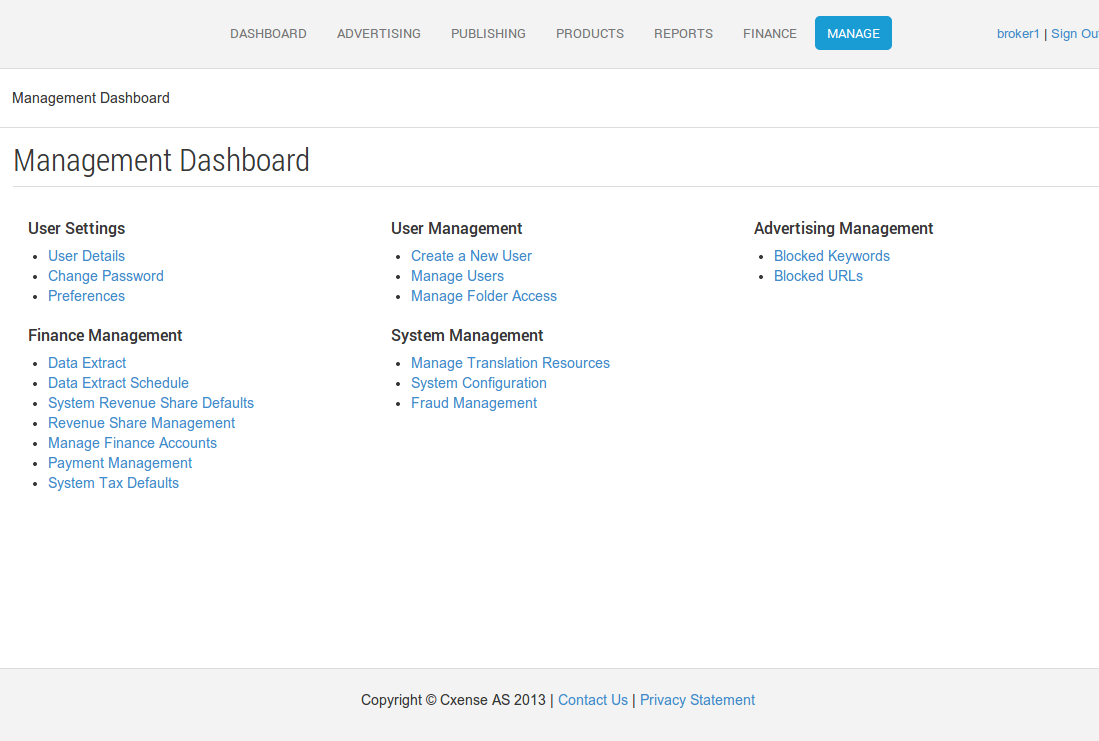
Advertising Management
-
Blocked Keywords — Blocked Keywords are Keywords that cannot be purchased. They are blocked from incorporation into a keyword targeting feature, and as such cannot be bid on.
-
Blocked URLs — Blocked URLs refer to the Destination URLs used by Advertisers. If an Ad uses a Destination URL that has been blocked in the system, that ad will not be shown, and will simply be exempted from further presentation until the destination URL is updated to be a valid, unblocked URL.
Finance Management
-
Data Extracts — The cX::ad Data Extract feature allows data to be exported from the system to be used for analytical reporting or importing into external system for use in reporting, analysis or invoicing. There are currently a number of extracts that can be run on demand, and one that is automatically generated each night. Each extract returns a specific view of the system data.
-
Data Extract Schedules — The Data Extract Schedule feature allows Data Extracts to be automatically generated on a recurring schedule. The created extract reflects the properties of the schedule such as currency, locale and time zone and the start and end dates reflect the period of the schedule.
-
Manage Finance Accounts — Manage All Finance Accounts within your system, such as minimum balance, Credits / Debits, Prepay/ Postpay, disabling etc.
-
Payment Management — This Page provides the System manager the ability to view all payment requests in the system.
-
Revenue Share — This Page provides the System manager the ability to configure the Revenue Share on all current AdSpaces.
-
System Revenue Share Defaults — This Page provides the System manager the ability to configure the System Admin Fee, and set the Default Revenue Share for new AdSpaces
-
System Tax Default — This Page provides the System manager the ability to configure the System defaults for VAT and sales tax applied to transactions on Billing Finance Accounts.
System Management
-
Currencies — The currencies management page allows the broker the ability to control what currencies are available for use within their network.
-
Cxense Insight Integration — This functionality allows connections from Cxense Advertising to Cxense Insight. By entering a username/api key we create a connection point between these two systems to more easily allow you to manage centralised functionality. As more connection points are made available this will become a point at which you control the configuration for how much and what style of information is available in Cxense Advertising.
-
Fraud Management — The fraud management page allows the broker the ability to alter various settings to control whether or not a events are deemed to be fraudulent. There are a distinct set of filters available for toggling on and off depending on the desired system setup. Please refer to in-page documentation for explanations of what each filter will do.
-
Manage System Configuration — The System Configuration functionality exposes the ability for particular roles to modify system settings. Over time this administrative area will become more feature rich. It means that more control is placed in the hands of the Broker to be able to set-up and configure their deployment effectively.
-
Manage Translation Resources — Allows brokers to customise the text of the Cxense Advertising application. These customisations typically fall within two scenarios:
User Management
-
Creating a New User — Each time you create a new user, you must specify how the new user will work with their inventory.
-
Manage Folder Access — Managing folder access allows users to share inventory, and enable or disable the visibility of folders to specific users. This provides the ability to invite multiple users, and simplify their view by only exposing specific folders to each individual.
-
Manage Users — The User Management functionality exposes functionality to search for users of the system as well as edit particular user details if required.
User Settings
-
Change Password — All Users can change their password at any time by navigating to this Manage > User Settings : Change Password. They must also provide their current password as a security measure.
-
Preferences — The following options are configurable for each User in the system;
-
User Details — User details page enables management of the following User's details at any time:
Users roles and Security
-
User Roles — There are several default User Roles in cX::ad. Here is a brief summary of their intended scope.