
Table of Contents
What is ITP (Intelligence Tracking Prevention)?
Intelligent Tracking Prevention, commonly referred to as ITP, is a feature in Safari that restricts the use of cookies to track users around the web.
ITP improves the privacy for Safari users by blocking third-party and even first party cookies it deems to have "cross-site tracking abilities". It restricts the lifespan of any web browser storage that can be used to identify users.
This affects the Identity Management functionality of keeping users logged in for longer periods of time and users need to sign in more frequently. Even though Identity Management cookies are first-party and not engaged in cross-site tracking, they are blocked in Safari by ITP because they are set using JavaScript. All cookies set using JavaScript are limited by ITP to seven days. (To read about this on Apple's WebKit site, visit this page and see the heading 7-Day Cap on All Script-Writeable Storage.)
Avoiding ITP restrictions in Identity Management
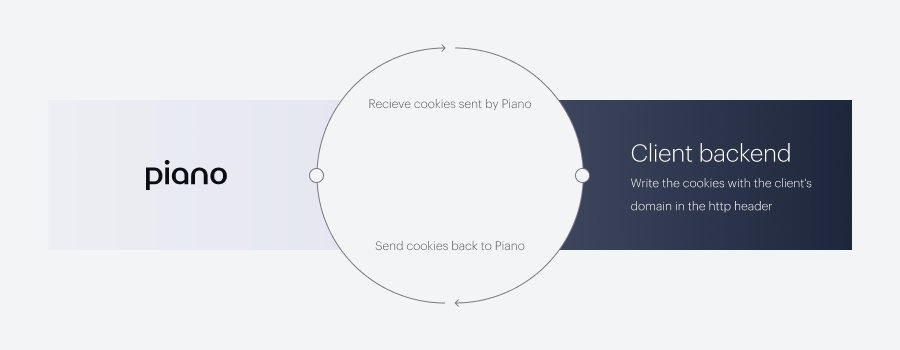
Clients using Identity Management can create their own endpoint to set Piano cookies for end users. Piano will send you a request with HTTP headers containing cookies, which can be intercepted and handled by your endpoint. Your endpoint will then issue a response with headers containing the cookies that have now been set on your domain.
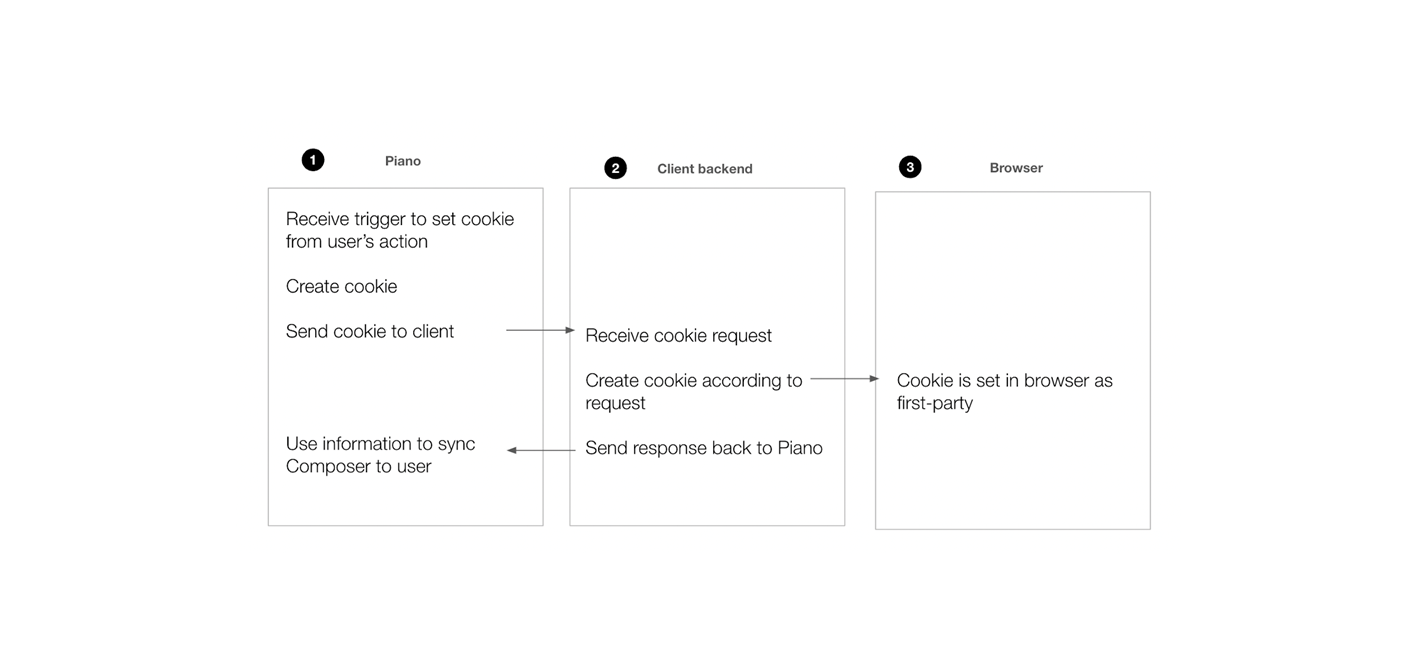
With the current tendency to restrict the use of cookies in browsers, it's possible that this approach will become obsolete in the future and will be replaced with another solution. Our current focus in this area is on how we can enable clients to set future-proof cookies themselves.
Product Licenses
A license for Identity Management is required in order to implement the solution described below.
Development prerequisites
-
Ability to update your website's code with custom scripts.
-
Setting up a custom endpoint that is not cached and should be protected (e.g. your CDN should be configured and protected against a DDoS attack).
-
This URL should not be set up on the server directly, but on the CDN's worker.
-
Receiving and setting the cookie values on your own domain.
-
Submitting the cookie header response back to Piano.
-
Enough bandwidth to handle these requests—the expectation is that for each website visitor, there will be at least one such request on their initial visit, including anonymous and authenticated users.
-
Backend developer for implementation (as the solution requires resources to build and maintain).
Implementing the ITP Solution
In order to set up this solution, you would need to create an endpoint on your website that will be able to receive and read the cookie headers sent by Piano. On this URL, you would then also need to write the new cookie values and send them back to Piano.
Important: Throughout this guide, we use https://www.example.com/piano-itp as a placeholder for your ITP endpoint URL and .example.com as a placeholder for your cookie domain. Replace these with your own values. The domain used in your endpoint URL, the setCloudflareWorkerUrl call, the setCookieDomain call, and the cookie domain in your server-side code must all match. Mismatched domain values are a common source of implementation errors.
Required cookies
Below is a definite list of cookies that need to be set on your server:
-
__utp
-
__idr
-
__pid
-
xbc
-
__tbc
-
_pcid
-
_pprv
The xbc and __tbc are set for anonymous users. The _pcid contains browserId, which is actively used in analytics and end-users' session management. The _pprv contains information about the user's consents. It will help to remember the user's choice. Then, once a user logs in, the remaining cookies are set as well: __utp, __idr, __pid.
Your endpoint must handle all cookies it receives dynamically, not just a fixed list. The pre-login cookies (xbc, __tbc, _pcid, _pprv) are set during the initial page load, while the post-login cookies (__utp, __idr, __pid) are set after the user logs in via a separate ITP sync request. If your endpoint only handles a static allow-list of pre-login cookies, the post-login cookies will be silently dropped and users will not remain logged in.
Please note that by default, these cookies are set on your top-level domain. In case you would like them to be set on a subdomain, you must also configure setCookieDomain to match (see Implementing the ITP Solution below). Please reach out to Piano Support for further assistance if needed.
Here is an example of how to set all received cookies with an expiration of 1 year:
foreach( $set_cookies as $key => $val ):
		// PER PIANO: Respond with the cookies in the Set-Cookie header, which should make the browser
		// (being Safari the most restrictive, but this would work for other browsers as well) to
		// set the cookies as 1st party, which should prevent them from being deleted after 7 days.
		setrawcookie(
			$key, // cookie name
			$val, // cookie value
			time() + 60 * 60 * 24 * 356, // cookie expiration of 1 year
			'/', // cookie path
			'.example.com', // cookie domain — replace with your own domain
			( isset( $_SERVER['HTTPS'] ) && 'on' === $_SERVER['HTTPS'] ? true : false ) // secure
		);
	endforeach;
You are able to control the expiration time of these cookies and define it as needed.
Note, that this solution works only in Safari or UiWebView if there are any cookies to send.
Sample code
Below you can find some PHP ( WordPress CMS) code example of the full ITP solution.
<?php
/**
*
* Return cookies sent from Piano back to Piano so that the cookies can be set as first party
*
*/
public function return_piano_cookies() {
// Cookie domain — replace with your own domain
$cookie_domain = '.example.com';
// Set headers to NOT cache the response
header("Cache-Control: no-cache, must-revalidate"); // HTTP 1.1
header("Pragma: no-cache"); // HTTP 1.0
header("Expires: Sat, 26 Jul 1997 05:00:00 GMT"); // Expiration date in the past
// Cookies we need to return to Piano
// See https://docs.piano.io/track/piano-cookie-descriptions/ for more information
$cookies_to_return = array(
'__tbc', // browser cookie
'xbc', // experience cookie
'__utp', // user token cookie
'__idr', // ID redirect cookie
'__pid', // Piano ID cookie
'_pcid', // browserId
'_pprv' // consents
);
// Array for final cookies to be set
$set_cookies = array();
// Read the cookies received as headers
$header_cookies = explode('; ', getallheaders()['Cookie']);
// Return all necessary cookies to Piano
foreach( $header_cookies as $cookie ):
list( $key, $val ) = explode( '=', $cookie, 2 );
if( in_array( $key, $cookies_to_return, true ) ):
// Build array here to avoid duplicates
$set_cookies[$key] = $val;
endif;
endforeach;
// Return all necessary cookies to Piano
foreach( $set_cookies as $key => $val ):
// PER PIANO: Respond with the cookies in the Set-Cookie header, which should make the browser
// (being Safari the most restrictive, but this would work for other browsers as well) to
// set the cookies as 1st party, which should prevent them from being deleted after 7 days.
setrawcookie(
$key, // cookie name
$val, // cookie value
array(
'expires' => time() + 60 * 60 * 24 * 356, // 1 year
'path' => '/',
'domain' => $cookie_domain,
'secure' => true,
'httponly' => false, // Piano tag.js needs JS access to these cookies
'samesite' => 'Lax',
)
);
endforeach;
// Default response message
wp_send_json_success(null, 200);
return;
}
?>
Once your endpoint is configured to read, write and respond with the new cookie values, as a next step of implementing the ITP solution, you would need to use this method:
tp.push(['setCloudflareWorkerUrl','https://www.example.com/piano-itp'])
Where https://www.example.com/piano-itp would need to be replaced with the endpoint you've configured — a URL hosted on your domain that is able to read the list of cookies (see section Required cookies) received as headers and then respond with those cookies in the Set-Cookie header, which should make the browser (being Safari the most restrictive, but this would work for other browsers as well) to set the Identity Management third-party cookies as first party cookies, which should prevent them from being deleted after 7 days.
The setCloudflareWorkerUrl needs to load before you initialize any Composer Experience.
If you are setting cookies on a subdomain (or any domain other than the default top-level domain), you must also call setCookieDomain with the same domain value. This ensures the Piano SDK and your endpoint are aligned:
tp.push(['setCookieDomain', '.example.com'])
For example:
tp = window.tp || [];
tp.push(['setCloudflareWorkerUrl','https://www.example.com/piano-itp']);
tp.push(['setCookieDomain', '.example.com']); // must match the domain used by your endpoint
tp.push(["init", function () {
        tp.experience.init();
    }])
Debugging common errors
How can I check if my endpoint's URL is being passed correctly?
On your website with the domain on which you've configured your endpoint, open the Developer tools in Safari and enter the following function in the Console:
tp.cloudflareWorkerUrl
The response should contain the URL of your endpoint.
If no URL is returned, you would need to check if you're passing the URL in Piano's or your custom loadscript via the code snippet below.
tp.push(['setCloudflareWorkerUrl','https://www.example.com/piano-itp']);
How can I check if the cookies are being set properly with my website's domain?
In the Developer tools in Safari, you should be able to view the cookies being set on your website under the tab Storage in the Web Inspector (right-click Inspect Element or navigate to the Develop > Open Web Inspector in the browser heading).
Important is to, at this point, refresh the page to update the information about the cookies that have been set. You are now able to search for any of the cookies set by your endpoint (xbc, __tbc, _pcid, _pprv, __utp, __idr, and __pid).
You should now be able to see that the domain of these cookies has changed from tinypass.com (or .tinypass.com) to your own domain (respectively .subdomain). Also, the expiration date of these cookies should no longer be restricted to one week from now, but should be set based on the interval that you've defined in your code (for example, one year from now).
Users remain logged in on Chrome/Firefox but not on Safari — what should I check?
Open Safari DevTools and navigate to the Network tab. Log in on your site and look for the POST request to your ITP endpoint (e.g. /piano-itp?maxAge=2628000) that fires shortly after page load. Verify the following:
-
The POST request is present. If it is absent,
setCloudflareWorkerUrlmay not be set beforetp.push(["init", ...])in your integration code. -
The response includes
Set-Cookieheaders for all relevant cookies — including__utp,__idr, and__pidafter login. If only pre-login cookies (xbc,__tbc) are returned, your endpoint may be filtering out post-login cookies. -
The cookie domain in the
Set-Cookieheaders matches the domain set viasetCookieDomain. A mismatch between these values will cause cookies to be rejected by the browser.
How can I test the solution?
As mentioned above, you can check if the cookies are properly set on your domain in the browser for any anonymous user, but what other scenarios should you review?
We recommend testing if the cookies are still being properly set after the user:
-
Changes their password (i.e., performs a password reset)
-
Changes their email address (via My Account)
-
Logs out
-
Logs in
What else can be done in Piano to extend user sessions?
With Identity Management, you can set the lifetime of the session cookie, which will determine the length of time before the user's session expires and they are logged out. This session length is applied to cookies unless it is impacted by ITP restrictions. The session can be extended using Piano's access extension or token rotation.