
This section describes the filters you can apply to widget data. Filter restrictions apply across the Piano Insight UI.
The three main filters, Sites, Segments, and Period, appear below the navigation bar. Other filters are in the Manage Filters pane; click the "Manage Filters" label on the left to open it.

Sites and Site Groups
Depending on the setup, you can access one or several site groups. Use the site filter to select a specific site by clicking its name or select the entire site group by clicking the all sites line next to the group name.
Segments
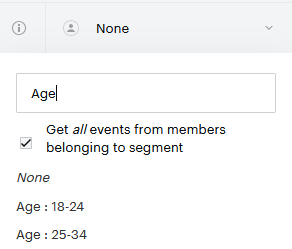
The Segments filter's options are the segments you have access to - similarly to the Site filter, you can select one of the segments, or go back to all events by selecting the None option. By default, no audience filters are applied to the data used in the widgets.
In addition to filtering the traffic by audience segments, you can use the checkbox "Get all events from members belonging to segment" located just under the search string in the Segments filter menu. This checkbox switches on and off the "explode users" option in the traffic filtering - in a few words,
-
if the option is off (the box unchecked), the data query will only pull the events that match the filters from the segment definition
-
if the option is on (the box checked; default), this allows the traffic query to match all events from users matching the segment definition
Imagine the segment definition is for 1 day. Imagine that the Insight UI is set to 30 days.
-
OFF: events matching the filters from the segment may include many users that matched further back than the 1 day of the segment
-
ON: events matching the filter are only from the UU matching the 1-day segment. Events will be from 30 days.
If the segment definition's time period is very short, the OFF condition will display more UUs than the ON condition if the GUI is set to a longer time period than the segment definition.
For more details on the "explode users" concept, see the page Segment matching demystified.
Period
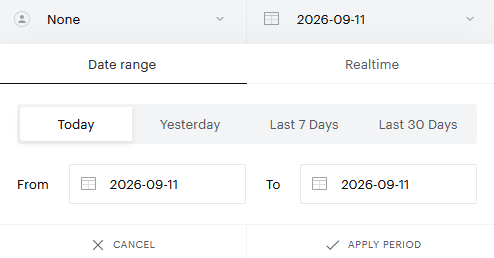
The Period filter helps you set the date and time range for the traffic visualized in the widgets. You can either set a fixed date range or choose one of the realtime options to see the data for the last few hours or minutes.
Date Range part of the filter offers a few pre-set ranges and a calendar to select a custom range. Please note that, unless you have the long-term storage (LTS) enabled, the data is stored for the last 31 days only.
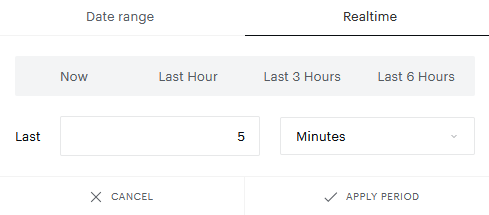
With the Realtime option, you can set the widgets to the live view mode - again, with one of the pre-set time ranges or a custom selector. The "Now" option defaults to the "Last 5 minutes" setup. In the realtime mode, the widgets are updated every 10 seconds.
Filters Pane
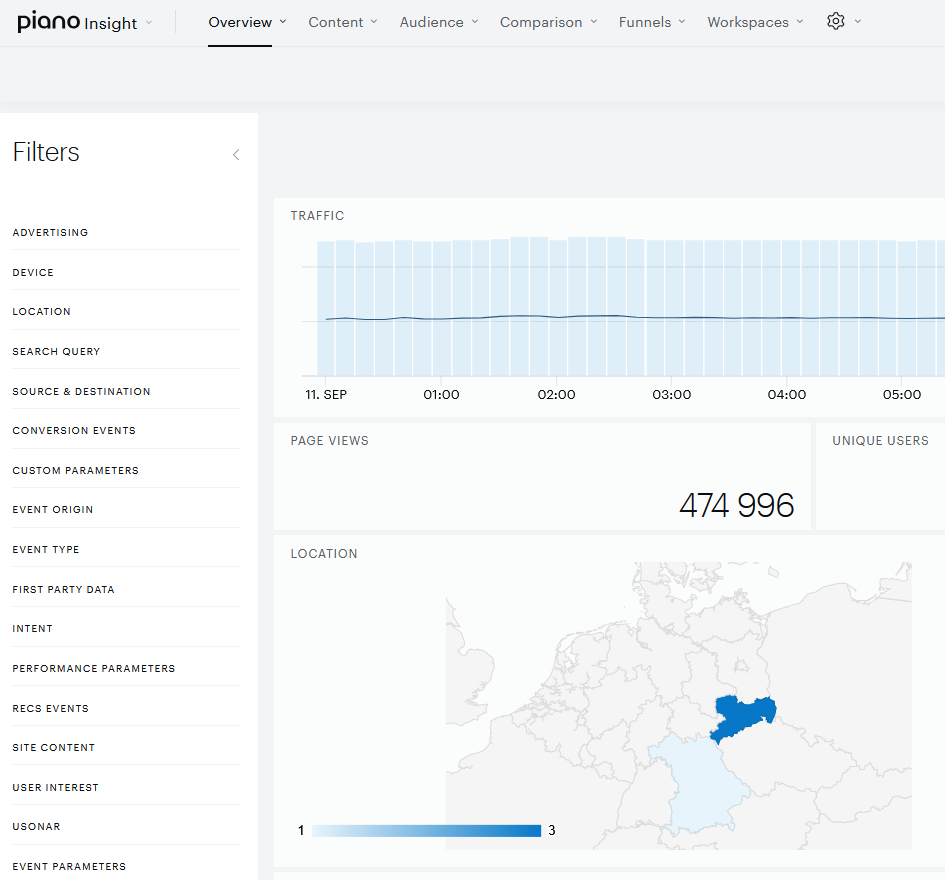
Clicking the "Manage filters" label on the left side of the window opens the Filters pane - a side panel with the list of dimensions. Each dimension is expandable and contains several sub-categories, which, in turn, contain the lists of corresponding options.
Next to each option, you can see the estimated percentage of traffic. Click on the checkbox next to the option's name to apply the filter:
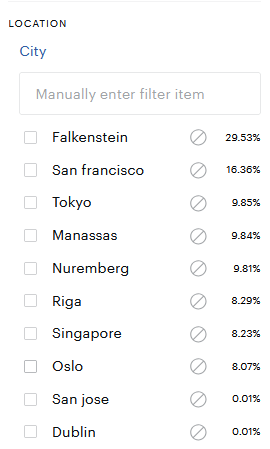
You may apply any possible combination of filters; please note that too narrow criteria may result in seeing no data in the widgets.
In any filter in the Filter Pane, you can exclude traffic by clicking the Ø symbol to the right of the element name; the corresponding traffic will be excluded from the widgets.

When any filter is applied, you will see the button "Clear N active filter(s)" above the options list; each filter can also be cleared separately with the button next to the dimension name.
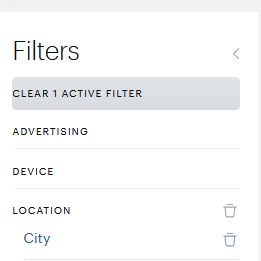
If you collapse the filter pane, the "Manage Filters" label changes to "N Active Filter" with a blue background to remind you that some filters are active.