Users with the administrative right (called "customer admin" hereinafter) are able to manage app user accounts in your organization. Customer admin can see the list of app users, add new app users, edit an app user's permissions, and disable app users.
Since the "customer admin" is a powerful privilege, we take precautious steps to grant it to users: If you or someone in your organization would like to have the privilege, please either contact your Piano account manager, or have the person who manages the contract with Piano send us an approval email to support@piano.io with a signature stating the username to be the customer admin. Thereafter the customer admin user will be able to assign other users "customer admin".
IE11 (Internet Explorer 11) is not supported. Please use other browsers for this application.
Accessing the user management UI
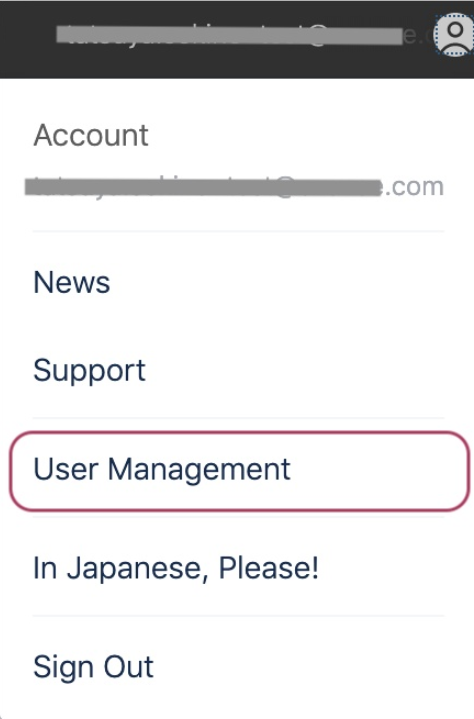
Customer admin will have the User Management link under the account menu dropdown in the top right corner:
List of app users
Upon logon to the UI, you will see the list of users who have access to your organization's data. To filter the list by username start typing one in the text field. You can also filter users by status, role, feature, and site group - just click an item from the pulldown menus. By default, the list is sorted by username, but you can sort it by other columns if you click a column name:
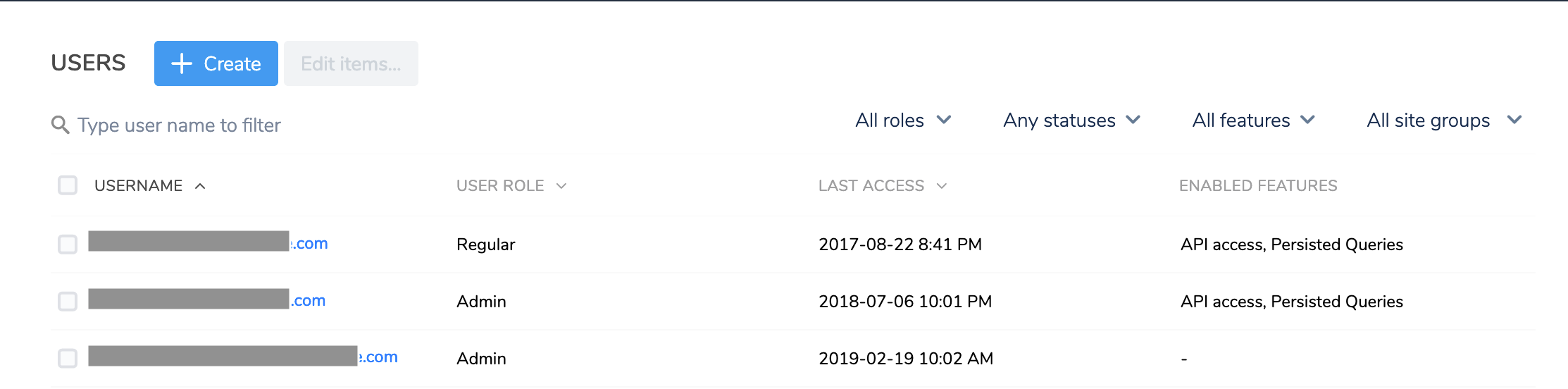
Filtering by a site group will show the list of users who have access to the site group.
App user details
By clicking on a username on the list, you can see and edit the details of a user:
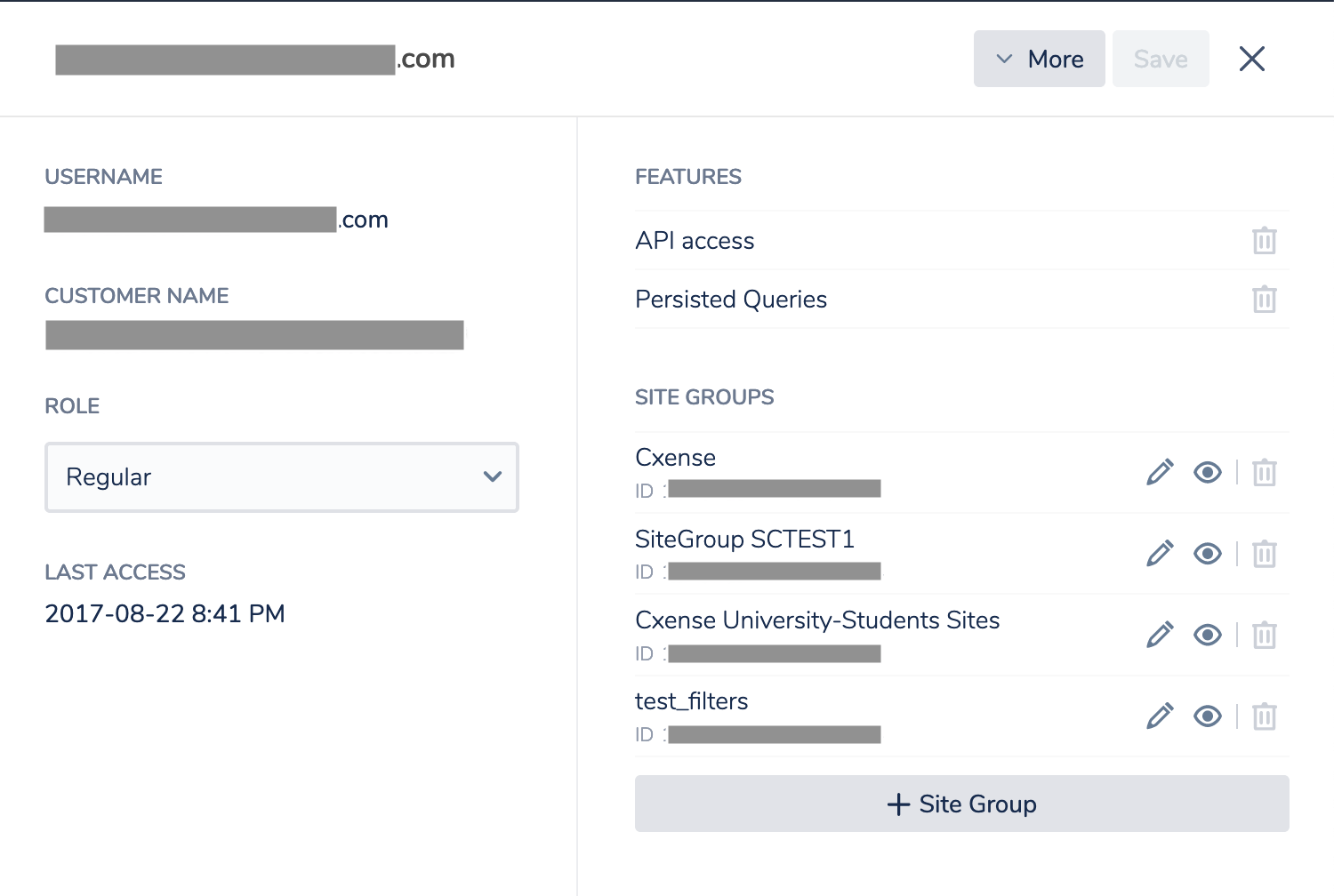
On this pop-up, you can change user role, add or remove features and update site group access. Click Save in the upper right corner to confirm your changes.
Roles and features
|
Role |
Description |
|---|---|
|
Admin |
Customer admin; Admin has access to the user management UI. |
|
Regular |
Regular Piano Insight app users. |
|
Feature |
Description |
|
API access |
The user has access to their API key. An API key allows the user to execute API queries directly. |
|
Persisted Queries |
The user has the right to create persisted queries. A user with this feature enabled most likely owns some persisted queries which might be critical to your services. So if you need to disable a user with this feature enabled, check with Piano Support to see if the user actually owns some persisted queries. |
-
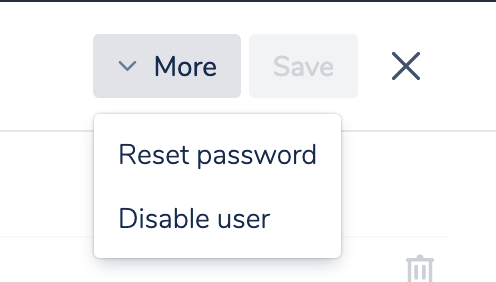
Reset password: An email with a password reset link will be sent to the user.
-
Disable user: The user will be disabled (the user will lose access to the system); Disabled users are greyed out on the list.
Creating a new app user
Clicking on the + Create button will open the New user pop-up. Enter the user's email address, select role, add features if applicable and select the site groups you want the user to have access to:
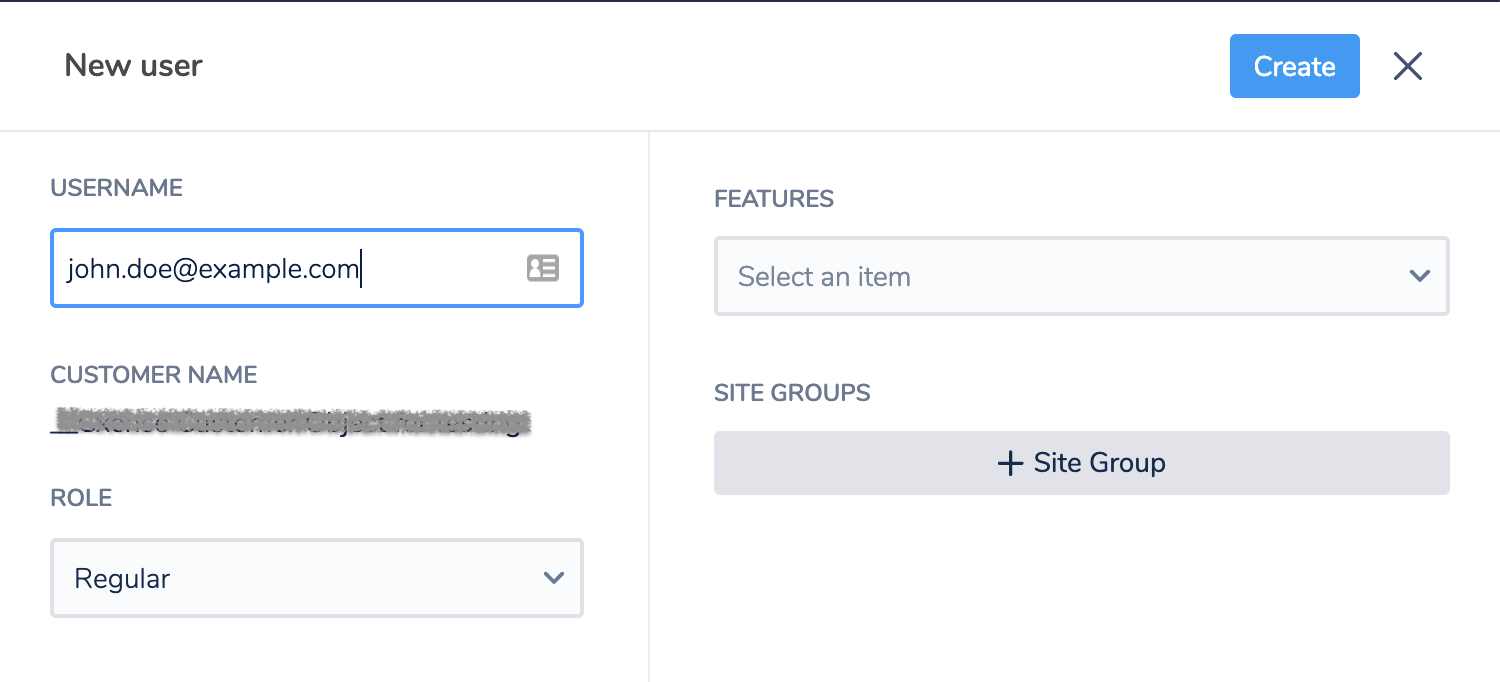
When selecting a site group, you can type a full or partial site group name, or site group ID to quickly pick the one you are looking for.
Click Create to confirm. Upon creation, the user will receive an email with a link where the initial password can be set to enable login.
Action menus
The dropdown menu next to the username on the user list allows you to perform actions affecting the user:
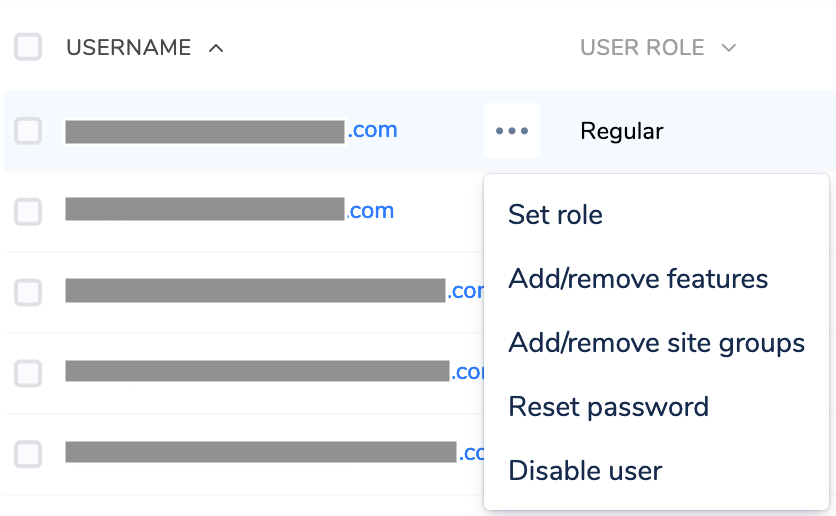
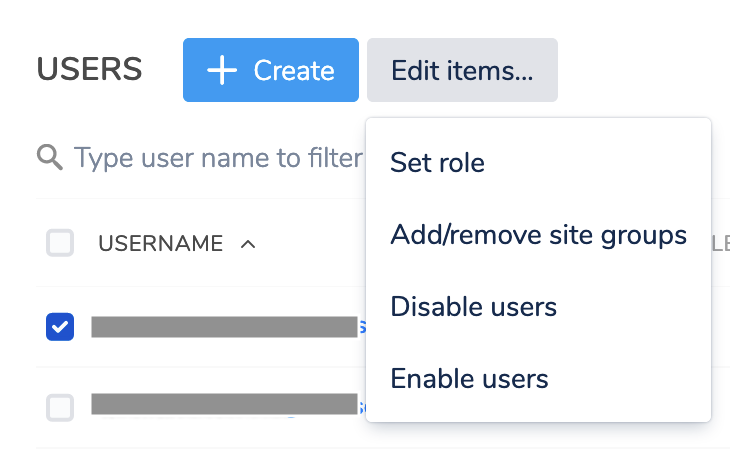
The Edit items... dropdown allows you to perform actions in bulk for the selected users: