Creating a site group (legacy)
A notion relevant for legacy customers not using Composer 1X, "site group" (a.k.a "account") stands for a container-type object to which sites and app users can be added.
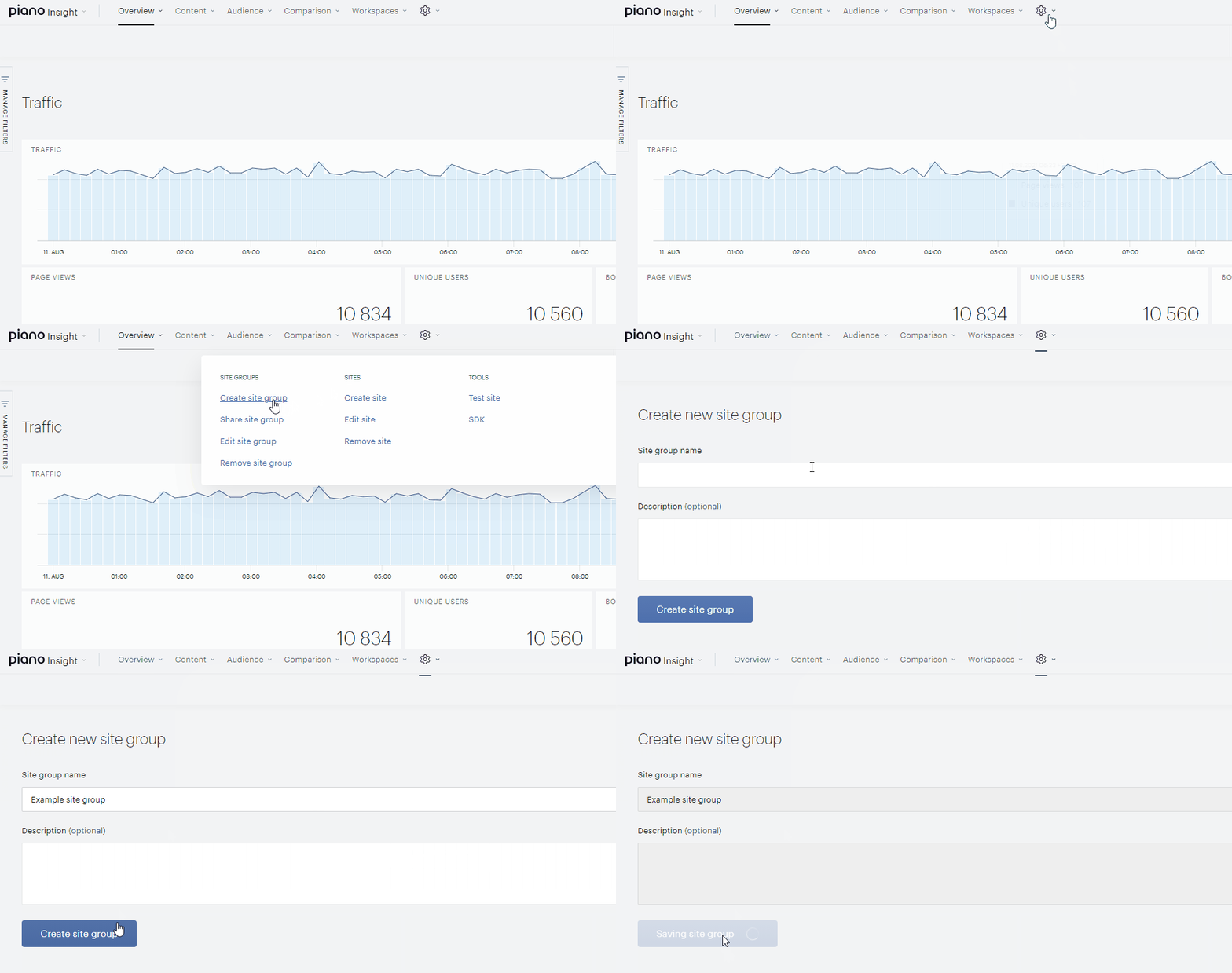
The first site group that one gets access to is normally created by someone from Piano, typically the onboarding engineer. However, as soon as Piano team creates the first app user with write access to your account, you will be able to create additional site groups. To create a site group, go to the dashboard, click the gear icon on the top panel and select Create site group from the dropdown toolbar. Fill out the site group name and (optionally) description and click Create site group.
Adding app users
App user of Piano Insight's site group is a member of your team that can access data of all the sites in a certain site group. App users with write access can also make changes, typically configuration ones.
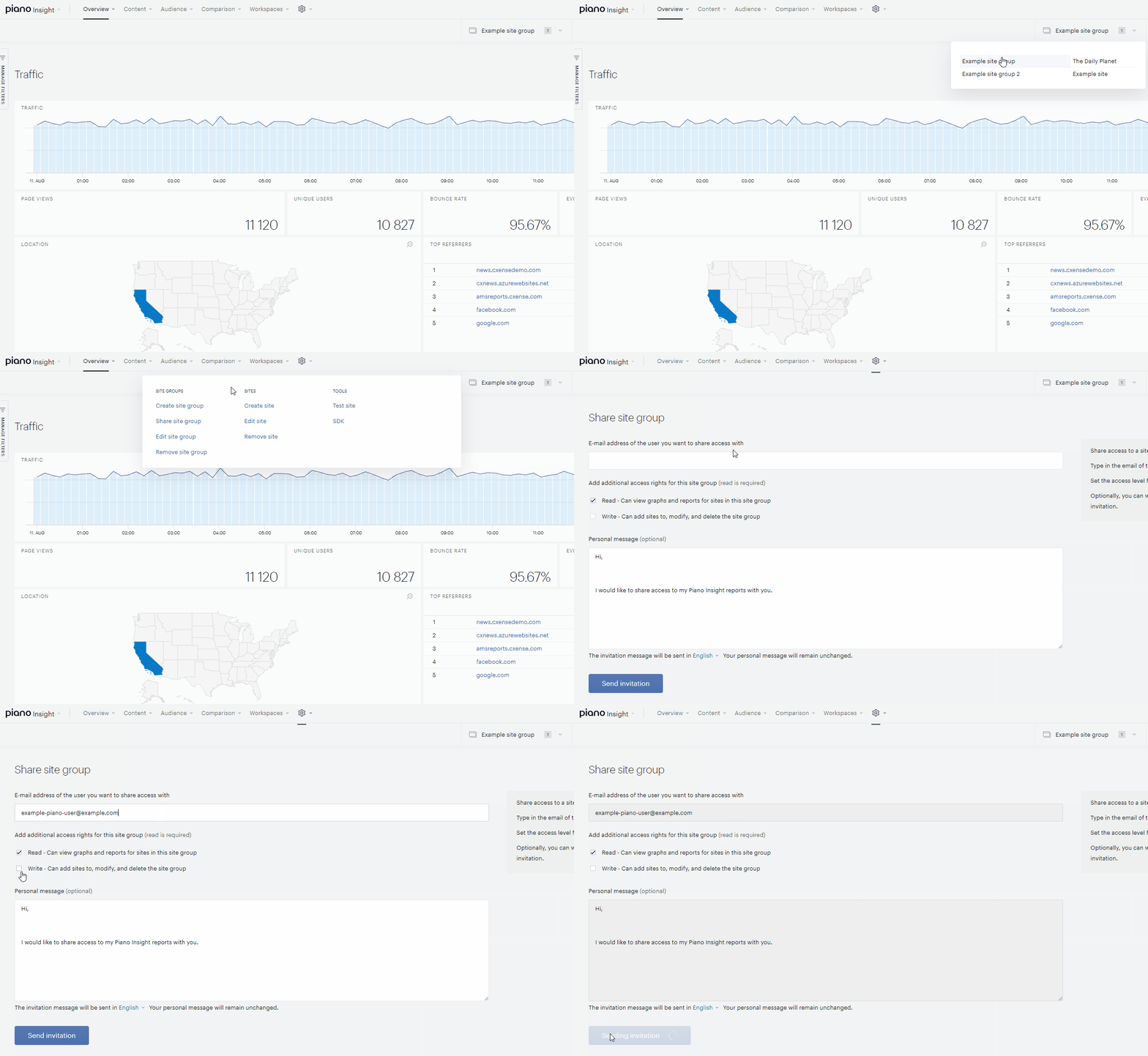
Anyone with write access to a site group can create new app users or grant write access to existing ones according to the procedure shown below. The first app user has to be added by someone from Piano which is typically done by Piano's onboarding engineer.
Adding sites
"Site" in Insight is a container for retrieved and configured data relating to one of your websites.
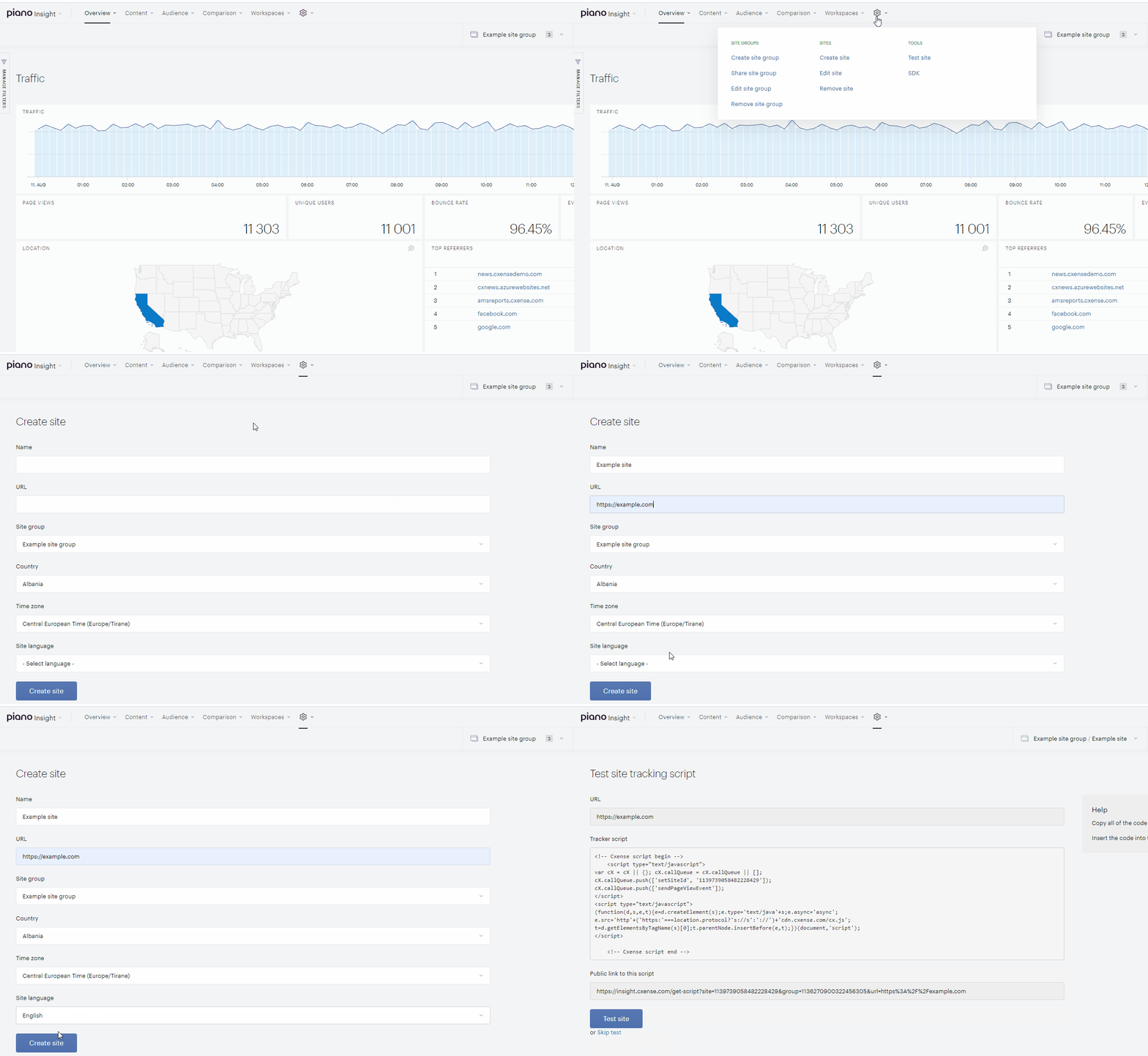
The figure below shows how to create a new site, add it to an existing site group and test it. Note that creating a site (after you click Create site) may take up to 1 minute.
Then you are frowarded to the page of Piano's tracking script for your site.
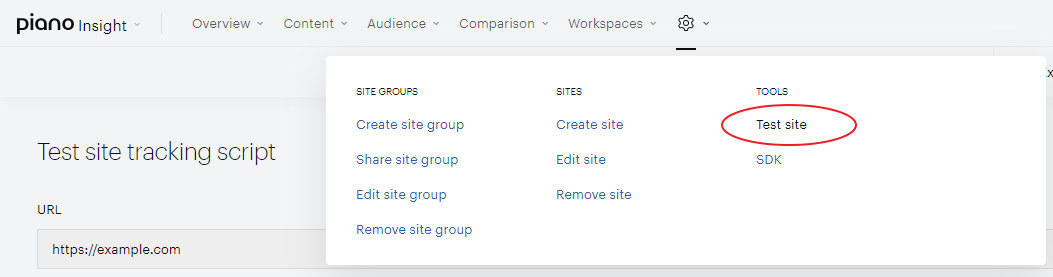
In order for any site data to be retrieved, Piano's Script has to be deployed on all the site's pages supposed to be tracked. Paste the script into the <head></head> section. The Test site page can also be obtained via the gear icon.
Improving data retrieval
The Piano Crawler retrieves web pages with the Script. When downloaded, these pages are parsed to extract various types of data. Normally, the document processor does extract the right data. However, sometimes, and especially for pages that do not conform to the normal news-story format, the document processor may fail in retrieving or interpreting data correctly. In such cases, we can help out by adding auxiliary tags to the pages thus ensuring that the right data is retrieved.
This is not a required operation as it will only improve the quality of the functionality already enabled. Further information can be found at Markup Assisted Data Extraction Examples.
Enabling standard and/or custom taxonomy
Piano customer can apply Piano's standard taxonomy and/or their own custom taxonomy to the processing of their sites' web page content. The purpose of applying any taxonomy to the content processing is to improve the identification of their website users' short-term and long-term interests (often referred to as "user intent" and "user interest" respectively). If applied correctly, website users will end up being tagged with keywords that match their interests.
This is not a required operation as it will only improve the quality of the functionality already enabled. Further information can be found here.
Interacting with Piano Insight
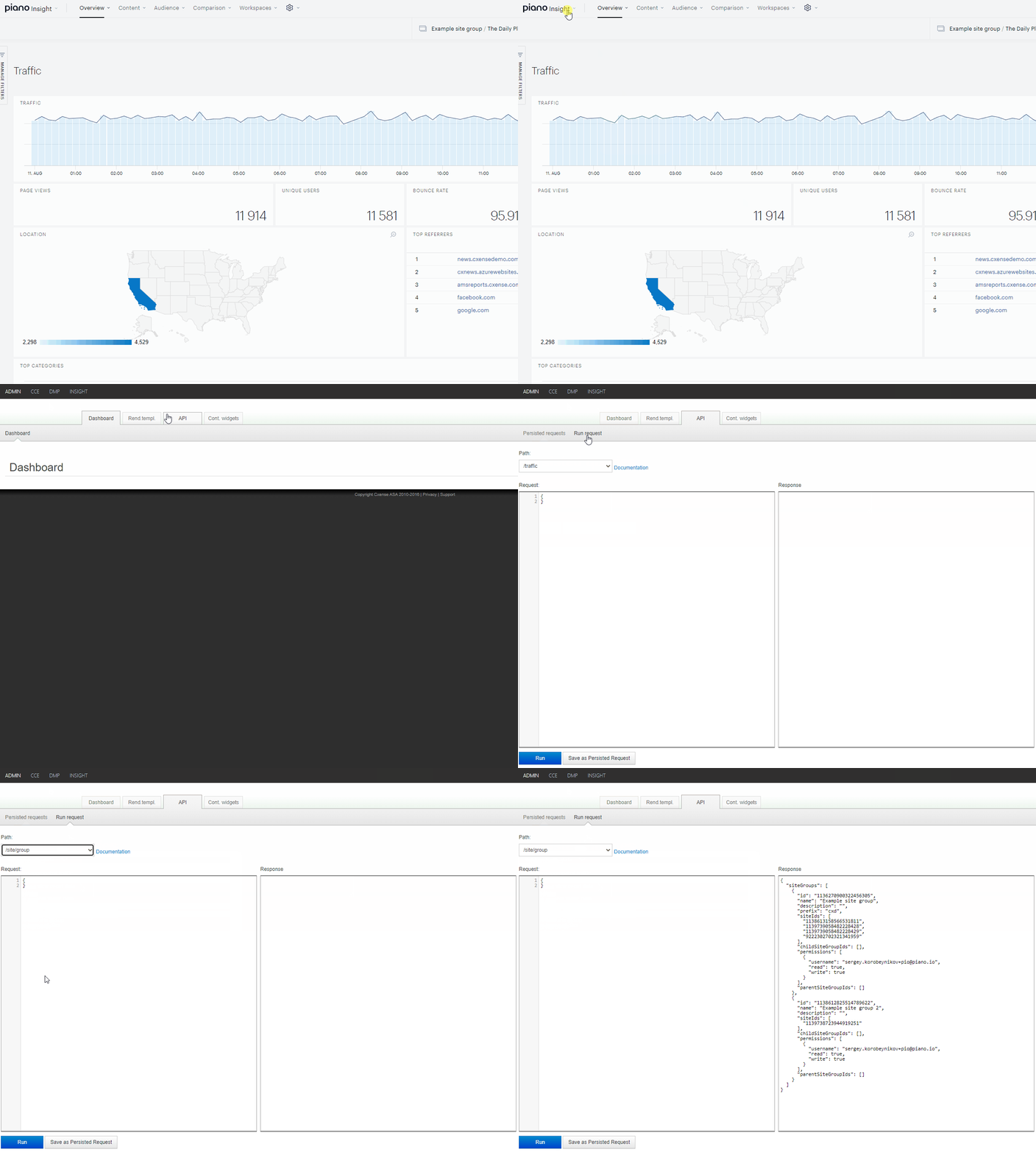
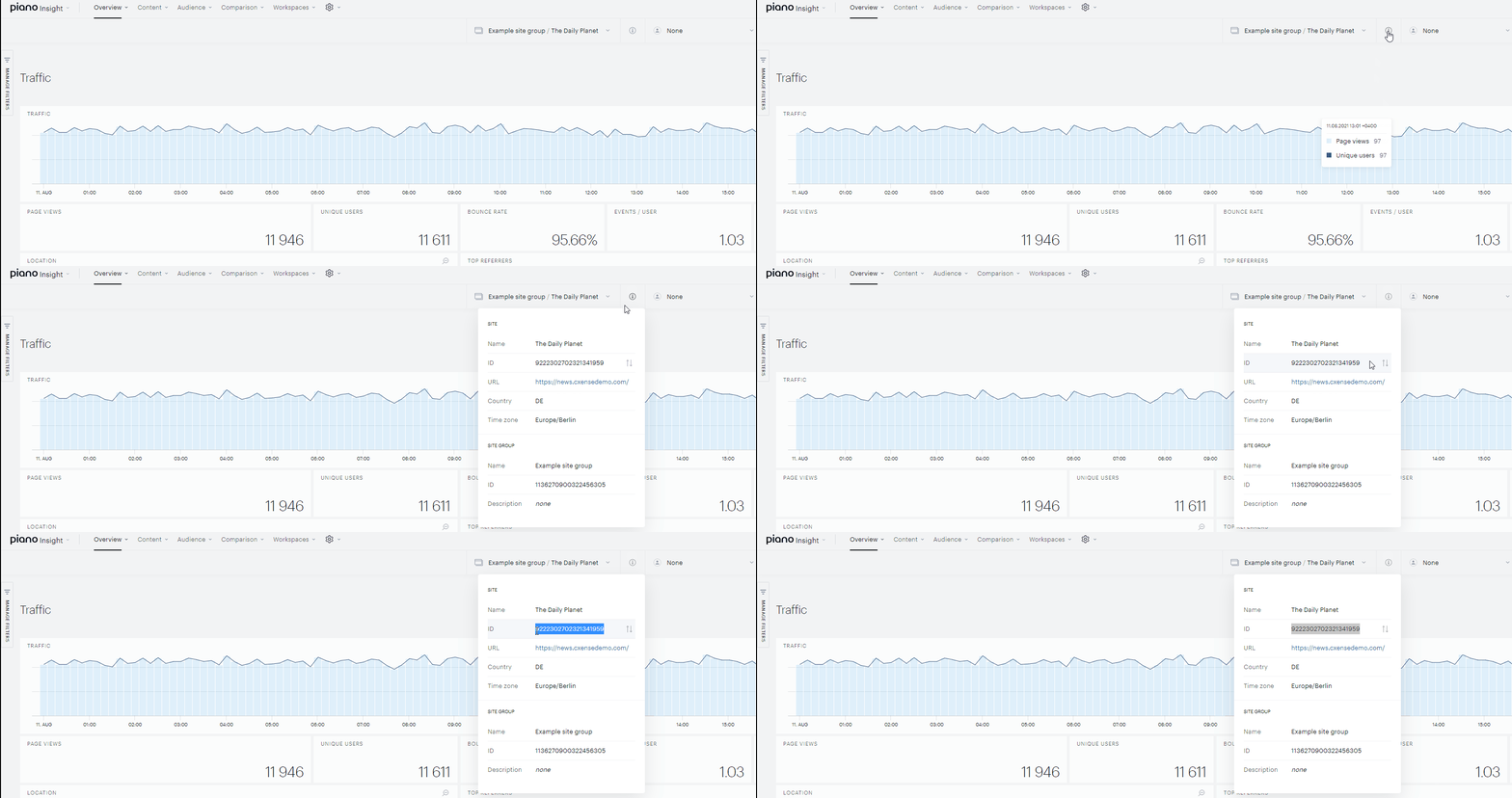
Below, we will show the 3 ways of interacting with Piano Insight for accessing information about a particular site group. For this we need to obtain the ID of the site group.
-
We can access data via Piano Insight's GUI as shown below or via pre-made or self-made custom workspaces.
We can download and use the Python-based command line tool cx.py as shown below to execute any API function (take note of the OS dependent command line syntax):
unix/Mac: $ python cx.py /site/group '{"siteGroupId":"9222340771831401874"}'
Windows:  > python cx.py /site/group "{\"siteGroupId\":\"9222340771831401874\"}"
-
Requests and responses page gives a more thorough description of general API usage.
-
We can access that information via a kind of hybrid mode. From within the GUI, we are allowed to execute a subset of the API in a command line like style as shown in the figure below.