The tutorial Cxense Search Query Side Tutorial teaches how to use the new Search API to search for already indexed documents. In this article we will learn how to replace the indexing of crawled documents (web pages) with the uploading and indexing of our own custom documents.
If you were to cut and paste and run the 'Hello World' search program introduced further below, it would most likely throw an error message such as Permission Denied or Error while processing request. Here are a few things you need to do before you run any of the scripts in this tutorial the very first time:
Have your Cxense representative create a site group (if it does not already exists)
Disable the site's automatic crawling (shown in script below)
Set the site's language using a ISO 639-1 two letter language code (shown in script below)
The url of the site must be valid and the domain must be a top-level private domain. The urls of all documents fed to the index must start with the site's url.
At least one of the site's web pages must have been crawled, If the site is a pure search site without any web pages, then deploy the Cxense Analytic Script with a dummy page and access that page 3 times in quick sequence and then wait for the crawler to get around to pick it up (may take up to an hour). The dummy page can be removed as soon as search is working.
For running the scripts in this tutorial you will need the following:
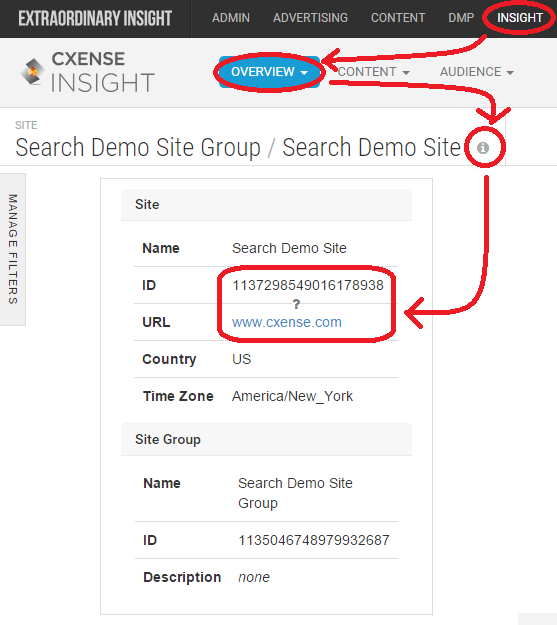
The site id (see figure to the right)
The site's URL/domain (see figure to the right)
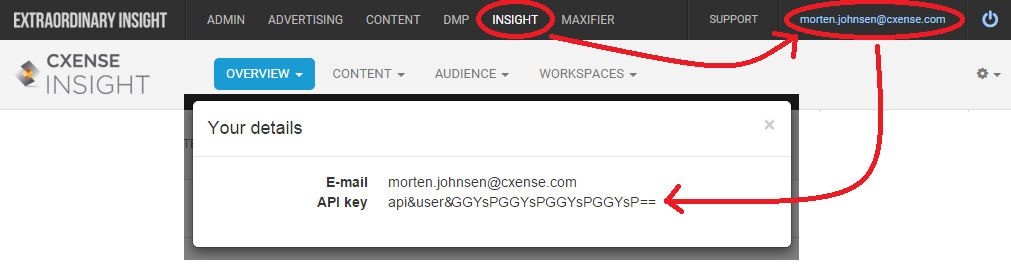
Your Cxense user id (the one you use to log into Cxense Insight)
Your secret Cxense API Key
Your customer prefix (contact your Cxense representative to get one - only required in the case of documents with fields)
Disabling Automatic Crawling
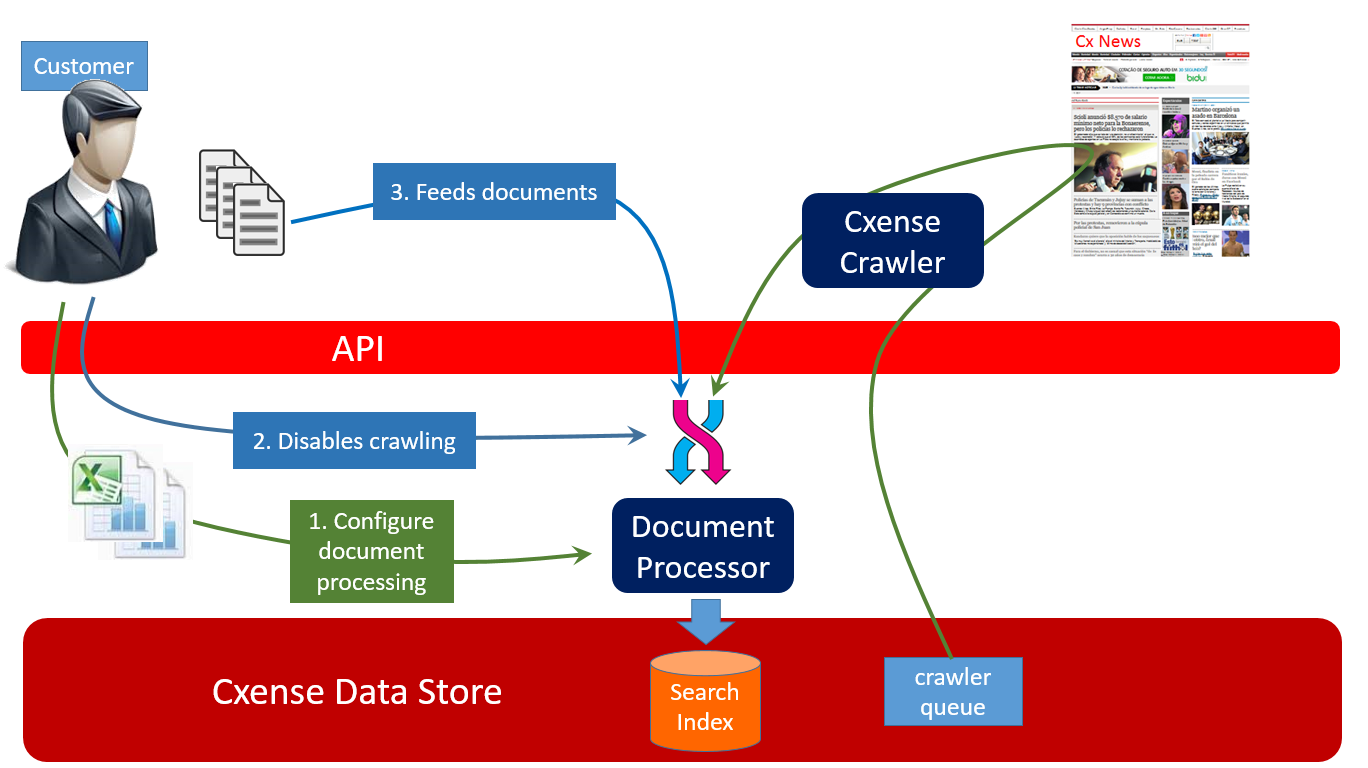
It is not possible to upload API fed documents while crawling is ongoing. As shown by the switch in blue step 2 below, it has to be one way or the other.
Below we see how to go about disabling the automatic crawling before one starts to feed documents via the API.
_username     = "<YOUR CXENSE USER ID>"
_secret       = "<YOUR CXENSE API KEY>"
_siteId       = "<YOUR SITE ID>"
_siteLanguage = "<2 LETTER ISO 639-1 LANGUAGE CODE>"

import json, datetime, hmac, hashlib, http.client

def cxApi(path, obj):
    date = datetime.datetime.utcnow().isoformat() + "Z"
    signature = hmac.new(_secret.encode('utf-8'), date.encode('utf-8'), digestmod=hashlib.sha256).hexdigest()
    headers = {"X-cXense-Authentication": "username=%s date=%s hmac-sha256-hex=%s" % (_username, date, signature)}
    connection = http.client.HTTPSConnection("api.cxense.com", 443)
    connection.request("POST", path, json.dumps(obj), headers)
    response = connection.getresponse()
    status = response.status
    responseObj = json.loads(response.read().decode('utf-8'))
    connection.close()
    return status, responseObj

def errorHandling(status, response, message):
    if status != 200:
        raise Exception("%s (http status = %s, error details: '%s')" % (message, status, response['error']))

def disableCrawling(siteId):
    status, response = cxApi('/site/update', {"siteId":siteId, 'automaticCrawling':False})
    errorHandling(status, response, "Failed to disable crawling")

def setSiteLanguage(siteId, language):
    status, response = cxApi('/site/update', {"siteId":siteId, 'language':language})
    errorHandling(status, response, "Failed to set the site's language")

def runOnce(siteId, language):
    setSiteLanguage(siteId, language)
    disableCrawling(siteId)

runOnce(_siteId, _siteLanguage)
In theory the automatic crawling can be enabled and disabled any number of times. However, this is not recommended and if one does, it is very important that one confirm that everything is working as expected after each swap.
The "Hello World!" Custom Uploading Script
We will begin by looking at the "Hello World!" custom indexing script.
The two functions cxApi() and errorHandling() are part of all scripts in this tutorial. To avoid long and repetitious code examples, their presence is simply assumed for the rest of this tutorial.
Below we see the output from the script above. Notice how the Cxense framework has added quite a few fields beyond the title field that we uploaded.
In the previous section we uploaded a single field document (not counting the fields automatically added). All that we provided was the url (which in most cases will be the basis for the id field) and the title. We will now upload a document corresponding to a regular web page. Here we see the page we want to index:
<!DOCTYPE html>
<html>
    <head>
        <title>An UFO has just landed on the White House Lawn</title>
        <meta property="articleId" content="24757772"/>
        <meta property="og:article:published_time" content="2015-04-01T13:52:00Z"/>
        <meta property="og:description" content="Breaking News"/>
    </head>
    <body>
        <h1>An UFO has just landed on the White House Lawn</h1>

        <p>We have just learned that an UFO has landed on the White House lawn.</p>
        <p>This article will be updated as we learn more.</p>

        <h2>Eyewitnesses Confirm</h2>
        <p>Several eyewitnesses have confirmed the White House UFO sighting.</p>
    </body>
</html>
And below follows the code for uploading the web page and have it returned as a search result:
def uploadDocument(siteId, url, title, sections, publishTime, articleId, description):
    reqObj = {'siteId':siteId, 'url':url, 'title':title, 'sections':sections, 'publishTime':publishTime, 'articleId':articleId, 'description':description}
    status, response = cxApi('/document/update', reqObj)
    errorHandling(status, response, "Unable to upload document")
    return response

def search(siteId):
    status, response = cxApi('/document/search', {"siteIds":[siteId]})
    errorHandling(status, response, "Unable to retrieve search result")
    return response

url         = 'http://cxense.com/demo'
title       = 'An UFO has just landed on the White House Lawn'
articleId   = '24757772'
publishTime = '2015-04-01T13:52:00Z'
description = 'Breaking News'
sections  = [
    {
        'body':[
            'We have just learned that an UFO has landed on the White House lawn.',
            'This article will be updated as we learn more.'
        ]
    },
    {
        'heading':'Eyewitnesses Confirm',
        'body':[ 'Several eyewitnesses have confirmed the White House UFO sighting.' ]
    },
]
uploadDocument(_siteId, url, title, sections, publishTime, articleId, description)
print(json.dumps(search(_siteId), indent=4, sort_keys=True))
And here follows the search result:
{
    "matches": [
        {
            "fields": [
                {
                    "field": "body",
                    "value": [
                        "We have just learned that an UFO has landed on the White House lawn.",
                        "This article will be updated as we learn more.",
                        "Several eyewitnesses have confirmed the White House UFO sighting."
                    ]
                },
                {
                    "field": "contenthash",
                    "value": "f4fdc0ec54df677050fa12b2c87b549c63c27f2843b80301761bfcdd9b30879b"
                },
                {
                    "field": "createtime",
                    "value": "2015-08-09T18:03:44.000Z"
                },
                {
                    "field": "description",
                    "value": "Breaking News"
                },
                {
                    "field": "heading",
                    "value": "Eyewitnesses Confirm"
                },
                {
                    "field": "id",
                    "value": "2d926c0d05ef0a383d1c3d716dacc7d2fcdd1583"
                },
                {
                    "field": "kw-concept",
                    "value": "eyewitnesses confirm"
                },
                {
                    "field": "kw-entity",
                    "value": [
                        "confirm",
                        "news",
                        "white house",
                        "white house lawn",
                        "white house ufo"
                    ]
                },
                {
                    "field": "publishtime",
                    "value": "2015-04-01T13:52:00.000Z"
                },
                {
                    "field": "recs-articleid",
                    "value": "24757772"
                },
                {
                    "field": "recs-publishtime",
                    "value": "2015-04-01T13:52:00.000Z"
                },
                {
                    "field": "siteid",
                    "value": "1137298549016178938"
                },
                {
                    "field": "teaser",
                    "value": "Breaking News"
                },
                {
                    "field": "timestamp",
                    "value": "2015-09-05T19:14:50.000Z"
                },
                {
                    "field": "title",
                    "value": "An UFO has just landed on the White House Lawn"
                },
                {
                    "field": "url",
                    "value": "http://cxense.com/demo"
                },
                {
                    "field": "urlhash",
                    "value": "2d926c0d05ef0a383d1c3d716dacc7d2fcdd1583"
                }
            ],
            "id": "2d926c0d05ef0a383d1c3d716dacc7d2fcdd1583",
            "score": 1.0,
            "siteId": "1137298549016178938"
        }
    ],
    "totalCount": 1
}
Uploading Document with Fields
Below we are uploading a document with information about the Cxense office in Oslo. We have given the name of the city it is located in (string), the number of employees (number), the first day of operating (time) and it's exact location (geopoint). Notice how we unlike in all previous examples here have to also provide the customer prefix. Contact your Cxense representative if you don't already have yours.
One thing to keep in mind is that the field keys cannot be longer than 26 characters (or 30 if you include the length of the customer prefix that we are adding within the loop above), and the value can be a maximum of 40 characters. The set of allowed key characters is limited to lower case a-z, digits and the hyphen ('-') whereas the value can hold any readable alphanumeric character regardless of script (Latin, Hebrew, Cyrillic, Kanji, you name it) as well as quite a few special characters. Here are some regular expressions defining a valid field key and a valid field value respectively:
Uploading one document at the time is highly inefficient. Below we see how we can upload documents in batches of up to 100 documents at the time.
_username     = "<YOUR CXENSE USER ID>"
_secret       = "<YOUR CXENSE API KEY>"
_siteId       = "<YOUR SITE ID>"
_prefix       = "<YOUR CUSTOMER PREFIX>"
_batchSize    = <BATCH SIZE>

batch = []

def flushDocumentBuffer():
    global batch
    status, response = cxApi('/document/update', batch)
    errorHandling(status, response, "Unable to upload document batch")
    batch = []
    return response

def addToDocumentBatch(siteId, url, fields):
    global batch
    batch.append({'siteId':siteId, 'url':url, 'fields':fields})
    if len(batch) >= _batchSize:
        flushDocumentBuffer()

documents = [
    {
        "url"    : 'http://cxense.com/oslo-office',
        "fields" : [
            {'field':'city',      'type':'string',   'value':'Oslo'},
            {'field':'employees', 'type':'number',   'value':'45'}
        ]
    },
    {
        "url"      : 'http://cxense.com/melbourne-office',
        "fields" : [
            {'field':'city',      'type':'string',   'value':'Melbourne'},
            {'field':'employees', 'type':'number',   'value':'25'}
        ]
    }
]

for document in documents:
    for field in document['fields']:
        field['field'] = '%s-%s' % (_prefix, field['field'])
    addToDocumentBatch(_siteId, document['url'], document['fields'])
flushDocumentBuffer()
Instead of uploading documents directely they are in this example added to the batch. Whenever the batch reaches a certain size (defined by the variable _batchSize), the whole batch is uploaded. The same happen when there are no more documents left, then whatever number of documents that are in the batch at the time, get uploaded.
Deleting Documents
Below we see how to remove a documents from the search index.
_username     = "<YOUR CXENSE USER ID>"
_secret       = "<YOUR CXENSE API KEY>"
_siteId       = "<YOUR SITE ID>"

def deleteDocument(url):
    status, response = cxApi('/document/delete', {"siteId":_siteId , 'url':url})
    errorHandling(status, response, "Unable to delete document")

url = _siteUrl + '/demo' # The 'Hello World! document from the first example
deleteDocument(url)