
The fraud management page allows the broker the ability to alter various settings to control whether or not a events are deemed to be fraudulent. There are a distinct set of filters available for toggling on and off depending on the desired system setup. Please refer to in-page documentation for explanations of what each filter will do.
This functionality is only available to the following role:
-
System Administrator
Fraud settings can be managed globally via the 'Manage' tab, or on a per ad space basis in the fraud management tab within the ad space view. Settings defined on an ad space override those set at a global level. If no settings are specified on an ad space, then the global settings are used.
Getting There
-
Access your desired environment
-
Production: https://cxad.cxense.com (or the specific url for your environment)
-
Sandbox: http://sandbox.cxad.cxense.com
-
-
Log in as someone who has one or more of the roles above allocated to them.
-
Click on the Manage tab and you should see something similar to 01. in the Visual Guide
-
Click on the "Fraud Management" link in the System Management section of the dashboard
Visual Guide
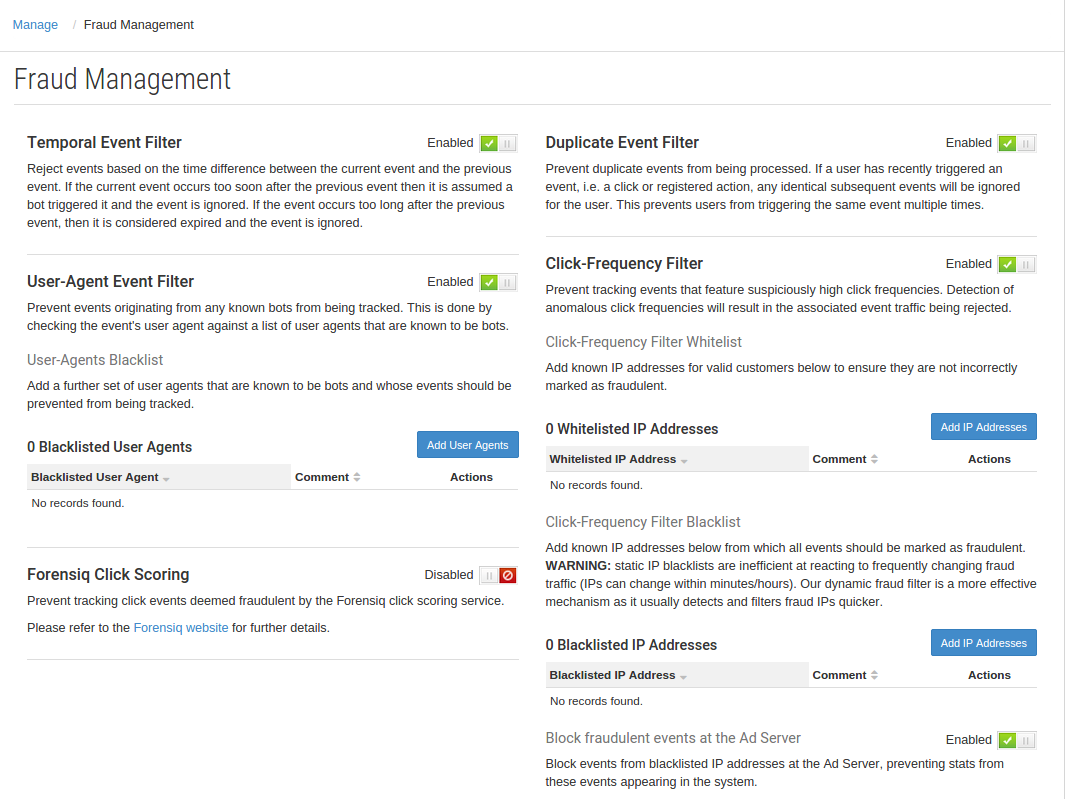
Custom IP and user agent block lists
Cxense Advertising allows you to specify custom lists of IP address and user agents to blacklist. Events that match the criteria on the blacklists will always be filtered and marked as fraudulent. As mentioned in the image above, please be aware that static IP blacklists are inefficient at reacting to frequently changing fraud traffic (IPs can change within minutes/hours). Our dynamic fraud filter is a more effective mechanism as it usually detects and filters fraud IPs quicker. Also be aware that entries included on the user agent block list only need to match part of the actual user agent ignoring case to be considered fraudulent. For example, including 'firefox' as a custom user agent would filter all user agents containing the word 'firefox' such as 'Mozilla/5.0 (Windows NT 5.1; rv:31.0) Gecko/20100101 Firefox/31.0' & 'Mozilla/5.0 (Windows NT 6.1; WOW64; rv:18.0) Gecko/20100101 Firefox/18.0'
Blocking fraudulent events at the Ad Server
Cxense Advertising gives you the option of blocking fraudulent events at the Ad Server. If enabled, stats from these events will not appear in the system.
Configuring a third-party click scoring service
Cxense Advertising allows integration with third-party services for the detection of fraudulent click events.
Once configured, advertisers will be able to enable scoring of clicks at the Campaign level. At the time of the click event, Cxense Advertising will automatically send a request to the click scoring service for analysis. The service will then return a score indicating their confidence in the authenticity of the click. Any clicks that are scored below the maximum risk score as set on the Campaign will be filtered out by Cxense Advertising and not counted against the Campaign.
Configuring the Forensiq click scoring service
Cxense Advertising supports integration with the Forensiq fraud detection service.
In order to enable this integration, Cxense Advertising requires the API URL and Key to be used when sending requests to the Forensiq service. Note: this information will be available from Forensiq as part of your subscription with them.
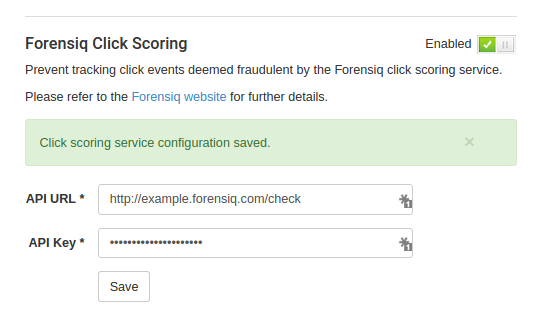
Steps to configure:
-
Click the toggle next to Forensiq Click Scoring to display the configuration form
-
Enter your API URL and Key as supplied by Forensiq
-
Click the 'Save' button
Configuring the Integral Ad Science click scoring service
Cxense Advertising will soon support integration with the Integral Ad Science fraud detection service .
In order to enable this integration, Cxense Advertising requires the API URL to be used when sending requests to the IAS service
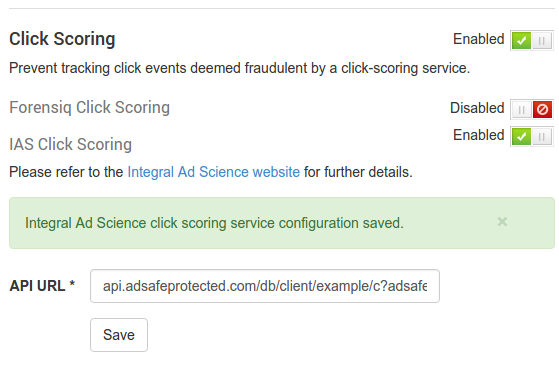
Steps to configure:
-
Click the toggle next to Click Scoring to display configuration for available click scoring services
-
Click the toggle next to IAS Click Scoring to display the configuration form
-
Enter your API URL as supplied by Integral Ad Science. Note that the placeholder {url} is required for the configuration to be accepted. For example, you might enter http://api.adsafeprotected.com/db2/client/<clientid>/seg?adsafe_url={url}
-
Click the 'Save' button