Overview
System Administrators and System Help Desk Users have the ability to gain temporary access to all User home Folders in the system. This temporarily places the Administrator at the home folder of the individual user.
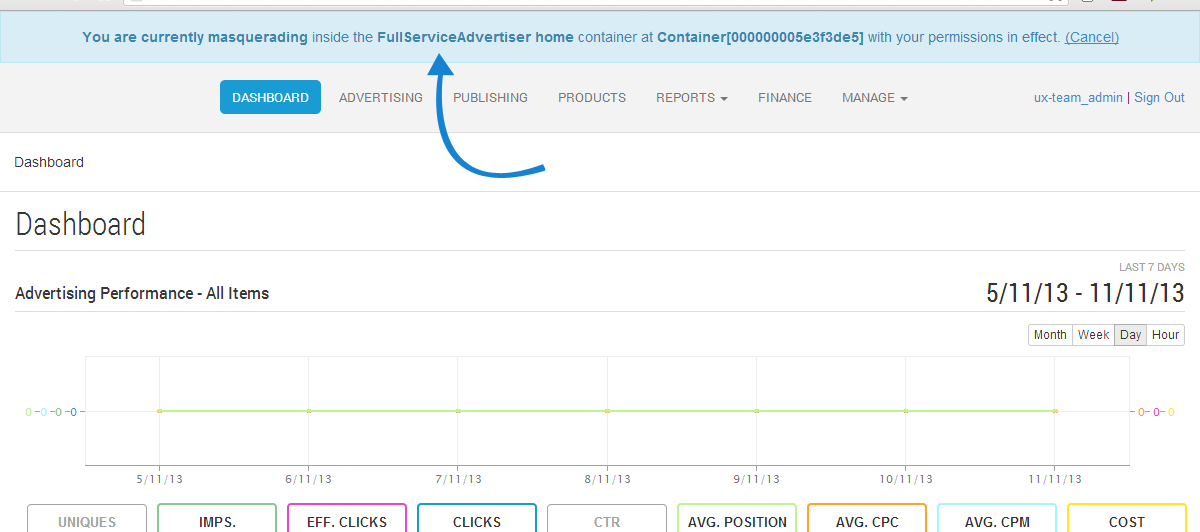
Whilst in Temporary Access mode, there is a Message at the top of every page highlighting the mode is in effect, and also lists the Home Folder's User Name for reference.
The Administrator retain all their permissions whilst in this mode, and as such might see additional functionality not present to the individual.
This function is somewhat similar to 'Masquerading', as the Administrator user sees the individual's content as their own, however any system management done whilst in this mode (such as URL blocking, translations etc. applies to the system as a whole, and does not affect the currently accessed users data differently to anyone else.
Administrators can gain temporary folder access via the following;
-
Find a User in the system, and select the temporary folder Access icon from RHS actions column
-
Find a Finance Account, and select the temporary folder Access icon from RHS actions column
Masquerading Example
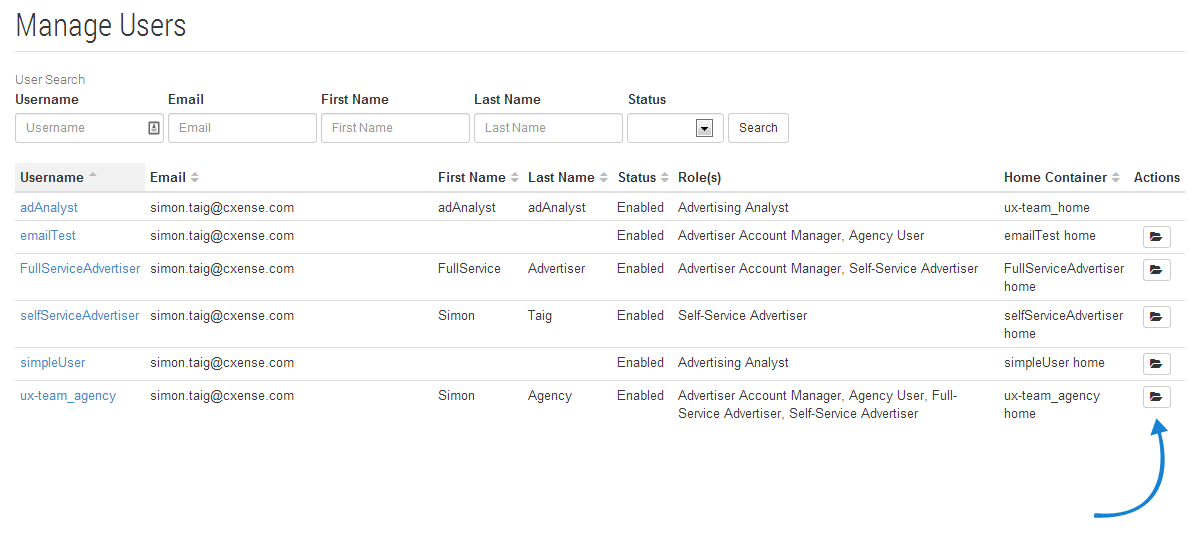
By selecting the folder Access icon under 'Actions' shown above, the System Administrator or System Help Desk user will have access to the selected user's Home Folder.
After clicking the folder Access icon, the Administrator or Help Desk user will now have a view of the selected user's Home Folder data i.e. the selected user's advertising or publishing data. In the example below, the Administrator or Help Desk user clicked on the folder Access icon for the user 'advertiser1' and a notice indicating the current view of data will be that of the user's ('advertiser1') Home Folder is shown at the top of the screen.
Note: The Home Folder highlighted in this case is 'full-service home'. This Home Folder is the shared Folder for several users along with 'advertiser1'.