
The User Management functionality exposes functionality to search for users of the system as well as edit particular user details if required.
This functionality is only available to the following roles:
-
System Administrator
-
Advertiser Helpdesk
Getting there
-
Access your desired environment
-
Production: https://cxad.cxense.com (or the specific url for your environment)
-
Sandbox: http://sandbox.cxad.cxense.com
-
-
Log in as someone who has one or more of the roles above allocated to them.
-
Click on the Manage tab and you should see something similar to 01. in the Manage Users | ManageUsers visualGuide
-
Click on the "Manage Users" link in the User Management section of the dashboard
Visual Guide
User Search
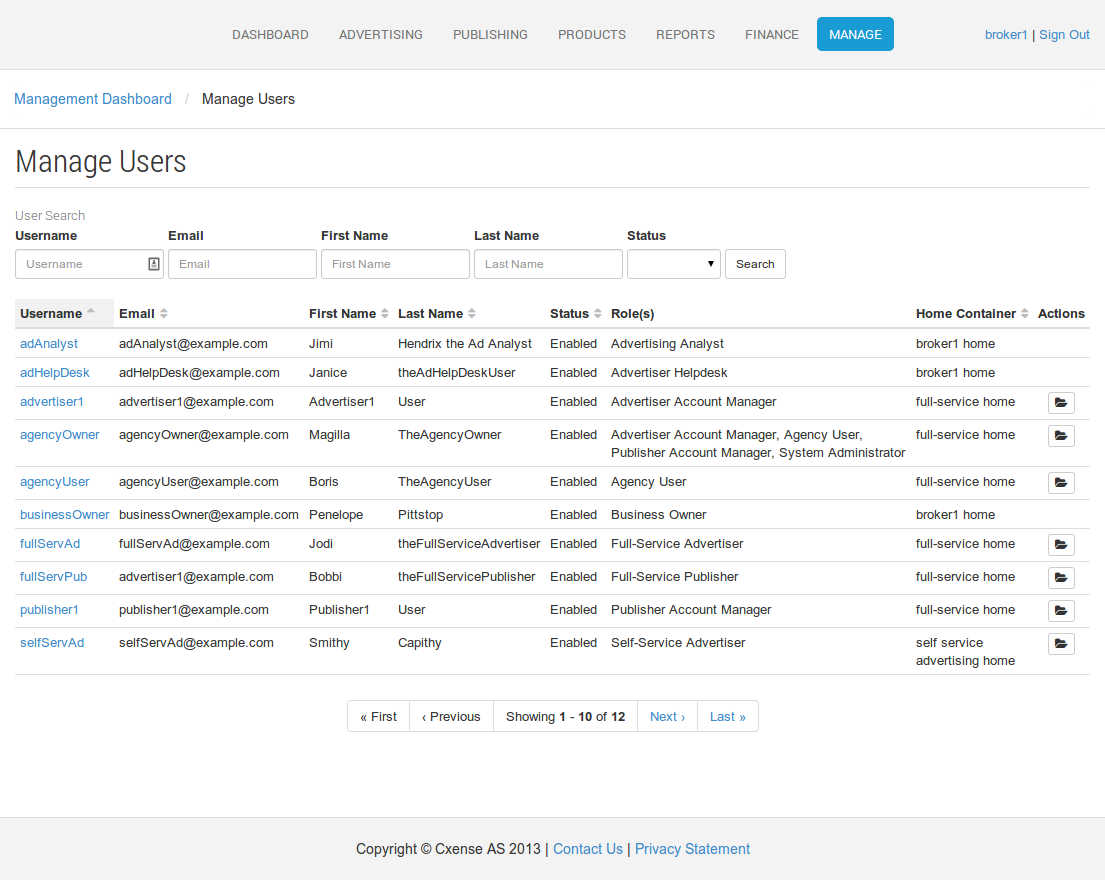
After clicking on the link from the management dashboard you will be presented with a page as shown in 02. of the Visual Guide. This allows you to enter search criteria to filter the list of users displayed. Any search criteria entered is additive, that is the results must match ALL criteria.
Criteria supplied ignores case and will do partial matches. If you want to search for all users that come from a particular company for example a useful search may be to look for email addresses that end with their standard company email address such as "http://cxense.com ".
Data Returned
The following information is presented for each user matching the search criteria specified
-
Username: this is the unique reference for the user in the system.
-
Email: the address to which all external correspondence gets sent to the user
-
Name: First and surname.
-
Status: this indicates whether the user is currently able to log into the user interface, or call remote APIs
-
Roles: These are the current roles that have been allocated to the user. A role exposes various functionality within the user interface
-
Home container: this is the location within the system that the user operates. Users can share home containers if one user invites another to have access to their inventory/functionality.
Functionality available
Edit User details
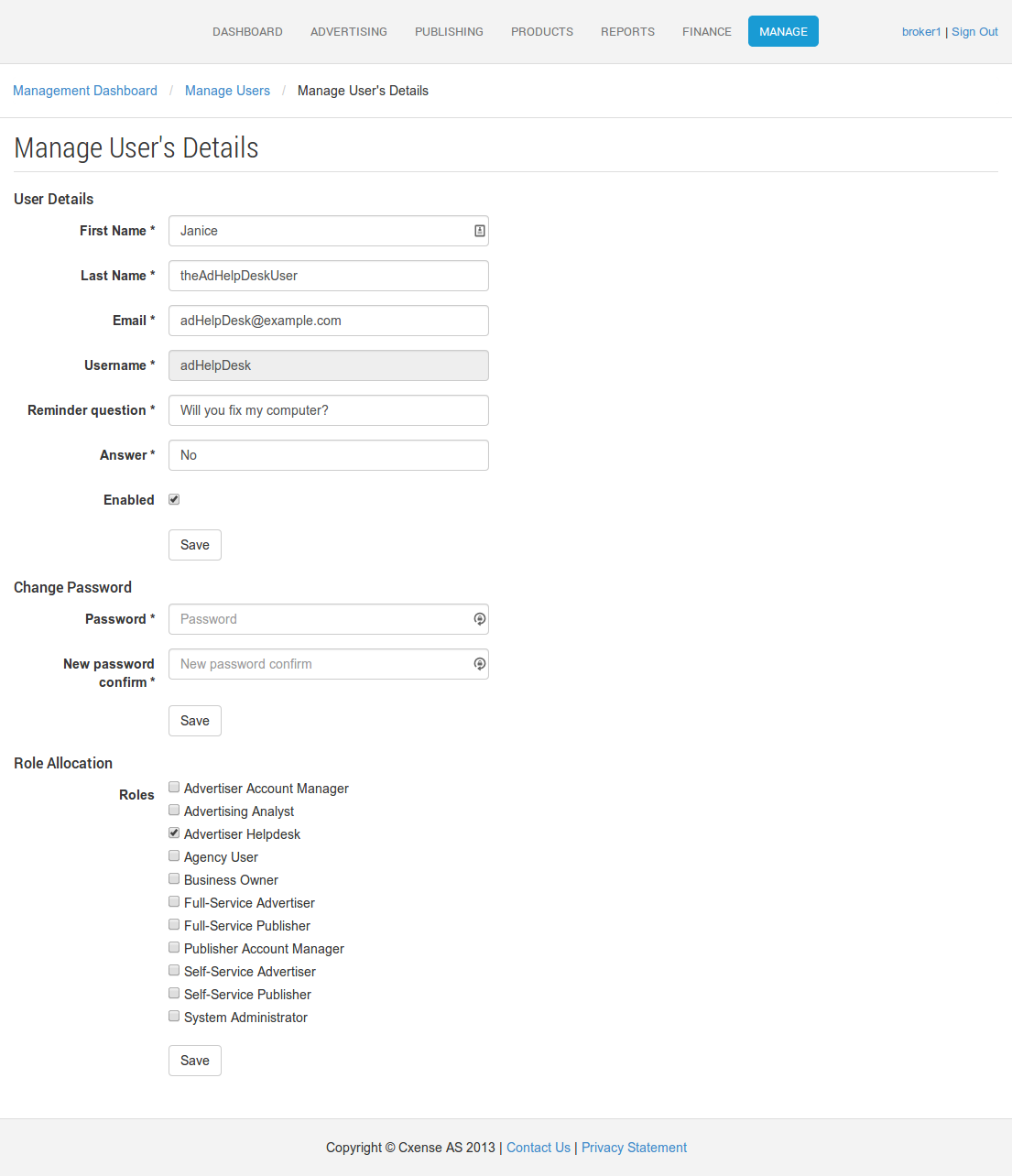
By clicking on the username of any user in the search results you can view specific details about that user. The screen you will be presented with is shown in 03. of the Visual Guide. This page allows the alteration of the following information:
-
Standard user details
-
Resetting of the user password in the case that the user has contacted support for any reason and the standard forgotten password functionality is not working for them. Perhaps they have changed email addresses and forgotten their login details.
-
Changing the role allocation for the user. This allows additional roles to be allocated to an individual if the need arises. The list of roles presented is based on your ability to allocate those roles. The idea here is that you cannot give someone access to functionality that you don't currently have.
-
Deleting the user account, which can be done from the Actions dropdown in the top-right of the page.
Please note the "Save" button underneath each section on this page. Only fill out the details for the section that you wish to specifically update. Changes to other sections won't be saved if you have made them.
Temporary folder access
This functionality is available in the Actions column of the search results if the user performing the search has access as part of their role. The linked icon

allows the user temporary access to a user home folder.