
Create metrics on the fly
If you have measurement needs specific to your business, you can build a metric directly in your report, without leaving Data Query. There are two ways to do it, and both can be saved for reuse.
Via calculation
Combine existing metrics with an operator.
-
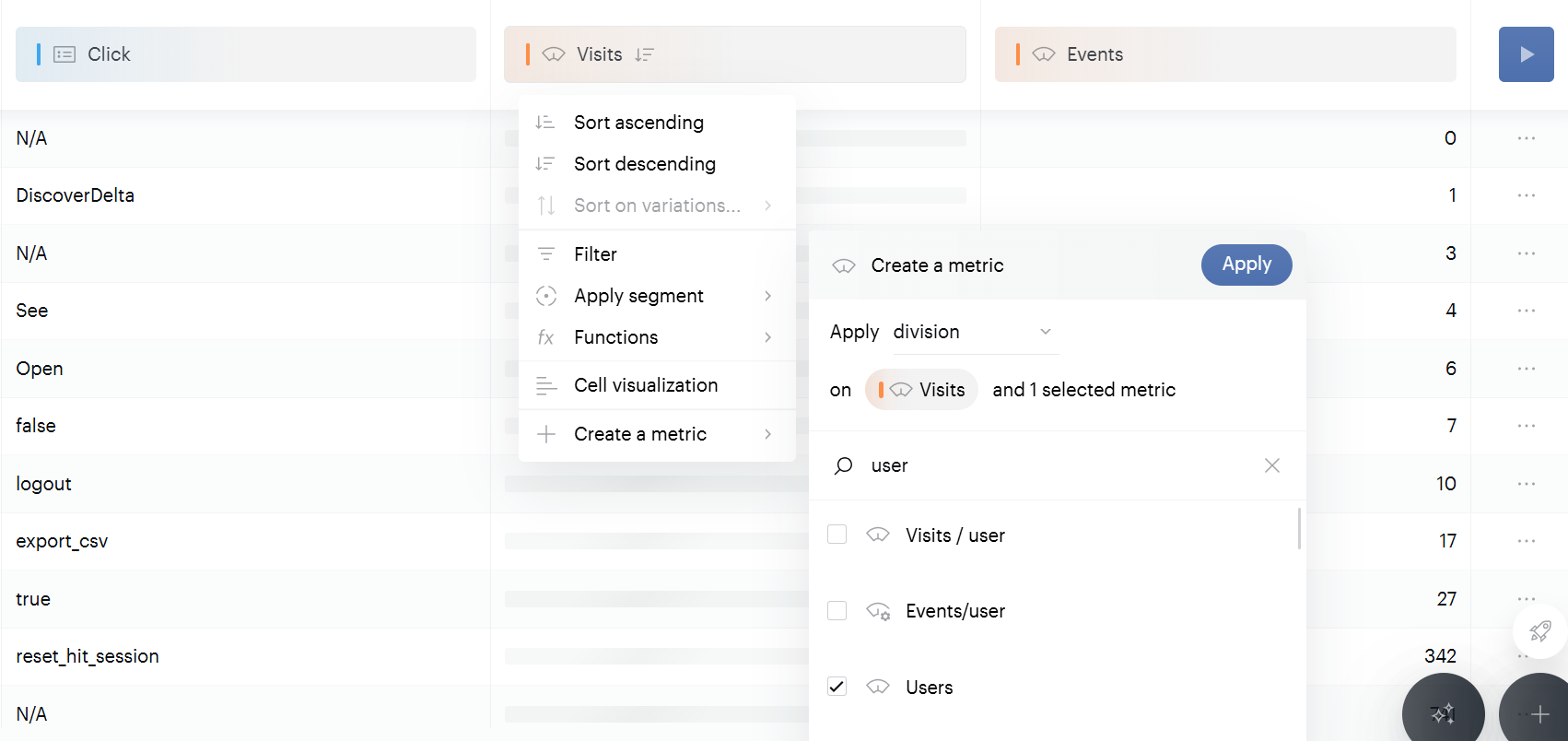
Select the metric that will be the basis of your operation and click Create a metric.
-
Choose the operator, then choose the metric(s) to include in the calculation.
For example, to get the number of visits per user, select the "Visits" metric, apply Division, and select the "Users" metric. Once confirmed, the metric can be used in your dataset like any other.
Via segmentation
Apply a segment to a base metric so it always returns that segmented value.
-
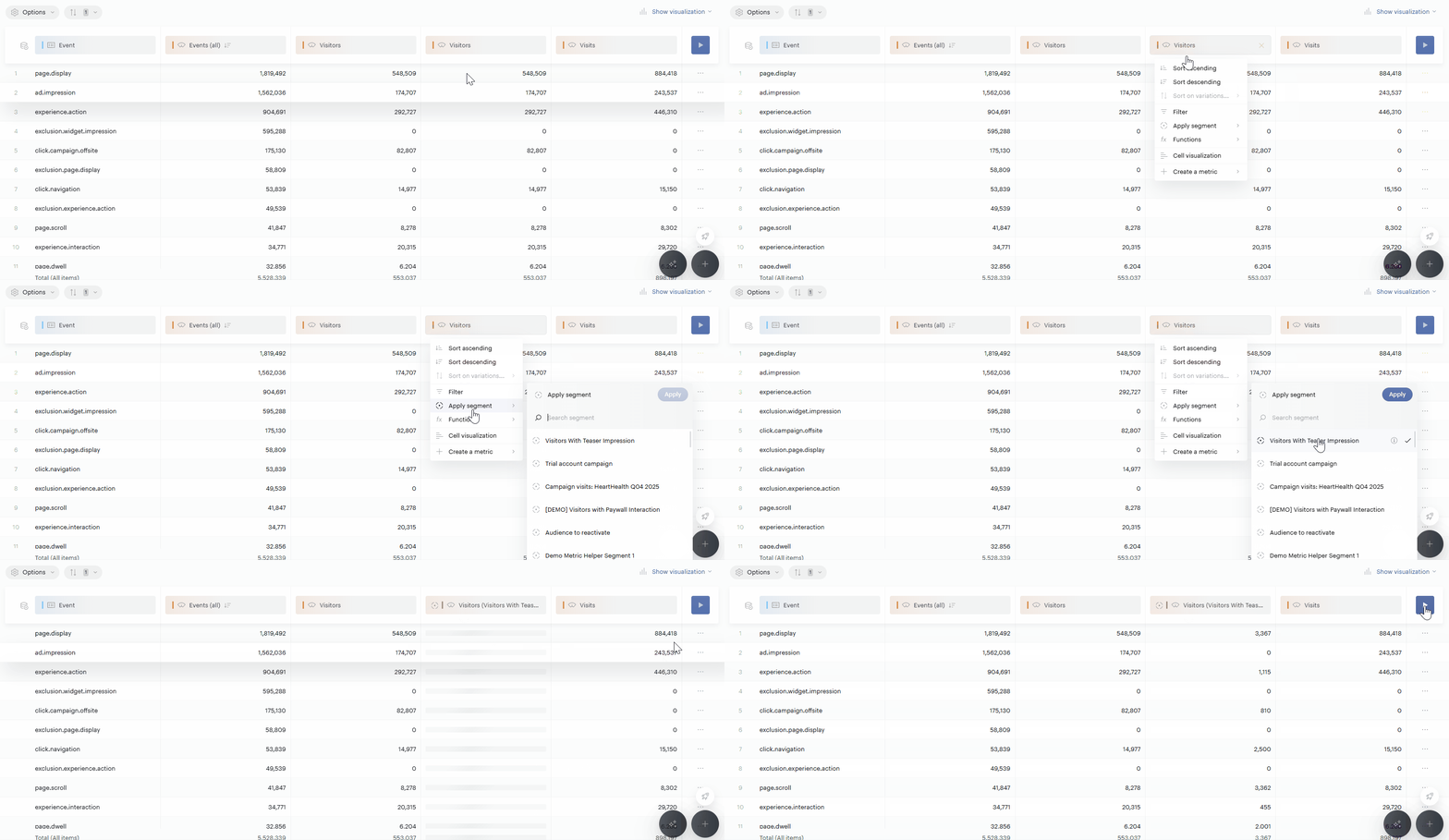
Select the base metric (for example, "Visitors") and click Apply a segment.
-
Define the segment (for example, "Country is equal to France"). The metric then returns the number of visitors from France wherever you use it.
Saving metrics
By default, a metric you build on the fly lives only in the current report. Save it to reuse it in any report and, if you want, share it with others.
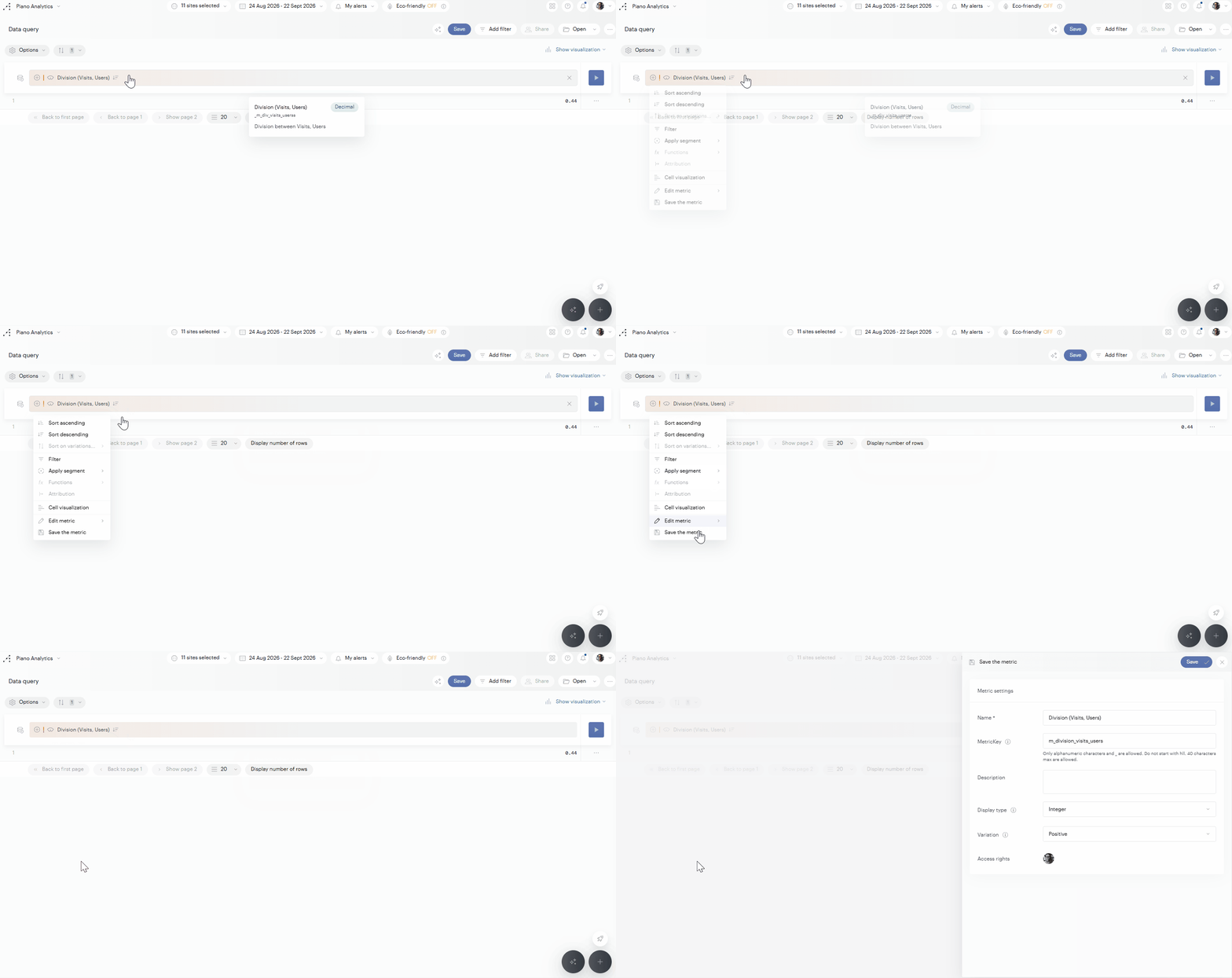
Click the metric you built and select Save the metric to open the Metric settings panel:
-
Name: the name shown in the interfaces when selecting the metric.
-
MetricKey: the name used in the API. Only alphanumeric characters and
_are allowed, it cannot start withhll, and it is limited to 40 characters. It cannot be changed after saving and is unique across your organization. -
Description: explain in your own words what the metric measures.
-
Display type (formatting only, no impact on the API): Integer (e.g. 1000), Decimal (up to 4 digits, e.g. 1000.4523), Percent (up to 4 digits, e.g. 25.3578%), Currency (adds the currency symbol, e.g. 1000€), or Duration (e.g. 00:00:08).
-
Variation: whether an increase reads as Positive or Negative.
-
Access rights: control who can use the metric, and share it right away. Turn on Public general access, or search for a user or team, click Share, and set their role (Editor or Viewer).
Advanced custom metrics
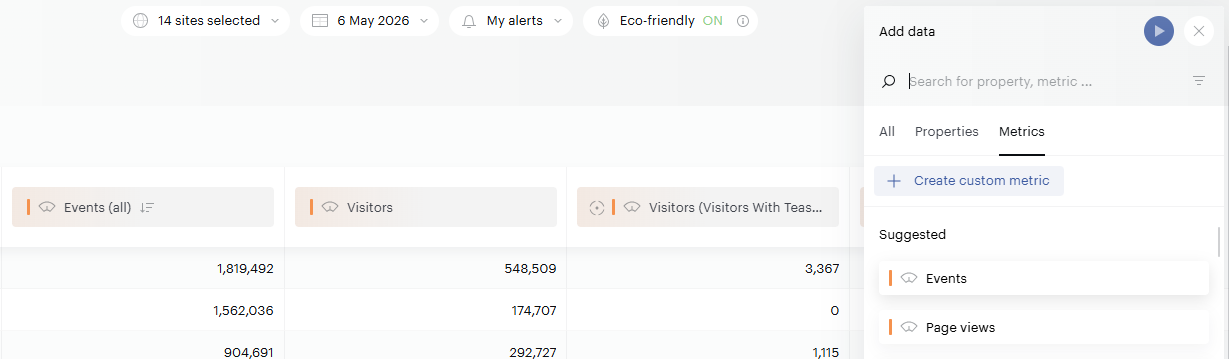
For the creation of more complex metrics, a dedicated metrics creation interface is available via the main + button located in the bottom right of the interface, and go to the Metrics tab.
There are two zones, the first of which is used to enter the global information for the metric, and contains the same information as for saving the metrics. The second zone corresponds to the creation of the metrics, to use it you can drag and drop the metrics from the left menu or double click on them.
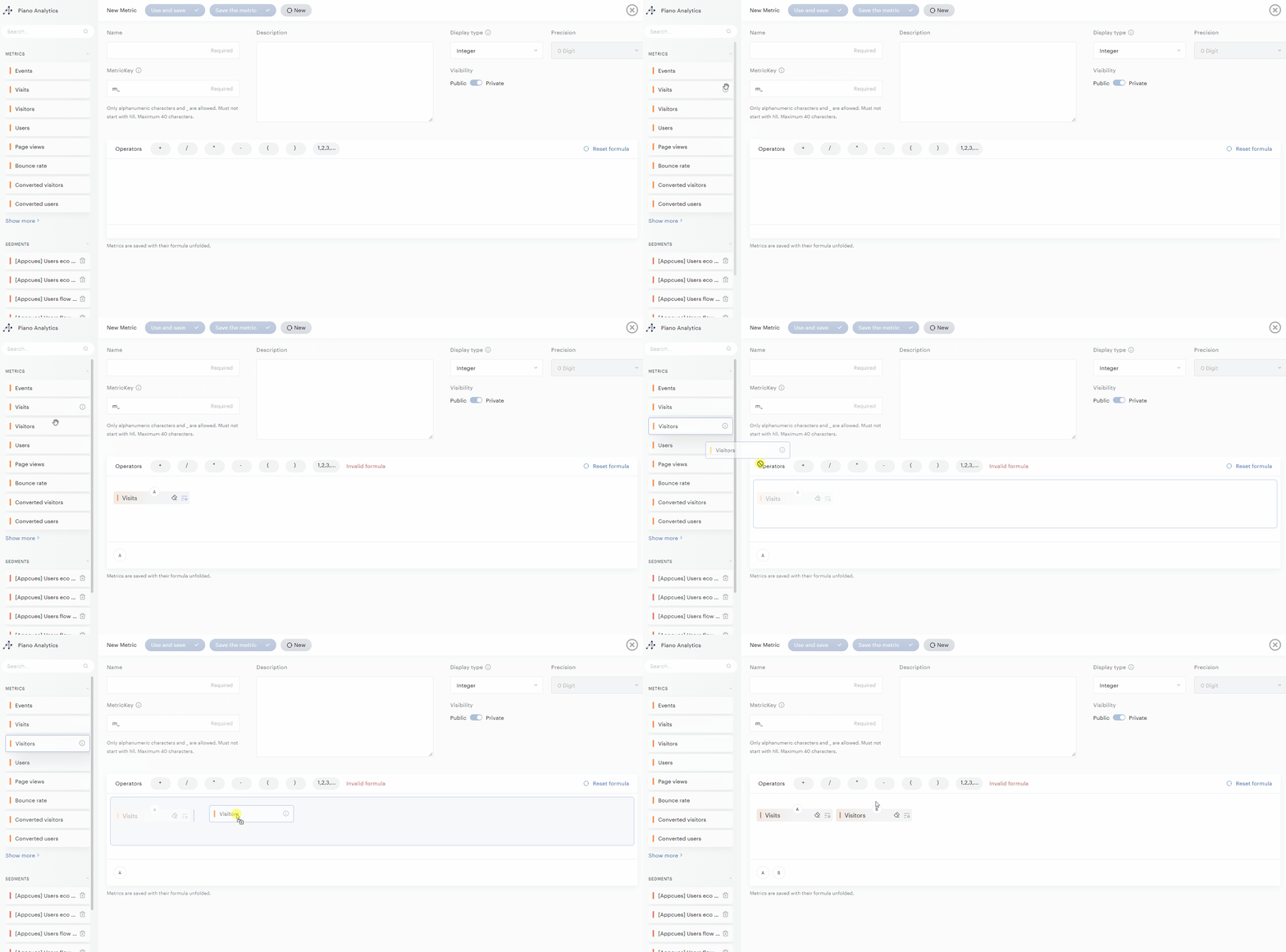
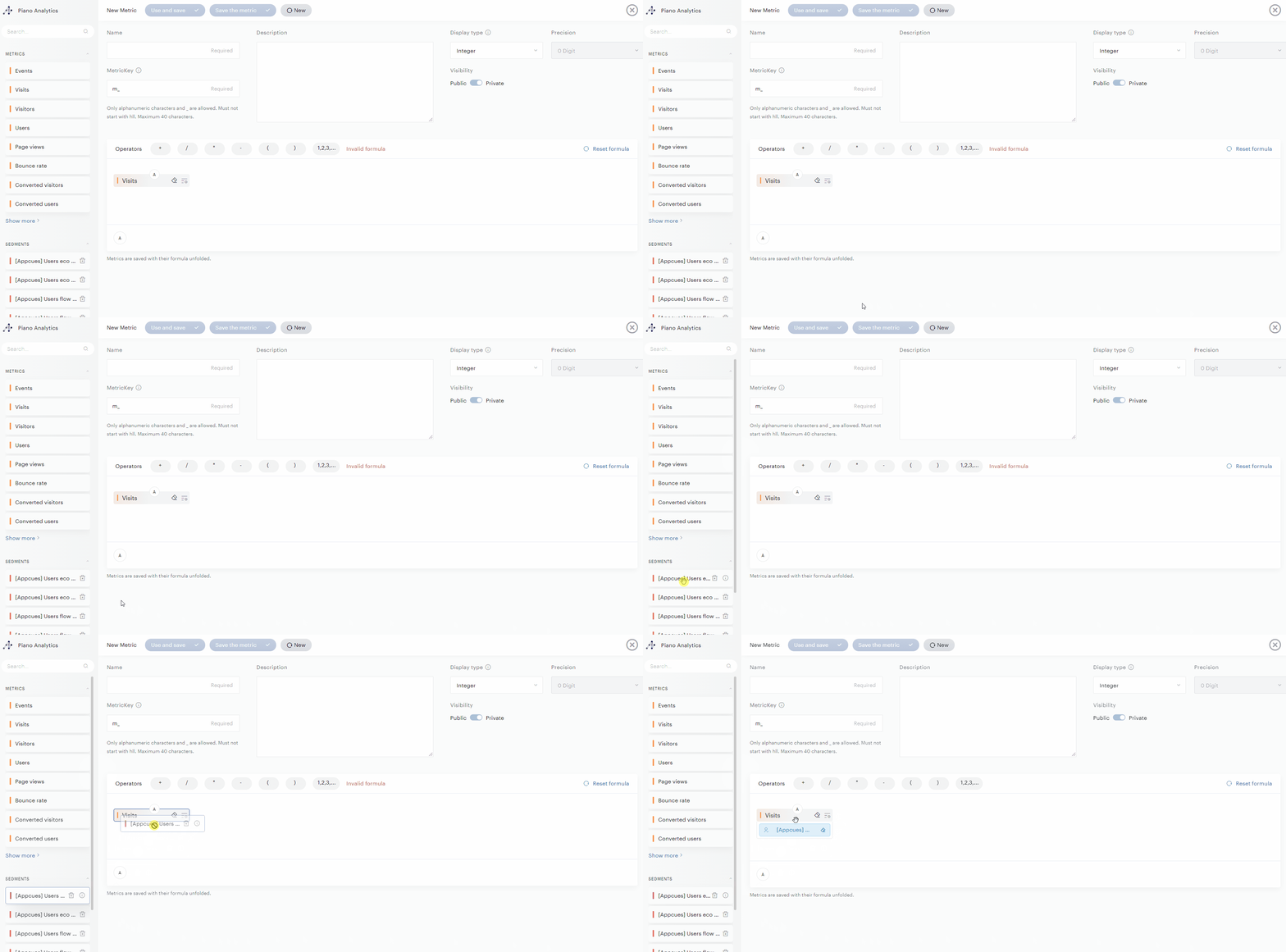
To apply a segment, it is necessary to drag and drop it on the block on which you want to apply it.
You can also use the operators to create the metrics of your choice; you just have to double-click on them or drag and drop them. A special case is the application of a constant; once the operator is dropped, you just have to click on it to fill in the values of your choice.