
What is MCP (Model Context Protocol)?
The Model Context Protocol (MCP) lets your AI tools (Claude, Cursor, and others) query your Piano Analytics data directly, using natural language. Instead of navigating dashboards, you simply ask (for example, "How many visitors did we have last week?" or "What are our top-performing pages this month?"), and the answer is retrieved live from your data.
Available tool: get_web_analytics_data, which retrieves analytics data based on your natural-language questions.
Use cases
Analytics data analysis. Bring your Piano Analytics data directly into your LLM for analysis and insights. Ask "Analyze my traffic trends and suggest optimization strategies" or "What patterns do you see in my conversion data?"
Automated workflows. Integrate the MCP into automation platforms such as n8n, Zapier, or custom scripts to periodically fetch analytics data for reports, alerts, or data pipelines, with no manual intervention.
Augmented agents. Build specialized AI agents that draw on your Piano Analytics data to assist with specific tasks, such as a marketing agent that monitors campaign performance, or a content agent that tracks page engagement.
Access rights
Analytics data contains sensitive business insights. We require explicit user authorization to ensure only approved personnel can query your measurement data through AI tools. Access to the MCP is controlled by your organization's own administrators, directly in the interface.
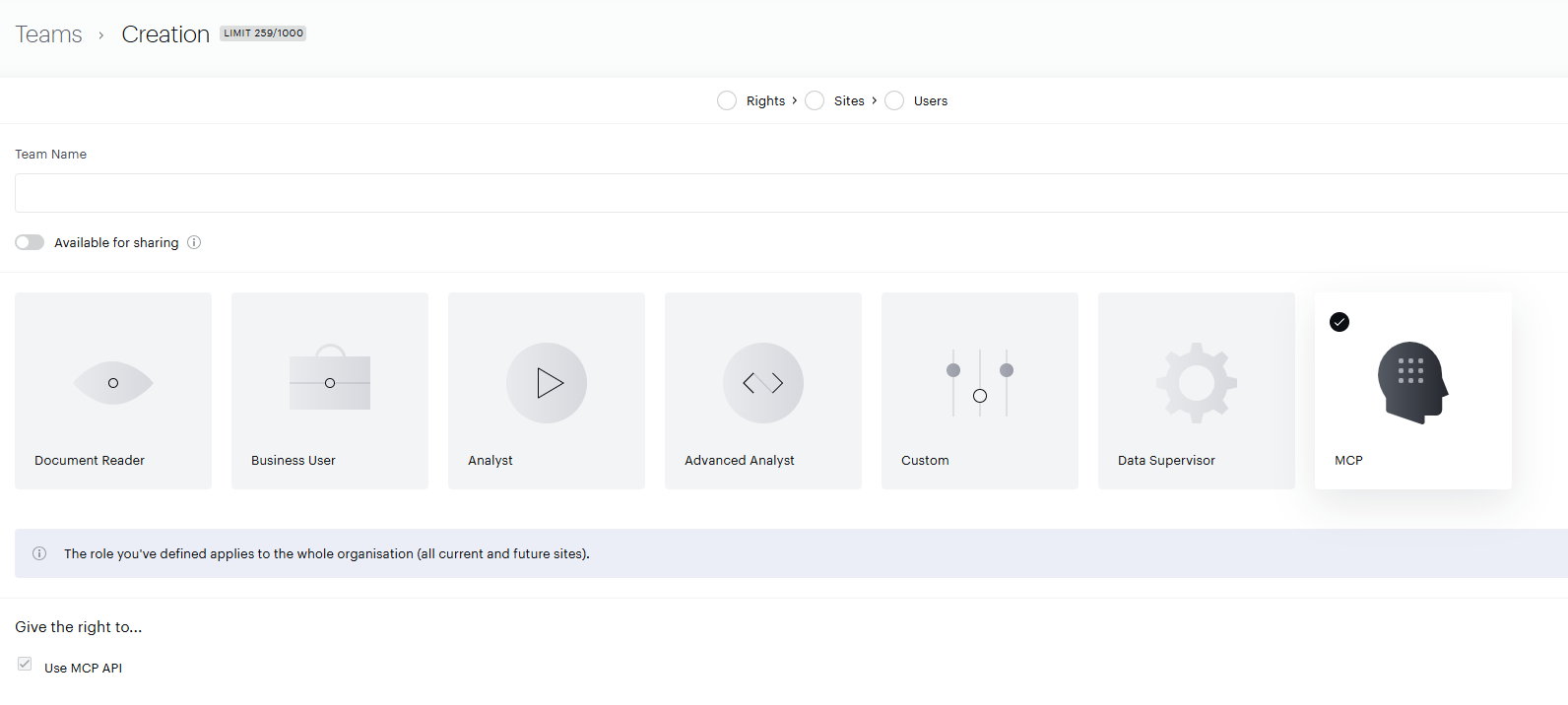
A user can query data through the MCP only if they belong to a team with the MCP role. A user can belong to several teams, so this team sits alongside their existing teams without changing their other access.
The MCP uses the same rights as your Piano Analytics user, including the sites you can access and your permissions on them. It can't return data from a site you don't have access to, even if you name that site in your question.
To set it up:
-
Go to Teams and create a new team.
-
On the role step, select the MCP role.
-
Add the users who should have MCP access, then save.
Good to know
-
The MCP role is only available to organizations that have Piano AI features enabled. If you don't see the role, your organization has chosen to opt out of Piano AI features.
-
The MCP role applies to the whole organization, covering all current and future sites.
-
Only users who belong to a team with the MCP role can authenticate to the MCP. Remove the user from the team to revoke access at any time.
-
Because analytics data contains sensitive business insights, we recommend granting the right only to approved personnel.
-
The MCP role only allows a user to connect. It doesn't extend their access to sites or data.
Data discrepancies
The MCP returns exact values. Eco mode, which speeds up queries by using approximations, is off by default in the MCP.
In other Piano Analytics interfaces, such as Data Query and Boards, you can activate eco mode. If it is on, the figures you see there can differ slightly from the ones your AI tool returns for the same question.
For example, you ask "How many visits did we have last week?" in your AI tool and get 1,204,317. A board with eco mode on shows 1,198,000 for the same period. Both answers come from the same data. To compare the MCP with another interface, turn eco mode off there too.
Default site
Every MCP query runs against a site. In the Piano Analytics interface you choose that scope yourself with the site selector, each time you consult your data. The MCP has no interface and no selector, so it uses the default site set on the profile of the user whose keys are calling the server.
You can query a different site by naming it in your question, for example "How many visitors did the Brand FR site have last week?", as long as you have access to that site. The default site is what the MCP falls back on when your question does not name one.
A valid default site is required even so. If no default site is set, or if the site that was set has since been deleted, the MCP returns an error instead of data.
To set it:
-
Go to your profile settings.
-
In the Default scope section, select the site to use.
-
Save.
Security and privacy notice
Important: The MCP might connect your analytics data to cloud-based LLM services. Before using:
-
Verify that your LLM provider (Claude, ChatGPT, and so on) does not use your data for model training.
-
Confirm that your organization's AI governance policies cover MCP integrations with business data.
-
Ensure the setup complies with your internal rules for AI tool usage.
-
Or use a company self-hosted or on-device LLM service.
Best practices:
-
Store API keys in environment variables or a secure vault.
-
Scope permissions to the minimum required, and never share your secrets.
-
Rotate or revoke keys if you suspect they've been exposed.
Connect your AI tool
Prerequisites
Before you start, you will need:
-
A Piano Analytics account with a personal API access key and secret key, available here.
-
A valid default site on your profile, on which you hold data read permissions.
-
Node.js installed to run local MCP scripts. Download the installer for your OS from nodejs.org.
-
npx available in your terminal. Check with
npx --version.
You can connect through a local server (STDIO), a remote HTTP server, or the Claude Code terminal. STDIO is the recommended option for most clients.
Recommended: STDIO (local server)
Best for Claude Desktop and most MCP clients that support a local server via npx.
-
Open your AI tool (for example, Claude Desktop) → Settings → Developer → Edit config.
-
Add the configuration below to your MCP config file (for example,
claude_desktop_config.json) and replace the placeholders with your credentials.
{
  "mcpServers": {
    "piano-analytics-mcp-server": {
      "command": "npx",
      "args": [
        "mcp-remote@0.1.18",
        "https://analytics-api-eu.piano.io/mcp/",
        "--header",
        "x-api-key:${ACCESS_KEY}_${SECRET_KEY}"
      ],
      "env": {
        "ACCESS_KEY": "XXXX",
        "SECRET_KEY": "XXXX"
      }
    }
  },
  "isUsingBuiltInNodeForMcp": true
}
-
Save the file, close it, then restart your AI tool.
On Windows, closing Claude Desktop is not enough after installing the MCP server. You must also stop the process in Task Manager.
-
Go back to Developer: the server should appear and start automatically as piano-analytics-mcp-server.
-
Open a new chat and run queries against your Piano Analytics data.
Official MCP endpoint: https://analytics-api-eu.piano.io/mcp/
HTTP connection (if your client supports it)
Some MCP clients let you declare a remote HTTP server and attach headers. If yours supports custom headers at the MCP level, use the endpoint above and add the x-api-key header formatted as ACCESS_KEY_SECRET_KEY (the two keys joined by an underscore) in your client's configuration. If headers aren't supported, use STDIO instead.
Claude Code
You can also install the MCP server in Claude Code from the terminal:
export ANALYTICS_ACCESS_KEY="XXXX"
export ANALYTICS_SECRET_KEY="XXXX"

claude mcp add piano-analytics --scope user -- npx mcp-remote@0.1.18 https://analytics-api-eu.piano.io/mcp/ --header "x-api-key:${ANALYTICS_ACCESS_KEY}_${ANALYTICS_SECRET_KEY}"
Troubleshooting
-
npxnot found: reinstall Node.js and verify withnpx --version. -
MCP start error: check the JSON syntax, that both keys are present, and the header format
x-api-key:${ACCESS_KEY}_${SECRET_KEY}. -
Network: allow outbound access to
analytics-api-eu.piano.io. -
Client lacks remote-server support: use STDIO via
npx mcp-remote, which is widely compatible. -
You don't have the rights to read data on your default site: check that a valid default site is set in the Default scope section of your profile, and that you have data read permissions on that site.
-
A site doesn't return any data: check that you have access to the site in Piano Analytics. The MCP can only query the sites you can access.