
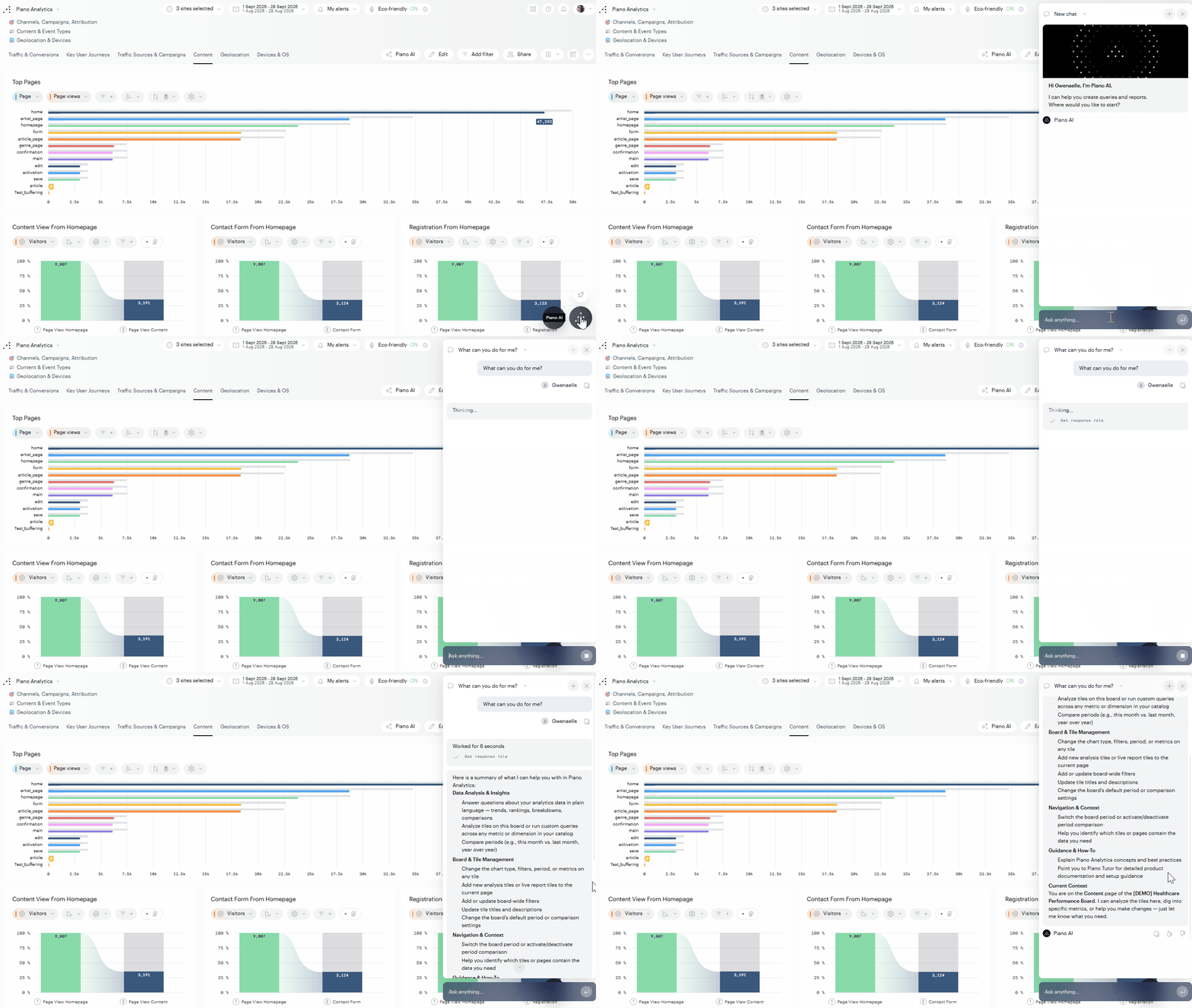
What is Piano Chat?
Piano Chat is a conversational AI engine available in Workspaces, Boards, and Data Query that acts as an analytics and product expert at your fingertips. It understands Piano Analytics and works with your own data, so instead of manually building queries or navigating menus, you can describe what you need in plain language and Piano Chat will interpret your request, build the analysis, and take action directly in the interface.
With Piano Chat, you can:
-
Get instant answers by asking questions about a board or a dataset in plain language, instead of building a query yourself.
-
Take action in the interface by asking it to change a period, apply a filter, or update a tile, instead of doing it manually.
-
Get started without training by asking the chat itself what it can do for you.
How to use Piano Chat
To open Piano Chat:
-
Go to Workspaces, a Board, or Data Query.
-
Click the chat button “AI Assistant”.
-
Type your request in plain language and send it.
If you're not sure where to start, ask "What can you do for me?" Piano Chat will list examples of what it can help you with.
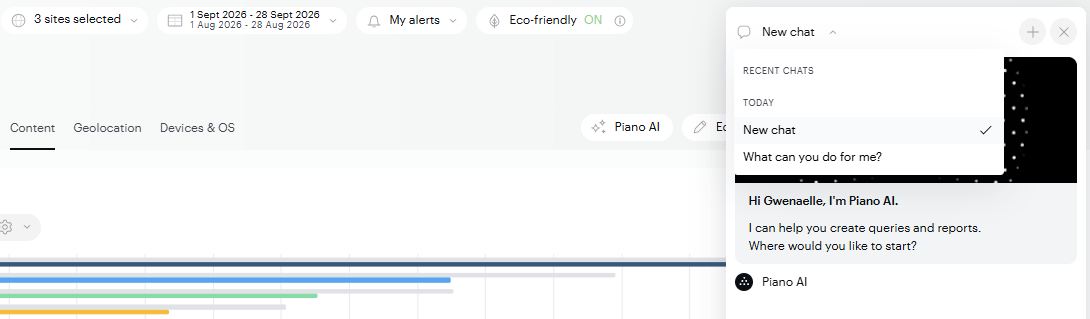
From the header of the chat panel, you can:
-
Click the arrow next to the current chat's name to see your recent chats, grouped by day. Select one to reopen it.
-
Start a new conversation with the + button.
-
Close the chat panel with the X button.
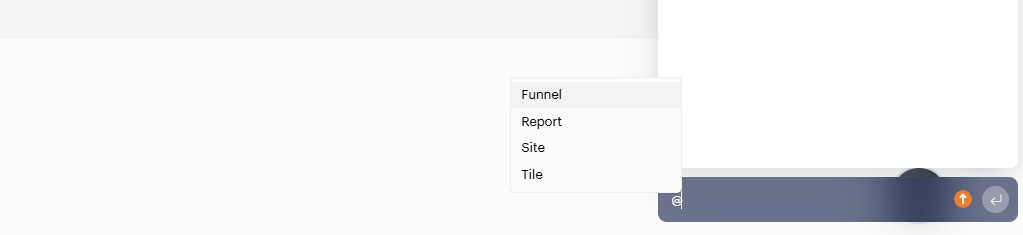
From the chat, typing @ opens a list of your funnels, reports, sites, and tiles. Select a type, then choose the specific resource you want, and Piano Chat will use it directly in your request.
What you can ask Piano Chat to do
Here are a few examples to give you ideas of what you can ask Piano Chat to do. This list isn't exhaustive.
-
Change what you're looking at. For example, "Show me the data for the last eight months" or "Add a comparison with last year."
-
Get an explanation of a board. For example, "What is this board about?" Piano Chat reads through the tiles and their descriptions to explain its purpose.
-
Surface the key takeaways. For example, "What are the most important insights from this board?" Piano Chat reviews the data behind every tile and returns a recap of the important topics, with supporting numbers, explanations, and recommendations.
-
Filter to a specific product or segment. For example, "Filter this board to [a product name] only." Piano Chat matches your request to the right property in your data model and applies it as a filter across the board.
-
Prepare for a meeting or a report. For example, once filtered, "What are the main points I should discuss with the editorial team in my next meeting?"
-
Write titles and descriptions. For example, "Help me write descriptions and titles for the tiles and the board."
-
Choose the right visualization. For example, "Optimize the visualizations and choose the most appropriate ones," with an explanation for each change it proposes.
-
Add an existing resource. Type to search for a report, funnel, or site you have access to, and ask Piano Chat to add it to your board.
-
Build a new analysis. Piano Chat can build a brand-new analysis inside the conversation. Use “Open in Data Query” to save it as a report before adding it to a board.
-
Query and analyze your data, using the same capabilities as AI Query and AI Reveal, without leaving the chat.
-
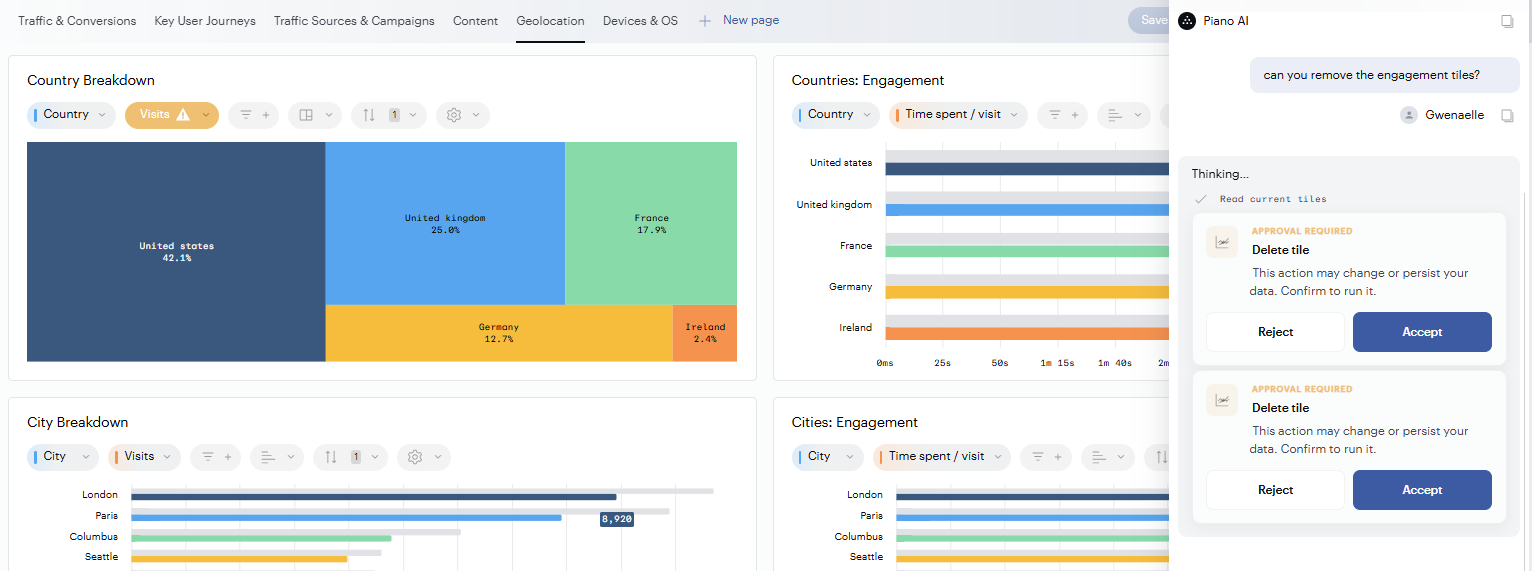
Piano Chat asks for your approval before applying a change to a resource, so nothing changes without your agreement.
-
Piano Chat cannot build a new board from scratch on its own. Create the board first, even leaving it empty, then ask Piano Chat to add content to it.
-
Piano Chat has the same level of rights as your own account: it is restricted to the actions you are allowed to do, and the sites you are able to access.
What Piano Chat takes into account
To answer your questions and carry out your requests, Piano Chat uses:
-
Board, page, and tile titles and descriptions
-
Report metric and property names and descriptions
-
The data currently loaded in the board or report you're working on
-
Your access rights (sites and resources)
It's important to properly document your resources (titles, descriptions) and data model so Piano Chat can correctly interpret the context and provide relevant answers.
Best practices for better results
-
Use clear, business-oriented language in your request.
-
Name the category, product, or segment you mean the way it appears in your data model.
-
Ask broad questions (such as "what are the most important insights") when you want a full recap, but expect them to take longer since Piano Chat reviews all the underlying data. Narrower questions get faster answers.
-
Make sure your boards, tiles, and reports have clear titles and descriptions: this is what Piano Chat relies on to understand your data.
Every response includes a thumbs up and thumbs down. Use them to tell us when something works well, or when something looks wrong, incomplete, or like a bug. Your feedback goes directly to our product team and helps us improve Piano Chat.
Disclaimer: Piano Chat relies on automated interpretation of your data and metadata. As such, it may produce inaccurate results, particularly if your resources are poorly named, ambiguous, or lacking business context. Review its answers and recommendations with a critical eye.
Transparency
Piano Chat is powered by Claude, a large language model developed by Anthropic. To generate its answers and carry out actions, Piano Chat uses the context of what you're working on (board and tile titles and descriptions, report metadata, the data currently loaded) together with your request.
All processing is conducted within the region associated with your contract.