
The Subscriptions feature has been renamed to Notifications. All functions and active events are saved and work as they did before.
Piano Audience allows customers to activate specific events, such as:
-
Partner errors that can be received during the segment export process in the Audience→Connectivity.
-
Problems with the size of segment audiences, when, for example, the size has dropped in a short period of time.
-
etc.
Admins can manage customers’ notifications in the Accounts Management application. Users working with Audience can manage own notifications in the Notifications application of Audience. Read details below.
Configuring the app
There is a Notifications application in the Piano Audience where customers can activate the existing events and get notifications:
1. Open Audience→Notifications and choose the site group.
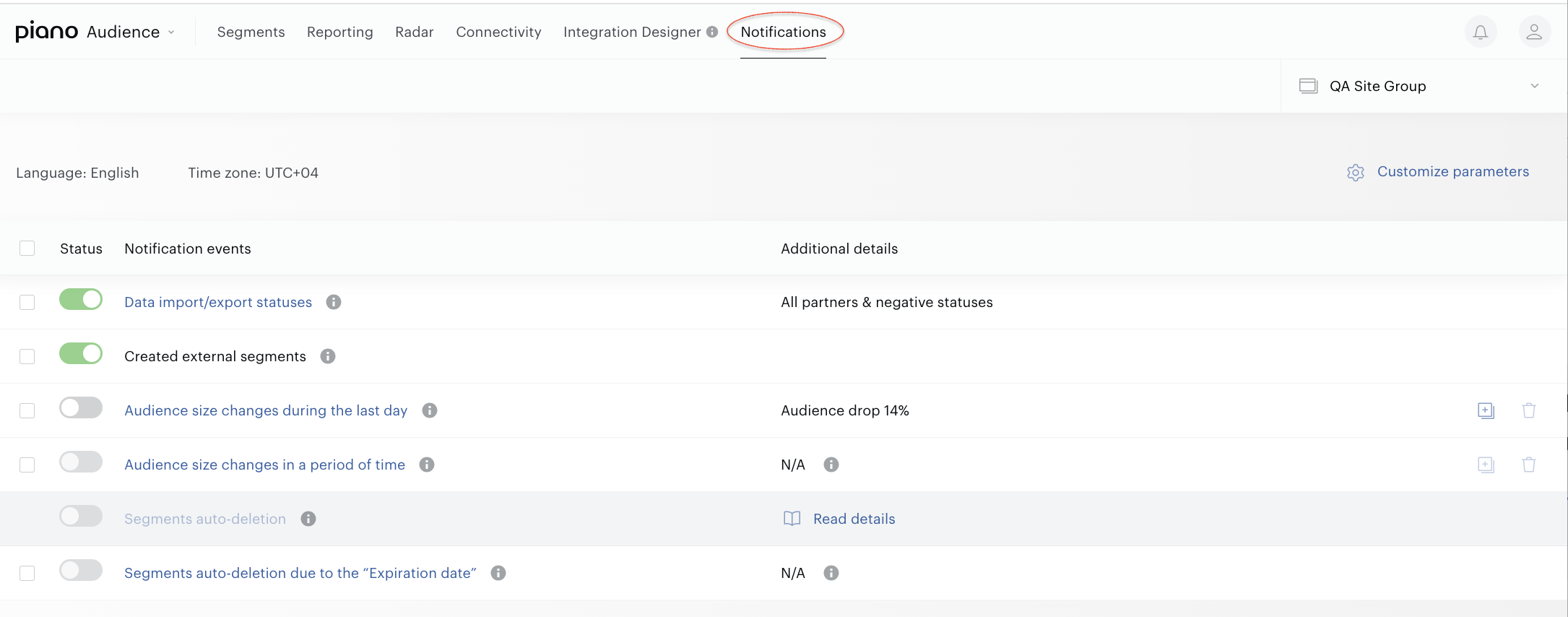
2. Fill all necessary parameters:
-
Language and Time zone.
By default, Audience uses the parameters of a user's browser and Audience' language settings, but it is possible to change them. By now, Audience supports the English and Japanese languages. The language parameter affects the language Audience uses for titles/texts within the mail.
To change the language and/or time zone press the Customize parameters link. A modal form will appear.
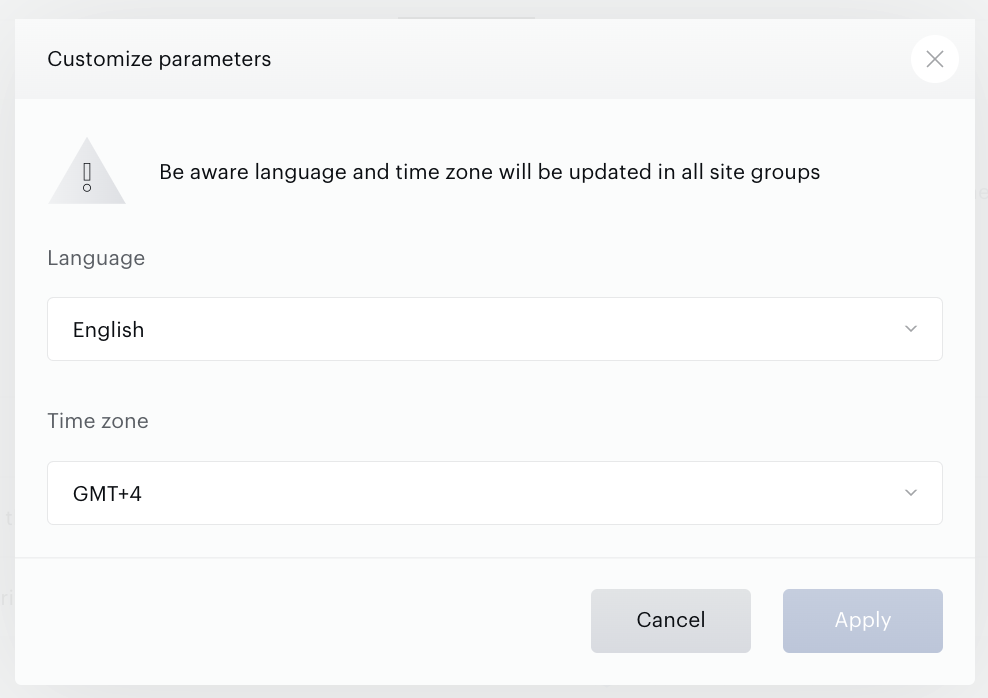
Be aware that for a user having access to several site groups and active notifications in more than one site group, any changes of Language and Time zone in the current site group affects the Language and Time zone settings in other site groups for this user.
The Email parameter is unavailable for managing in this application. After event activation, the user will receive notifications via the email linked to the Audience user account. Only admins in the Accounts Management application can manage a user’s different email addresses.
3. Activate notifications to relevant events. The list of supported events is below.
Notification events
By now, Piano Audience supports the following list of events:
-
Data import/export statuses.
-
Created external segments.
-
Audience size changes during the last day.
-
Audience size changes in a period of time.
-
Segment auto-deletion.
-
Segment auto-deletions due to “Expiration date”.
Data import/export statuses
This event allows you to receive either only partner-related errors (when a data import/export fails due to errors) or notifications for both failed and successful imports/exports.
When we talk about partner errors, these can include issues such as expired keys or tokens, changed credentials, or other problems detected on the partner’s side.
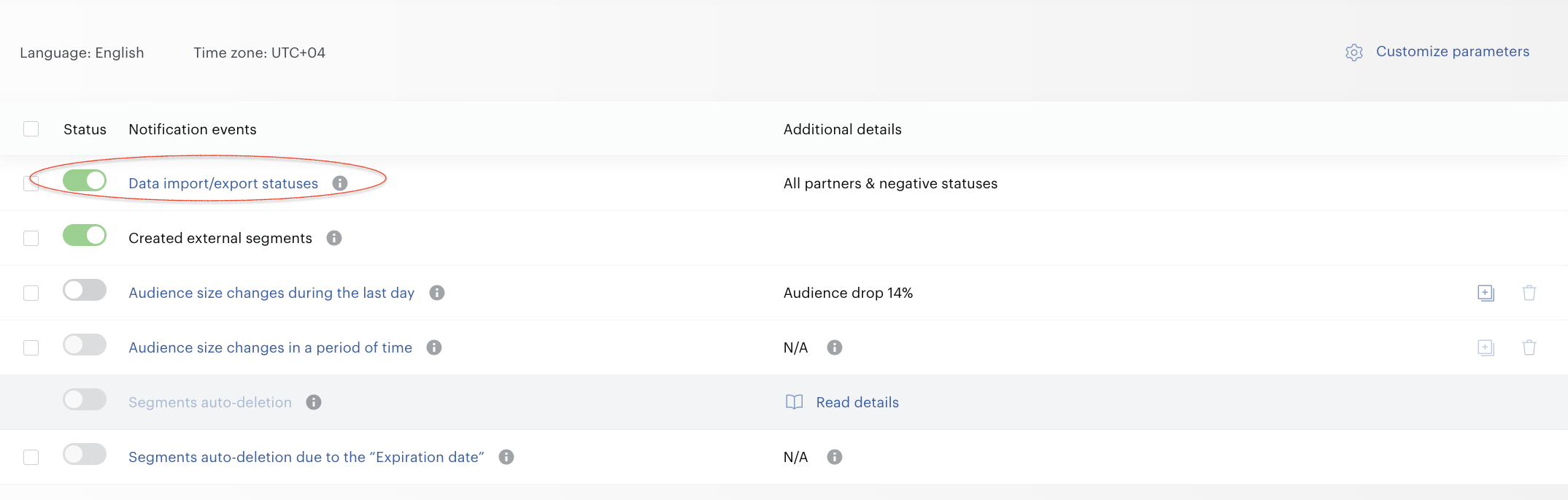
In the simplest case, you can just activate the event using the toggle next to its name. In that case, the default settings will be applied - meaning only errors across all connections will be checked. By “all connections,” we mean those that perform data import/export on a scheduled basis. For example, Composer or CSV Export connections are not analyzed.
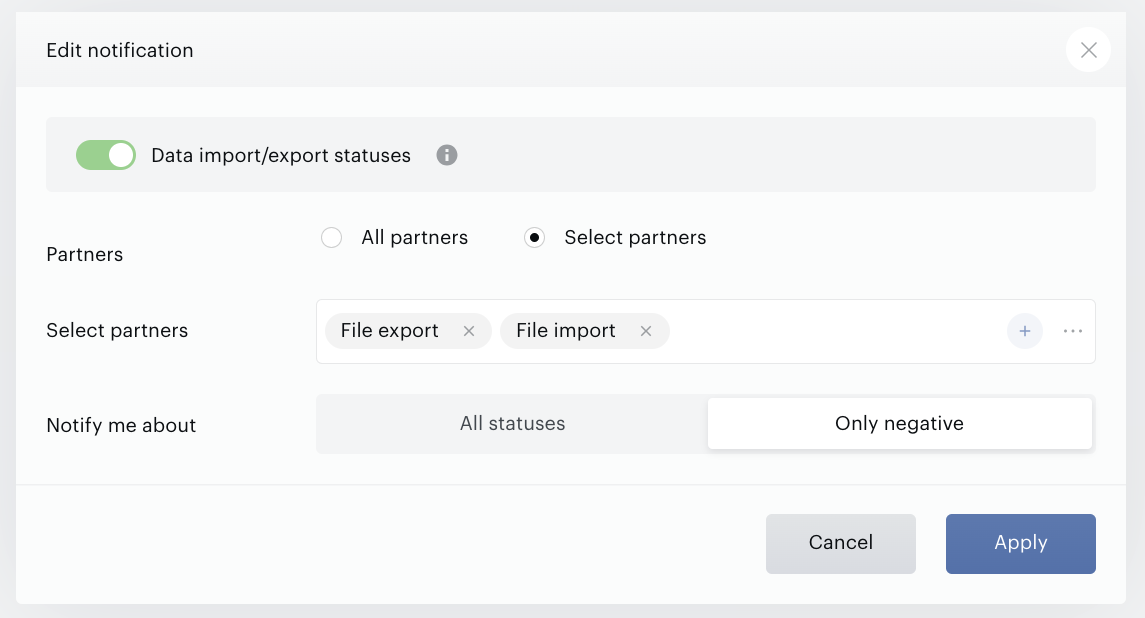
If you wish, you can open the event settings and, for example, choose to receive notifications for any connection outcome, as well as select one or more connections that are most important to you - for instance, only File import. Don't forget to click on Apply to save changes.
Don’t forget that the same partner errors are always available in the UI forms of the connections:
-
Go to Audience→Connectivity→Connections tab.
-
Open a specific connection builder form.
-
Go to the Errors tab.
Audience size changes during the last day
This event allows receiving information about segments whose audience has suddenly decreased within the last day.
For this event, customers should insert the % that is critical for the segment audience size. Audience compares the size difference between today and yesterday with the entered % and notifies customers only if the difference is equal to or greater than the %.
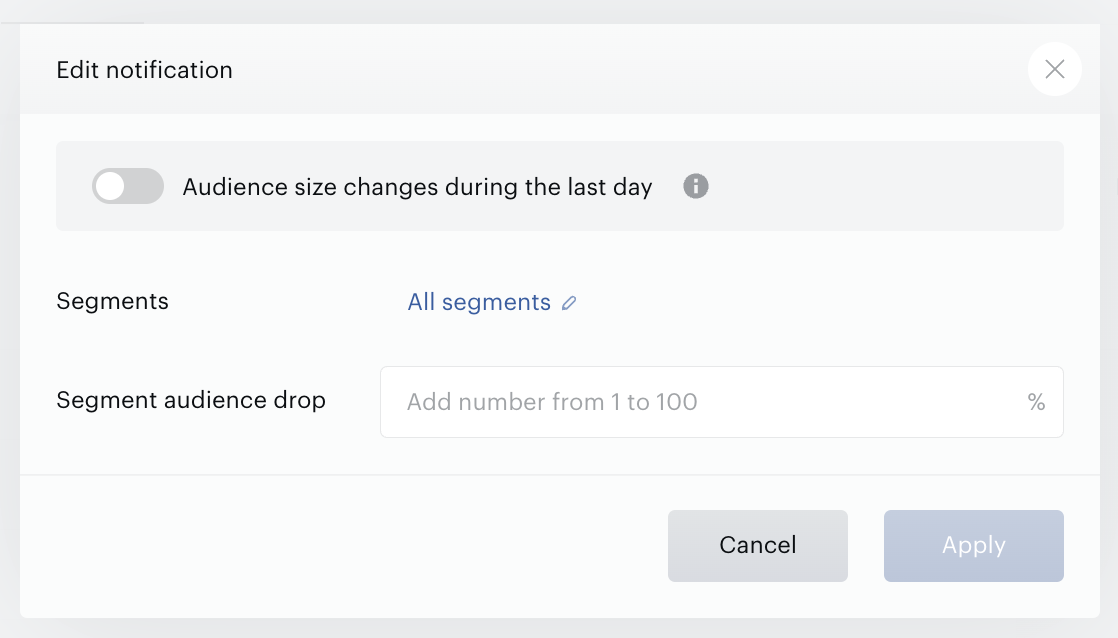
By default this event verifies all segments per the site group. It is possible to verify only particular segment(s) and/or segment groups. It can be done using the Segments selector.
Be aware. If the segment group is selected, all newly created segments within this segment group will be verified automatically. But if just part of the segments are selected within the segment group, only selected segments will be verified automatically; all newly created segments should be added manually.
Save settings by pressing the Apply button and activate the notifications for the event.
It is also possible to create more than one event of this type. To do so, click on the icon-button Duplicate event type.
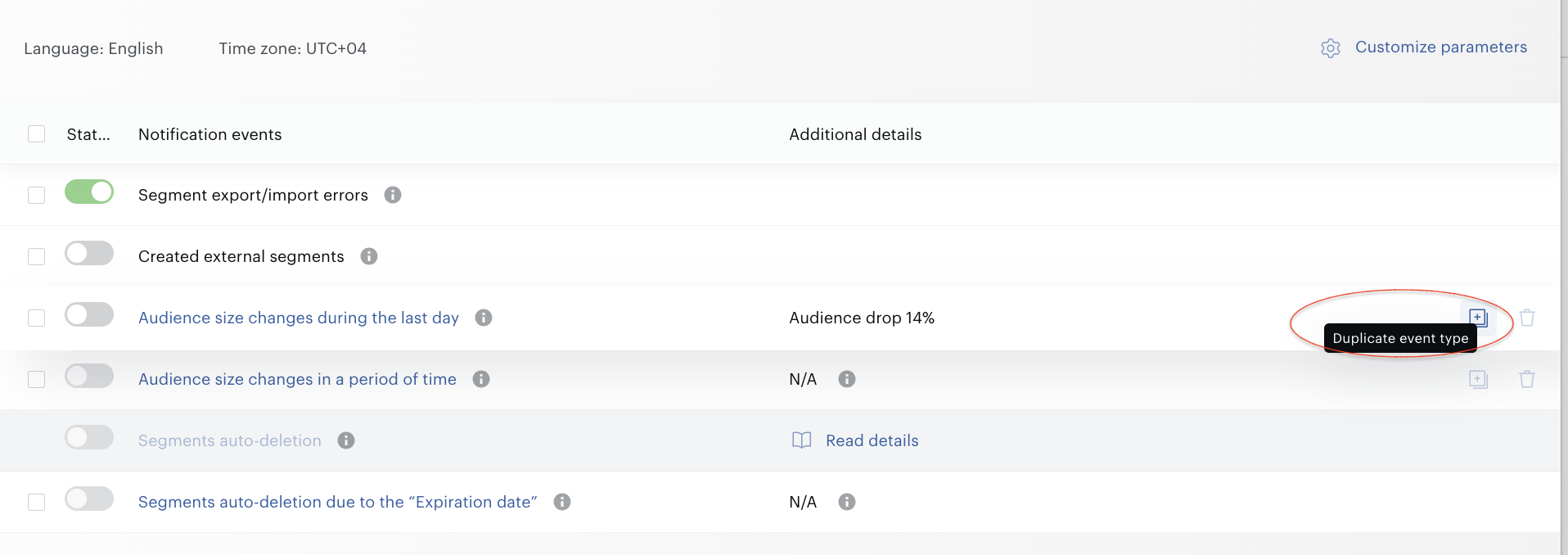
Please note the following restrictions:
-
you cannot duplicate an empty (unconfigured) event,
-
you cannot create events with completely identical settings - that is, you need to select different segments and different drop percentages for the chosen segments.
Audience size changes in a period of time
This event allows receiving information about segments whose audience has decreased in the last few days.
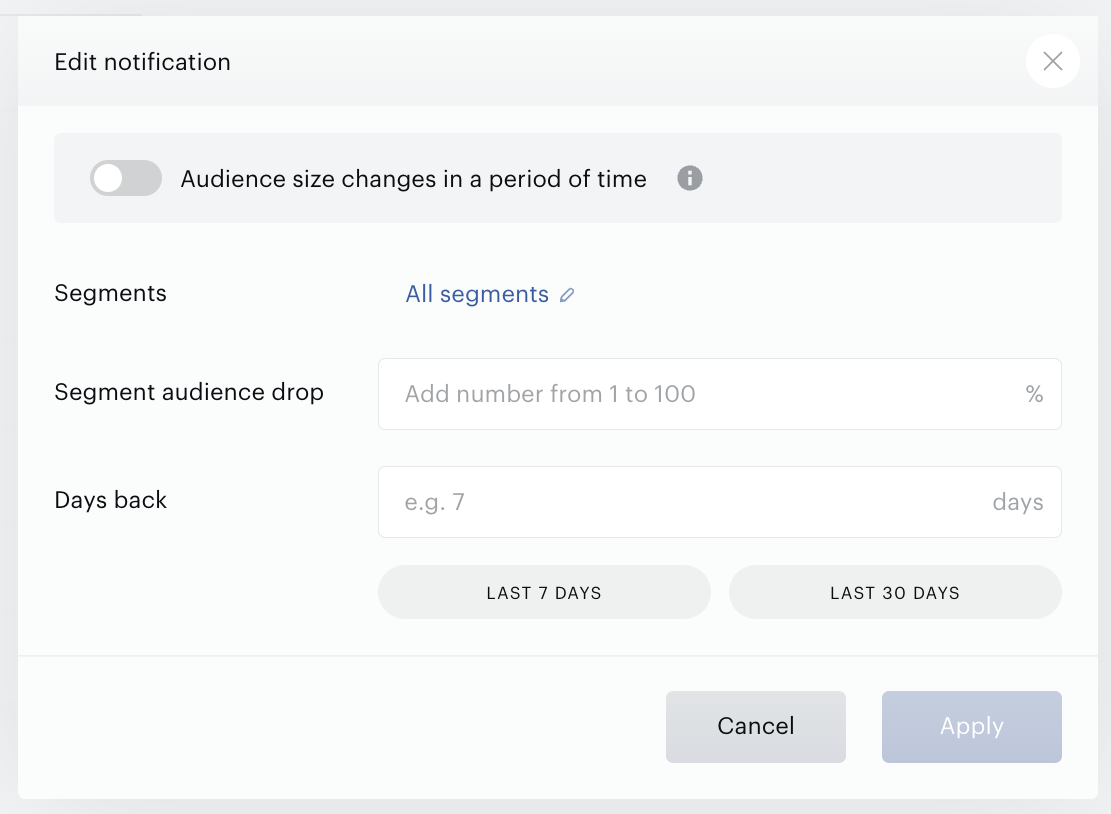
For this event, the customer should insert the % that is critical for the audience size and insert the period of time - days back. Audience compares the size difference between today and N days back with the entered % and will notify customers only if the difference is equal or greater than the %.
By default this event verifies all segments per the site group. It is possible to verify only particular segment(s) and/or segment groups. It can be done using the Segments selector.
Be aware. If the segment group is selected, all newly created segments within this segment group will be verified automatically. But if just part of the segments are selected within the segment group, only selected segments will be verified automatically; all newly created segments should be added manually.
Don’t forget that it is possible to see audience changes using, for example, a graph on the History tab of the Segment Builder.
It is also possible to create more than one event of this type. To do so, click on the icon-button Duplicate event type.
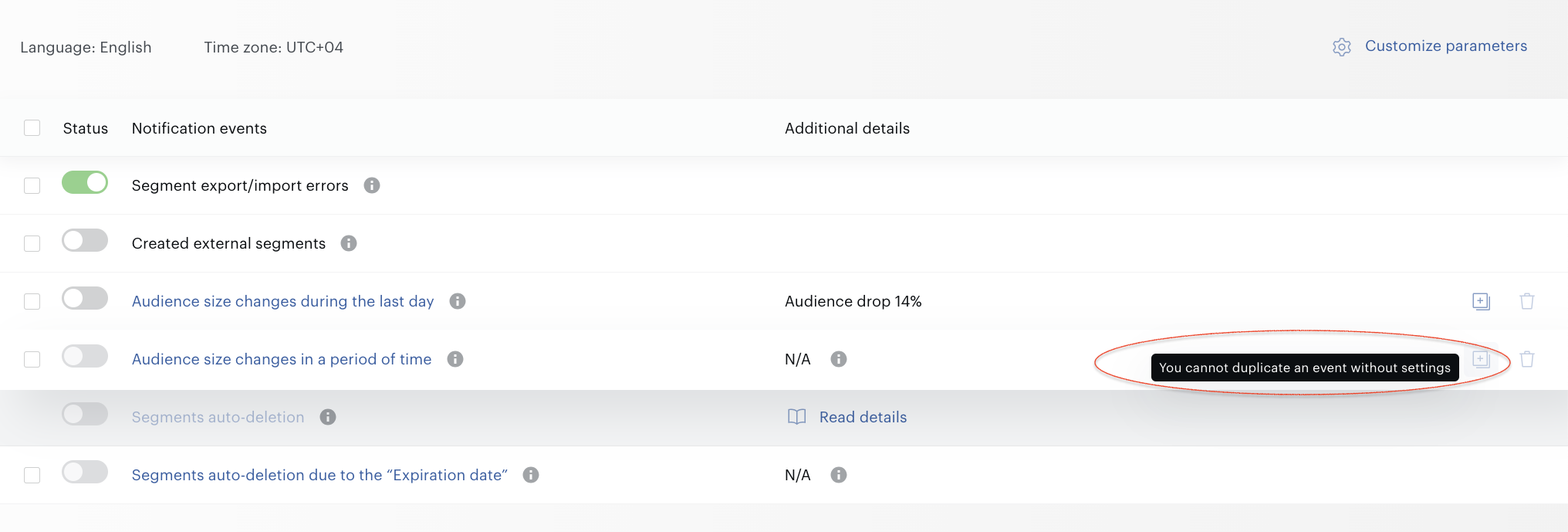
Please note the following restrictions:
-
you cannot duplicate an empty (unconfigured) event,
-
you cannot create events with completely identical settings - that is, you need to select different segments and different drop percentages for the chosen segments.
Segment auto-deletion
It is possible to activate this event only if Auto-deletion per the site group is enabled. Read details here.
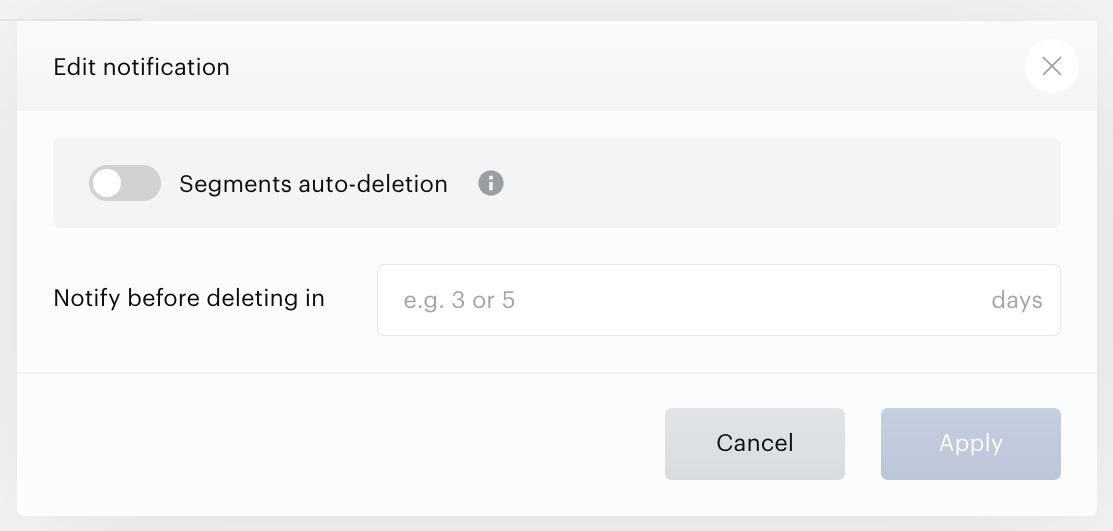
For this event, the customer should insert the number of days for which they want to receive notification of upcoming deletion of segments. Some restrictions of number of days:
-
It should be more than 0.
-
The maximum number of days is limited by the Deletion setting per site group.
The recommended number is 3-5 days. In this case, the customer a) has the most relevant list of segments to be deleted in several days; b) 3-5 days is enough to make any changes, if some of segments shouldn’t be deleted c) the customer doesn’t receive a lot of notification emails.
Be aware that the segments in the notification email can differ from the list of deleted segments. There are several reasons why it can happen:
-
On the date of deletion some of the segments can be used in Modules (CCE/Content), in an active Composer experience(s), or work as the base segment in a lookalike segment.
-
On the date of deletion the segment audience can be out of the main criterion per site group. For example, the customer set up the following criterion for the segments that can be deleted: the audience is 0 during 14 days. During the first 12 days the audience was 0 and the segment was added to the notification email because the segment could potentially be deleted in several days. But on the next day the audience grew up to 1,000 users. It means that the segment now is out of the criterion per the site group and can't be deleted.
Segment auto-deletions due to “Expiration date”
For this event, the customer should insert the number of days for which the customer wants to receive notification of the upcoming deletion of segments. It should be more than 0.
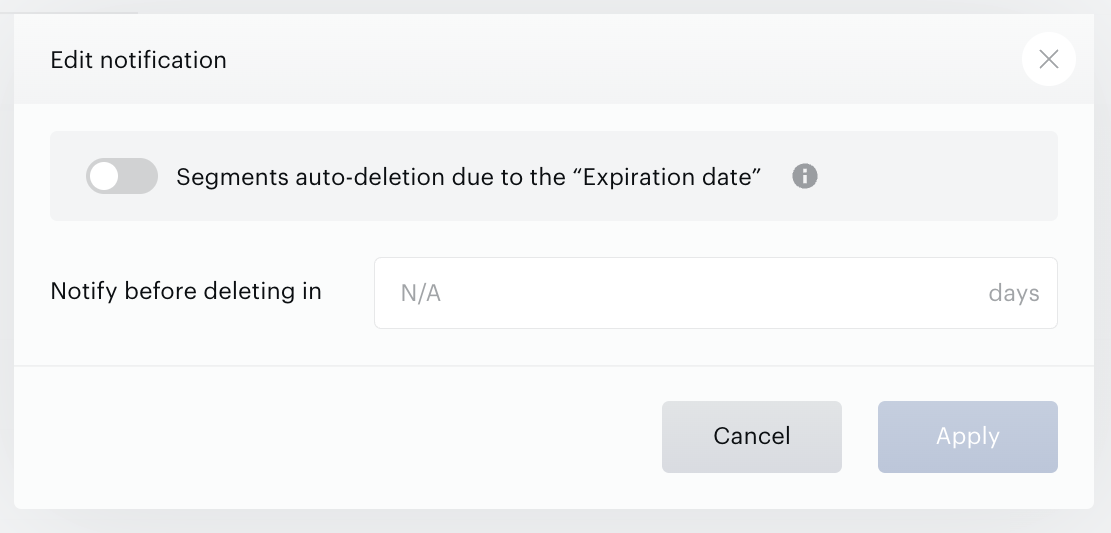
The recommended number of days is 3-5 days. It this case customer a) have the most relevant list of segments that can be deleted in several days; b) 3-5 days is enough to make any changes, if some of segments shouldn’t be deleted c) customer doesn’t receive a lot of notification emails.
Be aware that the segments in the notification email can differ from the list of deleted segments. There are several reasons why it can happen:
-
On the Expiration date some of the segments can be used in Modules (CCE/Content), in an active Composer experience(s), or work as the base segment in a lookalike segment.
-
In the period between the last notification email and the Expiration date, the latter can be cleared by somebody or the segment can be deleted manually before the auto-deletion.
Created external segments
This event allows receiving notification with the list of newly created External segments.
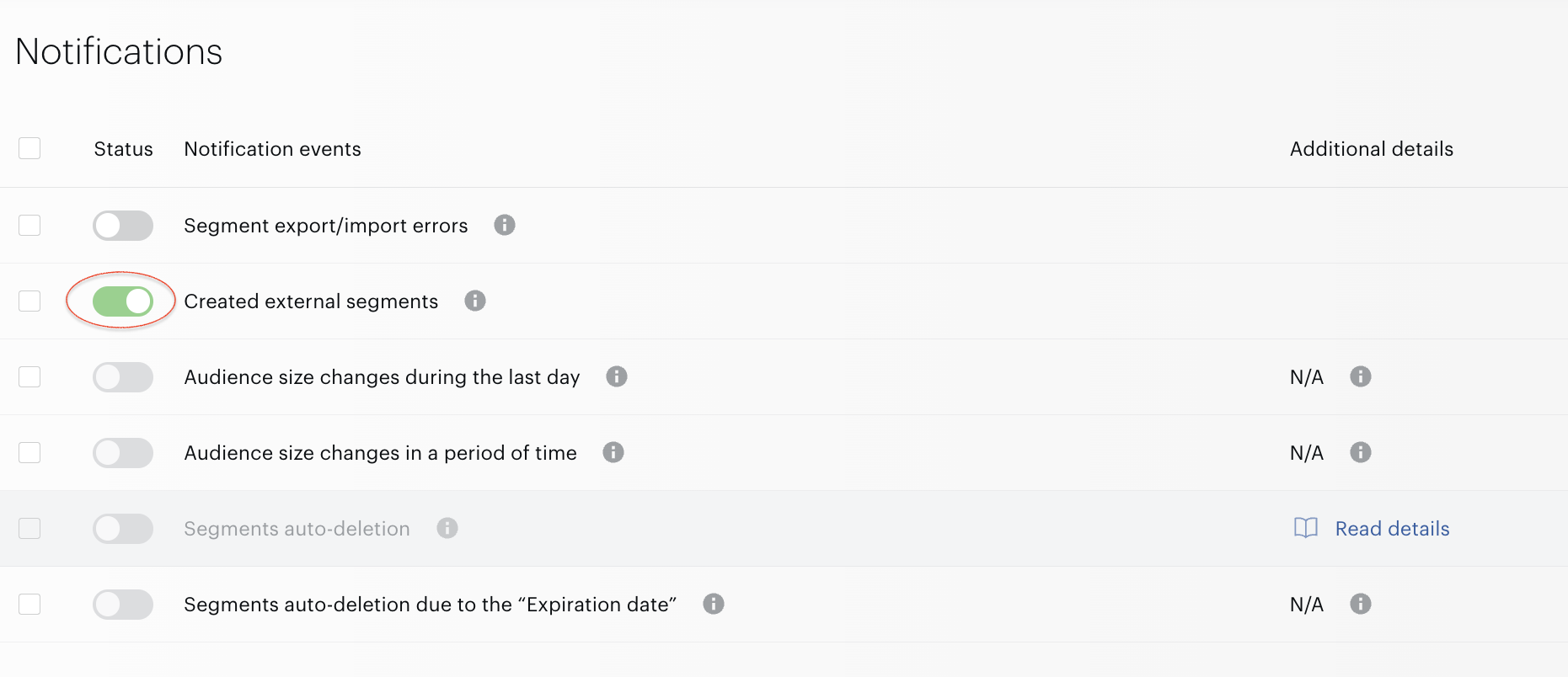
The Created external segments event is available for activation only if at least one active File import connection exists in the current site group.
If the File import connection has been deactivated in a site group, the Created external segments event will be deactivated automatically as well.
Notifications event statuses
It is possible to activate/deactivate events at any moment. Audience just starts or stops sending notifications to the email.
Use the toggle next to the event name to activate/deactivate notifications of specific events.
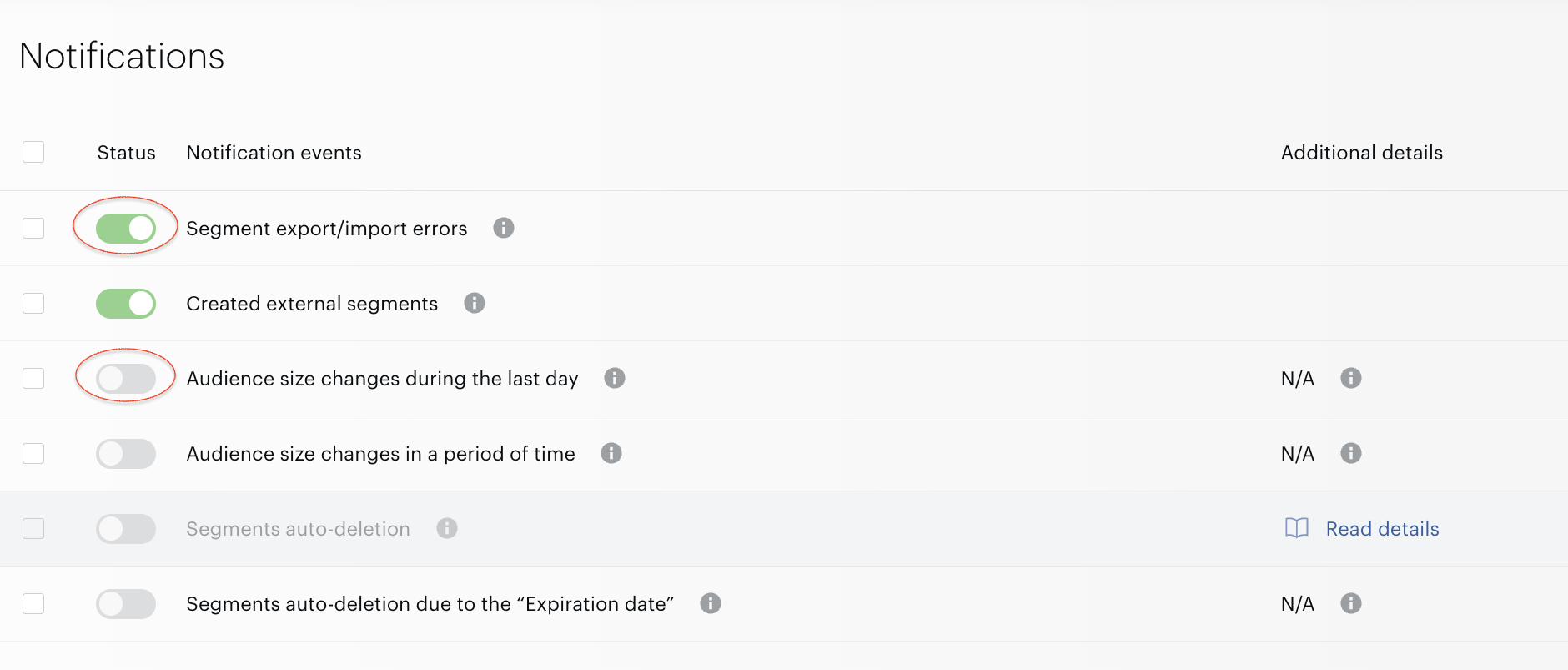
Also it is possible to do this using bulk operations. Read details below.
Notifications bulk operations
Bulk operations are suitable for those who want to activate or deactivate notifications to several or all events at the same time.
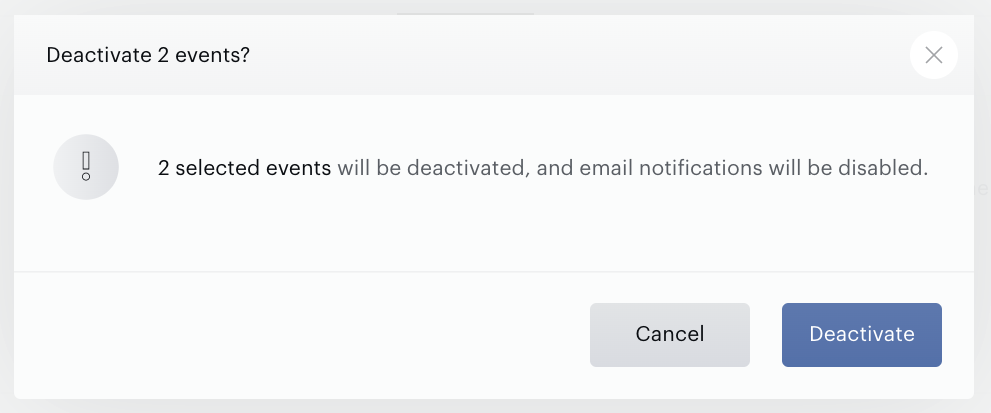
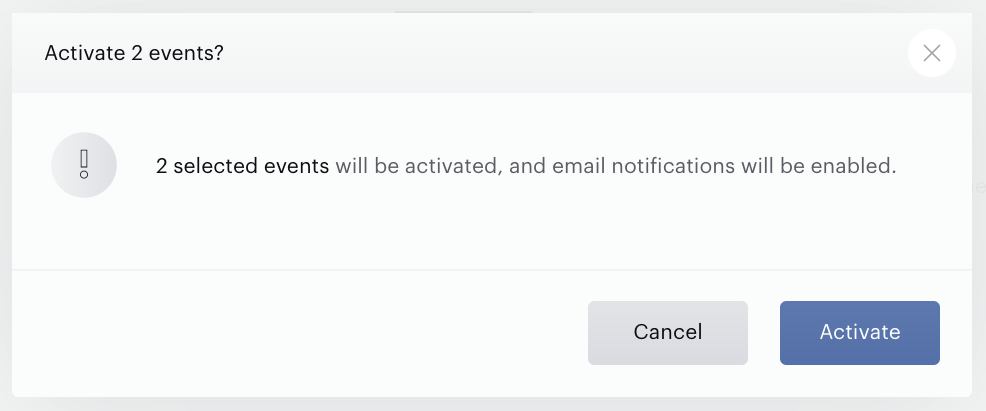
Select emails in the list and press one of the buttons at the bottom of the page: Deactivate or Activate.
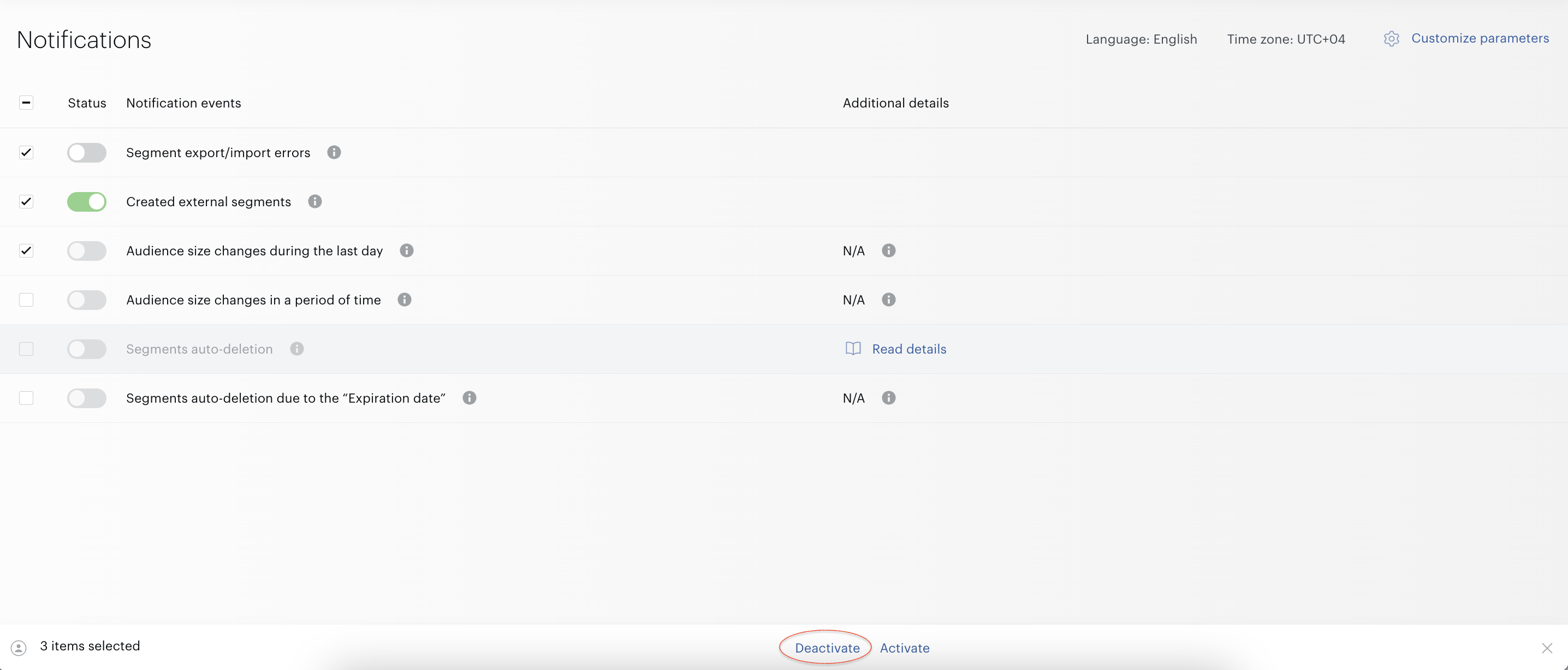
Be aware that Audience can activate only events where all obligatory settings have been set up:
Notification details
The email address do-not-reply@piano.io is used to send notifications. Please ensure that this email address is not marked as spam. Do not reply to emails from this address. Emails are scheduled according to the customer's local time zone. However, the actual sending of emails begins only after the segments have been calculated and prepared for export.