
Welcome to the Piano Integration Designer
Welcome to the Piano Integration Designer! This tool allows you to view, manage, and configure your customer data easily. The interface organizes attributes by data category, with separate views for identity-related identifiers, standard data fields, and computed attributes. With the Integration Designer, you can modify display names, export data to third-party platforms like Amazon S3, and more.
This guide will walk you through the key features of the Integration Designer, including how to ingest and export data, how to manage attributes, and how to work with data sources integrated with the tool.
Data Ingestion: How to Bring Data Into Piano Audience
Piano Audience offers several ways to ingest your customer data, whether through APIs or from other Piano products like Piano Management + Billing, Identity Management, and 1p data uploaded to Piano Audience. Below are the primary methods of ingesting data:
APIs
Our public APIs allow you to ingest data directly into our Customer Data Platform (CDP). Using the APIs, you can push customer events, attributes, and more into the platform. Data ingested via the API appears in near real-time in the Integration Designer interface.
For full documentation on how to use our APIs, refer to the Piano API Documentation here.
Piano Management + Billing
If you have licensed Piano Management + Billing, subscription-related data is automatically available within Integration Designer. This integration enables you to leverage subscription-based insights seamlessly; the following attributes will be shared with Piano Audience:
-
<prefix>-card-paid-after-exp -
<prefix>-churned -
<prefix>-gift-recipient -
<prefix>-next-billing-date -
<prefix>-registered -
<prefix>-sub-autorenew-off -
<prefix>-sub-card-expiration -
<prefix>-sub-in-grace-period -
<prefix>-sub-ltc -
<prefix>-sub-payment-term -
<prefix>-sub-start-date -
<prefix>-subscriber -
<prefix>-trial-free -
<prefix>-trial-paid
Additional information about access to a specific resource, such as:
-
Resource ID
-
Creation date
-
Expiration date
is shared with Piano Audience for the corresponding subscribers.
Identity Management
For clients using Identity Management, email addresses or social login vendor, user ids, account lifetime, and all custom fields you’ve configured will also be accessible within Integration Designer. This allows you to manage user identity data, including login and custom profile information.
Piano Audience
If you’ve previously used Piano Audience, any first-party data that was ingested via APIs or managed imports will be available within Integration Designer. This ensures continuity in data management as we strengthen our CDP capabilities.
Understanding the Integration Designer Interface
The Integration Designer provides an intuitive interface to manage your data attributes. Attributes are organized into three sub-views that you can access from the secondary navigation tab bar: Data, Computed, and Identifier.
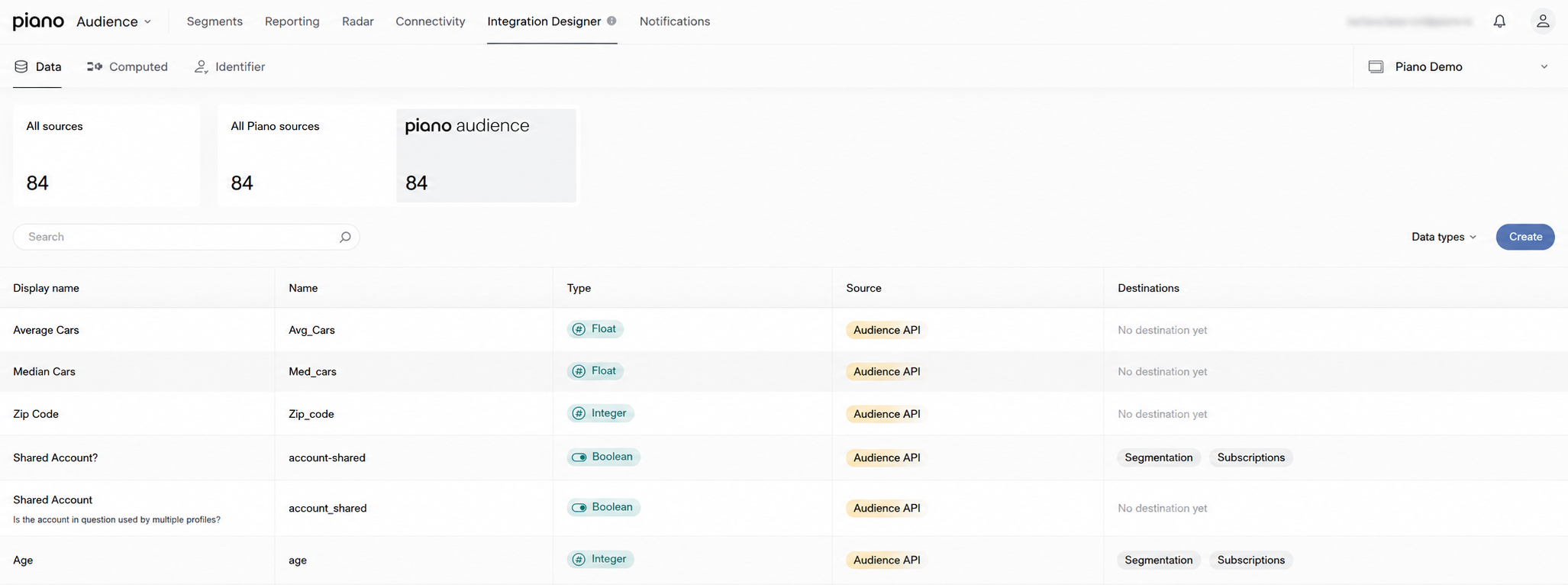
Use these sub-views to focus on the category of attribute you want to review or configure:
-
Data: Displays standard data fields. This view includes a source category summary widget above the table so you can quickly understand where available data originates.
-
Computed: Displays computed or derived fields, including attributes created from calculations or other logic. This view does not include the source category summary widget.
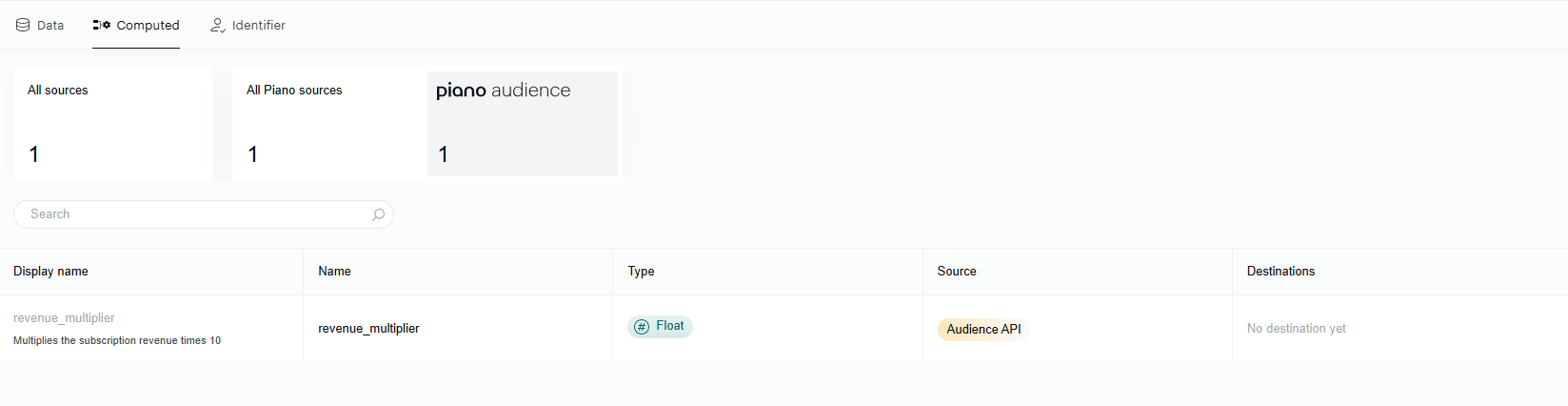
-
Identifiers: Displays identity-related fields, such as user IDs and other identifiers. This view does not include the source category summary widget.
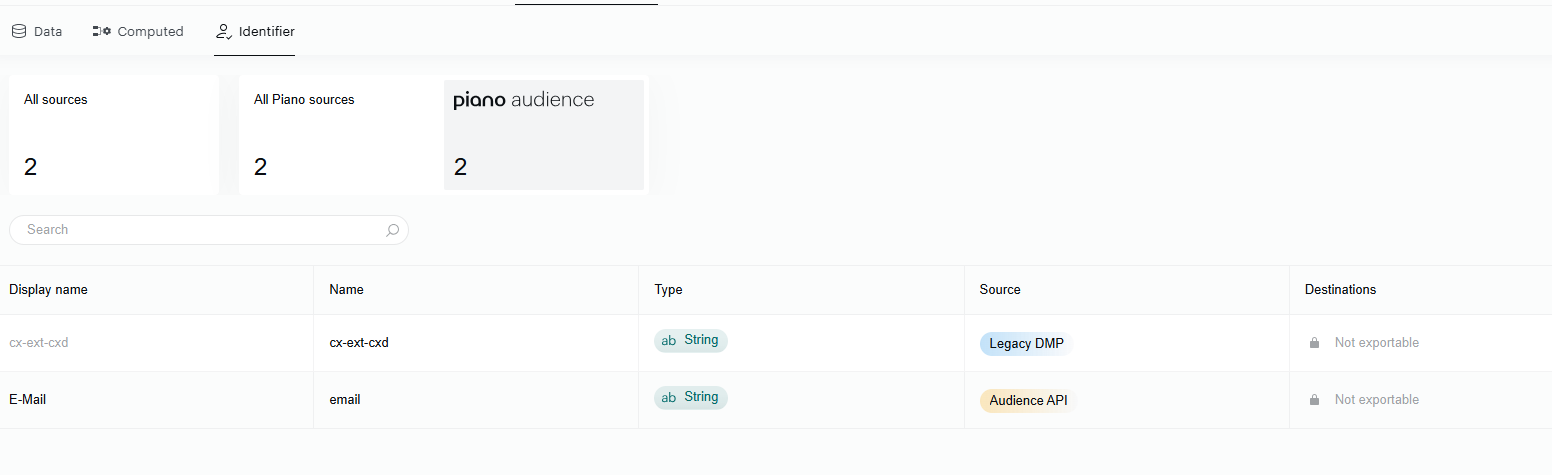
The source category summary widget appears only in the Data sub-view. It summarizes the source categories represented in the table, helping you quickly see which data sources are contributing attributes before you review individual rows.
Within each sub-view, the attribute table includes the following key columns:
-
Display Name
-
The human-readable label for an attribute.
-
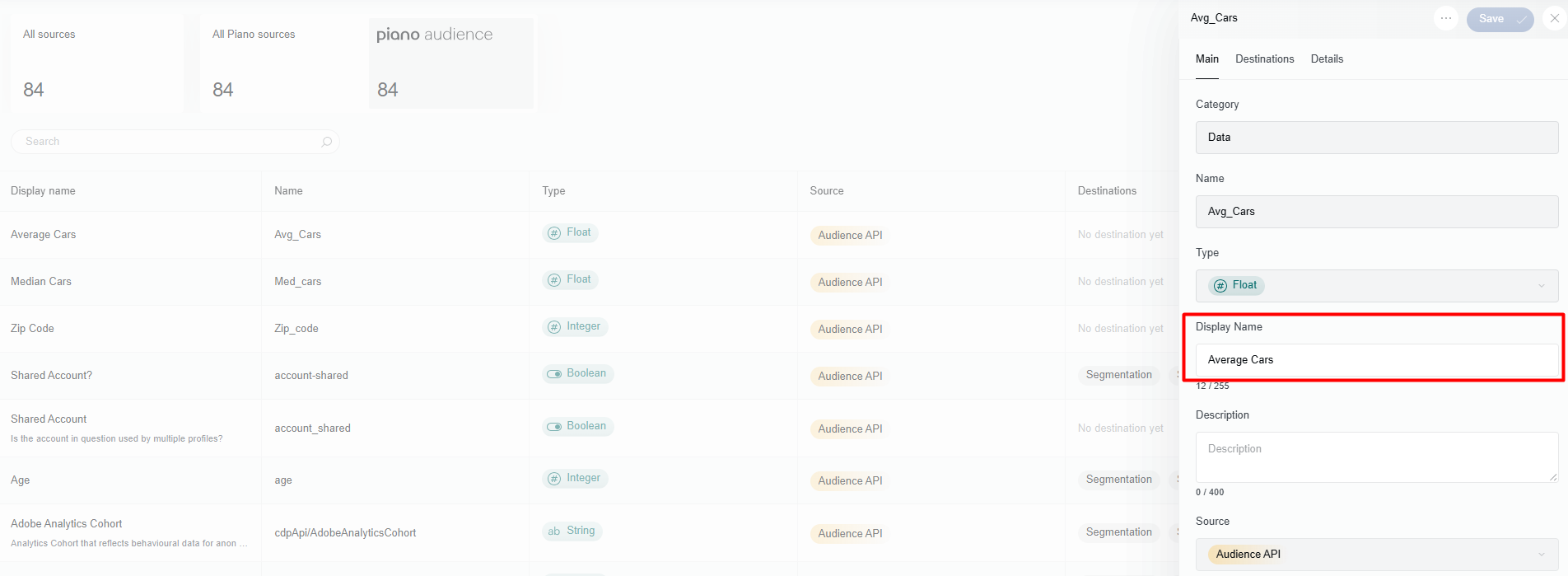
Editable: To edit the display name, click it in the Display Name column. A pop-up opens on the right-hand side, where you can update the value in the Display Name field, then click Save to apply the change.
-
-
Name
-
The system name or key that refers to the attribute in our platform.
-
Non-editable.
-
-
Type
-
Defines the type of data (e.g., string, number, boolean).
-
Non-editable.
-
-
Source
-
Indicates where the data originates (e.g., Piano Management + Billing, Identity Management, or API ingestion).
-
Non-editable.
-
-
Destination
-
Shows where the data is set to be exported, such as external platforms like Amazon S3.
-
Non-editable.
-
Managing and Modifying Attributes
To manage an attribute, first open the relevant sub-view: Data, Computed or Identifier. Then click an attribute in the table to view its details.
Editing Display Names
-
Navigate to the Integration Designer section of the interface.
-
Open the appropriate sub-view for the attribute you want to modify: Data, Computed or Identifier.
-
In the Display Name column, click the name of the attribute you wish to modify.
-
Enter the new display name that better reflects the attribute.
-
Save your changes.
These updates will reflect immediately across the platform wherever the attribute is used.
Adding Descriptions to Attributes
-
Navigate to the Integration Designer section of the interface.
-
Open the appropriate sub-view for the attribute you want to update: Data, Computed or Identifier.
-
Click the attribute you wish to add a description for.
-
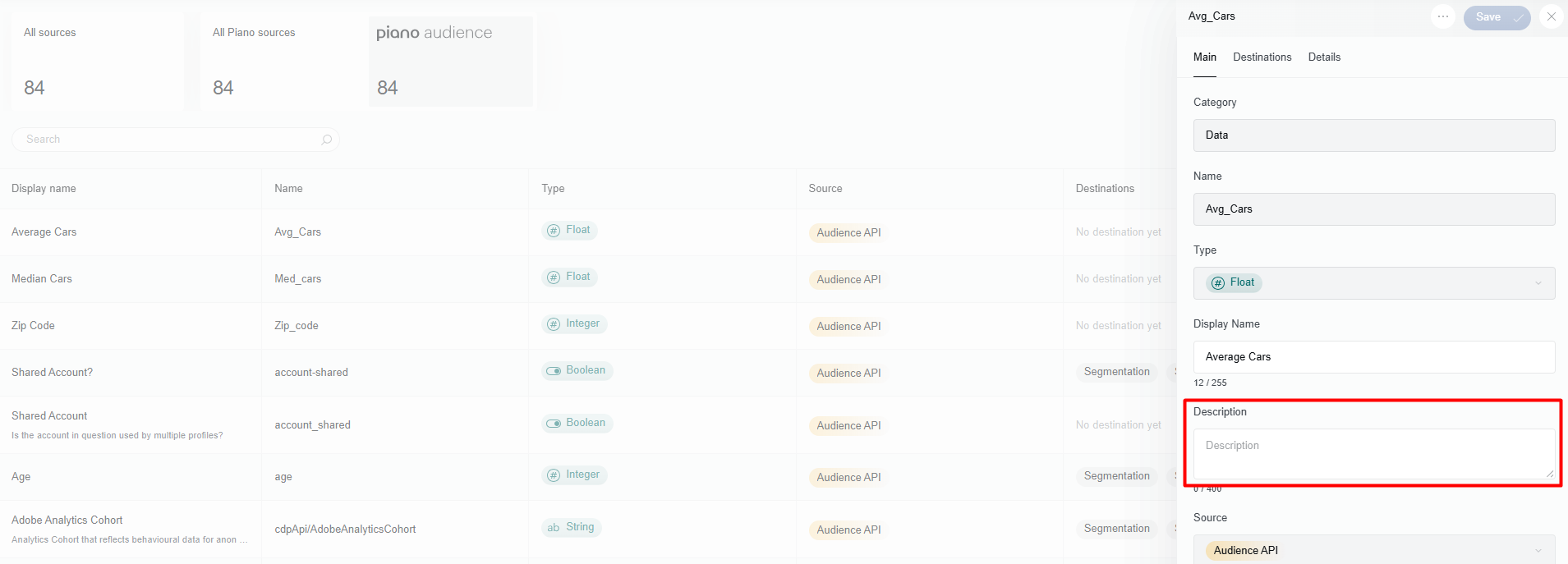
In the description field, enter any text (up to 400 characters) that provides additional details about the attribute.
-
Save your changes.
The descriptions are stored with the attribute and can help other users understand its purpose or usage.
Important Considerations for attribute management
When configuring user profile attributes in Integration Designer, keep the following in mind to ensure proper functionality across Piano products.
Reserved Fields for Data Ingestion in Piano Audience
For clients ingesting data directly into Piano Audience, certain fields are reserved by Piano for internal data processing and ingestion. These fields should not be overridden when sending custom data to avoid conflicts, data corruption, or unexpected behavior in user profiles and segmentation.
The reserved fields (prefixed with your customer prefix, e.g., abc-) include:
-
<prefix>-card-paid-after-exp -
<prefix>-churned -
<prefix>-gift-recipient -
<prefix>-next-billing-date -
<prefix>-registered -
<prefix>-sub-autorenew-off -
<prefix>-sub-card-expiration -
<prefix>-sub-in-grace-period -
<prefix>-sub-ltc -
<prefix>-sub-payment-term -
<prefix>-sub-start-date -
<prefix>-subscriber -
<prefix>-trial-free -
<prefix>-trial-paid
Recommendation: When defining custom attributes, choose unique names that do not match these reserved ones. If you attempt to send data using these fields, it may be ignored, overwritten, or cause ingestion errors. Always review your data schema against this list before uploading.
Attribute Enablement for Segmentation and Piano Subscriptions (Composer)
User profile attributes ingested into Piano Audience are not automatically enabled for Segmentation or other connectors, except in specific cases outlined below. You must explicitly enable attributes to make them available for use in Segmentation or to export them via connectors.
Clients Using Both Audience and Piano Subscriptions (Composer)
The Composer connector in the Connectivity Hub controls which attributes are exported to Composer for use in User Profile Targeting. Because Composer and the Segment Builder share the same underlying data layer, any attribute enabled for Composer is automatically also available for Segmentation. The two cannot be configured independently — enabling an attribute for Composer inherently makes it available in the Segment Builder as well. For detailed guidance, refer to the Composer Integration Documentation.
Clients Using Only Piano Audience
Uploaded Data (Automatic Enablement)
All user profile attributes uploaded directly into Piano Audience are enabled automatically for Segmentation when the attribute contains your customer prefix. To ensure proper attribute recognition and enablement:
-
Attribute Naming Convention: Import attributes using your assigned prefix format:
<prefix>-attributeName. Example: If your prefix isabcand you want to importdepartureDate, name it asabc-departureDate. -
User Identifier Linking: Link the imported data to the user identifier already known by Piano Audience using the key format:
cx-ext-<prefix>. Example: For prefixabc, use the keycx-ext-abc. This ensures the attribute data is properly associated with existing user profiles in Piano Audience.
Newly Created Attributes (Manual Enablement Required)
When you create new attributes — for example, Computed Traits — these are not automatically enabled for Segmentation. To make newly created attributes available in the Segment Builder, you must manually enable them via the Piano Audience Segmentation connector in the Connectivity Hub.
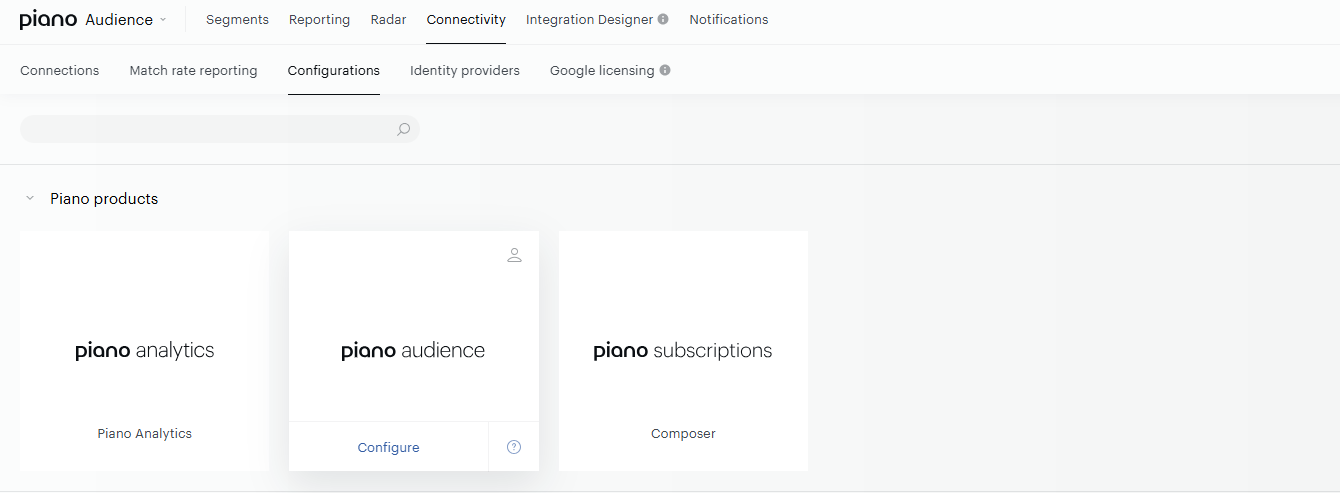
To enable new attributes for Segmentation:
-
Navigate to Connectivity > Configurations in Piano Audience.
-
Under Piano products, locate the Piano Audience connector tile.
-
Open the connector by clicking Configure and select which attributes you want to enable for use in the Segment Builder.
-
Save your configuration.
This connector gives you full control over which attributes are available for segmentation, allowing you to exclude attributes that are not relevant (e.g., PII fields or attributes not needed for audience building) while enabling those you do need.
Attribute Limit for Segmentation
A maximum of 100 attributes can be enabled for Segmentation at any given time. If you need to enable more than 100 attributes, please contact Piano support at support@piano.io for assistance.
To comply with privacy regulations and protect user data, only ingest and enable attributes that are not considered Personally Identifiable Information (PII). Avoid including sensitive data such as names, email addresses, or other identifiers unless absolutely necessary and properly safeguarded. Consult your legal or compliance team to ensure adherence to applicable data protection laws.
Exporting Data from Piano Audience
The Integration Designer allows you to export data to third-party platforms and internal tools, giving you flexibility in how and where you manage your customer data.
Configuring Data Exports
Exports are managed through the Destination column in Integration Designer, which specifies where your data will be sent. Destination settings are available within each sub-view, so first open the relevant attribute category before configuring an export. To configure or update an export:
-
Open the appropriate sub-view for the field you want to export: Data, Computed or Identifier.
-
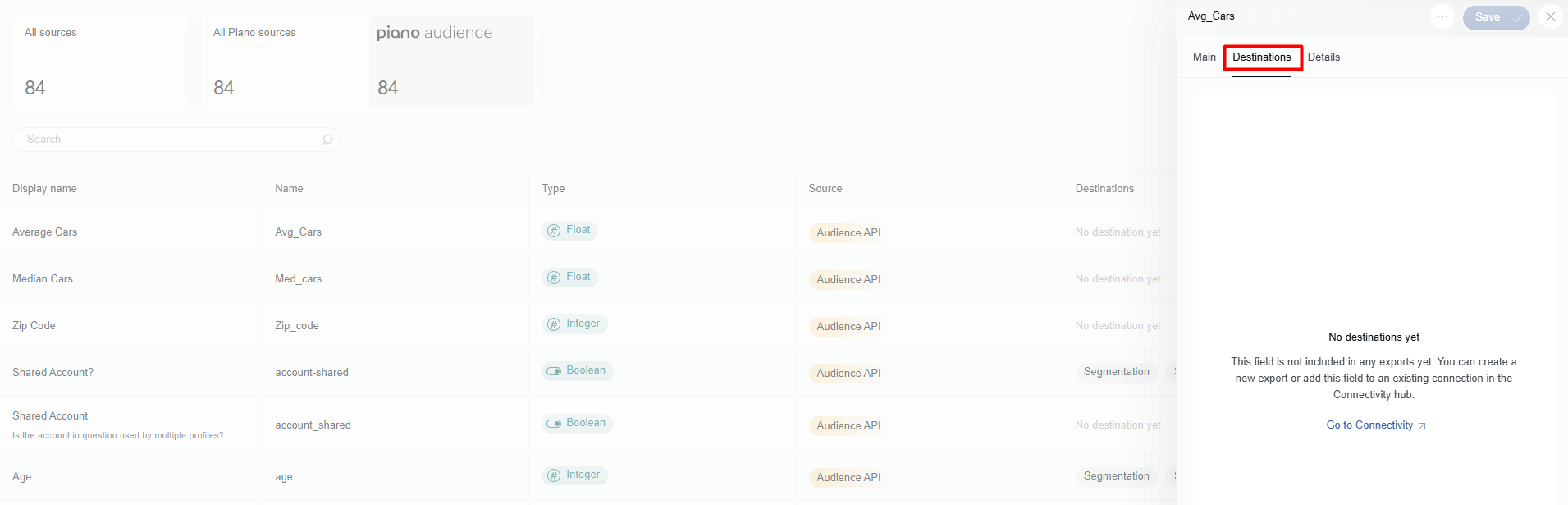
Click the field (row) for the data you want to export and select the Destinations tab.
-
This will bring up an overlay, where you can either:
-
Select an existing connector to be redirected to the Connectivity Hub for configuration, or
-
Create a new connection if no connectors are set up yet.
-
Supported Export Destinations
At present, you can export data to the following third-party platforms:
-
Amazon S3
-
sFTP
-
Google Cloud Storage (GCS)
These options are further detailed in our File Export documentation.
Internal Connectors
In addition to third-party platforms, Piano also supports exporting data to the following internal tools:
-
Piano Composer (Relevant to fuel User Profile Targeting)
These connectors allow seamless integration within the Piano ecosystem. Like third-party exports, these internal connectors need to be properly configured in the Connectivity Hub before data can be exported.