
Users can be added in bulk in the Bulk users create tab. From here, users can be imported via a .csv or .txt file, or added via email address.
To add users via .csv or .txt, create a list of user emails, and names if needed, in a spreadsheet (with UTF-8 encoding). Do not title the column. The requirements for successful email import are that there is one email address per cell, the addresses are unique, and the format is valid. If any of your email addresses do not have the correct format (ex. name@domain.com), Piano will notify you before you proceed with your import. These emails will not be imported.
The maximum number of rows per file is limited to 5000.
When importing users in bulk, the email field and name fields may be added. Emails are required, while names are optional for user import. No other columns with user information should be in the import spreadsheet. If you require importing users into Identity Management with other information, such as email or custom fields data, you can explore a user migration with Piano.
The schema of the user import file should be:
-
Column 1: Email (required)
-
Column 2: First name (optional)
-
Column 3: Last name (optional)
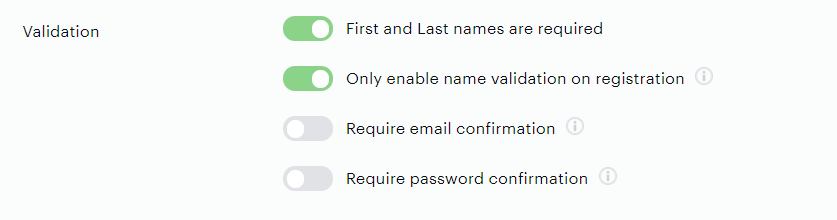
Please note, that if in your Identity Management configuration you have the option First and Last names are required selected, you should also select the option Only enable name validation on registration. This will not enable the name validation for user creation or granting access through the dashboard, bulk user import, and other manual user management operations and prevent any issues during the user creation.
After you upload the file with user emails, you will be redirected to the Download Center. Here, you’ll be able to track your import’s progress. After the file inputs the users into Identity Management successfully, users will be sent an email that prompts them to set a password. Once they click this link, they will be taken to your password reset screen. Even before they set a password, you’ll be able to view them in your user list.
To add just a single user, navigate to the Users page and select Add a new user. Enter an email address into the summoned modal, and the user be sent the password reset email.