
Mine users finds the users in your Piano application that match a set of criteria, so you can export them, open a profile, or grant access in bulk. Go to Users → Mine users to start.
There are two search tabs. Search by system fields filters on what Piano records itself, including terms converted on, payment method, billing failures, subscription dates, and inquiries. Search by custom fields filters on the answers users gave to your own fields. You cannot combine the two in one query.
Search by System Fields
System fields: Search for users based on their responses to system fields. These include offers and resources, payments and values, subscriptions, inquiries, consents, and data (promo codes). More information is found in the document for System Fields.
Custom fields: Search for users based on their responses to custom fields in the second tab called Search by custom fields. The specific custom fields available for user mining depend on the publisher setup. User mining for custom fields is completely configurable by input.
Search bar: The search bar at the top provides three options for narrowing down your search: "All fields," "Email," or "Name."
-
Email performs a keyword search on users' email addresses. Note that it is currently not possible to search for email addresses or domains containing a dash. However, it is possible to search with 1 or 2 characters.
-
Name allows a keyword search on users' first and last names, as well as searching for the full name (e.g., "Jane Doe"). Similarly to the search option "Email", short searches with 1 or 2 characters are possible too.
-
All fields searches across both users' names and email addresses.
Regardless of the selected option, the keyword search will combine with any additional filters selected in the form below the search bar.
For standard "All fields" searches, a minimum of 3 characters is required.

It is not possible to directly track how many users have logged in using a specific social media platform. To obtain this information, a paid custom report can be requested from your Account Manager.
Has Access to: Search for users based on the resource(s) they have access to (users are only shown if they currently have access). By selecting a time period, the search is limited to users who had access at any point during that period and currently still have active access to the resource(s) selected.
Converted on term: Search for users based on the term(s) they converted on during a particular time period. In the case of shared subscriptions, this may include inactive child subscriptions.
Converted term type: Search for users based on the type of term they converted on (options include: payment, registration, external, custom, access granted, and gift (if gifting is enabled on your Piano application)).
Redeemed: Search for users based on the promotion(s) they redeemed during a particular time period. This search includes fixed and percent discount promotions.
Include free trial redemptions: Search for users who redeemed a promotion, including those redeemed when signing up for a free trial. In these cases, the promotion had not been applied during the period of your search but was applied as soon as the trial period ended.
Currently in a trial period: Search for users who purchased a payment term that included a free trial (only includes users who are still in their trial periods).
Has redeemed license to: Search for users who have redeemed one or multiple site licenses for any or specific contracts.
Total spent: Search for users based on the amount of money they spent across all resources and terms over a selected time period. If no time period is selected, the total amount of money users spent over their entire account lifetimes will be taken into account. You can select a price range and choose whether you want to apply that range to just one currency or any currency. If you select a specific currency, the search will only take into account users who converted on that currency. If you select "Any" for currency and select a price range (say 0 to 50), Piano will do a numeric search finding all users who have spent between 0 and 50 monetary units in all enabled currencies (the exchange rates between the currencies are not taken into account).
Has paid with: Search for users based on payment methods that are available for your payment provider (for example, Credit Card, PayPal, Apple Pay, Direct Debit, Bank Transfer, etc.). A payment method appears on this list once at least one transaction has been processed with it.
Payment provider customer ID: If you are using a third-party payment provider such as Braintree, after a transaction, users are given a customer ID by that payment provider. This field allows you to search based on that ID, which can be obtained from the payment provider. This field only accepts one value at a time.
Had a billing failure: Search for users who had a billing failure over a particular time period (includes soft and hard declines). If you want to see just users who had billing failures who no longer have access, this field should be combined with the "Has Access to" search field.
Credit Card will expire: Search for users whose credit card on file is due to expire between the dates (MM/YY) you specify.
Has an active subscription to: Search for users with active auto-renewing subscriptions to particular resources. This field doesn't include users who have made one-off payments or who've had access granted to them.
Subscription started on: Search for users based on when their subscription started. Includes auto-renewals and one-offs (except for one-offs with access that never expires).
Subscription will renew: Search for users with auto-renewing subscriptions based on their next billing dates (future dates only).
Subscription will expire: Search for users with one-off subscriptions based on when their subscriptions will expire (future dates only).
Trial period expires: Search for users with subscriptions that have trial periods based on when their trial periods have or will expire (accepts both past and future dates).
Email confirmation state: Search for users who have a confirmed or unconfirmed email address. This filter is only available if the Double Opt-in feature is enabled.
Has an unresolved inquiry: Search for users who have unresolved customer service inquiries submitted through the My Account component.
Submitted an inquiry: Search for users who submitted customer service inquiries over a selected time period.
Received a response: Search for users who received a response from one of your customer service representatives over a selected time period.
Inquiry was resolved: Search for users whose customer service inquiry was marked as resolved over a selected time period.
Checked consents: Search for users who checked or unchecked particular consent fields during registration or checkout.
Account contains data: Search for users who converted on a particular promo code. By checking "Promo code", you can find customers who have used a promo code.
Last access time: Search for users by their last active date. It is based on page views, and the visit is recorded after 30 minutes of inactivity (a 30 min absence of page views per user) or after approx. 1 hour of continuous activity if there is no gap in page views.
Search by Custom Fields
In addition to collecting information about your users with Custom Fields, you may also segment and filter your audience based on these responses using Mine users. Navigate to Users→Mine users to begin this query.
Within the Mine users interface, there is a tab labeled "Search by custom fields." Navigate to this tab, and you will see a list of all of the Custom Fields you have configured.
Search combines two elements: user name and email, and selected custom fields. Search by name checks all entries by First Name and Last Name fields. Search by email returns either an exact email match or all possible emails. For example, if the search term is user@host.com, it can returns an exact match or the following variants: user123@host.com, 123user@host.org, user@host123.su.
In search by custom fields, the number of available fields depends on the publisher’s setup. If a publisher adds a custom field, its value for existing users will be null.
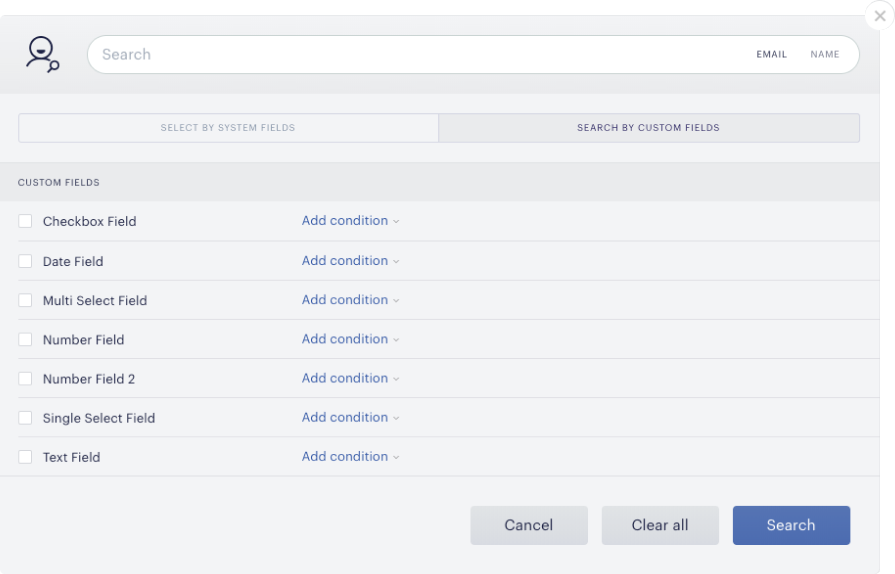
By clicking the checkbox next to a field, you indicate to the system that you would like to segment based on that field. From there, you may specify a certain condition that you would like to apply to filter users. The conditions you may apply for each data type are below.
All field types have the condition "any," meaning the query will return all users who have submitted that field and will not return any users who have not seen that field. In addition, all field types except checkbox fields have the condition "empty," meaning the query will return all users who viewed the field but did not populate it with a response (i.e., left it blank). Checkbox fields do not have this option because the checkbox is either checked or unchecked – it cannot be blank.
When performing user mining by custom fields through the dashboard, the total number of users displayed is limited to 1,000. Even if more users match the search criteria, only the first 1,000 will be shown to ensure dashboard performance. To retrieve users beyond this limit, use this API endpoint with the offset parameter for paginated access.
On average, custom field data is automatically synced within 2- 4 hours. For larger clients (where the number of users > 100k and the number of custom fields > 20), it may take longer to update. If you notice any longer or more frequent delays, please reach out to Piano Support at support@piano.io for further assistance.
In some cases, this delay from the synchronization may cause differences between the custom field values in the User profile in My Account or the Publisher dashboard and data retrieved via publisher/user/search or User mining.
Operators
When user mining by custom fields, you can search users by specific values using the operators based on the field type.
-
Any: This will return all users who have filled out this field with any value.
-
Equals/Is*: The query will return all users whose responses exactly match the text that you submitted. Capitalization does not matter. For example, setting this condition and entering the text "example" will return users who submitted "EXAMPLE" and "Example."
-
Exact Match**: This case-insensitive operator retrieves users whose responses match the provided text exactly.
-
Contains: You will obtain a list of users whose responses contain the text that you submitted. Again, capitalization does not matter.
-
Empty: This will return all users who did not see this field.
*The behavior of the "Equals" operator may vary depending on whether the search is powered by MySQL or Elasticsearch (ES).
-
MySQL Search: The "Equals" operator performs a strict match on the data, ensuring the value in the database exactly matches the query.
For example, if you search for "Jane Doe", it will only return records where the field contains that exact phrase, including spacing and order.
-
Elasticsearch (ES) Search: The "Equals" operator may behave differently due to ES's full-text search capabilities, which might interpret and match queries based on additional analysis - not resulting in an exact match.
For instance, searching for "Jane Doe" could return records that contain "Jane" and "Doe", even if they appear in different positions or sequences.
-
Examples of matches include:
-
"Jane Ann Doe"
-
"Doe, Jane"
-
"Ms. Jane Doe"
-
-
**The "Exact Match" operator is available only to clients using an Elasticsearch (ES) powered Mine Users search.
If you're unsure whether your search is using MySQL or Elasticsearch, please contact Piano Support at support@piano.io. They can check your account settings and confirm the platform powering your Mine Users search.
Operations specific to dates:
-
Earlier than: You will see the users whose input date falls before the specified date.
-
Later than: You will see the users whose input date falls after the specified date.
Operations for numbers:
-
Between: The system will return users whose input number falls between the two numbers you indicate, inclusive.
-
Equals: You will be shown the users who input the same number that you provide.
-
Less than: Users who submit a number lower than the number you input will be returned.
-
More than: Users who submit a number greater than the number you input will be returned.
Multi-select list:
-
Contains: You may select several options and view only the users who submitted ALL of them. Users who have submitted those options in addition to others will also be returned.
Once you have filtered based on the appropriate fields, you can click the Search button at the lower right of the modal. You will be returned a list of users who met the criteria you specified, exactly the same format as the general Mine users returns. Once you have generated this audience segment, you may export it or dive into a given user's profile.
At this time, it is not possible to filter based on Custom Fields while simultaneously filtering on system fields.
Leveraging User Mining Results
After you've selected the user criteria for your search, simply click Search in the bottom right corner of the screen and you will be taken to a page listing users who fit the criteria you've selected. To get a .csv file containing those users' names, email addresses, next billing dates, amount of money spent, user IDs, and other pertinent information, click the Generate report icon ( 
You will be able to select a name for the file and if you'd like to include Custom fields or Notes for the users in this downloadable report.
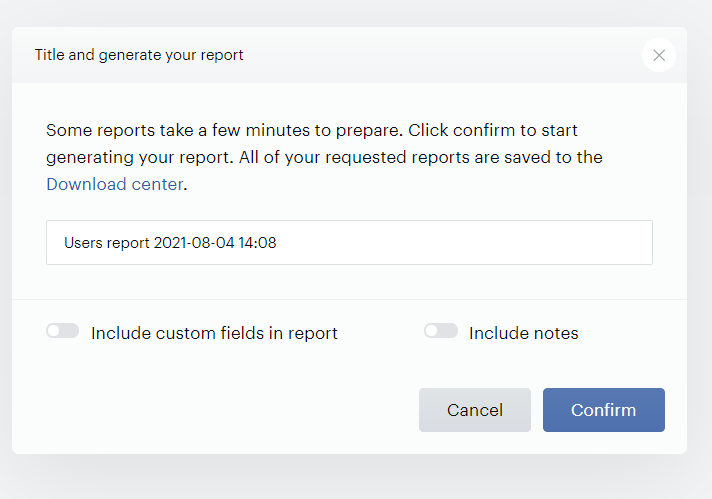
Once you click Confirm, you can then go to Reports→Download Center to download your report.
If the toggle Include notes is enabled, the CSV report contains a column called Notes. Each field will contain the note's text, the author of the note, and the date when the note was added.
If the toggle Include custom fields in report is enabled, the CSV report contains columns with the names of the custom fields selected during the Mine User download and the values of the custom field for the individual user record.
The CSV file for the Users report has the following headings:
|
User ID |
|
Name |
|
Since |
|
Access Count |
|
Next Billing Date |
|
Money Spent |
|
Has Trial? |
|
Last Comment |
|
|
|
Custom fields (optional) |
|
Notes (optional) |
If the user account does have a first and last name linked, the "Name" column for that user contains the first name + last name. If the user does not have a first or last name, the "Name" column field will contain the user's email address.
You also have the option to grant access to the group of users who fit your search criteria by clicking the check box in the upper left corner above your list of users and then clicking the grant access icon ( 
User mining with API
Piano API enables user mining through two endpoints, /publisher/user/search and /publisher/user/list, which differ in the set of filter parameters.
Normally, the response from any of these endpoints is limited to 10,000 users. But if you are using ElasticSearch, you can override this limitation: fill the search_after field in the Input Parameters with the last User ID of the array returned in response to your previous request. Offset is ignored in this case.
When the filtered population could exceed 10,000 users, or when you need the results as a CSV file, we recommend using the asynchronous export endpoint /publisher/export/create/userExport instead.