
Types of Event Triggers
Viewport Exit
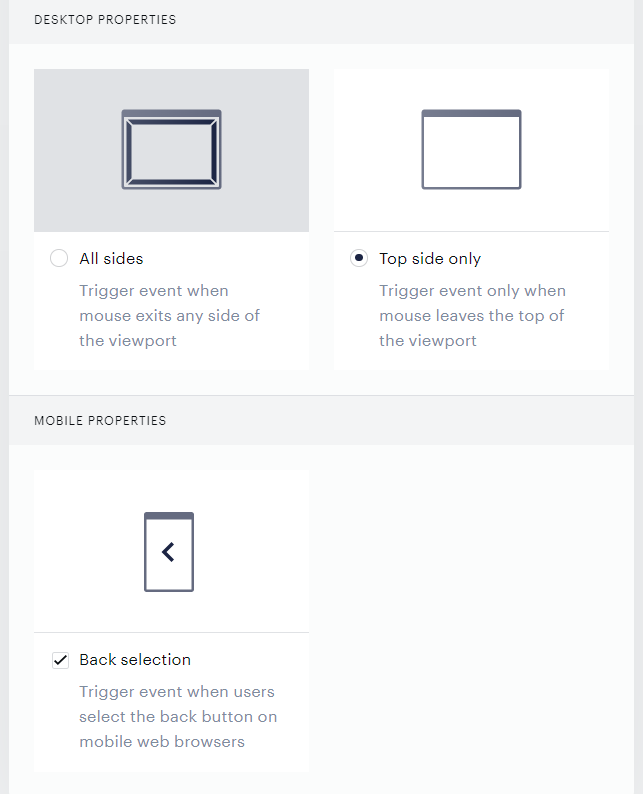
Viewport exit triggers when a user’s mouse leaves the browser viewport window, the rectangular area that displays your web page (excluding the bookmarks bar and other browser elements surrounding that area). Viewport exit can be configured to trigger when the cursor exits from any side of the viewport or only from the top. This feature allows you to offer additional discounts or registration opportunities to users who appear to be leaving your site.
Viewport exit can also be set up to work with the mobile browser's back button. The desktop viewport exit detection works on any browser that supports standard DOM events (mouseleave, mousemove). The mobile back-button detection relies on the History API (history.pushState, history.replaceState, and the popstate event).
Mobile Back-Button Behavior
On mobile devices, Back-button exit-intent requires the user to interact with the page (for example, by tapping, clicking, or pressing a key) before it can be triggered. This behavior is intentional and is required by Chromium-based browsers, not by Piano.
Since Chrome 75, Chromium's History Manipulation Intervention has restricted history.pushState calls made without a prior user gesture. Because Piano uses the History API to detect Back-button navigation, the exit-intent listener can only be activated after the browser detects user interaction.
In addition, Google's updated Back-button Hijacking spam policy, enforced on June 15, 2026, further restricts the use of History API techniques that attempt to intercept or manipulate Back-button behavior without meaningful user engagement.
To ensure compliance with both browser and search engine requirements, Piano's JavaScript SDK now activates the mobile Back-button exit-intent listener only after a supported user interaction has occurred. This change is delivered automatically through the SDK and does not require any client-side configuration updates.
As a result, the behavior is as follows:
-
The page loads and Back-button exit-intent is registered, but not yet active.
-
The user performs a supported interaction, such as a tap, click, or key press. (Scrolling alone does not count as user activation.)
-
From that point forward, pressing the Back button triggers the configured experience.
If a user opens the page and immediately presses Back without interacting with it, no template is displayed and the user leaves the page normally.
Browser Compatibility Notes
While the feature does not impose specific OS or browser version requirements, some mobile browsers have built-in History API restrictions that may affect back-button detection:
-
Chromium-based browsers (Chrome, Edge, etc.): May require a prior user gesture before allowing
history.pushStatecalls. If no user interaction has occurred on the page, the history state manipulation needed for back-button detection may be silently ignored. -
Safari (iOS/iPadOS): History API behavior can vary depending on the navigation context. In some scenarios,
popstateevents may not fire as expected when the page was opened via certain navigation paths (e.g., deep links or programmatic navigation).
These are browser-level platform restrictions, not Piano limitations. The viewport exit feature itself does not impose any OS or browser version requirements.
SEO Considerations
Search engine crawlers generally do not generate user-activation gestures. As a result, Back-button exit-intent is not activated during crawling, and the page behaves like a normal page without History API manipulation. This aligns with current browser and search engine guidelines regarding Back-button behavior.
For clients using mobile Back-button exit-intent, Piano recommends the following best practices:
-
Consider adding complementary mobile triggers, such as idle/timeout, or viewport-leave triggers, to capture users who leave before interacting.
-
For SEO-critical pages, consider disabling the Back-button trigger entirely and relying on scroll- or engagement-based signals instead.
Pageview Meter
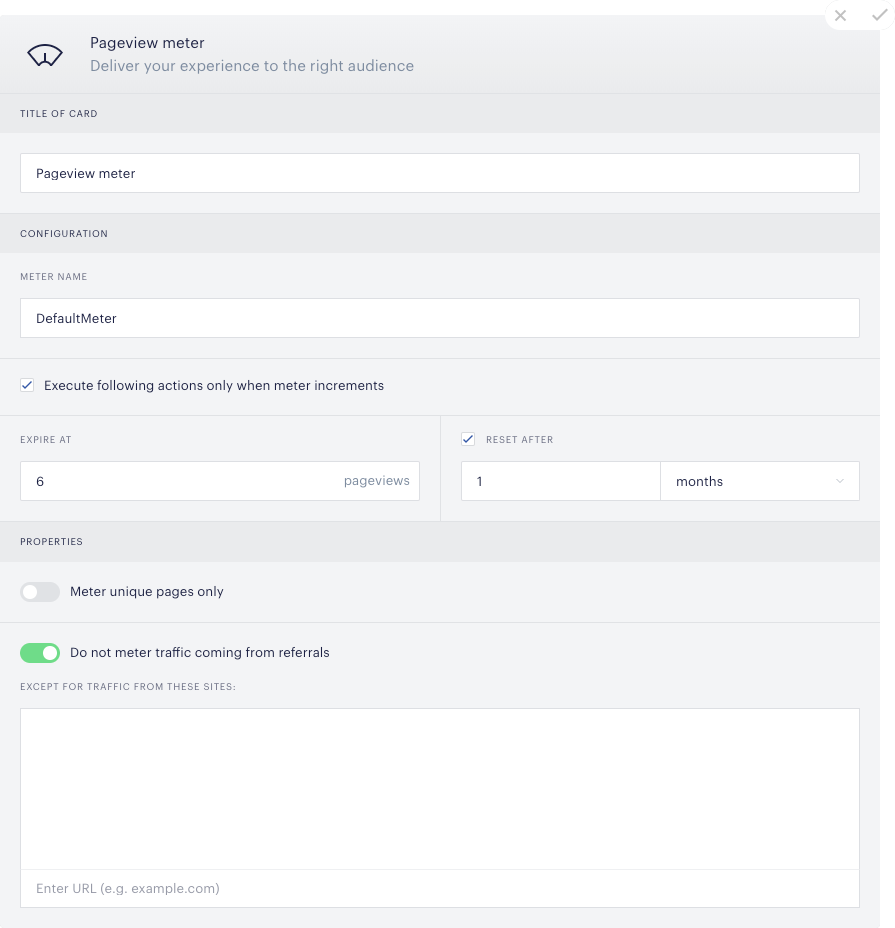
The Pageview meter triggers after a user has accumulated a defined number of pageviews, sessions or visit days over a particular time horizon. You can set the meter to trigger upon expiry, at specific meter unit values, or at select intervals. There are several additional Pageview meter fields to configure that you can read about here. Since visit frequency is among the best predictors of whether a user will convert on an offer, the Pageview meter can be a highly effective means of targeting the most valuable segment of your audience.
Credits
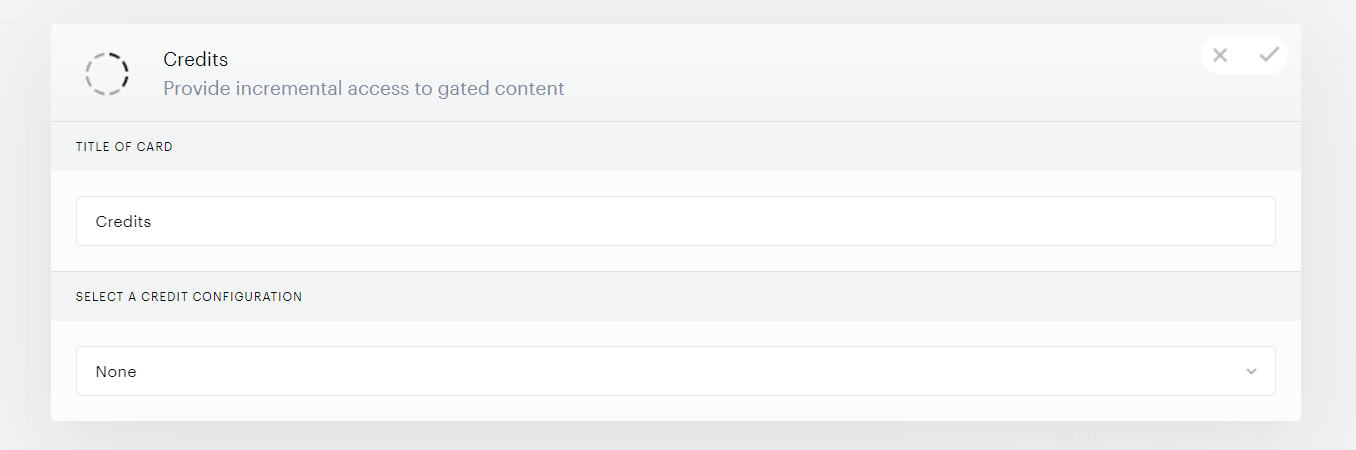
The Credits event triggers once a user redeems a voucher (credit) to view a locked article. More details are available here.
Scroll depth
Scroll Depth triggers once a user scrolls a set number of pixels down the page or when a user scrolls a set percentage down the page. So you can display an offer to users once they’ve shown they are engaged and are reading the majority of a piece of content.

Interaction
Interaction is a flexible card that listens for when specified event(s) occur to specified element(s) on your pages. So if you wanted to trigger Composer events off of users starting a video, for example, you could listen for the on click event on the play button element and message a segment of your users accordingly.
Events you can listen for:
-
On click (when element is clicked)
-
On double click (when element is clicked twice)
-
On right click (when element is right clicked)
-
On mouse in (when mouse moves over element)
-
On mouse out (when mouse moves over then outside element)
Interaction allows you to watch for when any of these events occur to any elements on your pages. You can specify elements by using any selector supported jQuery. You can select multiple elements by IDs (ex: "#id1, #id2") or you can select elements by classes (ex: ".class1, .class2"). If you select more than one event listener, the experience will fire if any of those events occur to any of the specified element(s).
If "listen once" is checked next to an interaction, the experience will only fire once no matter how many times the specified event(s) occur to the specified element(s). If "listen once" is not checked, the experience will fire as many times as the specified event(s) occur to the specified element(s).

Timer
The Timer card lets you trigger an event a set period of time after a page loads, so you can display an offer to users after they’ve shown they are invested in a story, or have tuned it out.

Idle
Idle triggers once a user has spent time a specified amount of time on a page without any mouse movement, key pressing, or scrolling. So, for example, you can make recommendations of additional content to users who have sat idle on a page for a while. A timer starts when the page has finished loading and resets every time the user takes an action. When the timer hits the value specified in the card, the card will trigger the rest of the experience.

Use Cases
What’s really cool is that, with Composer’s modular structure, you can chain these events together to achieve all sorts of powerful effects and great experiences.
Let’s say a user is on one of your sports pages and gets a phone call. Because of the distraction, that user might not generate any more pageviews on your site. You could re-engage such users by creating an experience that runs just on your pages tagged “sports.” By using Idle, you could show a message encouraging them to read other relevant sports content after inactivity of at least thirty seconds.
If that intervention doesn’t get users to click when they return to the computer, and they show they are about to leave by moving the mouse outside the browser’s viewport, you can use the Viewport Exit trigger to activate a Run JS card, which could run a JavaScript of yours that makes the modal bounce slightly up and down to get their attention.
Or if you have a page of real estate listings, you could create an experience with a Scroll Depth card set to 80 percent and a Timer card that starts at 30 seconds. If users get 80 percent of the way down the page, and it hasn’t even taken them 30 seconds, chances are they haven’t found what they’re looking for in the listings on that page. You could present them with an option to revise their search that might yield better results.
Piano Composer is a creative business tool that enables you to experiment with all sorts of new use cases and experiences for your customers; we’re excited to see what you develop!
Sequencing events
If you’re using event triggers together, keep in mind that the order of the events is important. Say, for instance, the Timer card is the first trigger card in a chain. In that case, the timer will start automatically when the page is fully loaded. If, on the other hand, there is another trigger event prior to the Timer card, the timer will start once the previous event has been triggered.
So, for example, if you had a Timer card set to 10 seconds, followed by a Show Template card, that template would display 10 seconds after the page had finished loading. On the other hand, if you had a Viewport Exit card prior to that Timer card, the template would display 10 seconds after the user’s mouse left the browser viewport.