
Credit settings let you control how credits are allocated, how often they're issued, and how they can be redeemed by end users across your experiences, including Edge Experiences.
There is currently no manual or API-driven method available to reset credits associated with user accounts. Unfortunately, this limitation extends to the inability to view or manage the credits allocated to individual users from the publisher's perspective. Additionally, credits are unavailable in the following experience types: Mobile, AMP, and Template Interaction.
To expose the number of credits a user possesses, the only available approach is to incorporate a "Credit counter" or "Credit redemption" template within a Composer experience featuring a Credits meter. This allows users to visualize their credit status while engaging with the platform.
It is essential to note that the Credits feature operates similarly to pageview metering, functioning exclusively at the site level. There is no functionality within the dashboard to work directly with related credit data.
Credit Settings
To access credit settings, navigate to Manage→ Credits on the dashboard. From here, you can view, add, or modify instances of credit settings.
-
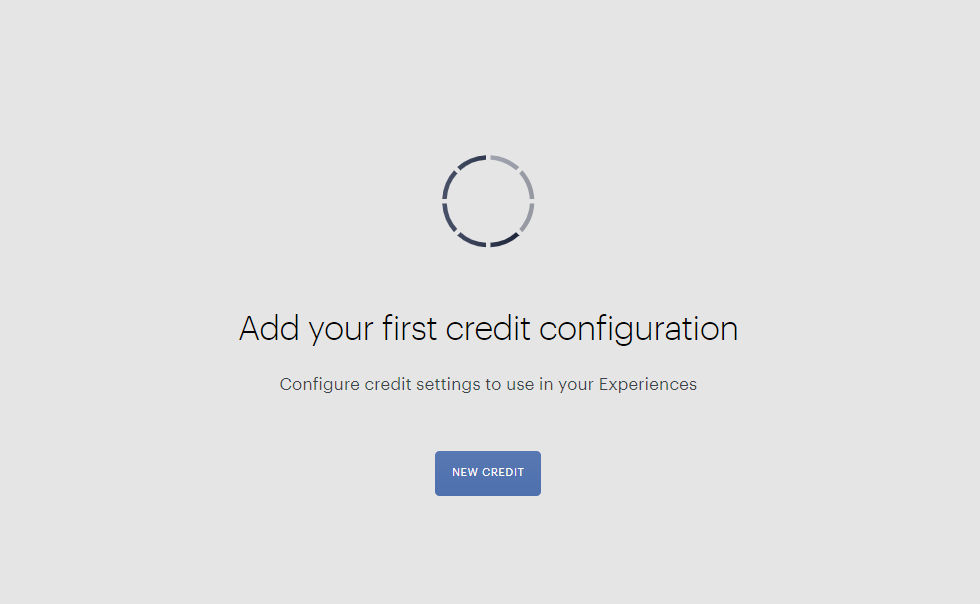
Click on New Credit to create a new instance.
-
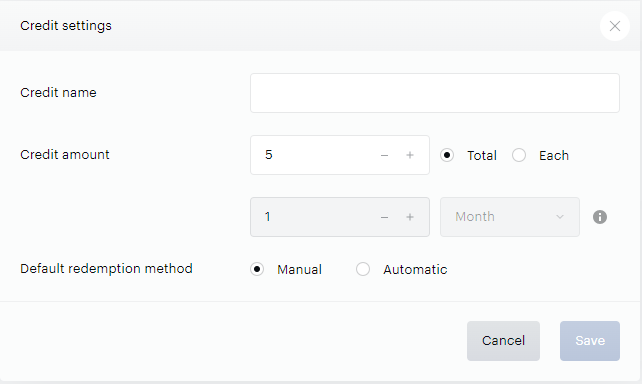
Configure the following settings for the new instance:
-
Credit Name: A recognizable name for the credit settings instance. This is the name that you will see in the selector drawer when configuring the Credits card on the Composer canvas.
-
Credit Amount: The number of credits allotted to end users to redeem in exchange for gated content. Total restricts the number of credits to a single value allotted at the time of referral. Each allots users the credit amount at the frequency configured in this instance (e.g. 1 month).
Note: If Each is selected as the allotment frequency, for each user, the credit amount will reset at the end of the timeframe configured.
-
Allotment Frequency: Configures how often the credit amount is allotted (e.g., 1 month).
-
Default Redemption Method: The method to redeem credits in end user templates. Manual redemption requires end users to click "Use credit" to redeem a credit and access a locked article. Automatic redemption automatically redeems a credit upon pageview with no end user action required.
-
Recommended Credit Settings for Each Flow
Free Flow
-
Credit Name: Free credit redemption
-
Credit Amount: 1 total
-
Default Redemption Method: Manual
Premium Flow
-
Credit Name: Premium credit redemption
-
Credit Amount: 5 each 1 month
-
Default Redemption Method: Manual
Templates
Utilize the following templates to guide users through the credit redemption process:
-
Credit Counter Template: Displays the user's remaining credit balance.
-
Credit Redemption Template: Allows users to redeem their credits.
Navigate to Manage → Templates → Boilerplates → Affiliate to access template boilerplates.
Experience Configuration
User Segmentation
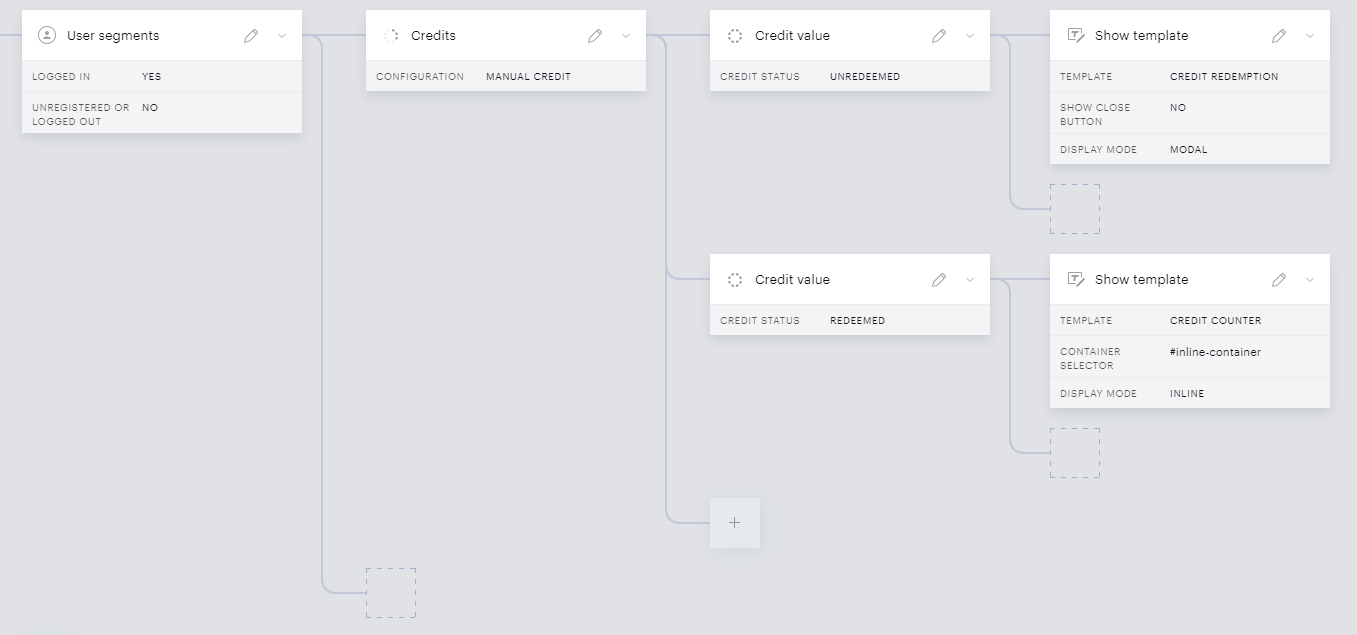
Configure user segmentation with the "Login status" segmentation to ensure that the Credits feature is applicable to authorized users only.
Credits Card
-
Drag and drop the Credits card into the appropriate user segment branch.
-
Select the desired instance of credit settings.
-
Enable the Credit Status category in the adjacent Credit Value card and select "Unredeemed."
-
Add a Show Template card based on the "Credit Redemption" template in modal display mode (with the "Close" button disabled).
-
Below the previous Credit Value card, add another one with the "Redeemed" credit status. Apply another Show Template card based on the "Credit Counter" template to display users' credit balance.
Site Integration
Implement the manualCreditRedeemed handler to add extra logic after the user clicks the "Use Credit" button in the "Credit Redemption" template. For example:
tp.push(["addHandler", "manualCreditRedeemed", function() {
    location.reload();
}]);
This can be used for example if you'd like to reload the page.