Creating a Pageview Meter
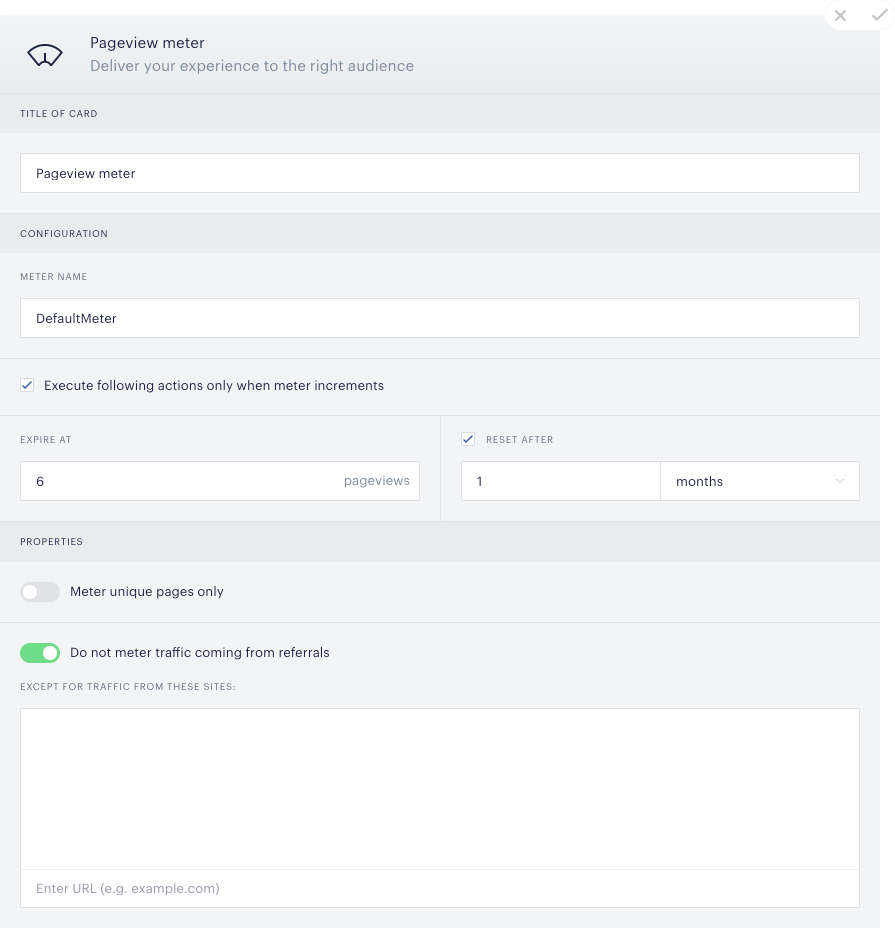
You can create a Pageview meter by dragging a Pageview meter card to an open Events and triggers slot within Composer. Doing so will immediately initiate the following screen:
Please note, that updating the Composer experience at any later point will not reset the pageview meter unless the meter name is changed as well. The same applies to AB testing, if you keep the same meter name in an A/B test, there is no meter reset.
For customers running multiple pageview meters, cookie size limitations can become a challenge. DynamoDB Storage helps prevent browser cookie size limitations by offloading Composer data to external storage. Learn how it works in this documentation.
In addition to standard client-side metering, Piano also supports server-side metering for logged-in or authenticated users. For more information, click here.
Meter Settings
The Pageview meter triggers after a user has accumulated a defined number of page views, sessions, or visit days over a particular time horizon. You can set the meter to trigger upon expiry, at specific meter unit values, or at select intervals.
📃 Pageviews
Counts every page view.
⌛ Sessions
Counts once per session. A session lasts 30 minutes from the moment of the previous session's meter incrementation. As soon as 30 minutes have passed, the meter will increment again.
Whether it will count as a new session if a user closes the browser and comes back, will depend on the browser settings, since there're browsers such as Safari that delete cookies when closed. In this case, a new session will start for the user. If that's not the case, the session will last 30 minutes, or until the user manually deletes the saved cookies.
Please note, that if the setting Execute following actions only when meter increments is enabled:
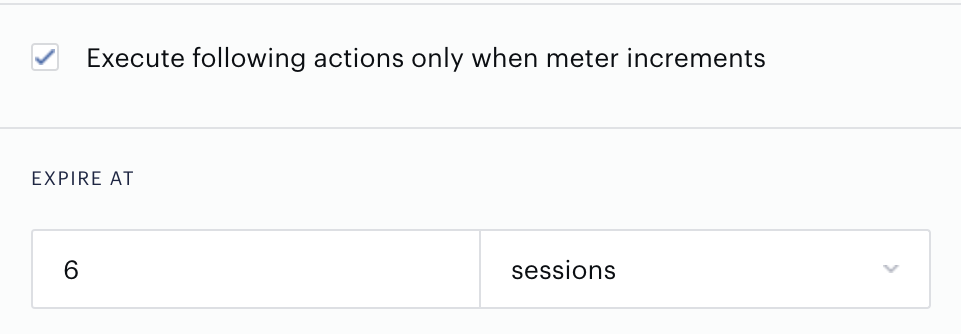
And the pageview meter is set to sessions, it will only increment when a new session starts and not on the next page view of the user.
📅 Visit Days
A visit day refers to the running total of days a user visits the site. Visit days are counted asynchronously to days of the week. If a user visits your website on Monday and Tuesday, this will count as two visit days, if they do not visit your website Wednesday but instead visit it on Thursday, then Thursday will be the third visit day.
A visit day is defined as a 24-hour window from the first time a user visited the site. If you enter the visit day value 1, you'll be targetting users for a period of 24 hours after their first website visit.
All Pageview meter settings are detailed below.
Meter name: You are free to choose any names you like for your meters, but keep in mind that meters with the same name and the same meter unit will share the same counter. If you simultaneously run multiple meters with the same name and the same meter units, all meters will increment whenever one does — even if the meters are in separate experiences.
Execute following actions only when meter increments: Actions will only trigger after the meter increments. If you do not check this box, the action will fire for visitors with expired meters whether or not their meters increment. You can read more about this option and see some relevant examples on this page.
Expire at: This is where you set the number of counts before your meter expires. (For example, if you set "Expire at" to five pageviews, any experience connected to that expired meter will fire on the sixth pageview.)
Reset after: Select here whether you want your meter to reset after a set number of pageviews, months, weeks, or days. If you choose for the meter to never reset (uncheck the Reset after box), our cookie won't expire unless a visitor doesn't come to your site within a two-year span.
The starting point of this period is defined as the moment a user first interacts with the pageview meter, such as viewing their initial article. The end of the period is then determined as follows:
-
For "days": in 24 hours
-
For "weeks": in 7 days
-
For "months": in 30 days
So if a pageview meter is set to expire in 1 month, it will expire 30 days after the pageview meter has been incremented for the first time.
The exceptions are cases where the calculated reset day falls on an invalid date of a calendar month (like 2023-04-31, but the month of April only has 30 days). In this case, the last valid day of the month is applied as shown in the example below:
Start day: January, 31 + Pageview meter expiration: 1 month = Reset date: February, 28 (29 in leap years)
Start day: January, 31 + Pageview meter expiration: 2 months = Reset date: March, 31
Start day: January, 31 + Pageview meter expiration: 3 months = Reset date: April, 30
Unique pages only: You decide whether or not you want to an individual user's repeat visits to the same page to increment the meter more than once. This is only applicable to the pageview meter unit.
Metering referral sources: If you turn the dial green, you're choosing not to increment the meter for counts coming from referred sources, with exceptions for traffic originating from sites you select. More sophisticated referrer exclusions and inclusions can be added earlier in the process using the segmentation card.
Meter Value
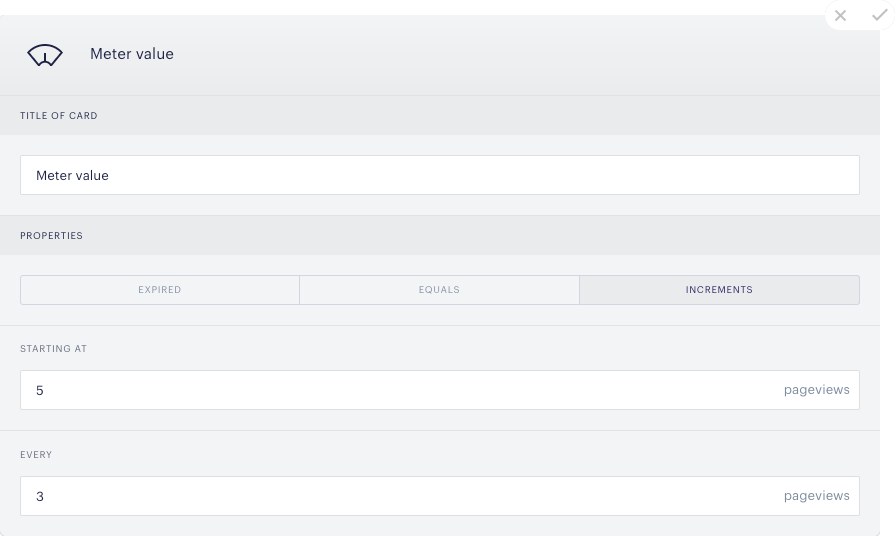
Once you create the Pageview meter card, the Meter value card will automatically appear. Here, you may specify the conditions for the experience based on this meter. You could prompt the experience to run upon expiration of the meter, when the meter reaches a specified value, or at a given frequency.
You may add multiple Meter value cards to a single meter by clicking the + option underneath the last Meter value card. There is no limit to the number of value cards you can add to a single meter.
You cannot delete the Meter value card unless there is more than one value card attached to the corresponding meter card. The Pageview meter must always have an associated Meter value card.
Properties
Expired: If you select Expired, the following Composer action will execute only when the given user has reached the limit you specified in the meter card.
Equals: With Equals selected, you can specify a meter value for which you would like the experience to execute. For example, you could run the experience on the 4th session, even if the meter has not expired. You can separate values with a comma if you would like the experience to execute on multiple meter values. For example, inputting 3, 5 will cause the experience to execute only on the third and fifth pageviews.
Increments: Here, you can specify that you would like the experience to execute at a given frequency of unit values. You must indicate the meter value for which the experience should first execute and the number of intermediate unit values that should elapse before the experience executes again. For instance, the configurations below will cause the experience to execute on the 5th, 8th, 11th, 14th, etc. pageviews.