
Ad Performance includes one connected account per ad platform. To connect more, upgrade to Ad Performance Premium. Contact your account manager for details.
Getting started takes two main steps:
-
Connect your ad accounts in Data Sources Studio.
-
Add the Ad Performance UTM parameters to your ad URLs.
Prerequisites
-
Your site uses Piano Analytics SDK 6.0 or later, or SmartTag 5.29.4 or later if you still use legacy tagging.
-
You have an administrator account on the ad platform organization you want to connect. Standard users can't authorize the connection.
-
Your ad URLs aren't shortened by a third-party URL shortener.
Connect your ad accounts in Data Sources Studio
Connect an ad account
Connecting an account means authorizing Piano Analytics to read cost and performance data from your ad platform. The authorization can cover several ad accounts.
-
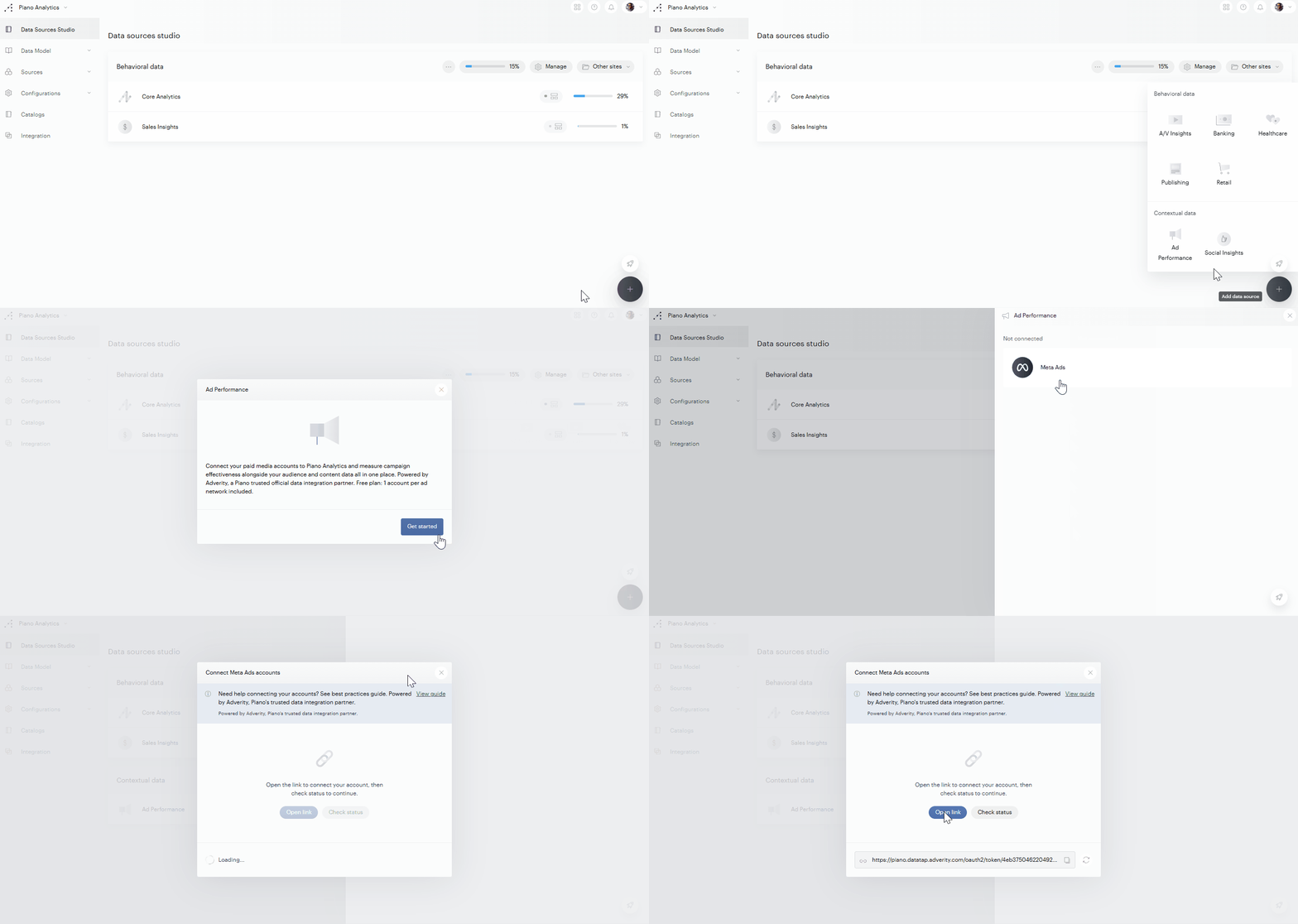
In Piano Analytics, go to Data Management > Data Sources Studio.
-
Click the + button at the bottom right.
-
Under Contextual data, select Ad Performance.
-
In the introduction window, click Get started. The Ad Performance panel lists the available ad platforms under Not connected.
-
Click the ad platform you want to connect (for example, Meta Ads). The Connect accounts window opens.
-
Click Add +. The Connect accounts window opens.
-
Click Open link. The authorization page opens in a new tab.
-
Sign in to the ad platform with an administrator account and grant access to the ad accounts you want to connect. A confirmation page lists the accounts you authorized.
-
Close the tab and return to Piano Analytics.
-
Click Check status. When the authorization is confirmed, the authorization page opens.
-
Set up the authorization:
-
Authorization name: the name shown in the list of authorizations (for example, "EU accounts").
-
Linked accounts: turn on each ad account you want to import. Click Enable all to link all of them, or use the search field to find an account.
-
-
Click Save.
The platform now appears under Connected in the Ad Performance panel, with the number of connected accounts. Data starts flowing on the next daily import (D+1).
If the authorization link stops working, click the refresh icon in the Connect accounts window to generate a new one.
Manage your authorizations
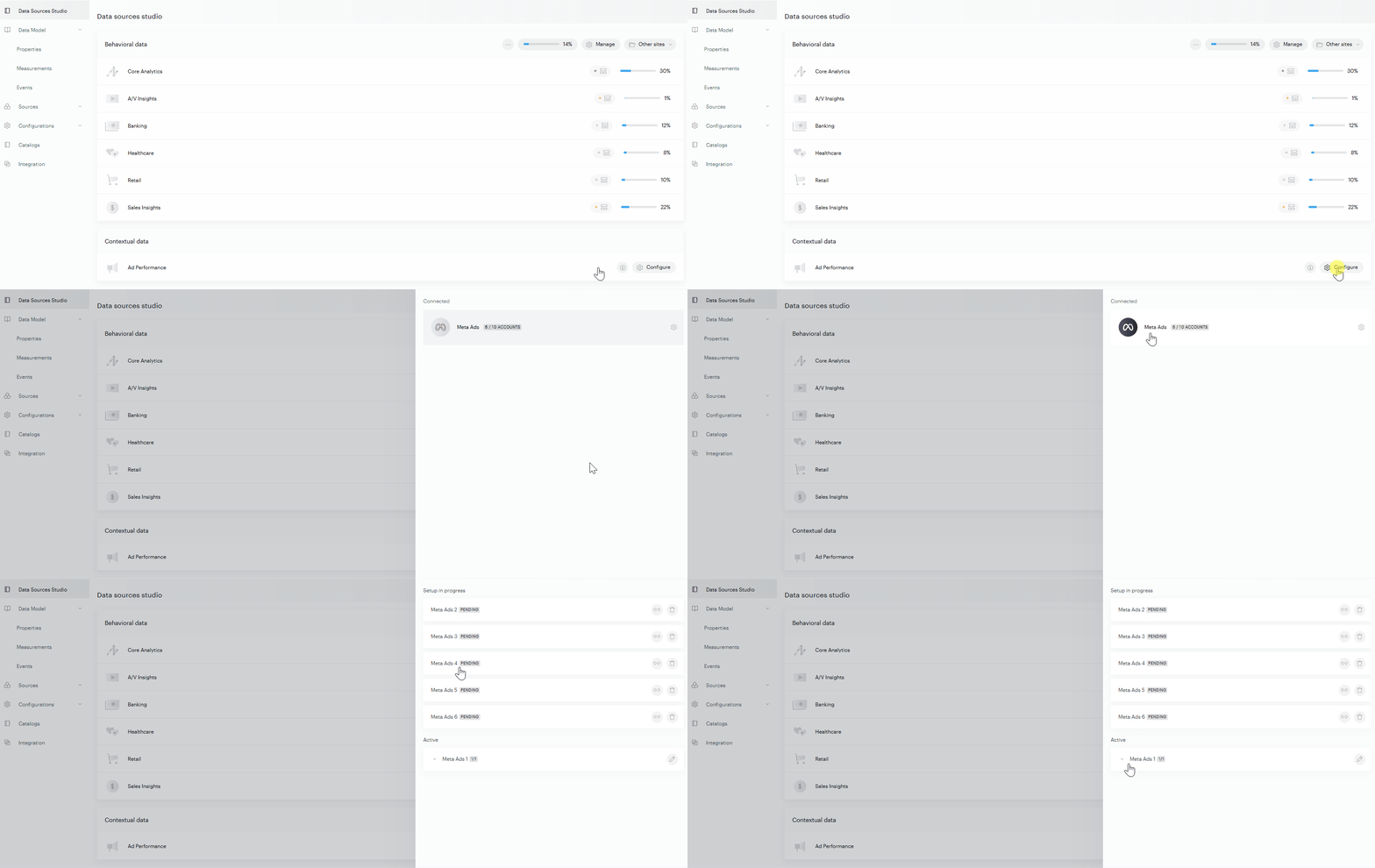
An authorization is the link between Piano Analytics and one login on your ad platform. Each authorization can include up to 10 ad accounts.
To review or edit an authorization:
-
In the Ad Performance panel, click the gear icon next to the platform.
-
Under Active, click the arrow next to an authorization to see its linked accounts.
-
Click the pencil icon to edit the authorization.
-
Rename it or turn accounts on or off, then click Save.
An authorization shows one of two statuses:
-
Pending: the authorization is created but not confirmed yet. It appears under Setup in progress. Authorize access on the ad platform, then click Check status.
-
Active: the authorization is confirmed and its linked accounts are imported.
To reconnect or delete an authorization, open it, click the ... menu, then select Reconnect or Delete.
Deleting an authorization stops data imports for its linked accounts.
Add another authorization
Add an authorization when you need accounts that belong to a different login, or more than 10 accounts on the same platform.
-
In the Ad Performance panel, click the gear icon next to the platform.
-
Click Add +.
-
Follow steps 5 to 10 of "Connect an ad account".
Your plan includes one connected account per ad platform. To connect additional accounts, upgrade to Ad Performance Premium.
Regional and multi-account setups
If you run separate ad accounts by region or product line (for example, EU, US, and APAC), connect them through one or several authorizations. Once connected, all accounts feed into the same Ad Performance data model in your Piano Analytics organization. You can compare total spend across all regions directly from the Ad Performance board.
Add the UTM parameters to your ad URLs
Ad Performance joins your ad platform costs with your analytics data through UTM parameters. Add them to your ad URLs so that each visit can be matched with its campaign.
UTM parameters
In addition to the standard UTMs (utm_source, utm_medium and utm_campaign), Ad Performance reads the following parameters to identify the specific campaign, ad group, ad, and platform within the ad account:
|
Parameter |
Carries |
Required for |
|---|---|---|
|
|
Campaign ID (numeric, from the ad platform) |
Google Ads and Meta Ads |
|
|
Ad Group ID |
Google Ads and Meta Ads |
|
|
Ad ID |
Meta Ads (and Google Ads where applicable) |
|
|
Platform on which the ad was shown ( |
Meta Ads |
|
|
Keyword that triggered the ad ( |
Google Ads |
|
|
Match type of the keyword ( |
Google Ads |
The IDs are typically populated dynamically by the ad platform's own templating syntax (for example, {{campaign.id}} in Meta Ads or {campaignid} in Google Ads). You must add them to your campaign links.
Examples
Google Ads: URL parameters
utm_cid={campaignid}&utm_agid={adgroupid}&utm_kw={keyword}&utm_mt={matchtype}
Meta Ads: URL parameters
utm_cid={{campaign.id}}&utm_agid={{adset.id}}&utm_adid={{ad.id}}
&utm_platform={{site_source_name}}
Troubleshooting
-
URL shorteners (
bit.ly, etc.) break Ad Performance. Shorteners redirect through their own URL, which strips the original parameters before the landing page is loaded. Use the ad platform's own tracking template instead of a third-party shortener. -
Existing UTM properties on events are event-scoped. UTM properties only populate on the event where the URL contained them (typically the first
page.display). For conversion tracking, see Use UTMs in source attribution. -
utm_cidis distinct fromutm_campaign.utm_campaigncarries the human-readable campaign name.utm_cidcarries the numeric ID that Ad Performance uses to join to the platform's cost data. Including only one of them is insufficient.