
Category template enables product managers to make available Categories for the advertiser to target. This functionality integrates with Cxense Analytics.
Setting up the Product
This is done through adding a new document template to a particular product definition. Simply follow the steps below to do this.
-
Navigate first to the product that you want to add the ability for advertisers/publishers to specify categories.
-
Use the sidebar menu to add a new template instance.
-
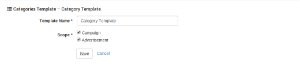
A form will be presented to you in the main page content. Enter a name and the scopes for the template and press Save.
|

|
|
|
01. No configuration |
02. With configuration |
The images above show the two states that you may encounter when adding a Category template to a product:
-
01. If you see this then categories have not been configured within the system. Templates will not be able to be saved if this situation is encountered. Please consult the Cxense Insight Integration page for details on how to get this functioning correctly.
-
02. This is the standard form you will see when you want to expose Categories to advertisers. You should only need to add a single template for any one product. Select the scope at which advertisers should be able to target and save the template. It will then become available for advertisers who have bought into the product.
Configuring categories for use as ad space labels
A specific use case of the application of categories in Cxense Advertising is to use them as a means of labelling ad spaces, classifying them such that advertisers can then target particular classifications of adspaces in order to reach particular target audiences.
The recommended method by which this should be configured is as follows:
-
Follow the steps in Setting Up the Product above to add the Category template to those products that are used by the ad spaces to be labelled.
-
Create a dedicated taxonomy in Cxense Analytics that will supply the labels for ad spaces.
-
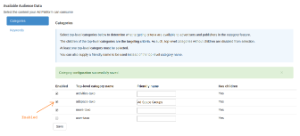
Go to the Cxense Insight Integration page, enable the taxonomy and provide it with a 'Friendly name' if required, and press Save.
|
|
03. Enabling taxonomy for Ad Space labelling |
Publishers will now be able to label their adspaces with entries from the taxonomy and advertisers will be able to target their ads, in kind, to reach collections of like classified ad spaces.
See the Categories page for more details on how to add categories to ad spaces and campaigns/ads.