
This functionality allows connections from Cxense Advertising to Cxense Insight. By entering a username/api key we create a connection point between these two systems to more easily allow you to manage centralised functionality. As more connection points are made available this will become a point at which you control the configuration for how much and what style of information is available in Cxense Advertising.
This functionality is only available to the following roles:
-
Business Owner
-
System Administrator
Getting There
-
Access your desired environment
-
Production: https://cxad.cxense.com (or the specific url for your environment)
-
Sandbox: http://sandbox.cxad.cxense.com
-
-
Log in as someone who has one or more of the roles above allocated to them.
-
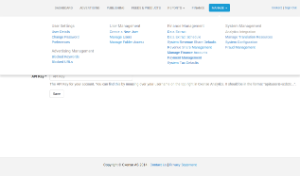
Click on the Manage tab select 'Cxense Insight Integration' from the System Management list as shown in the screenshot below
|
|
Manage menu showing selected link |
Setting up the connection
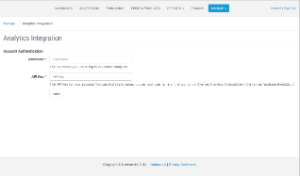
When initially setting up the connection between Cxense Insight and Cxense Advertising you will be presented with a form shown below-left. Retrieve your username/api key details from Cxense Insight and populate the relevant fields and submit.
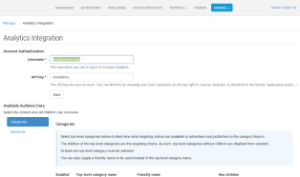
Details are verified and when successful the configuration options are added to the page. The image below-right shows the result of connecting the systems. You can see that initially the configuration is available for Categories. There is also an option for keyword setup. This used to be part of the Manage System Configuration page. It has been moved to this page to centralise all configuration for Cxense Advertising to Cxense Insight.
|
|
|
Empty authentication form |
After populating details correctly |
Categories
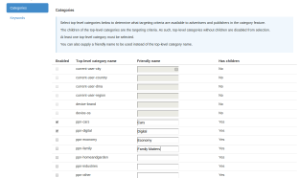
Configuring categories allows the broker to set up the options available to the advertiser when they have bought into a product that has a Category Template available. The screenshot below shows a sample screen when a connection has been made to Cxense Insight.
The page displays:
-
Enabled: Check these to expose the underlying ontology for the top-level categories to make available. If more than one option is checked this will allow the advertiser to select from a drop-down list each of the options for targeting specific details.
-
Top-level category name: The name as set up in Cxense Advertising for one of the top-level ontologies that have been configured.
-
Friendly name: This will be displayed in the drop down if more than one option has been checked. It allows the broker to provide a more suitable label to display to the user.
-
Has children: An indicator to show whether any children for this ontology has been set up. The children of top-level categories are what the advertiser actually targets. Any that do not have children are not able to be checked for display.
To correctly expose Categories to the advertiser at least one option needs to be selected in this configuration.
|
|
Categories setup example |
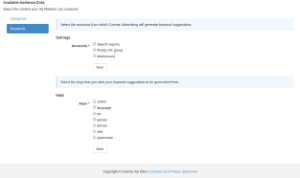
Keywords
Keyword integration in Cxense Advertising exposes keyword suggestion functionality. Select the keys and accounts that you wish to expose keyword suggestions against within the Keywords feature.
Once this is set up, the "Automated Suggestions" tab will be available when using keyword targeting.
|
|
Keywords setup example |