
Creating profiling forms
In Manage→Custom fields, you should create fields and forms for each subsequent set of information you would like to request from your users. You can always go in and create more fields and forms later. To avoid overwhelming users, we recommend limiting the number of questions contained in each form in favor of creating more forms with fewer questions.
Then, you should determine whether you wish to mandate responses from your users to proceed. The upside to this approach is that it ensures you collect the data you are asking for and makes for easier segmenting, but it might simultaneously prove to frustrate your users.
Make sure you name your forms intuitively so that you can later easily reference them in Composer when creating your progressive profiling experience.
Creating profiling experiences
In Composer, you might wish to create a new experience specifically geared toward progressive profiling to easily manage the logic. There are two general techniques to creating progressive profiling experiences:
-
Single user-segment
-
Multiple user-segments
Single user-segment
You can use a single user-segment that targets your desired segment and simply include multiple Show Form cards in that branch.
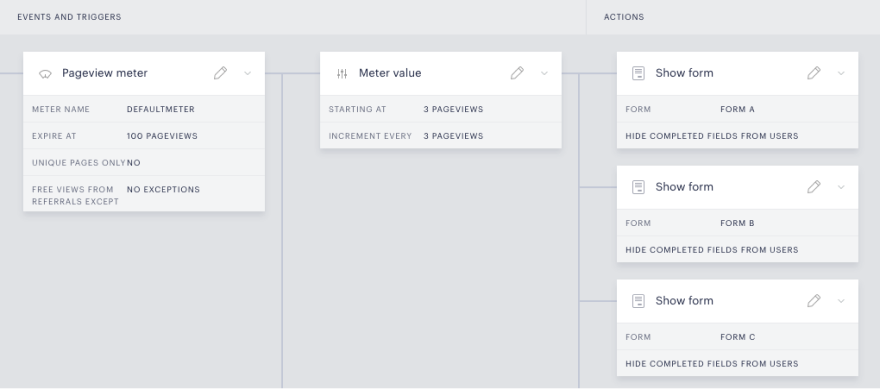
Important: These forms are not shown sequentially. In the above example, it is not a guarantee that the user will be shown Form A, then Form B, and then Form C. Due to a race condition, it is a random selection which form is presented to the user when the pageview meter is triggered.
The advantage to this approach is that it consolidates your forms and minimizes actions required on your part – you do not have to adjust the user segment to present each form. The disadvantage is that, as mentioned above, there is no way to guarantee that users see forms in a sequential order. So if you are looking to show users forms based on their past responses, this is likely not the approach for you.
Multiple user-segments
You can also create a separate segment for each Show form card, with each segment targeting based on prior custom fields responses. The advantage to this option is that it ensures that you show users a precise form immediately following their completion of the previous form. The disadvantage is that it requires significantly more build-out and precise user targeting.
Best practices
Regardless of your approach on how to progressively collect information from your users, there are some general practices that we highly recommend you follow.
Hide fields from users who have already completed them
In each Show form card, ensure that the "Hide fields from users who have already completed them" toggle is active. This will prevent your users from seeing the exact same forms over and over again if they have already submitted that information.
Pageview meter
We recommend attaching each Show form card to a pageview meter to ensure that your users are only being shown these form occasionally. Attaching them to a pageview meter that executes at increments (as shown in the image above) will ensure that your users are only seeing a form every X pageviews.
Proper targeting
When a user sees a form that you have presented, they may leave some fields blank and not others. If you are choosing to target users based on their prior responses to determine if you should show them the next form, make sure that you are performing logic on all fields in the prior form.
Additionally, you could choose to set a custom variable upon the successful submission of a form. Then you could target that custom variable in Composer to show the next form.