
Custom forms have the option to split many, related questions for end users across different steps within a single form. These can be enabled and configured within the custom fields manager.
Each step will appear to an end user as a separate template. This allows more dynamic options for conditional custom fields logic and retargeting, and simplified progressive profiling.
Create multi-step form
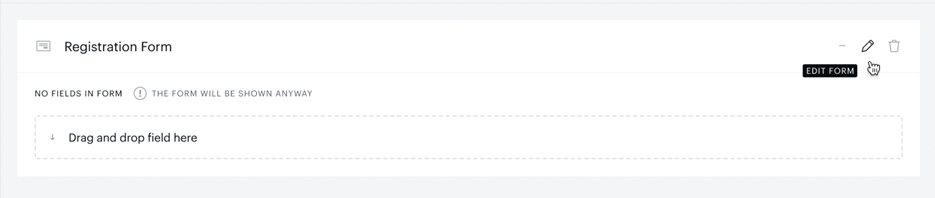
To create a multi-step form, start by creating a custom form in the custom fields manager. When the form is created, open the form’s edit menu.
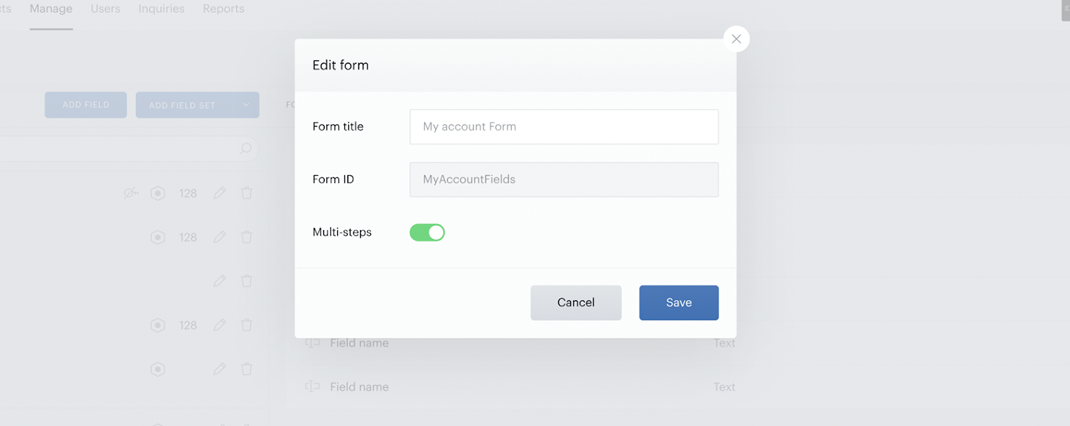
When the edit menu overlay appears, flip the Multi-steps toggle.
At this point, your form should be created with built-in steps. By default, multi-step forms are created with two steps, but more can be added.
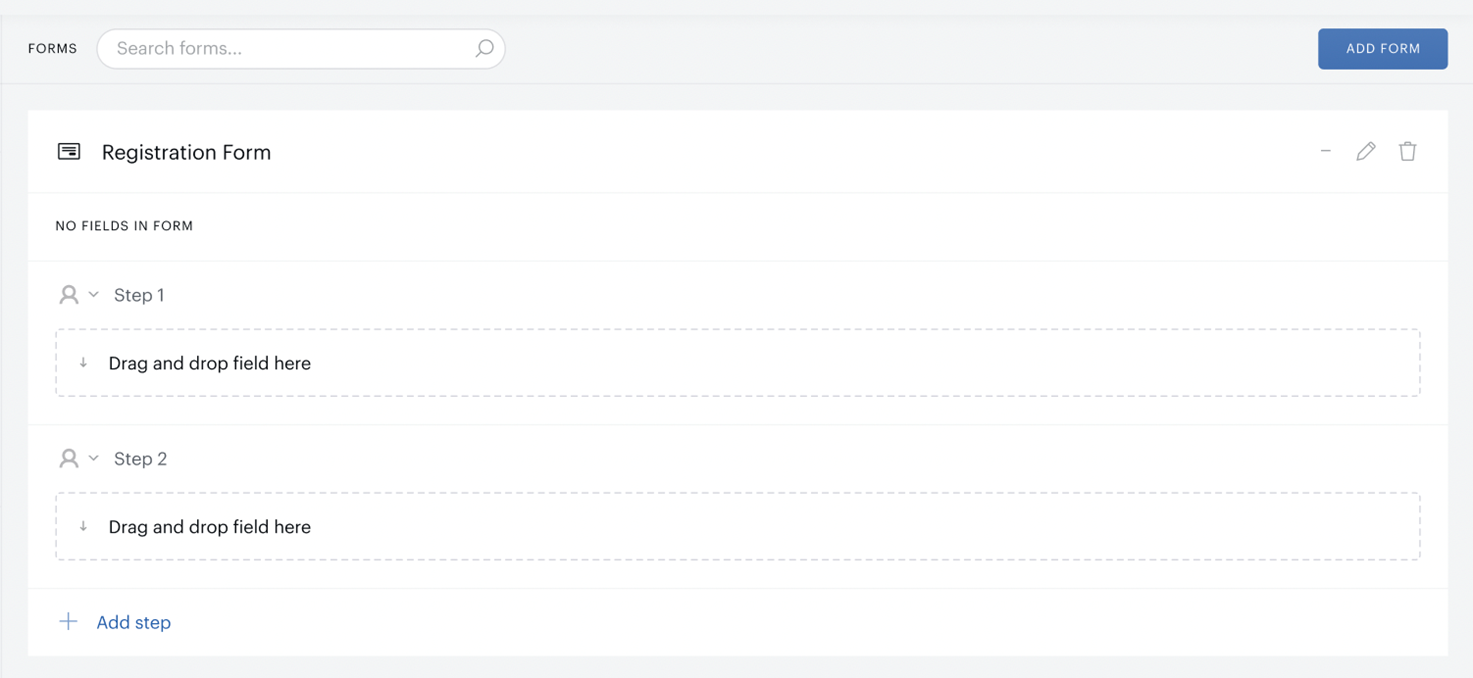
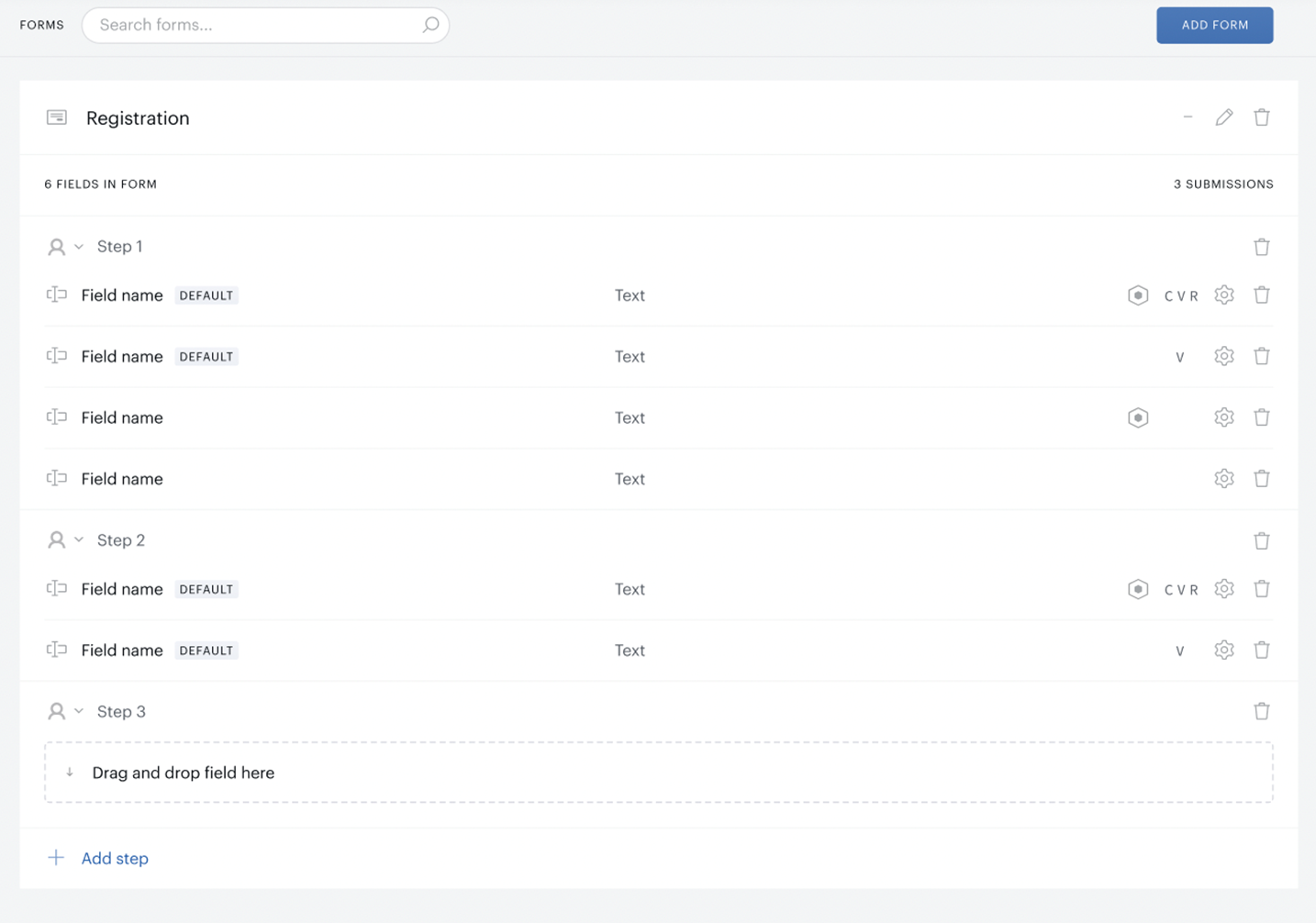
These step names can be renamed, and fields can be dragged into steps as they would for a single-step custom form. Steps with no designated fields or visible fields will be skipped.
Validation
Fields will be submitted and saved to the user on each step submission, but the entire form will not be considered submitted until each step is successfully completed. That means, that if the user partially fills out the form, and then is retargeted with the form, they will see the last stage they left incomplete, not the first stage.
For example, if there is a three-step form, and the user fills out steps one and two and then exits the page, their answers for the first two steps will be saved to their profile. If they are retargeted with the same form, the form will immediately skip to the third step.
Any form-level validation will be applied to each stage in the form. If the form is designated as not closable within Composer, none of the stages may be closed. Similarly, requirements will still apply at the field level. If a field is marked required and left empty, the step cannot be submitted.
Conditional fields
Custom fields have a variety of conditional logic properties that allow fields to appear or be pre-filled based on existing user input. All existing logic applies to multi-step forms, with additional opportunities for customization.
The main difference between conditional logic for single vs. multi-step forms is that a user’s answers may add or remove subsequent steps. You may only set conditions for any field that has appeared in the current or previous step.
For instance, a question in step one is, "Which country do you live in?" Users, who answer "United States", are taken to a second step with the question, "Which city do you live in?"
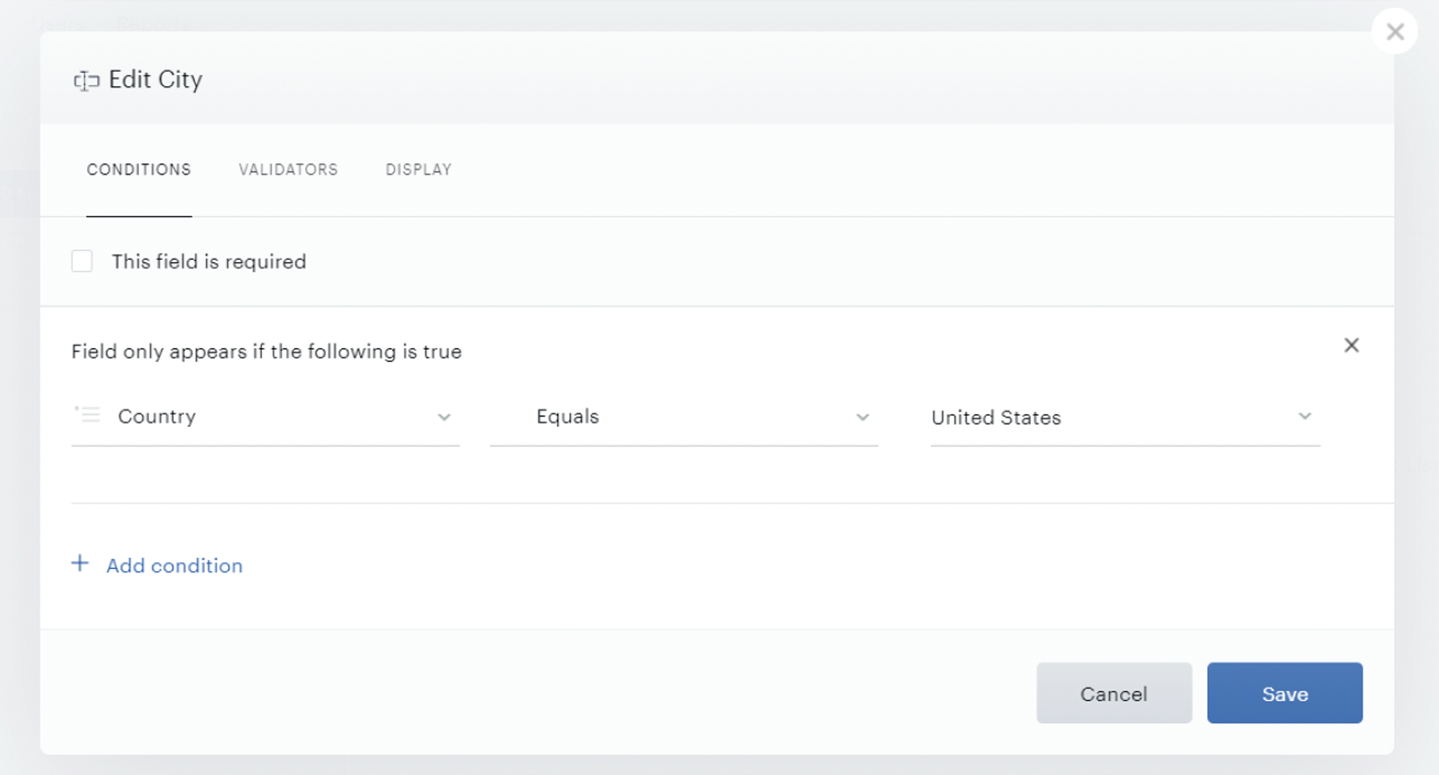
This kind of logic allows for more complex chaining of forms than allowed on single-step forms.
If the form conditions cause form steps to appear empty, they will be skipped for that end user. Effectively, the user will see a form with fewer steps. However, if a user goes to a previous step using the back button, and revises their answers so the subsequent steps are not empty, they will appear when they navigate forward.
Since multi-step forms have an option for a breadcrumb UI, it may be advisable to hide the breadcrumb component if a form’s steps may vary. This will avoid user confusion. If the breadcrumbs indicate a three-step form, but a user only sees two steps, they might not be sure if they have successfully completed the form.
End user experience
Multi-step custom forms may appear to end users either on the registration or standalone custom form templates.
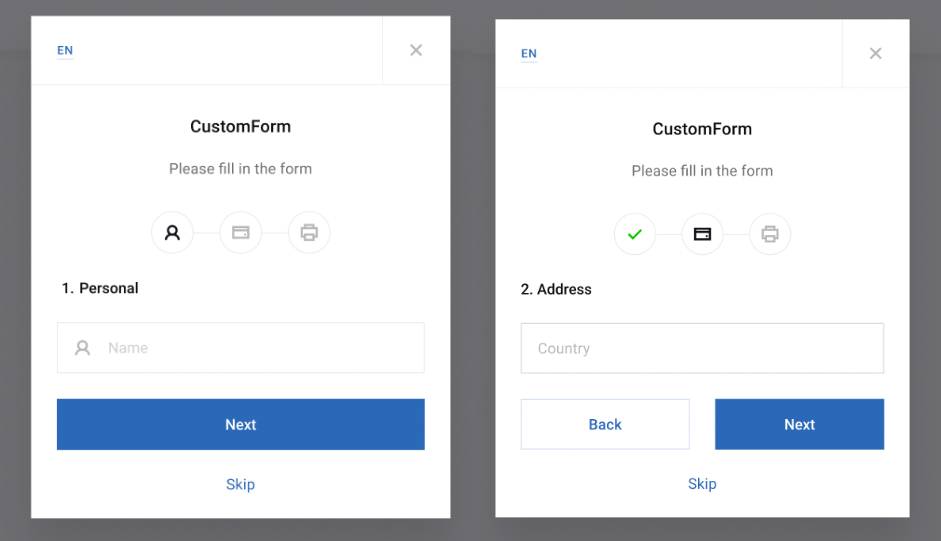
Users may see the form with a breadcrumb UI that indicates how many steps they have completed, and how many they still need to complete. This component can be hidden as needed.
Users may also navigate back to previous steps and change their answers, but their initial answers will be recorded when the step is submitted.
If a multi-step form is part of another form (e.g. registration form), they will see the first step as part of the other form, and the subsequent steps in their own template.
More general information about configuring custom forms and fields is available through the custom fields documentation.