
Default Fields
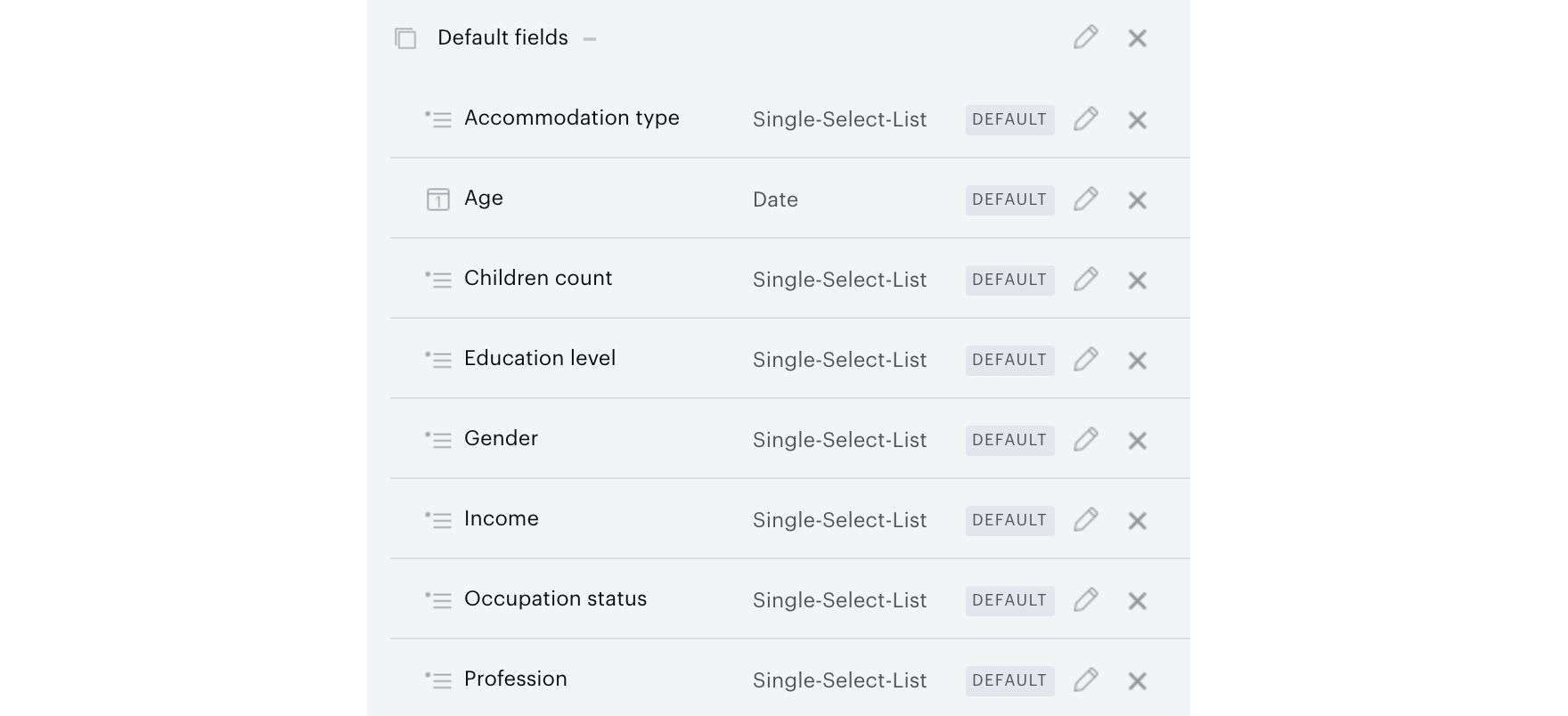
Within the custom fields manager, there is a set of eight default fields that come pre-configured. These fields are socio-demographic questions that can be used to ask users about their background and livelihood. Some fields come pre-filled with different list options for users to choose from, but others are more open-ended and require adding list items before use.
Default custom fields can be added in any order or amount to custom forms. The fields were selected based on survey best practices for collecting socio-demographic data. These are the fields offered:
|
Field name |
Field type |
Items |
|
Accommodation type |
|
Rental apartment, Apartment, Rental house, House, Parents' home, Other |
|
Age |
|
n/a |
|
Children count |
|
4 or more, 3, 2, 1, None |
|
Education level |
|
Postgraduate degree, University degree, High school, Less than high school |
|
Gender |
|
Male, Female, Non-binary, Other |
|
Income |
|
None by default |
|
Occupation status |
|
Full-time work, Part-time work, Full-time parent, Student, Unemployed, Self-employed, Retired |
|
Profession |
|
None by default |
The names of these fields, and the list items are completely configurable using the custom fields manager. Existing list items can be deleted, and new list items can be added as needed.
Implement default fields
Default fields are built into the custom field manager. To access them, click the arrow beside the Add Field Set button. Select the Default fields fieldset.

The default fieldset will appear in the custom fields manager. The fieldset can be collapsed or expanded in the manager. All default fields will appear with the default badge.
Using default fields
To alter the name or list items of a default field, the field can be edited like a typical custom field. To add or remove list items from a default field, select the Options tab in the field modal. The default list items will appear in a list, and can be altered as needed.
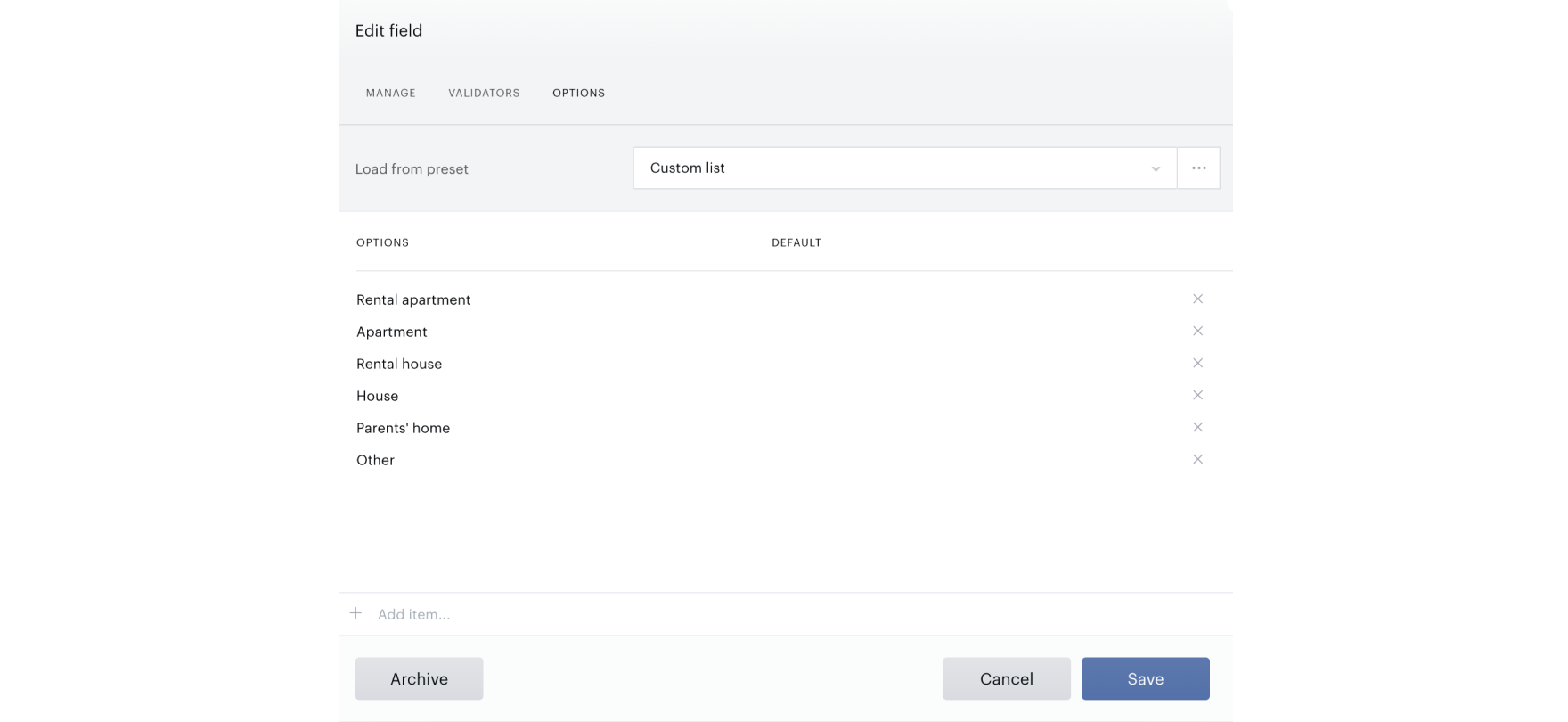
Once the field is saved, the new options will be associated with the field. To add these fields to a custom form, they can be dragged into the form as usual.
Please note, that adding a new custom field with a custom field ID of an existing default custom field, e.g. gender is not possible and produces an error as all custom field ID's need to be unique. If you'd like to add a custom field named "Gender", you can still do so, you will just need to modify the custom field ID, e.g. to gender_custom.