
Configuration
Passwordless checkout affects multiple components of the Piano dashboard. For information on the Templates updates and steps required to enable Passwordless checkout, please refer to the How-to article.
Email manager
When passwordless users need to login, they can do so by clicking a link that is sent to their email address. The Identity Management link for passwordless login email template must be enabled within Email manager. By default, it contains the login link and information on when that login link will expire. Note that the expiration time for a login link is the same as the expiration time for the password reset link, and by default, this is set to 24 hours. You can change this value within Edit Business → User provider.
Checkout flows
Checkout flows determine which options are presented to a user after they are paywalled. Within a configured Checkout flow, you can specify whether that flow allows users to proceed with Passwordless checkout. To present users with the opportunity to create a passwordless account, make sure you create an appropriate Checkout flow and attribute it within your Composer experiences. Follow this link for more information about Checkout flows.
Unfortunately, Apple Pay does not work with passwordless checkout. You need to use a Frictionless flow in this case.
User flow
In configuring Passwordless checkout, you can optionally choose to enable Single step checkout as well. The user flow for each configuration is displayed below.
Passwordless without Single step
When users click a term within an offer linked with a passwordless checkout flow without Single step, they will first be taken to the login screen similar to the below:
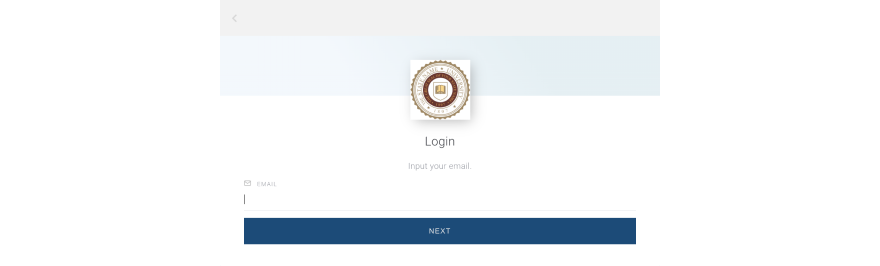
Notice that there is no password field. Instead, once the user inputs their email address and clicks Next, Piano validates whether that email belongs to:
-
an existing passwordless user
-
an existing passworded user or
-
an unregistered visitor
Note that once a user has a password set, they will need to use it to log in. It's not possible to disable password and allow a user with an already existing password to log in in via a magic link or a digital code.
Passwordless users
If a user has been created via passwordless registration, their email entered on the initial login screen will prompt an email with either a magic link or a digital code (according to Identity Management's settings) required to complete login.
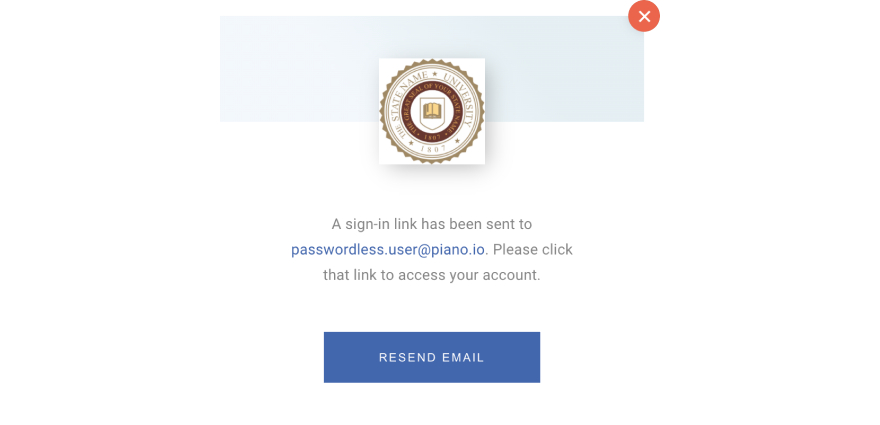
The user then visits their email and clicks on the link to complete the authentication, or copies the code and paste it in the dedicated field of the site modal.
Note: Within your Identity Management settings in Edit business → User provider there is a toggle for "Maintain page after passwordless login". When enabled, the login link sent to a passwordless user will return them to the URL they were on when they initiated login. Otherwise, users will instead be directed to your Business URL as specified in Edit business.
Passworded users
After a user inputs their email and Piano determines that the account does have a password, the user will be prompted to input their password as well:
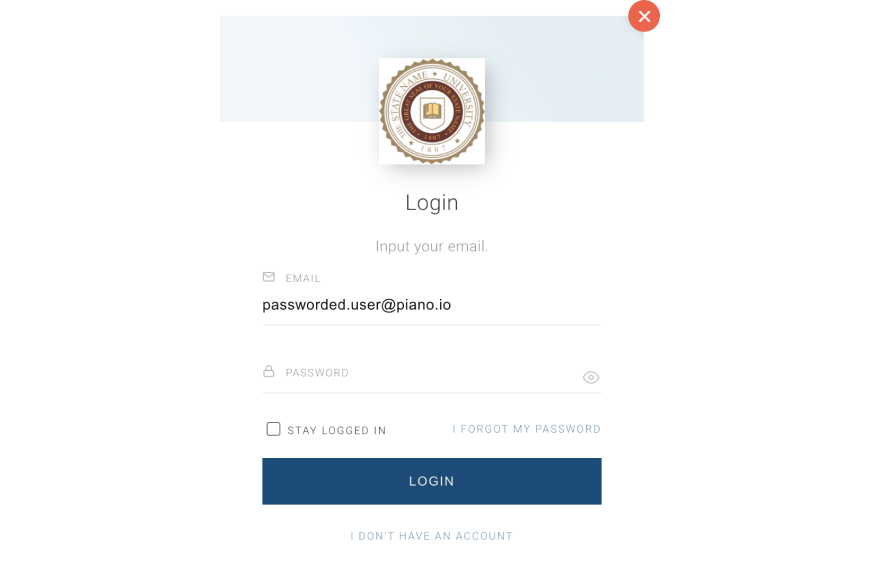
Unregistered visitors
Visitors whose email was not recognized are also prompted to enter password after which they see a notification of an invalid email/password combination. This has been arranged to prevent exposing the existence of specific email addresses in the system. This flow does not allow registration of new passwordless users which is still available via Passwordless with Single step.
Passwordless with Single step
If a user is funneled into a checkout flow with Single step enabled, the passwordless experience will resemble the following:
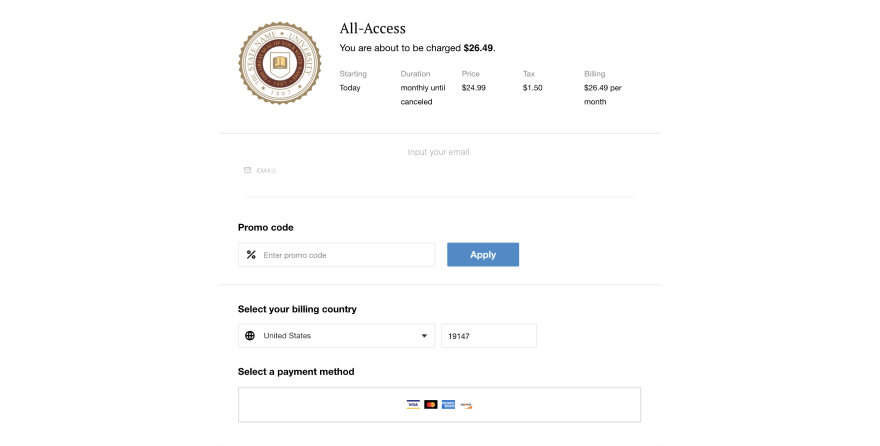
In this instance, the user will be prompted to input an email address in parallel with their billing information. After that, Piano will validate whether the email address belongs to an existing Piano account. If it does, the user will be prompted to log in as a passworded or passwordless user. If not, a new account will be created as soon as the user completes checkout. Note that an unrecognized email in this case results in registration of a new passwordless user (instead of a password request and checkout termination in Checkout without Single step).
Note: Passwordless checkout will not work in case Identity Management user provider is configured to require first name and last name upon registration.
My Account
When passwordless users visit the Profile page of My Account, they will no longer see the option to change their password. It will instead be replaced with an option to set a password, as shown below.
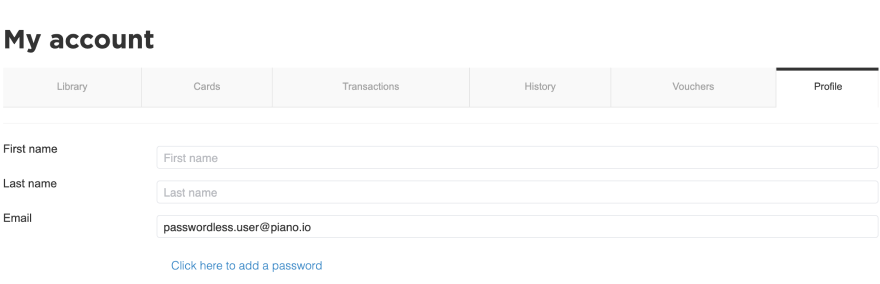
The user will be prompted to confirm their new password that will be required for any subsequent login attempts.