
A checkout flow controls what a reader sees at checkout: which payment providers and methods are offered and whether registration is passwordless.
Getting started
In the Piano Dashboard, follow Manage → Checkout flows and click Add flow in the upper right corner. You will be presented with two different options:
-
Add a purchase flow
-
Add an upgrade/downgrade flow (for legacy upgrades)
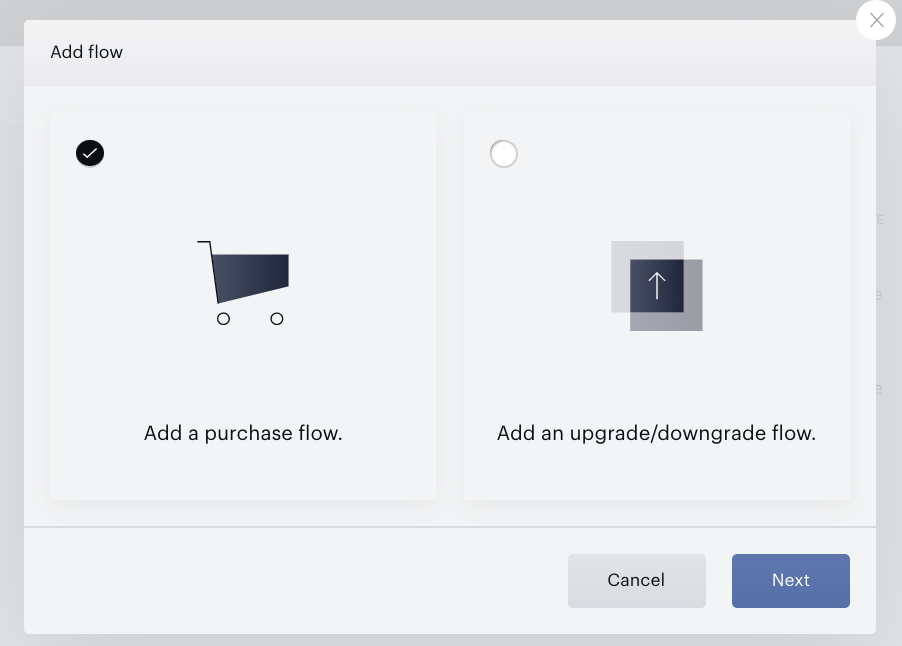
For each flow, you will need to determine the settings of the checkout flow you wish to create:
Creating a purchase flow
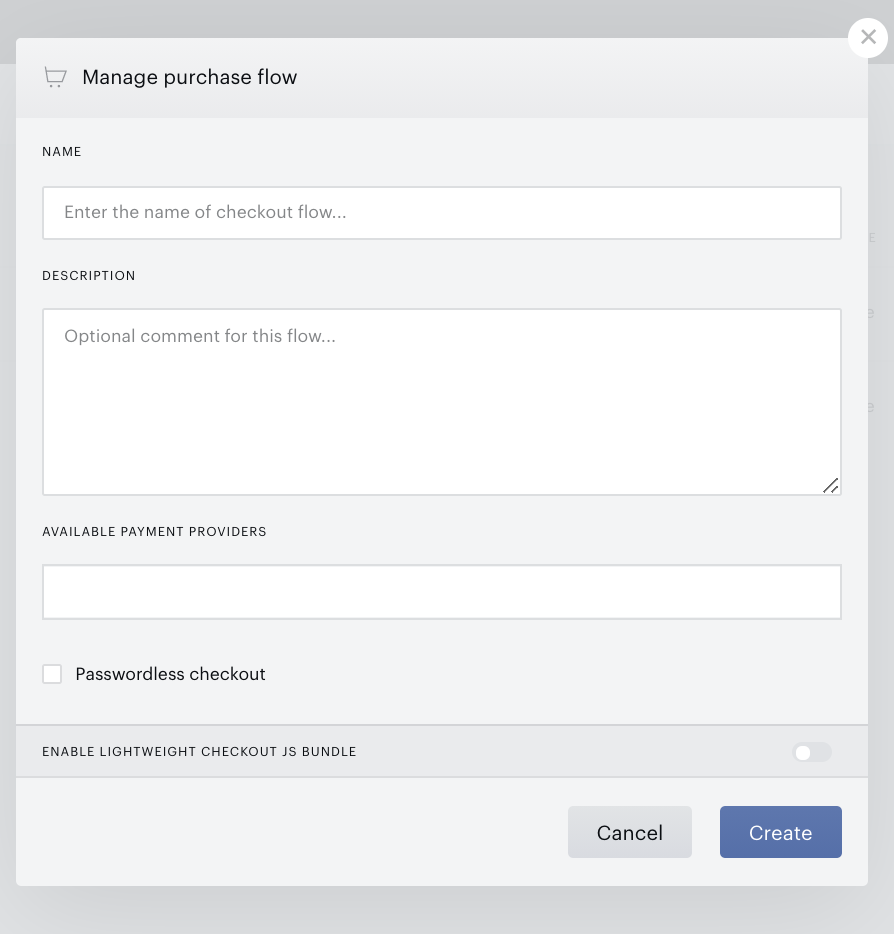
Fill in the fields:
-
Name: Internal name of the checkout flow.
-
Description: Optional internal description of the flow.
-
Available payment providers: This input allows you to select those payment providers and payment methods that you would like to be included in this checkout flow. This means that users who are funneled into this flow will only see those payment options that you select here. You can select any payment method/provider which you have configured within Edit Business
-
Passwordless checkout: This boolean toggles on Passwordless checkout for users who enter this flow. These users will encounter a passwordless registration/login process prior to inputting their payment.
-
Single step enabled: This boolean appears only if Passwordless checkout is enabled. When activated, this setting will merge the passwordless registration/login form with the payment form such that the user is able to complete checkout within a single screen.
When ready, click Create. You can apply your purchase checkout flows to specific offers using Composer's Show offer card.
Creating an upgrade/downgrade flow
Upgrade/downgrade checkout flow is part of the legacy upgrade procedure, replaced with the upgrade-option-based upgrades (see Upgrades documentation).
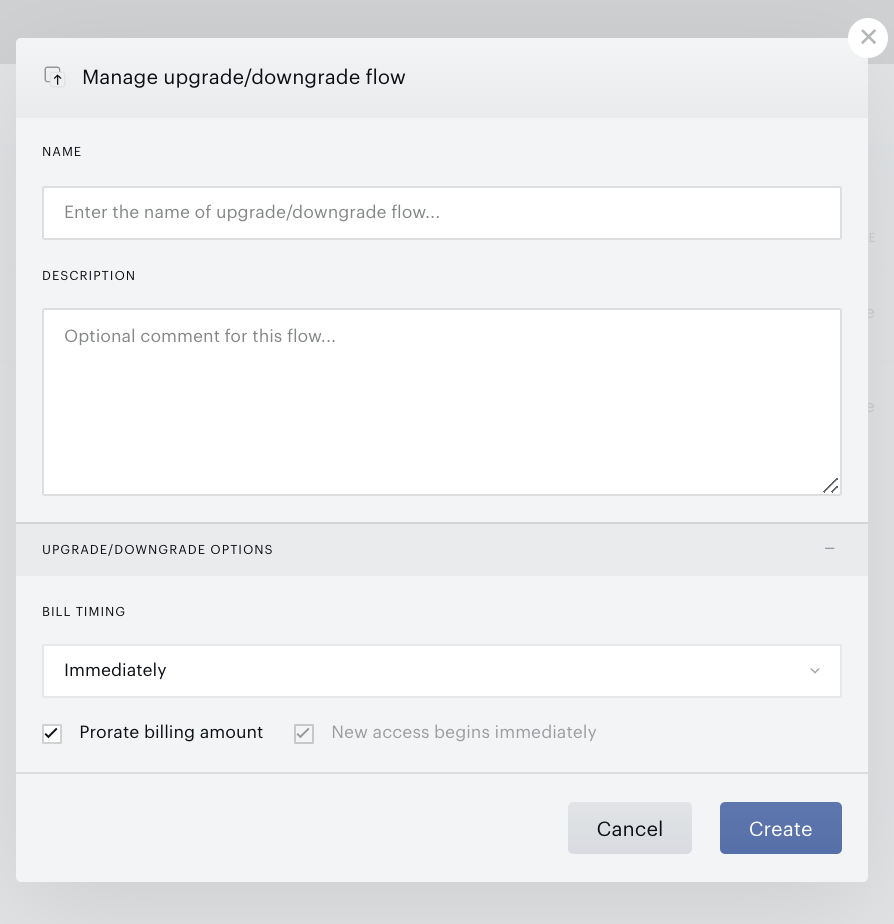
Fill in the fields:
-
Name: Internal name of the flow
-
Description: Optional internal description of the flow
-
Bill timing, Billing amount proration, New access begins immediately: Common settings applied to all upgrades that use this checkout flow. Similar to the additional settings of an upgrade option in the new (upgrade-option-based) model (see Additional settings in Upgrade option documentation).
When ready, click Create. You can apply your upgrade/downgrade checkout flows to specific offers using Composer's Show offer card.