
Prerequisites
Frictionless checkout requires integration with the payment providers Braintree, Stripe or Payway that accept Apple Pay transactions. Additionally, you must verify that you have configured Passwordless checkout for your application. In addition frictionless checkout will not work in case Identity Management user provider is configured to require first name and last name upon registration.
Enabling Apple Pay through Braintree
To support Frictionless checkout, please first be sure that your configuration with Braintree includes support for Apple Pay. For more information on how to configure Apple Pay through Braintree, please consult this article.
Enabling Apple Pay through Stripe
To support Frictionless checkout, please first be sure that your configuration with Stripe includes support for Apple Pay. For more information on how to configure Apple Pay through Stripe, please consult this article.
You also need to substitute the following code for the line in your existing Payment Components template that is indicated below:
<div>
<div ng-if="isPasswordlessApplePayUsed">
    <button type="button"

            ng-click="initiatePasswordlessPurchase()"
            ng-class="{'apple-pay-button--disabled': !isStripeApplePayEnabled}"
    >
        <t>Buy with</t>
        <svg width="51" height="20" viewBox="0 0 51 20" fill="none" xmlns="http://www.w3.org/2000/svg">
            <path d="M9.258 2.579c-.594.675-1.544 1.208-2.494 1.132-.119-.914.346-1.884.89-2.484C8.248.533 9.287.038 10.13 0c.099.951-.287 1.884-.871 2.579zm.86 1.313c-1.375-.077-2.553.751-3.206.751-.663 0-1.663-.713-2.751-.694A4.09 4.09 0 00.707 5.966C-.778 8.42.32 12.056 1.756 14.053c.703.99 1.544 2.075 2.652 2.036 1.05-.038 1.465-.656 2.732-.656 1.277 0 1.643.656 2.751.637 1.148-.019 1.87-.99 2.573-1.979.802-1.122 1.129-2.217 1.148-2.274-.02-.019-2.216-.828-2.236-3.263-.02-2.036 1.732-3.007 1.81-3.064-.989-1.408-2.533-1.56-3.067-1.598zm7.948-2.76v14.834h2.395v-5.072h3.316c3.028 0 5.156-1.998 5.156-4.89 0-2.893-2.088-4.872-5.077-4.872h-5.79zm2.395 1.941h2.761c2.079 0 3.266 1.066 3.266 2.94 0 1.875-1.187 2.95-3.276 2.95h-2.75v-5.89zM33.307 16.08c1.505 0 2.9-.733 3.534-1.893h.05v1.779h2.216V8.582c0-2.14-1.781-3.52-4.523-3.52-2.543 0-4.424 1.399-4.493 3.32h2.157c.179-.913 1.06-1.512 2.267-1.512 1.465 0 2.286.656 2.286 1.865v.818l-2.989.171c-2.78.162-4.285 1.256-4.285 3.159 0 1.922 1.554 3.197 3.78 3.197zm.644-1.76c-1.277 0-2.089-.59-2.089-1.494 0-.933.782-1.475 2.277-1.56l2.662-.162v.837c0 1.39-1.227 2.379-2.85 2.379zM42.066 20c2.336 0 3.434-.856 4.395-3.454l4.206-11.341h-2.435l-2.82 8.763h-.05l-2.82-8.763h-2.505l4.058 10.799-.218.656c-.366 1.113-.96 1.542-2.019 1.542-.188 0-.554-.02-.702-.038v1.779c.138.038.732.057.91.057z" fill="#fff"/>
        </svg>
    </button>
</div>
<div ng-if="!isPasswordlessApplePayUsed">
Enabling Apple Pay through Payway
To support Frictionless checkout, please first be sure that your configuration with Payway includes support for Apple Pay. For more information on how to configure Apple Pay through Payway, please consult this article.
Please also make sure that your templates are updated as per the instructions here.
Providing Apple Pay merchant identifier
Piano uses Apple's <a href="https://developer.apple.com/documentation/apple_pay_on_the_web/applepaysession/1778000-canmakepaymentswithactivecard">canMakePaymentsWithActiveCard</a> method returning true or false to check whether a user is ready to make an Apple Pay payment right now. The method is relevant for user segmentation within Composer and for enabling or disabling the Pay with Apple button during the checkout process.
The only argument for this method is the Apple Pay merchant identifier which needs to be set as an environment variable, you can do it by adding the following string to Piano's JavaScript:
tp.push(['setApplePayMerchantId','example.apple.pay.merchant.id']);
Note: For some providers (like Stripe or Braintree), this can be a provider-specific merchantID, not the one that you will get from Apple. For example, when using Apple Pay through Braintree, you should use the Braintree-specific merchantID, which can be found in your Braintree account settings.
Frictionless boilerplate template
The functionality enabled by Frictionless checkout is made possible through a set of angular directives that are included in a dedicated boilerplate template. Navigate to Manage → Templates → Boilerplates and click on the template titled Frictionless offer.
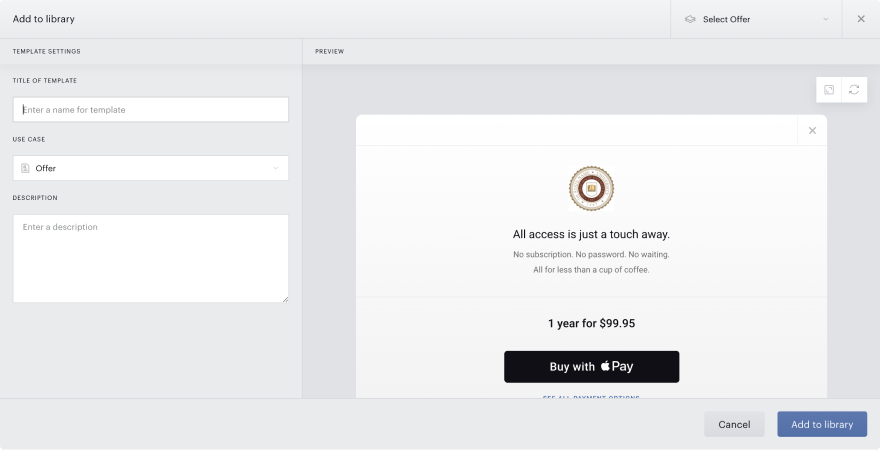
Add this template to your library, and then feel free to make adjustments for stylistic purposes. We strongly recommend that you limit your adjustments only to copy and styling, and avoid making large changes to the directives and models included in the template.
Setting up your Composer experience
To show an Offer that presents Frictionless checkout, simply include a Show Offer card that uses the Frictionless template. Also, be sure that you have created a Checkout flow that allows for Passwordless checkout, and associate that Checkout flow with the Show offer card.
Additionally, it likely does not make sense to show a Frictionless offer to all users, since it will only be usable by users who have an active Apple Pay account and who are using Safari on an iOS or macOS device. Therefore, we recommend only presenting this offer to the relevant users via the User segment card.
Locate the Apple Pay section of the card within the Browsing properties section, and ensure you are only targeting users with an active Apple Pay card:

User experience
Once you have completed your setup, users with an active Apple Pay card will experience a checkout process that presents Apple Pay as the primary option for checkout. Users can optionally elect to see additional payment options, which will take the user through the same payment flow as non-Apple Pay users.
Once the user confirms their purchase, Piano will create the user account with the email associated with their Apple account and process the transaction. The user will then be taken to the receipt screen – the Receipt template (Manage → Templates → System → Receipt) has also been enhanced. We strongly recommend reverting this template to default to fetch the updates.
Please note, that Apple Pay frictionless inline checkout is currently not supported.
Also, Apple Pay as a payment method is currently not supported for frictionless checkout with Dynamic terms that have a first free period.