
How Passwordless Works (At a Glance)
-
Activation is per application (AID) and must be enabled for each environment (Sandbox/Production).
-
Passwordless covers three flows: login, registration, and checkout. Each can be enabled or controlled independently depending on your configuration and templates.
-
After activation, a Passwordless verification section appears in Identity Management configuration where you:
-
Turn passwordless on/off
-
Choose the verification method (Magic link or Code)
-
Set link/code expiration
-
-
Passwordless relies on:
-
Correct System templates (Payment Components, Checkout, Promotion Components) and Identity Management templates (Login Page, Passwordless Login Page, My Account Profile, Layout)
-
The correct email template enabled in Email Manager
-
Correct redirect URI configuration
-
A configured Checkout flow (if passwordless checkout is used)
-
tp.pianoId.init()executing on the landing page used by the magic link flow
-
Prerequisites and Feature Activation
Confirm Identity Management Is Your User Provider
In the Piano Console, go to:
Edit Business → User Provider → Identity Management
If Identity Management is not fully configured for the application, passwordless options may not appear. Passwordless checkout is only available to Identity Management clients.
Request Activation (Required)
Passwordless is not always enabled by default. If you do not see Passwordless verification (or any passwordless toggle/options), the feature has not been activated for that AID/environment.
To enable it, contact Piano Support and provide:
-
The Application ID(s) (AID) to enable
-
The environment(s): Sandbox and/or Production
Note: Passwordless enablement is per application. If you create new apps in the future, you may need to request activation again for those new AIDs.
Enable Passwordless and Choose Magic Link vs Code
Once activated, navigate to:
Edit Business → User Provider → Identity Management
In Passwordless verification:
-
Enable Passwordless login.
-
Select your verification method:
-
Magic link (user clicks a link)
-
Code (user enters a one-time code)
-
-
Configure Sign-in link expiration (default is typically 24 hours). Note that the expiration time for a login link is the same as the expiration time for the password reset link. You can change this value within Edit Business → User provider.
All available configuration options are described in the article here.
Keep Users on the Same Page After Login (Optional)
If available, enable Maintain page after passwordless login to return users to the original URL after authentication. When enabled, the login link sent to a passwordless user will return them to the URL they were on when they initiated login. Otherwise, users will be directed to your Business URL as specified in Edit Business.
Configure Redirect Behavior (Authorized Redirect URIs)
Passwordless flows depend on correct redirect configuration. Ensure your relevant site domains and paths are included under Authorized redirect URIs for your Identity Management application settings.
Important: If your domain is not listed within the Authorized redirect URIs tab, the redirect after login will not function.
If magic links redirect to an unexpected location:
-
Verify the configured redirect URI(s).
-
Clear browser cache/cookies and retest (especially while iterating on templates and settings).
Enable the Required Email Template
Passwordless authentication requires the corresponding email template to be active.
-
Go to Email Manager.
-
Enable the template: Piano ID link for passwordless login.
By default, this template contains the login link and information on when that login link will expire. Note that the expiration time for a login link is the same as the expiration time for the password reset link, and by default, this is set to 24 hours. You can change this value within Edit Business → User provider.
If you have customized templates, ensure you include the required passwordless snippets/variables as described in Piano's passwordless activation guidance.
Update Templates
Template Overview and Recommendations
Because this feature affects Login, Registration, My Account, Checkout, and Payment components, multiple templates must be updated. The following templates are affected:
|
Template |
Type |
Action Required |
|---|---|---|
|
Payment Components |
System Template |
Add passwordless code block |
|
Checkout |
System Template |
Add promo code component line |
|
Promotion Components |
System Template |
Replace promo code wrapper divs |
|
Piano ID Login Page |
Identity Management Template |
Modify password field, remember section, and login/registration block |
|
Piano ID Passwordless Login Page |
Identity Management Template |
Revert to default (recommended) |
|
Piano ID Profile in My Account |
Identity Management Template |
Replace password change/set divs |
|
Piano ID Layout |
Identity Management Template |
Add CSS class for spacing |
We recommend reverting templates to default if no custom work has previously been done to guarantee that the feature works as planned. If you prefer a manual approach, please rely heavily on Piano's Compare code feature to double-check the work you are doing against Piano's default templates.
If you're already using the default version of these templates, no further action is required.
System Templates → Payment Components
The Payment Components template must include the passwordless checkout code block for both standard and single-step checkout flows.
-
Navigate to System Templates → Payment Components.
-
Follow this link and click on the .txt file titled 'Payment components'.
-
Locate the line containing
/widget/checkout/component/partials/calling-code-selector.html. -
Add the 92-line passwordless checkout code block immediately after the country selector code and before the code for your payment provider.
Note: This code snippet accounts for passwordless checkout in the payment form both with and without single-step.
System Templates → Checkout
There is only one line of code that must be added to the Checkout system template:
<div promo-code-component></div>
It goes between these two, in your existing template:
<div auth-component></div>
<div promo-code-component></div>   ← add this line
<div payment-form-component></div>

Note: This line might already fall within your template. If so, please remove it and add it in the location specified above.
System Templates → Promotion Components
-
Navigate to System Templates → Promotion Components.
-
Locate the two elements that have
class="promo-code-input-wrapper". -
Replace both divs with the code found in the .txt file titled Promotion components here.
Identity Management Templates → Piano ID Login Page
Three changes must be made to this template:
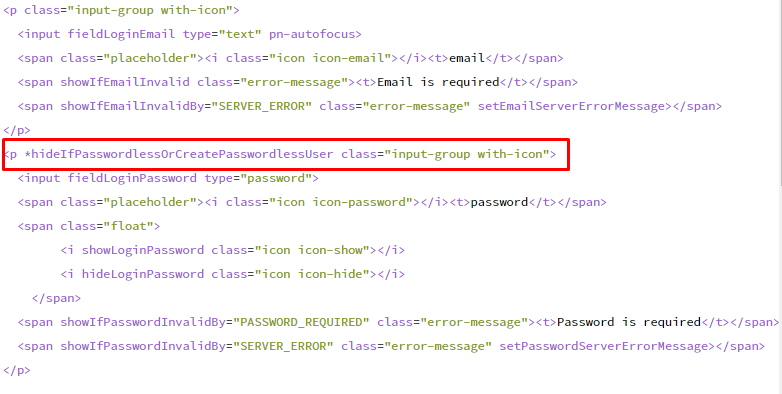
Change 1: Hide the password field for passwordless users
For the input field type password, where you have <p class="input-group with-icon">, substitute it with:
<p *hideIfPasswordlessOrCreatePasswordlessUser class="input-group with-icon">
Change 2: Hide the "remember me" and "forgot password" section for passwordless users
Where you have <p class="cf remember-and-restore">, substitute it with:
<p class="cf remember-and-restore" hideIfPasswordless>
Change 3: Replace the login and registration action block
Replace the last three <p> sections of the template (which include code for 'Login' and 'I don't have an account') with:
<p *hideIfSingleStep data-e2e="hideIfSingleStep">
  <button actionLogin class="btn prime">
    <span *hideIfPasswordlessOrCreatePasswordlessUser><t>Login</t></span>
    <span *showIfPasswordlessOrCreatePasswordlessUser><t>Next</t></span>
  </button>
</p>
<p class="my-24" *showIfPasswordlessButUserHasPassword>
  <a class="link" setPasswordlessButtonTitle actionPasswordlessLogin></a>
</p>
<alias-options class="pn-alias-options"></alias-options>
<div class="divider"></div>
<p *hideIfCreatePasswordlessUser class="final">
  <a class="link" data-e2e="notHaveAccountPianoIDLink" showScreen="register">
    <t>I don't have an account</t>
  </a>
</p>
This block provides the following behavior:
-
Shows Login for passworded users and Next for passwordless users.
-
Displays a "Sign in with magic link/code" option for users who have a password but want to use passwordless.
-
Hides the "I don't have an account" link when a passwordless user is being created during checkout.
Identity Management Templates → Piano ID Passwordless Login Page
This template was newly introduced with this feature. Since there has likely been no customization here, reverting to default is the easiest approach.
Note: If you do not see the passwordless template shortly after activation, it may appear after a delay. If it still does not appear, contact Support.
Identity Management Templates → Piano ID Profile in My Account
-
Navigate to Identity Management Templates → Piano ID profile in My Account.
-
Locate all elements that contain the custom element
showChangePasswordorhideChangePassword(there should be 4 locations). -
Replace all of them with the code found in the .txt file titled Piano ID profile in My Account here.
This ensures that passwordless users see a "Set password" option instead of a "Change password" option in their profile.
Identity Management Templates → Piano ID Layout (CSS)
To ensure proper spacing for the magic link/code login option, add the following CSS to the end of the Piano ID Layout template CSS section:
.my-24 {
  margin-top: 24px;
  margin-bottom: 24px;
}
Ensure tp.pianoId.init() Runs on Relevant Pages
Your site should initialize Identity Management on pages involved in authentication (including the page used by the magic link landing/redirect).
Identity Management is automatically initialized when you call tp.pianoId.show(), but for passwordless magic link flows you must also call tp.pianoId.init()—at minimum on the landing page for passwordless magic links.
Typical initialization pattern:
tp = window["tp"] || [];
tp.push(['init', function() { tp.pianoId.init(); }]);
If You Need to Force Init Before Redirecting
Some implementations use a RunJS step to ensure initialization occurs before navigation:
tp.pianoId.init();
window.location.href = "/";
Piano Mobile SDK
Passwordless can also be implemented with the latest version of the Piano mobile SDK. Implementing passwordless with the SDK requires that the SDK is enabled for your application.
Testing in Sandbox (Emails Are Not Sent)
In Sandbox, Piano typically does not send real emails. Passwordless emails are generated and stored on the user record.
To test magic links/codes in Sandbox:
-
Trigger the login flow and enter the test email address.
-
In the Console, go to Users → All Users.
-
Open the user and go to the Emails tab.
-
Copy the generated magic link (or code) and use it in a fresh/private browser session.
Application Settings and Flow Control
Email Manager
When passwordless users or users with a password select to sign in via a magic link or code need to log in, they can do so by clicking a link that is sent to their email address. The Piano ID link for passwordless login email template must be enabled within Email Manager. By default, it contains the login link and information on when that login link will expire. Note that the expiration time for a login link is the same as the expiration time for the password reset link, and by default, this is set to 24 hours. You can change this value within Edit Business → User provider.
Checkout Flows
Checkout flows determine which options are presented to a user after they are paywalled. Within a configured Checkout flow, you can specify whether that flow allows users to proceed with Passwordless checkout. To present users with the opportunity to create a passwordless account, make sure you create an appropriate Checkout flow and attribute it within your Composer experiences. Follow this link for more information about Checkout flows.
You can optionally choose to enable Single step checkout as well. The user flow for each configuration is described in User Flows.
Passwordless General Registration
Passwordless general registration is a feature that can be turned on in the Piano dashboard as described here. It allows your non-term conversions to have a quick and seamless registration experience. Non-term conversions refer to users who have not received a sign-up offer, or registration prompt, but instead are navigating directly to your registration page to open an account.
Users can register with their email and receive a verification link or code to complete the registration process. They can optionally create a password later in the My Account section.
With Double-Opt-In (DOI):
-
User enters their email.
-
User sees a DOI confirmation screen (which can be dismissed).
-
User is logged in.
-
If the user did not confirm DOI during registration, DOI will automatically be confirmed upon the next login when they enter the code or click the magic link.
Note: If a user is registered but has closed the DOI screen without confirming their email, they will be shown as not confirmed in the Piano dashboard. Once the user logs in via the magic link/digital code, their status will change to confirmed (and the "Unconfirmed" flag will disappear).
Without DOI:
-
User is directly logged in without entering a code or clicking a magic link.
-
Upon the next login, the user will receive a passwordless link/code.
-
A password can be added in My Account at any later point.
Allow Passwordless Login but Not Passwordless Registration
Depending on your configuration and templates, passwordless can apply to login only or also be used for registration/checkout.
One approach used to prevent passwordless registration/checkout is to require additional registration fields (for example, requiring first/last name at registration), which may block passwordless registration/checkout flows when those flows depend on minimal required fields.
Also review any toggles such as Passwordless general registration if present, and disable it if you do not want passwordless registration.
GDPR-Compliant Registration (Security Protection Against Enumeration)
Publishers operating under GDPR or similar privacy regulations can enable an additional layer of protection that prevents email enumeration, exposing whether a given email address is registered on your site.
Please contact Piano Support to enable this setting on your application.
Prerequisites:
-
Passwordless login: ON
-
Passwordless general registration: ON
Template Changes
Please refer to this section for detailed instructions on the required template changes.
What changes when enabled:
The registration screen always shows the same message regardless of whether the submitted email is new or already registered:
"A sign-in link and/or a confirmation code have been sent to {email}. Please click the link to access your account or enter the code here to log in."
An email is always sent, but its content varies based on account status:
|
Scenario |
Email sent |
Outcome |
|
New user |
Piano ID welcome email |
Account created on confirmation; welcome email sent |
|
Existing user |
Piano ID Passwordless login email |
User logged in on confirmation |
|
Existing user with a password |
Piano ID Passwordless login email |
User forced to authenticate via passwordless |
|
Existing user with linked social account |
Piano ID Passwordless login email |
User authenticates via social provider, then sees Social Account Link screen |
Supported flows:
-
Identity Management general registration
-
Default checkout
-
Passwordless checkout
-
Single-step checkout
-
Existing users with passwords
-
Social account link flow
Out of scope:
-
Alias flow
-
Deferred DOI
-
Multi-step forms
In the new GDPR-compliant flow, user accounts are created only after the user confirms their email address using a digital code or confirmation link. In Sandbox environments, confirmation emails are not delivered and can only be viewed in the User Dashboard. As a result, the flow cannot be fully tested on Sandbox because the user account is not created until the confirmation step is completed, and the digital code cannot be retrieved directly during testing.
To support Sandbox testing, a separate public API endpoint is available for retrieving the digital confirmation code. This allows clients to complete the confirmation step programmatically and continue testing the flow without requiring email delivery.
Two-Factor Authentication (2FA)
If your Identity Management setup requires 2FA, users may still need to complete 2FA after using a magic link or code.
User Flows
In configuring Passwordless checkout, you can optionally choose to enable Single step checkout as well. The user flow for each configuration is displayed below.
Note: Please verify that your domain is listed within the Authorized redirect URIs tab. If it is not listed, the redirect after login will not function.
Passwordless Login and Registration Flow
The passwordless login and registration flow supports both email links and codes to authenticate users.
Login
-
For users with passwords:
-
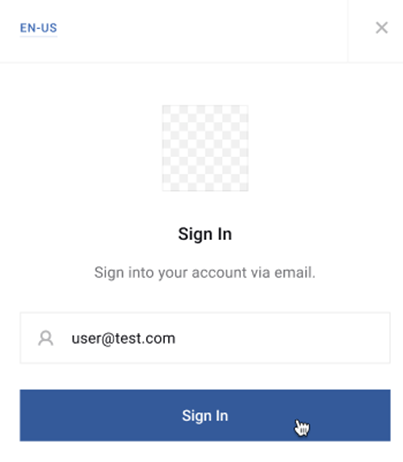
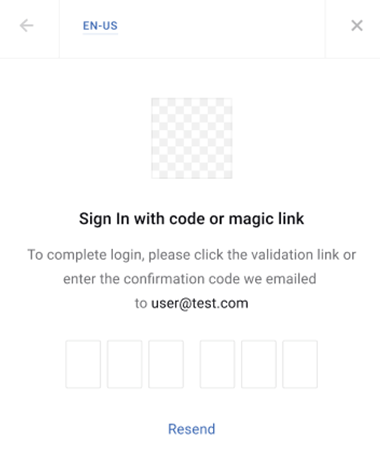
A user (with password) enters their email and clicks on "Sign In":
-
Both the password field and the "Sign in with code/link" button will be available.
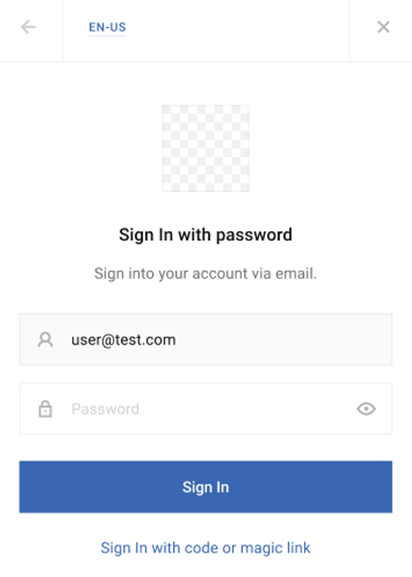
Users can choose whether to enter their password:
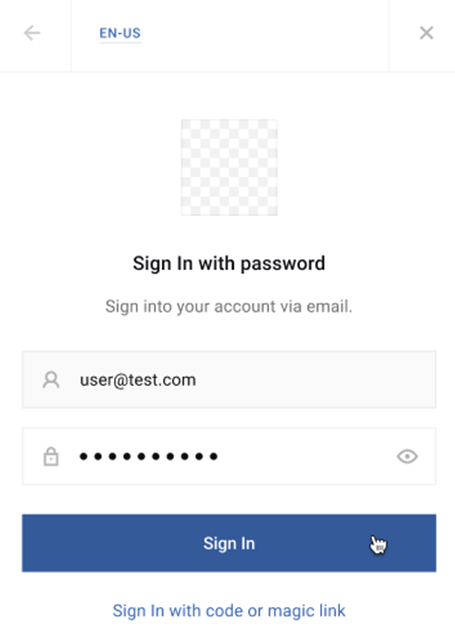
Or receive a digital code or magic link via email.
-
-
For users without passwords:
-
They will automatically receive a login link or code upon entering their registered email.
-
Registration
For details on passwordless general registration (including DOI and non-DOI flows), see Passwordless General Registration.
Please note that multi-step forms do not work with passwordless registration.
Passwordless Checkout Flow
Passwordless checkout through Piano allows you to streamline your checkout experience by eliminating the need for users to input a password. New users will be instantly registered and authenticated with a passwordless account after inputting their email address. Upon switching devices or logging out, passwordless users can log in again by clicking a magic link sent to their email address on file. Users with a password will be prompted to input it, but can also select the option to log in via a magic link or code. Passwordless checkout is only available to Identity Management clients.
Passwordless Without Single Step
When users click a term within an offer linked with a passwordless checkout flow without Single Step, they will first be taken to the login screen similar to the below:
Notice that there is no password field. Instead, once the user inputs their email address and clicks Next, Piano validates whether that email belongs to:
-
An existing passwordless user
-
An existing passworded user
-
An unregistered visitor
Note that once a user has a password set, they still may select the option to log in via a magic link or a digital code the next time they are prompted to log in.
Passwordless Users
If a user has been created via passwordless registration, their email entered on the initial login screen will prompt an email with either a magic link or a digital code (according to Identity Management's settings) required to complete login.
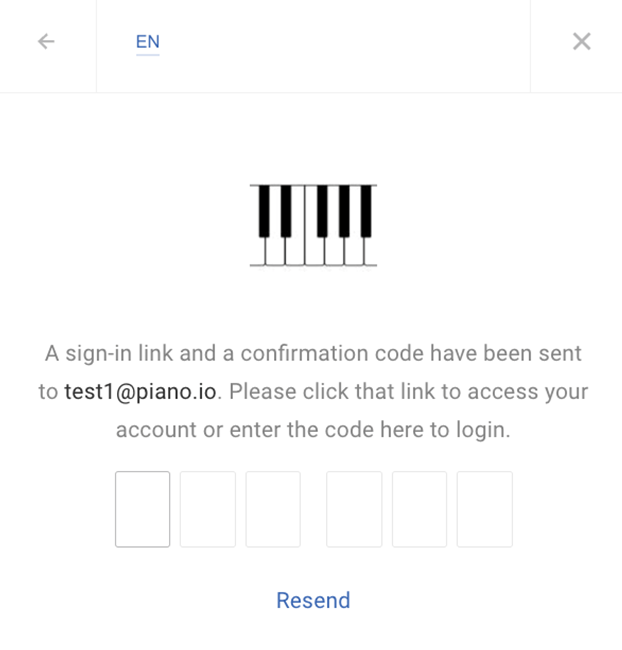
The user then visits their email and clicks on the link to complete the authentication, or copies the code and pastes it in the dedicated field of the site modal.
Note: Within your Identity Management settings in Edit business → User provider, there is a toggle for "Maintain page after passwordless login". When enabled, the login link sent to a passwordless user will return them to the URL they were on when they initiated login. Otherwise, users will instead be directed to your Business URL as specified in Edit business.
Passworded Users
After a user inputs their email and Piano determines that the account does have a password, the user will be prompted to input their password, or has the option to select to log in without a password as well:
Unregistered Visitors
Visitors whose email was not recognized are also prompted to enter a password, after which they see a notification of an invalid email/password combination. This has been arranged to prevent exposing the existence of specific email addresses in the system. This flow does not allow registration of new passwordless users, which is still available via Passwordless with Single step.
Passwordless With Single Step
If a user is funneled into a checkout flow with Single step enabled, the passwordless experience will resemble the following:
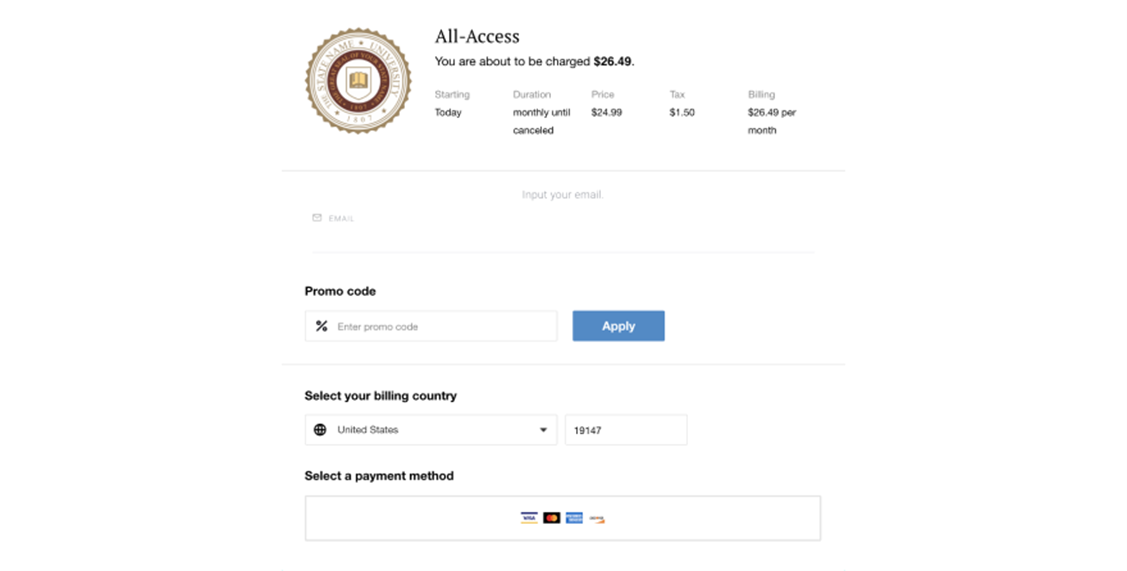
In this instance, the user will be prompted to input an email address in parallel with their billing information. After that, Piano will validate whether the email address belongs to an existing Piano account. If it does, the user will be prompted to log in as a passworded or passwordless user. If not, a new account will be created as soon as the user completes checkout. Note that an unrecognized email in this case results in registration of a new passwordless user (instead of a password request and checkout termination in Checkout without Single step).
Note: Passwordless checkout will not work in case Identity Management user provider is configured to require first name and last name upon registration.
My Account
When passwordless users visit the Profile page of My Account, they will no longer see the option to change their password. It will instead be replaced with an option to set a password, as shown below.
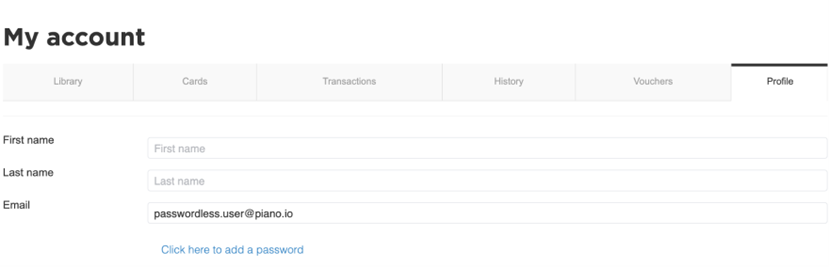
The user will be prompted to confirm the new password that they can use for any subsequent login attempts. Passworded users still have the option to select on the login screen that they'd like to sign in via magic link or code.
When account self-deletion is enabled on your application, passwordless users can also delete their own account from the Profile tab without creating a password first. They confirm with a 6-digit code or a magic link, matching the verification method you configured in Passwordless verification. See User account self-deletion in My Account.
Known Limitations and Notes
-
Apple Pay: Passwordless checkout is not compatible with Apple Pay. You need to use a Frictionless flow in this case.
-
Multi-step registration forms: Multi-step forms are not supported when Passwordless general registration is enabled. Instead of displaying fields across multiple steps, all custom fields are shown in a single list. This limitation applies to both registration forms and forms displayed through a Show Form card. The multi-step configuration is preserved and will be restored if Passwordless general registration is disabled.
-
First/last name registration requirement: Passwordless checkout will not work if the Identity Management user provider is configured to require first name and last name upon registration.
-
Mobile apps without the Piano SDK: Passwordless can be implemented via API for certain scenarios (for example, user registration via
/api/v3/publisher/user/register), but using the Piano SDK is recommended for complete, supported behavior. The SDK must be enabled for your application.
Troubleshooting Checklist
If passwordless is not appearing or not working as expected:
-
Feature activation: Is passwordless activated for the correct AID and environment?
-
Identity Management configuration: Is Identity Management fully configured under Edit Business → User Provider?
-
Email templates: Are Piano ID link for passwordless login and Customer confirms account deletion enabled in Email Manager?
-
Redirects: Are your domains listed in Redirect URIs?
-
Initialization: Does
tp.pianoId.init()run on the landing/redirect page (in addition totp.pianoId.show())? -
Sandbox testing: Retrieve the link/code from Users → Emails tab (since emails aren’t sent).
-
Templates: Ensure all affected templates (Payment Components, Checkout, Promotion Components, Login Page, Passwordless Login Page, My Account Profile, Layout) include the correct passwordless blocks/attributes.
-
If unsure, revert to default and use Piano’s Compare code feature to validate.
-
-
Checkout flows: Is the correct Checkout flow (with passwordless enabled) attributed in your Composer experience?