
Obtaining Login Details
If you have not yet received your login details for the Piano dashboard, please reach out to your Piano liaison at your company that already has admin access to the Piano dashboard or your designated contact person at Piano. They will be able to provide you with the necessary login credentials and assist you with any questions or concerns.
Logging in to Piano Dashboard
To access the Piano dashboard for Piano Subscriptions products (Composer, Content, ESP, Identity Management, Management + Billing), follow these steps:
-
Open your web browser and navigate to the login page specific to your Piano application’s (AID) locale. Here are the login links for each locale:
-
AP (Asia-Pacific) dashboard: https://dashboard-ap.piano.io/
-
AU (Australian) dashboard: https://dashboard-au.piano.io/
-
EU (European) dashboard: https://dashboard-eu.piano.io/
-
Sandbox dashboard: https://sandbox.piano.io/
-
US (+ Other regions) dashboard: https://dashboard.piano.io/
Note: After the application was initially created, your Piano Account Manager will grant at least one member from your organization admin permissions to be able to manage further user’s dashboard access directly on your end, and your Account Manager will confirm which login link should be used.
-
-
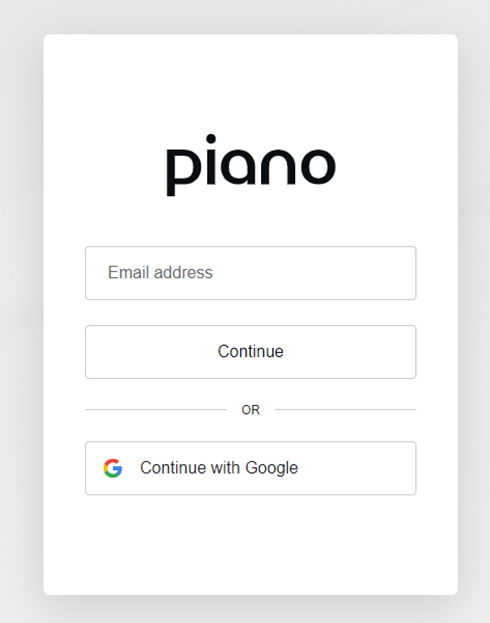
On the login page, enter your email address and click “Continue”:
-
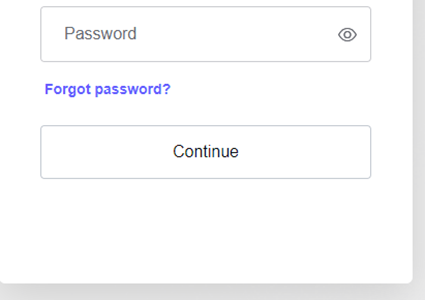
Afterwards, enter your password on the second screen:
-
Click the "Continue" button to proceed.
You should now be logged in to the Piano dashboard and see the homepage of the application you have been granted access to via Team Manager.
Note: Please don’t use the “Continue with Google” button, this type of login will only work for users with a piano.io domain.
To access your Piano Analytics dashboard please follow this link, and to access Piano Audience, this link.
For the Enterprise SSO login process see the article here.
Multi-Factor Authentication (MFA)
What is Multi-Factor Authentication (MFA)?
Multi-factor authentication (MFA) is a multi-step account login process that enhances security by requiring users to provide additional information beyond just a password.
How to Activate MFA?
Currently, we support MFA activation for an email domain. For example, if the email domain is john.doe@my-company.com, MFA can be enabled for all users with the my-company.com domain. The customer requesting MFA activation must be the owner of the domain. Piano Subscriptions requests for domains such as not-my-company.com cannot be accommodated.
If needed, we can enable the "Remember device for 30 days" option, allowing users to bypass MFA authentication for subsequent logins within that period.
To test before a global activation, MFA can be enabled for specific email addresses or a select group of users. Once activated, MFA will apply to all dashboards, including both Sandbox and Production.
If you’d like to request the activation of MFA for your Piano dashboard login, please reach out to our Support team at support@piano.io.
Supported MFA Types
We currently support the 2 following MFA types:
-
OTP (One-Time Password) with an Authenticator App (e.g., Google Authenticator or a similar application).
-
Recovery codes
Please note that these two factors must be activated together. It is not possible to enable one without the other.
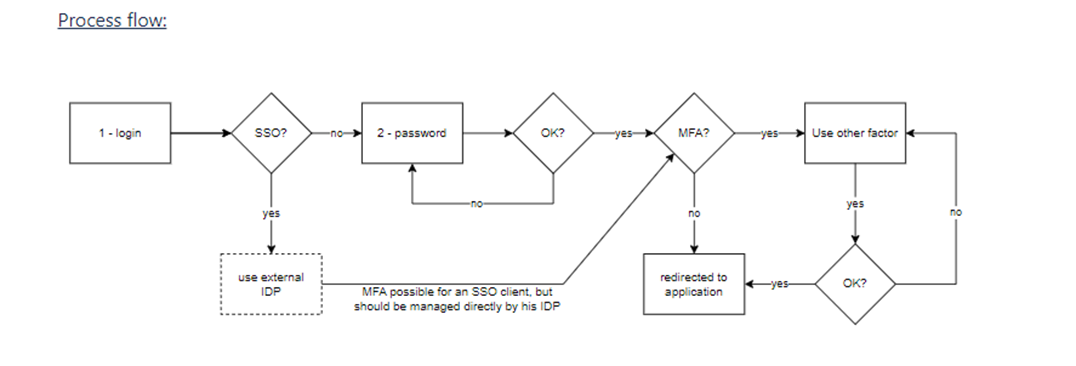
Note: If you have Enterprise SSO login enabled, MFA functionality should be enabled directly in your IdP platform (if supported).
User Experience with MFA Enabled
Once MFA is enabled, all users with the specific domain will experience the following:
Enrollment:
-
Users will be prompted to enroll in MFA during the login process.
First Login after Enrollment:
-
Users will be guided through the MFA setup, including configuring the chosen MFA factor.
Further Login attempts:
-
Users will encounter MFA prompts when accessing different applications and services in the Piano dashboard.
Below you can find an example of the UI for the individual modals of the login flow with MFA enabled.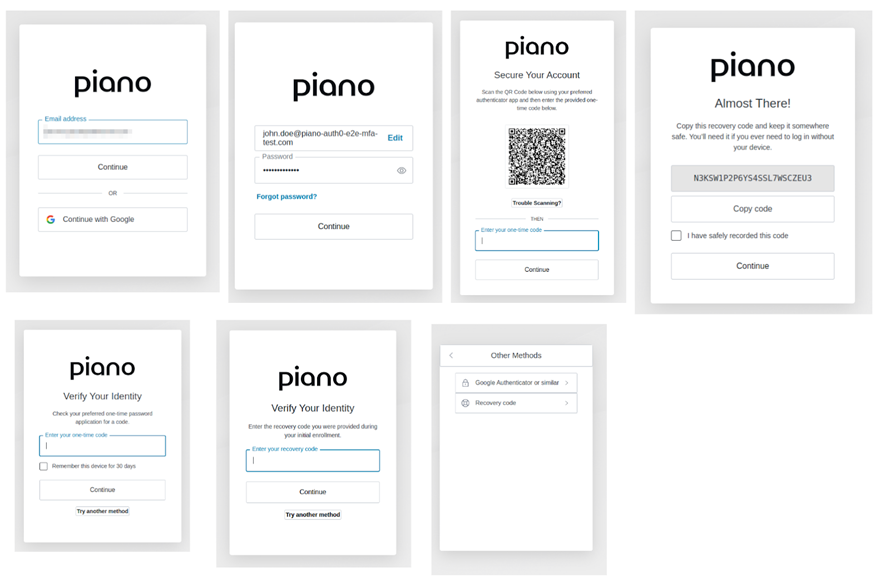
If you need to reset your MFA login, for example, to get a QR code to add a new device, please reach out to support@piano.io.
IP-Restricted Access to the Dashboard
IP restriction allows you to control access to the Piano dashboard based on specific IP addresses. This feature ensures that only authorized individuals or organizations can log in from designated IP addresses. This solution ensures IP restrictions during login and navigation between products, it does not affect access to all Piano user interfaces after login, nor does it affect API calls.
If you require IP restrictions for your Piano dashboard, please contact our Support team at support@piano.io to discuss your specific requirements and determine the best approach.
To initiate the IP restriction process, we need at least the following information from you:
-
List of email domains for which IP restrictions will be enabled.
-
List of IP addresses or IP Range CIDR (v4 and/or v6 format).
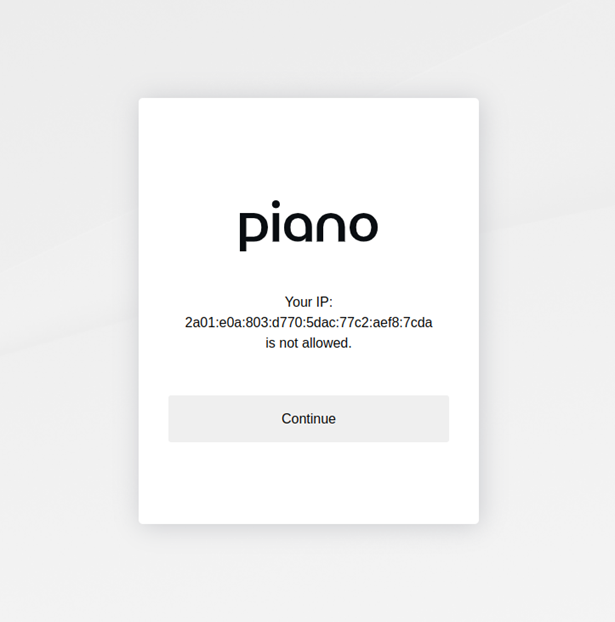
Once this is implemented and a user from another IP address tries to access the dashboard, they will see a notification informing them about this:
Requesting a Password Reset
If you forget your password or need to reset it for any reason, you can easily request a password reset by following these steps:
-
On the Piano dashboard login page, after entering your email address, click on the "Forgot password?" link.
-
You will be redirected to the password reset page.
-
Double-check your email address in the provided field.
-
Click the "Continue" button.
-
Check your email inbox for further instructions on how to reset your password. Follow the instructions provided to set a new password and regain access to your account.
Troubleshooting
Login access basics
Before troubleshooting deeper issues, confirm you have the right credentials and understand any additional security requirements your organization has enabled.
Getting your login credentials
If you haven't received login details for the Piano dashboard, contact your organization's Piano administrator or your designated Piano contact. They can provision your account and confirm which dashboard URL applies to your application's locale.
The "Continue with Google" button
Don't use the Continue with Google button on the login page unless your email is on the piano.io domain. For all other email domains, this sign-in method won't work — use your email and password, or your Enterprise SSO flow if your organization has SSO enabled.
Multi-factor authentication (MFA)
If your organization has enabled MFA, you'll be prompted to enroll on your next login and to provide an additional verification step on subsequent logins.
Supported MFA types:
-
One-Time Password (OTP) via an authenticator app such as Google Authenticator
-
Recovery codes (issued during enrollment — store these somewhere safe)
These two factors are activated together. A "Remember device for 30 days" option may be available depending on your organization's configuration.
To reset MFA (for example, to add a new device), contact support@piano.io.
If you use Enterprise SSO: MFA is managed directly in your Identity Provider, not in Piano.
IP-restricted dashboard access
Some organizations restrict dashboard login and navigation to approved IP addresses. If you're affected, you'll see a notification confirming the restriction when you attempt to log in from an unapproved location.
This is distinct from organization-wide allowlisting that affects API calls — IP restriction at the dashboard level only governs login and navigation between products.
Quick diagnostic steps
If you can't log in, work through these checks first. They resolve the majority of login issues without needing further investigation.
-
Test in incognito or private mode. This rules out browser extensions and cached sessions. If login works in incognito, the issue is in your regular browser profile — proceed to step 2.
-
Disable browser extensions temporarily, especially ad blockers, script blockers, password managers, VPNs, and privacy tools. Piano interfaces don't contain ads, but ad blockers can still block required JavaScript.
-
Clear Piano site data and cookies, then hard refresh using Ctrl + F5 (Windows/Linux) or Cmd + Shift + R (macOS).
-
Try a different browser to isolate browser-specific issues.
-
Test on a different network (such as a mobile hotspot) to rule out corporate firewall or proxy restrictions.
-
Check the Piano status page at status.piano.io to see if there's a platform incident.
-
Log out completely by going to the Account settings in the top right corner, selecting Logout, and then close all
*.piano.iotabs and try again.