
When you are an Admin in Socialflow, you can add new users or edit user permissions for anyone on your team at any time.
To Add a New User:
-
Go to Settings → Admin → Users and Permissions, and click Invite New User.
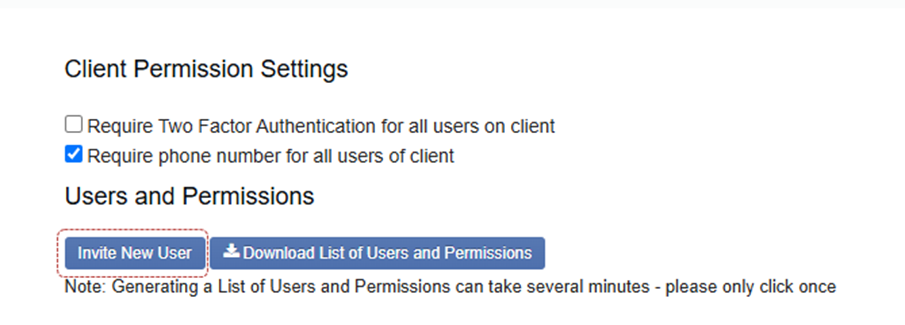
2. A new form page will load where you can enter the following details:
-
Full name
-
Email
-
Country
-
Timezone
Then, you can select the desired user permissions.
If you want the new user to have Admin level permissions as well, just check the Account Admin box under "Additional Roles." The user will then automatically get publishing access to all social accounts available and all their settings.
NOTE: There can only be one designated Client Admin (super user) and this role should not be given to any user other than the overseer of the entire account.
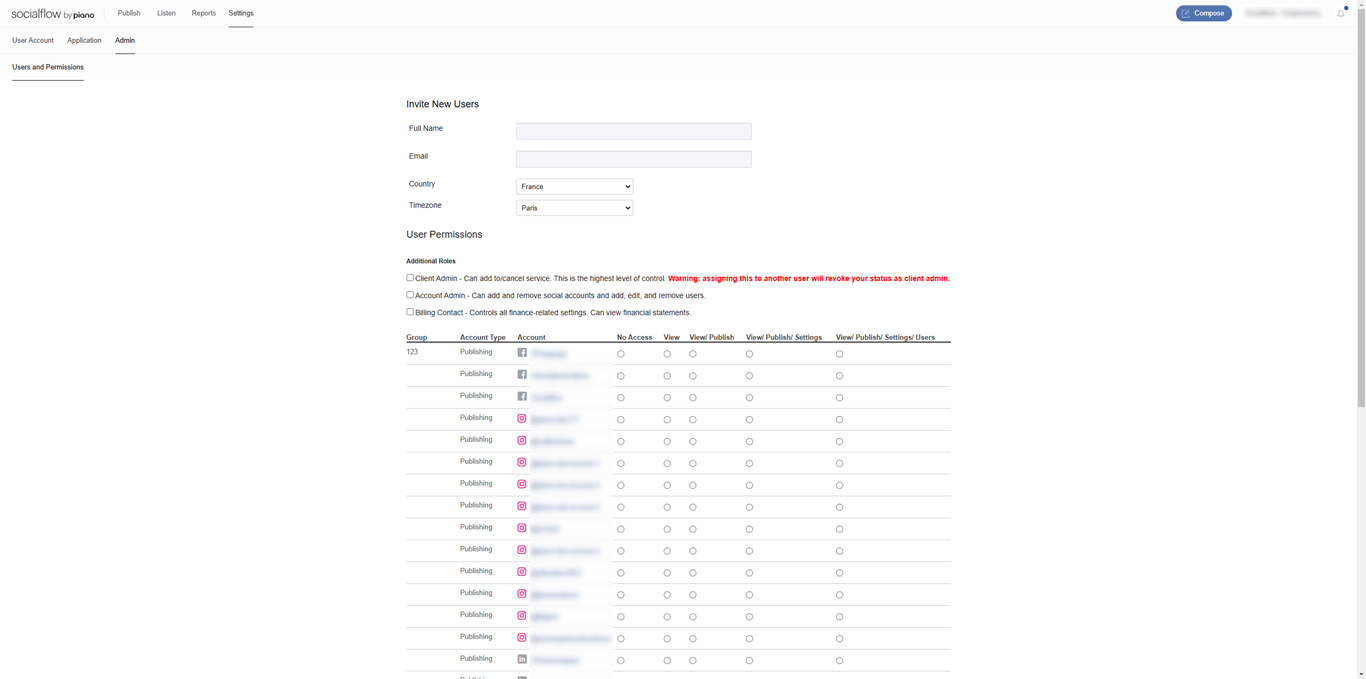
If the user is not meant to be an Admin, simply ignore the "Additonal Roles" section and only check the circles for the corresponding social account(s) the user should have access to.
The permission levels are defined as:
View - a view only option, the user can see the social account, the content, and the reporting but cannot publish
View/Publish - the user can see and publish content for a specific social account
View/Publish/Settings - the user can see, publish and modify settings for a specific social account
View/Publish/Settings/Users - the user can see, publish, modify settings and add new users to that specific social account
Once finished, go to the bottom of the page, and click on Send invite.
What happens after you send the invite
-
The new user receives an email from SocialFlow with a time-sensitive link inviting them to log in and set their password.
-
They are required to enter a mobile number to verify their identity for future password resets.
Manage existing users
From the Users and Permissions page, you can also manage existing accounts without help from Piano Support.
To activate or deactivate a user, edit their profile and check or uncheck the Active checkbox. This controls whether the user can log in.