
You can manage your organization’s currency shown in Sales Insights, and across the Piano Analytics interface, from your organization settings:
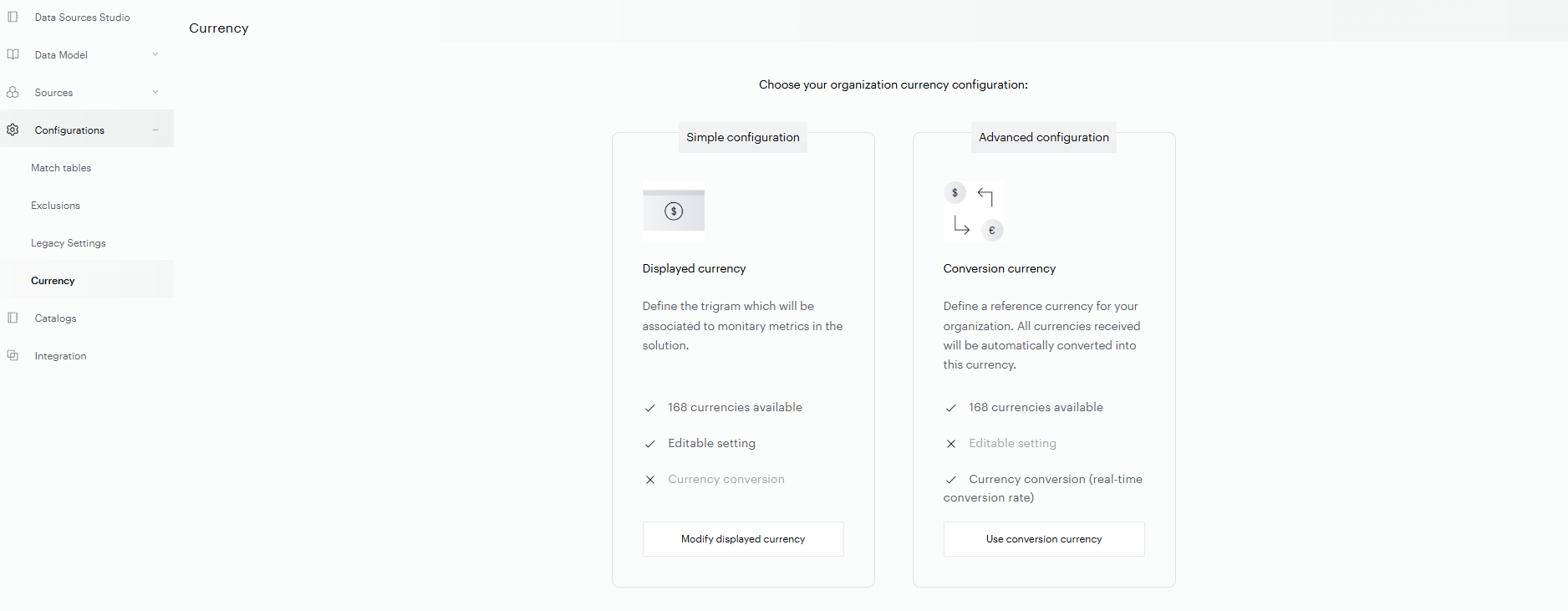
Open Settings > Data Management > Configuration > Currency. You land on a page where you choose between two configurations:
-
Simple configuration (displayed currency): changes the currency symbol shown in the interface, without converting the amounts. You can change it at any time.
-
Advanced configuration (conversion currency): converts all incoming amounts in real time into one reference currency. This is powerful but permanent, so use it only if you need it.
Both configurations support up to 168 currencies.
Change the displayed currency
Use this to change the currency symbol shown across the interface, without converting any values.
-
On the Currency page, under Simple configuration, click Modify displayed currency.
-
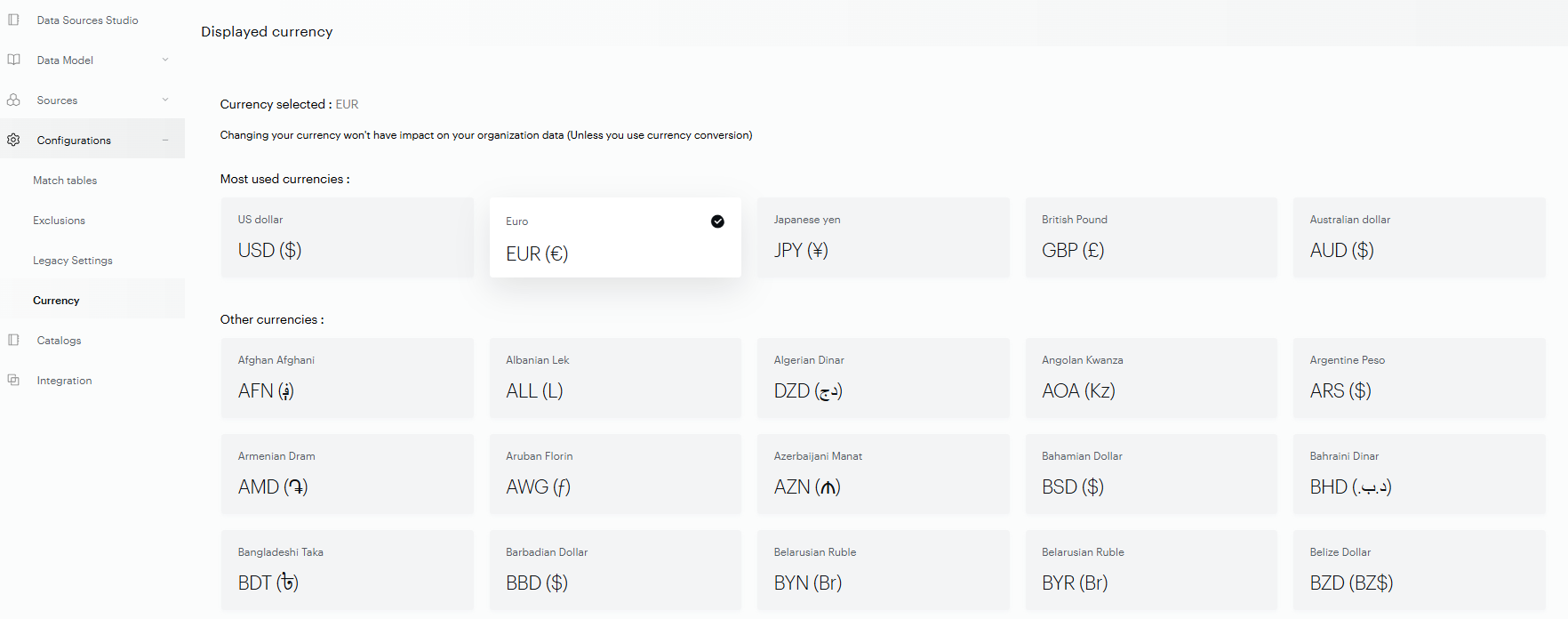
Select a currency from Most used currencies or Other currencies. A check mark shows your current selection.
Changing the displayed currency doesn’t affect your organization’s data. It updates the symbol shown in the interface, including for historical amounts, because only the symbol changes. The setting is organization-wide, so it applies to all users, and only one currency can be displayed at a time.
Set up conversion currency
Use this when your tagging collects amounts in several currencies, and you want them all converted to one reference currency in real time.
-
On the Currency page, under Advanced configuration, click Use conversion currency.
-
Read the confirmation dialog, then click Yes, I’m sure to activate it, or No, cancel to keep your current setup.
Conversion currency is permanent. Once activated, you can’t deactivate it or change the reference currency. Events that carry an amount are converted automatically at real-time exchange rates, and conversion applies to future data, not to historical data. Activate it only if you’re sure you need multi-currency normalization.