
Overview
Piano Audience supports the external (universal) user IDs provided by the following Identity providers:
-
ID5
-
Czech Ad ID
-
First-ID
-
Intimate Merger
The activation of identity provider’s configuration allows to start calculating the number of user IDs that are linked to the users of a specific segment. After activation, the daily stats data will be available in the Segment builder for the User segments (User IDs tab) and in the External user IDs report.
Moreover, the active status of the corresponding configuration shows that the external user IDs of a specific Identity provider are really used in Piano Audience.
Configuration
To activate the Identity providers’ configuration, go to the Audience→Connectivity→Identity providers tab.
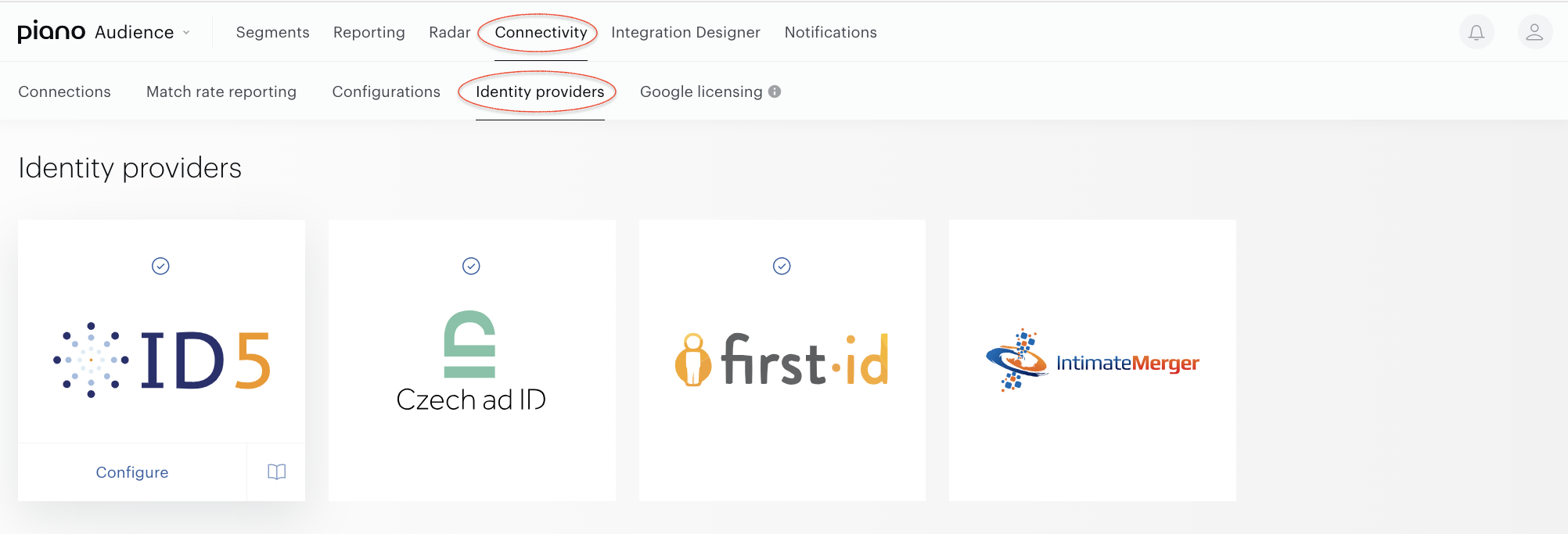
ID5
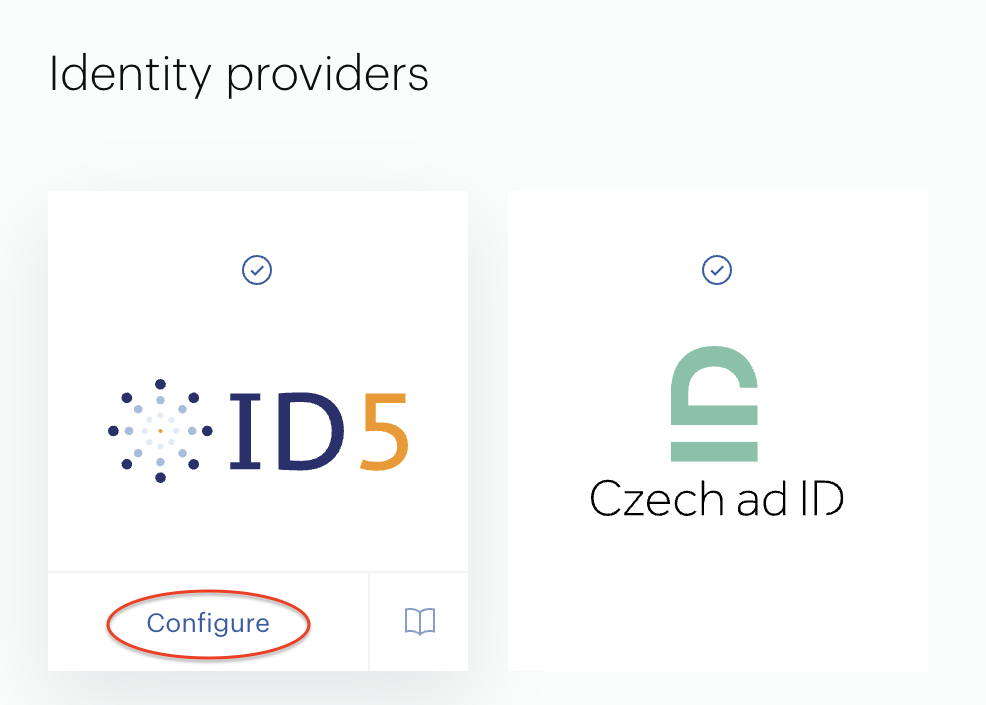
To activate ID5 identity provider, select the ID5 tile and press on the Configure button.
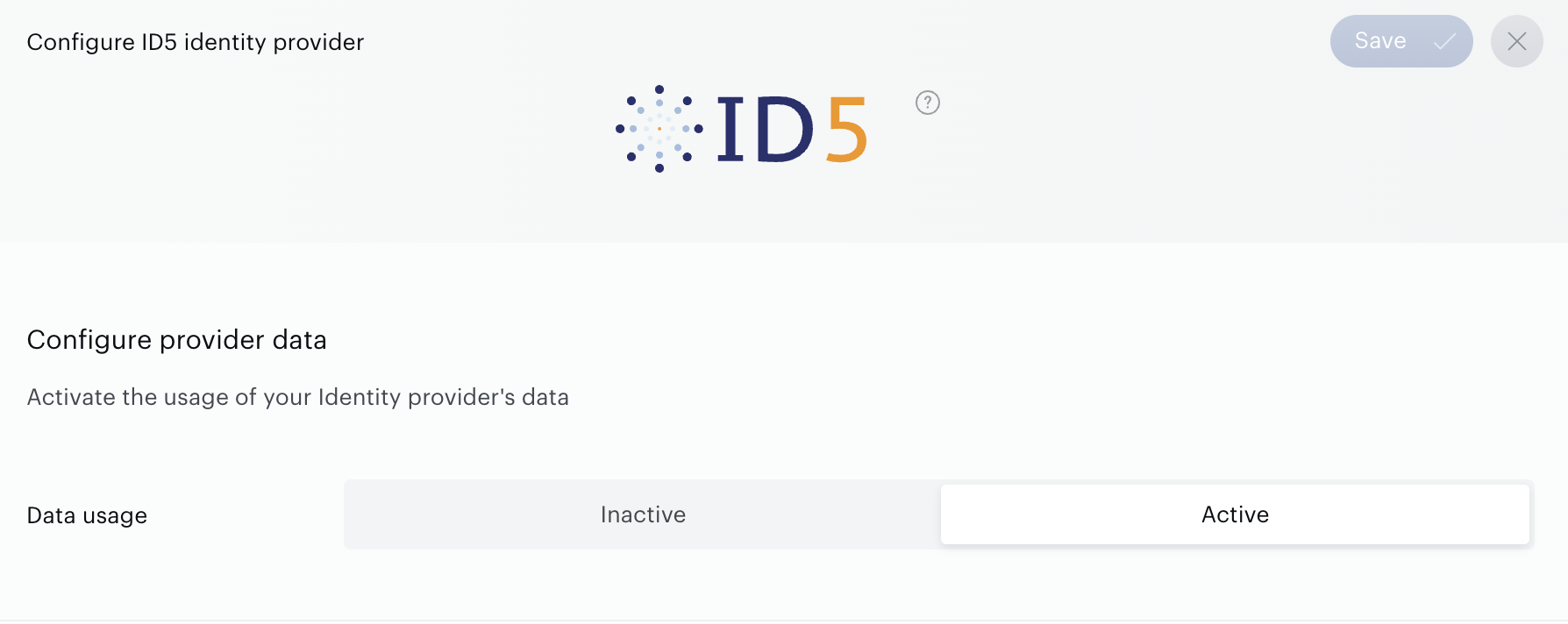
Once in the configuration form you might update the default status by moving the slider to the Activate position. Save changes by pressing the Save button.
Please keep in mind that changing the status and hence enable / disable the identity provider has an impact on the entire customer object, not just a specific site group.
Czech Ad ID
To activate Czech Ad ID identity provider, select the Czech Ad ID tile and press on the Configure button.
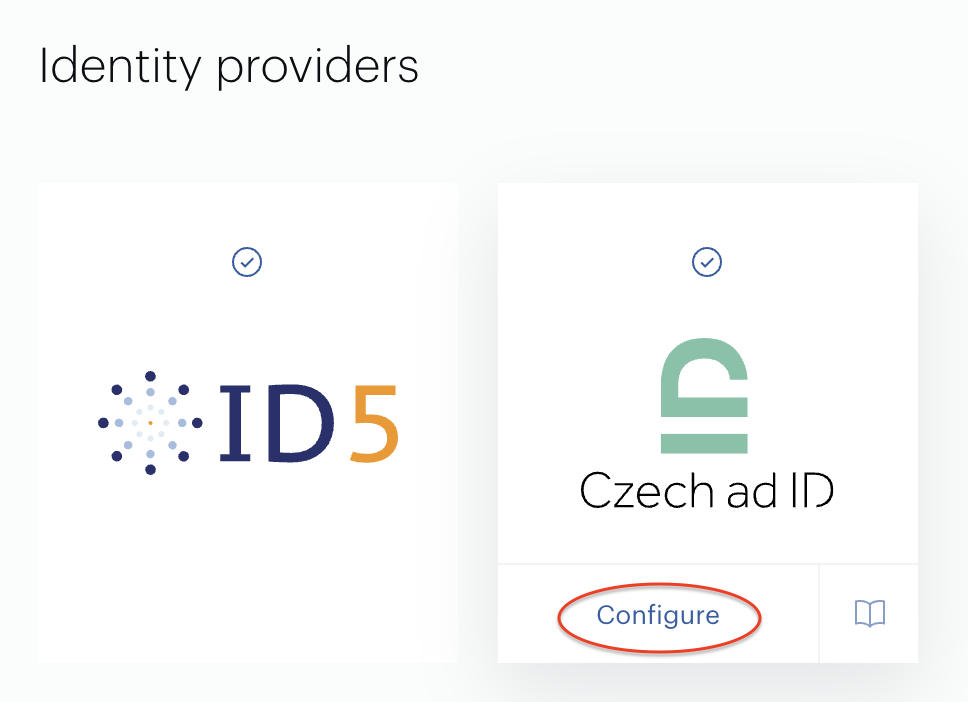
Once in the configuration form you might update the default status by moving the slider to the Activate position. Save changes by pressing the Save button.
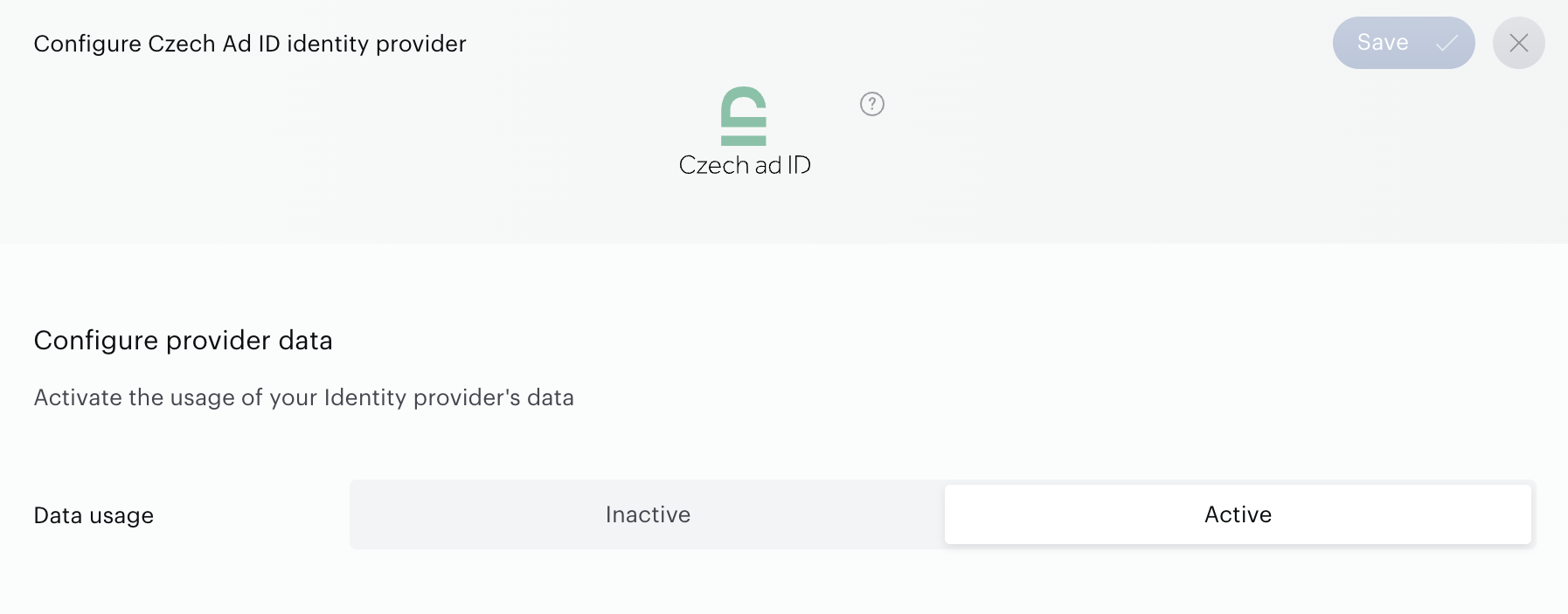
Please keep in mind that changing the status and hence enable / disable the identity provider has an impact on the entire customer object, not just a specific site group.
First-ID
To activate First-ID identity provider, open and select the First-ID tile and press on the Configure button.
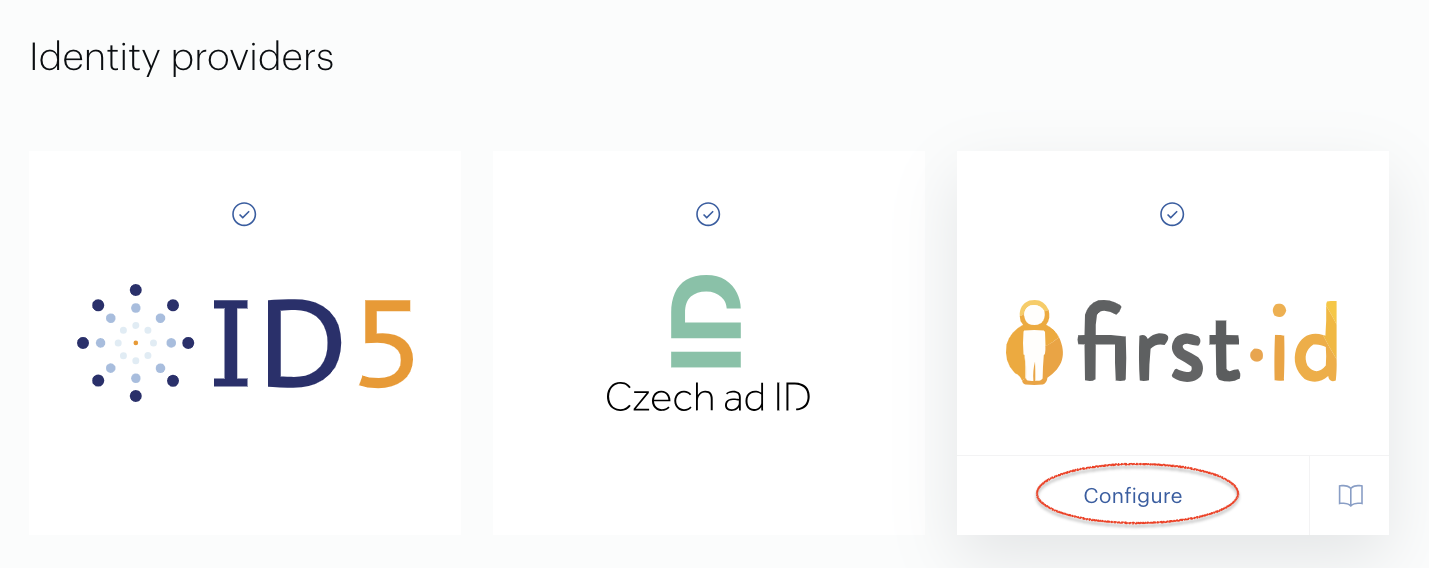
Once in the configuration form you might update the default status by moving the slider to the Activate position. Save changes by pressing the Save button.
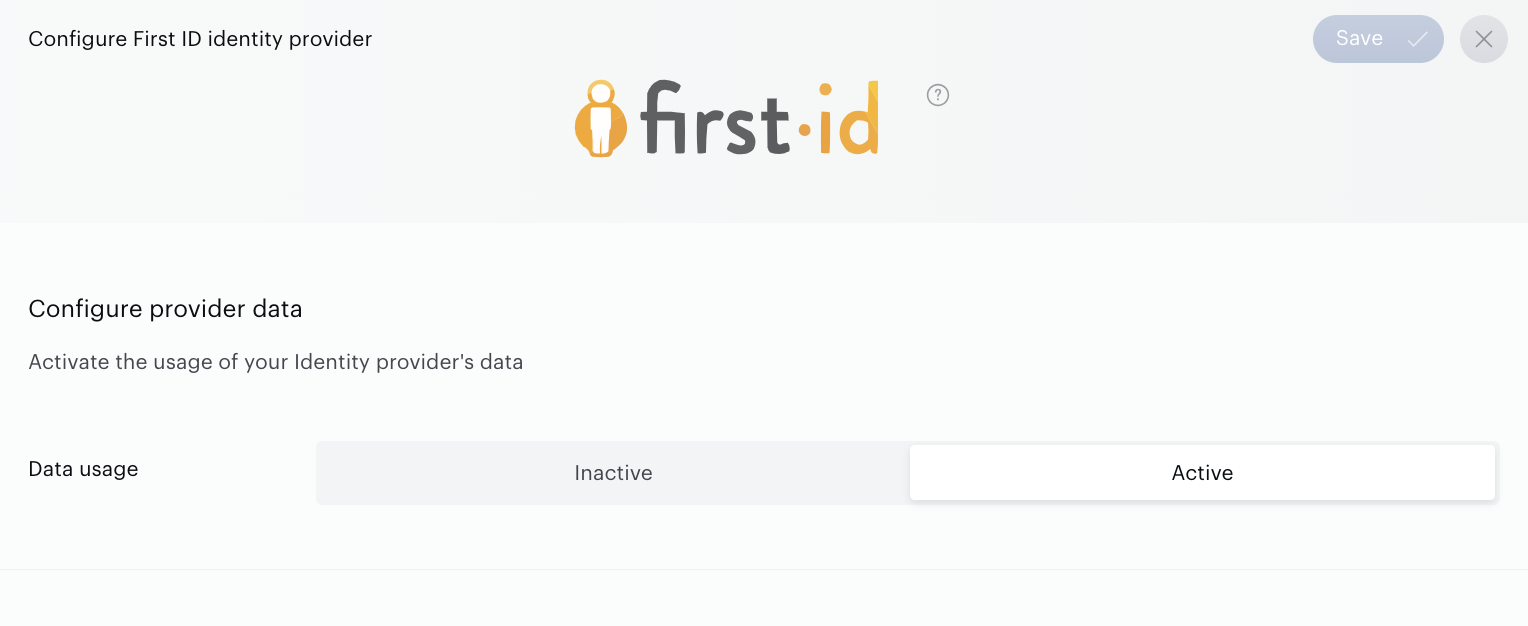
Please keep in mind that changing the status and hence enable / disable the identity provider has an impact on the entire customer object, not just a specific site group.
Intimate Merger
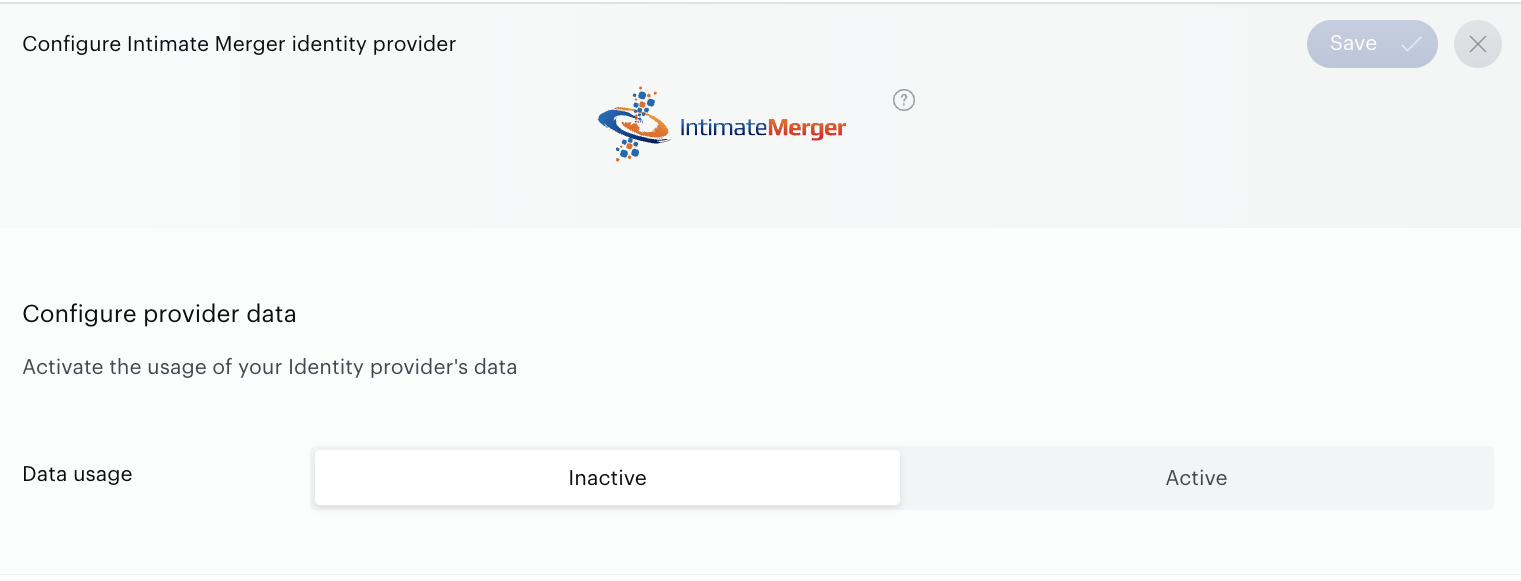
To activate Intimate Merger identity provider, open and select the Intimate Merger tile and press on the Configure button.
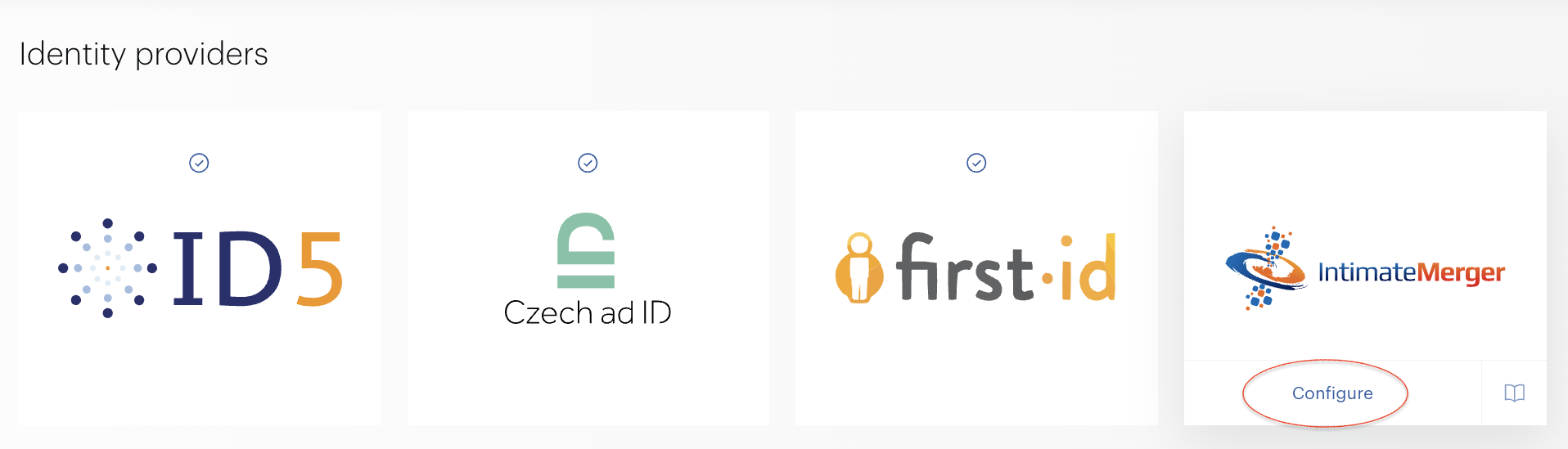
Once in the configuration form you might update the default status by moving the slider to the Activate position. Save changes by pressing the Save button.
Please keep in mind that changing the status and hence enable / disable the identity provider has an impact on the entire customer object, not just a specific site group.