
Configuring Piano Audience
-
Create an Adform Campaign Reporting configuration
-
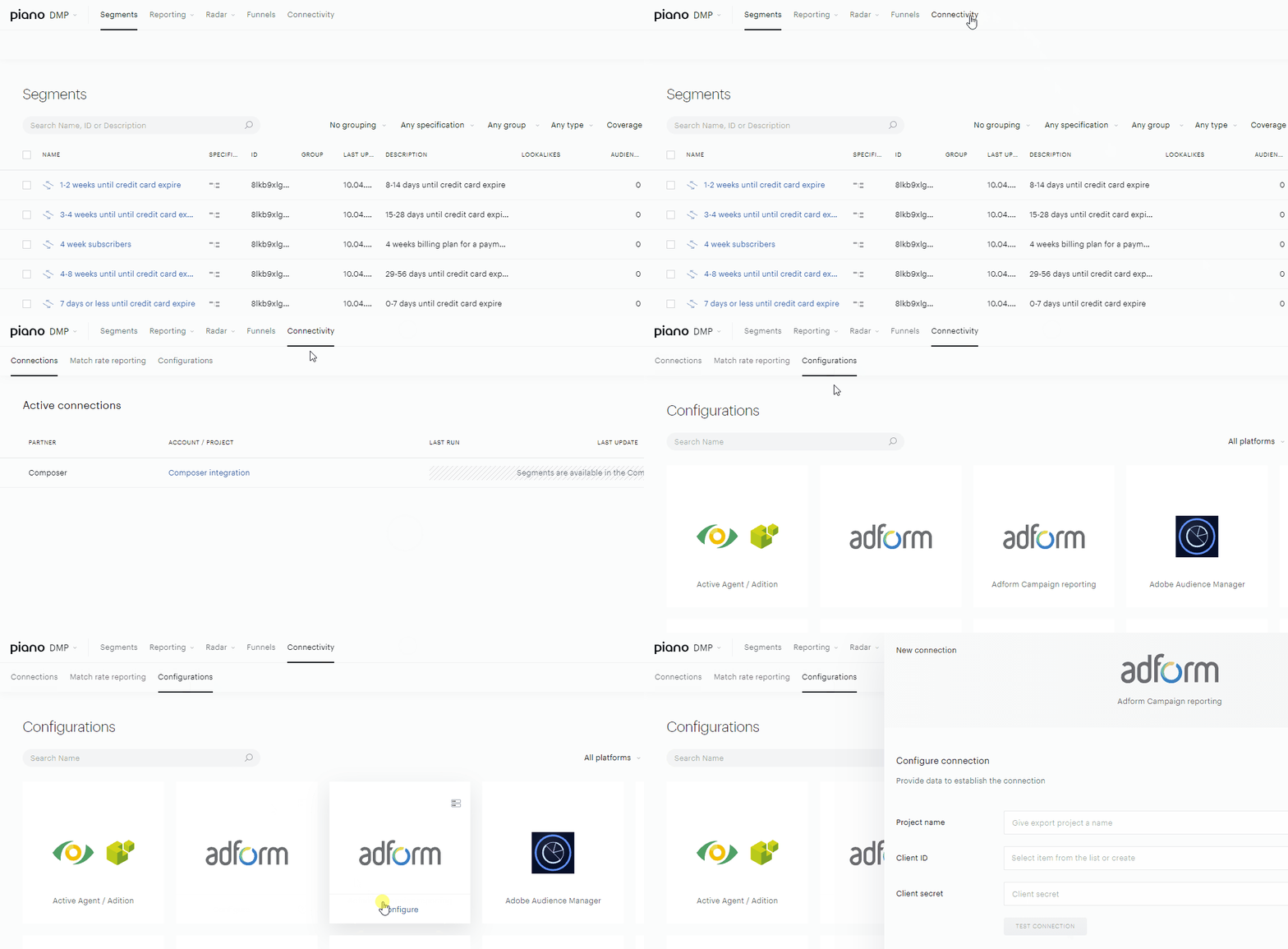
With your site group selected, from the Piano Audience home page, go to the Connectivity tab → the Configurations tab →the Adform (Adform Campaign Reporting) icon and click the Configure button. The configuration form will appear.
-
Configure the connection
Define the following parameters:
"Project name". Give the name of your import project for your convenience - it will simplify the further work with the list of all the existing connections e.g. if you have several connections with one external Platform, such a name can help to differentiate it.
Client ID: it is a unique numeric client identifier that is visible in Adform reports as well as under the System Settings → Clients
Client Secret.
The Client ID (client_id) and Client Secret (client_secret) are credentials that identify a client (application) and used as required details due to the API authorization process.
Positive Test connection is required. Don't forget to press the "Create" button.
-
Configure campaigns
Settings made in this section affect the contents of Audience→Radar→Campaigns.
There are two options available in this section: Autoimport and Manually selected campaigns/campaign rows.
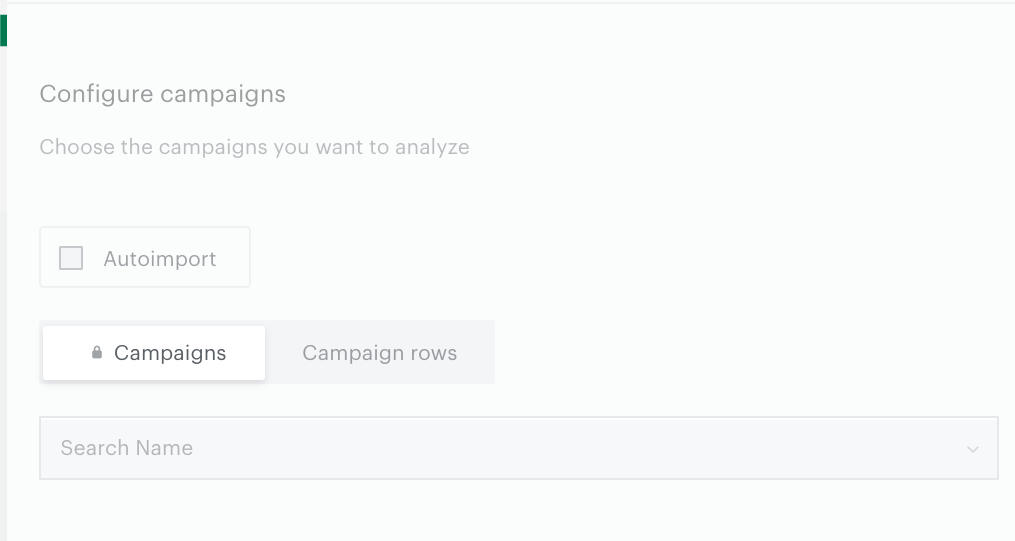
To start the Campaign reporting functionality we recommend using Autoimport.
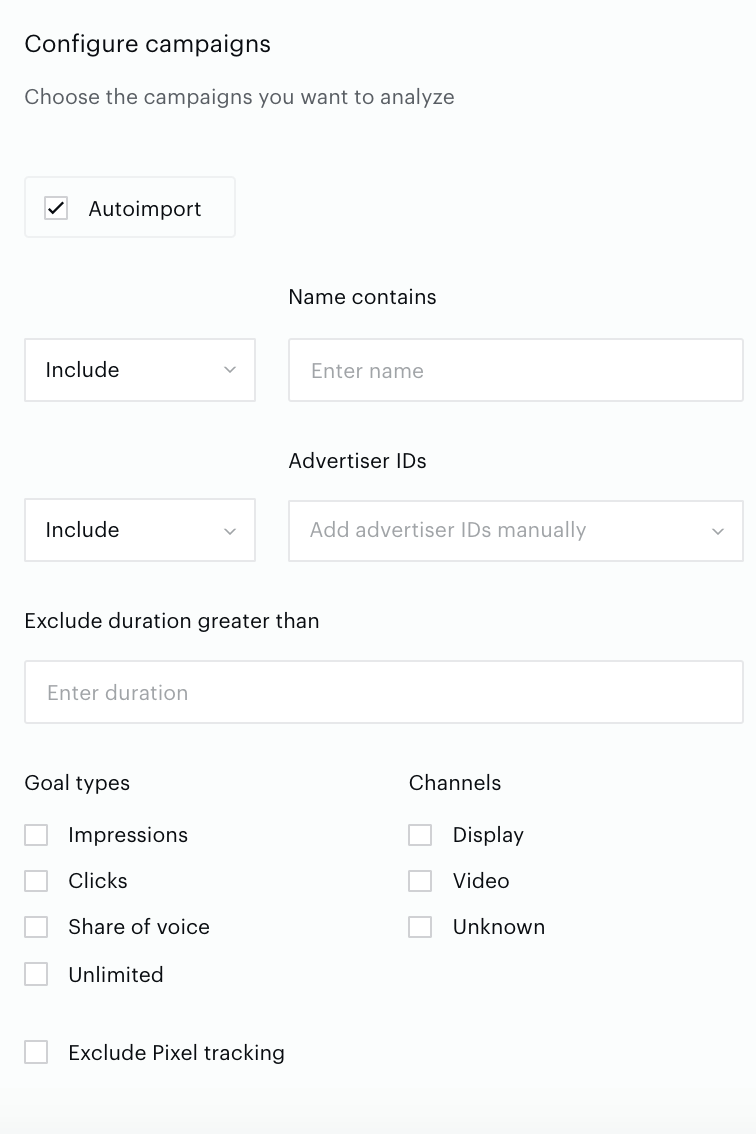
Define more settings using additional parameters such as Advertiser IDs, Campaign names, Channels, Goal types etc.
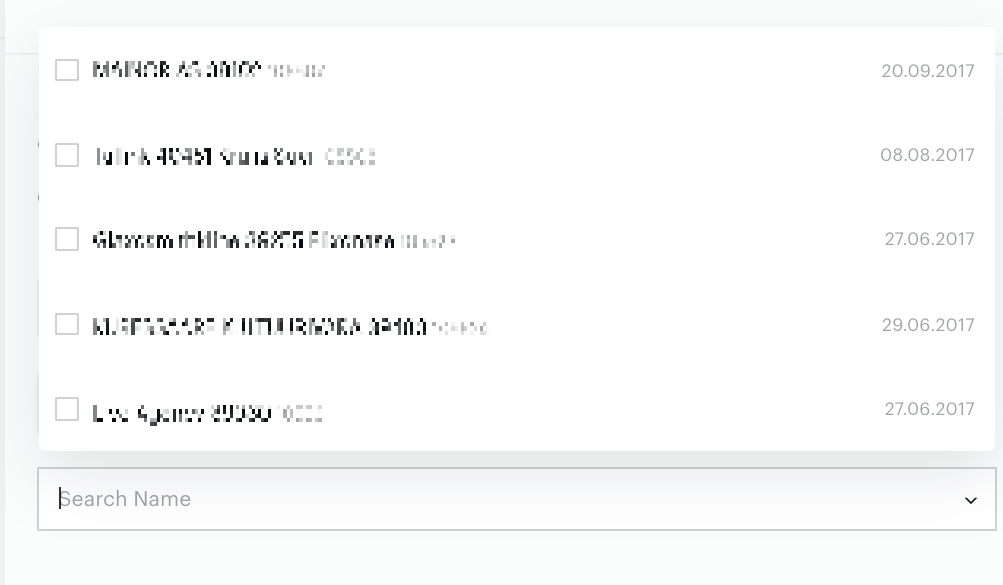
Use the Campaigns selector or the Campaign rows selector if you want to work with one or more specific campaigns/rows. In this case do not use Autoimport.
When you just create a new connection, Campaigns and Campaign rows are empty. But later there are campaigns and campaign rows in the lists.
Don't forget to press the Save button.
Export segments
Activation of the created configuration is the last obligatory step. If you want to start the Campaign reporting functionality, set the Turn connection button as On.
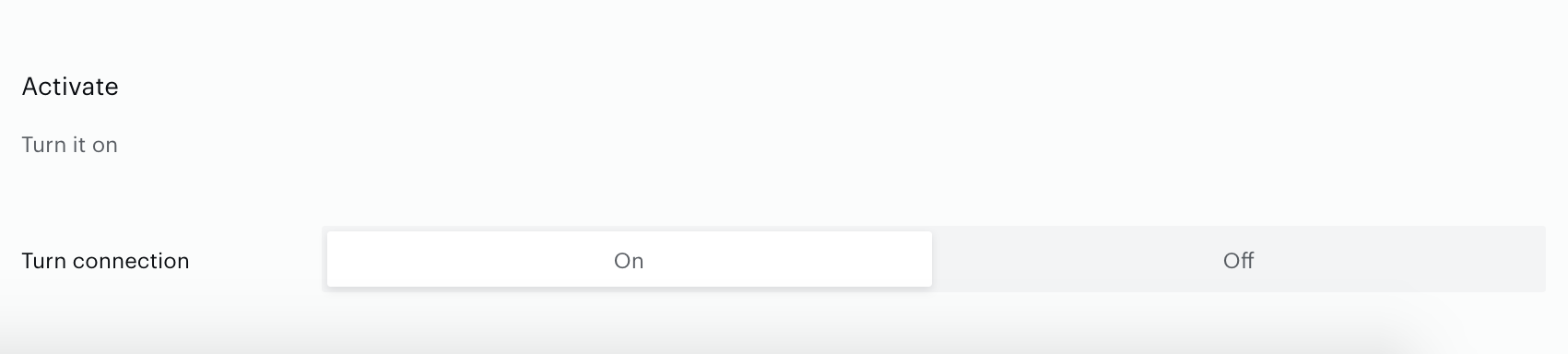
Configuration will be saved only after clicking the Create or Save (in case of editing) button.
Create a new connection using an existing configuration
If you want to use the Campaign reporting functionality in more than one site group, it is possible to create a new connection using an existing configuration.
When in Configure connection, choose an existing configuration from the Client ID selector:
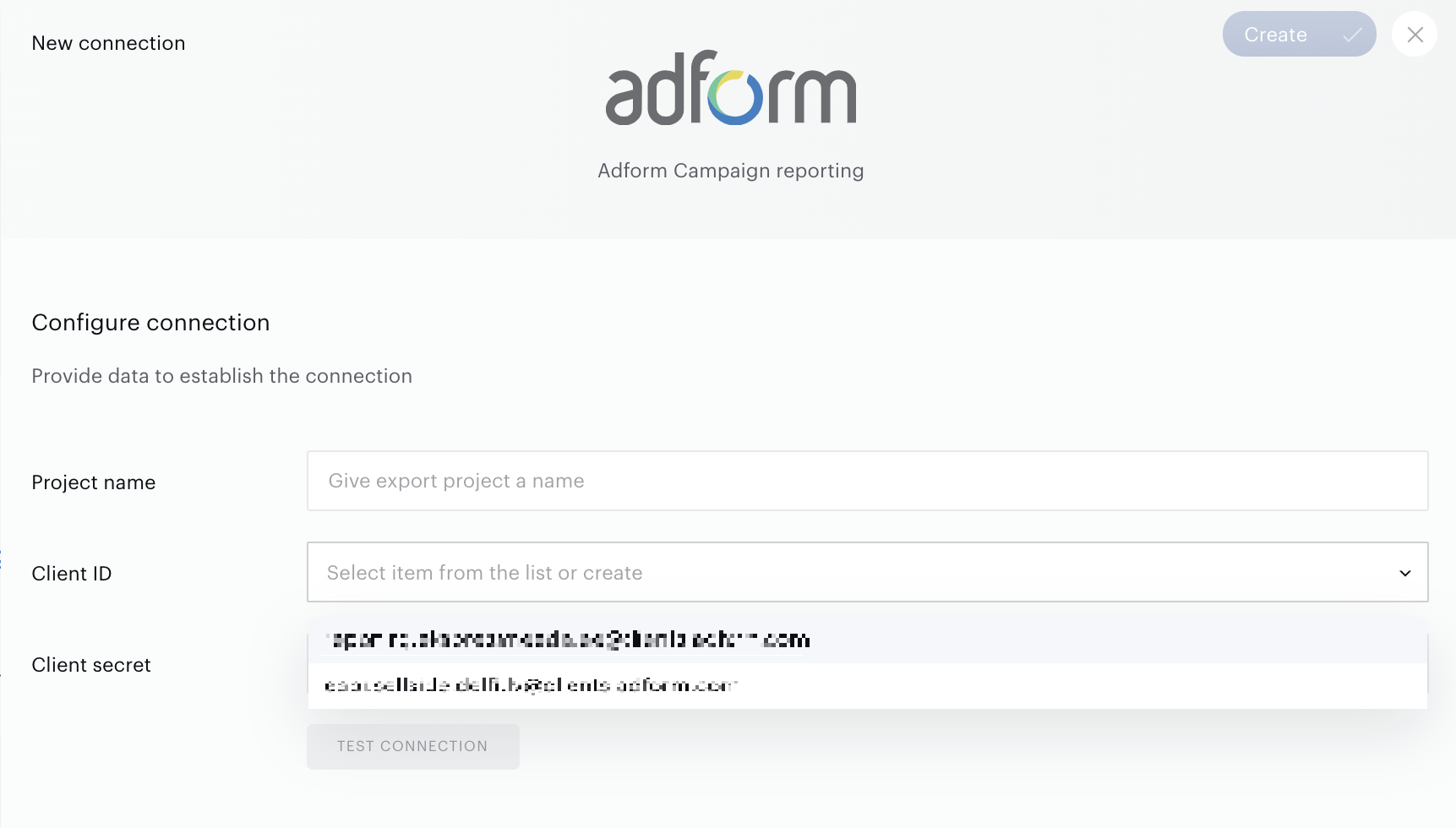
After that you can define settings that will be specific for the current site group.
Be aware that your changes can affect connections in other site groups that use the selected configuration (Client ID).
Creative wrapper/Creative template
Use the Tag tab of the connection form to define settings in the Adform as server and your web sites. The tab is not there by default but becomes available right after creating a new connection (clicking the Create button).
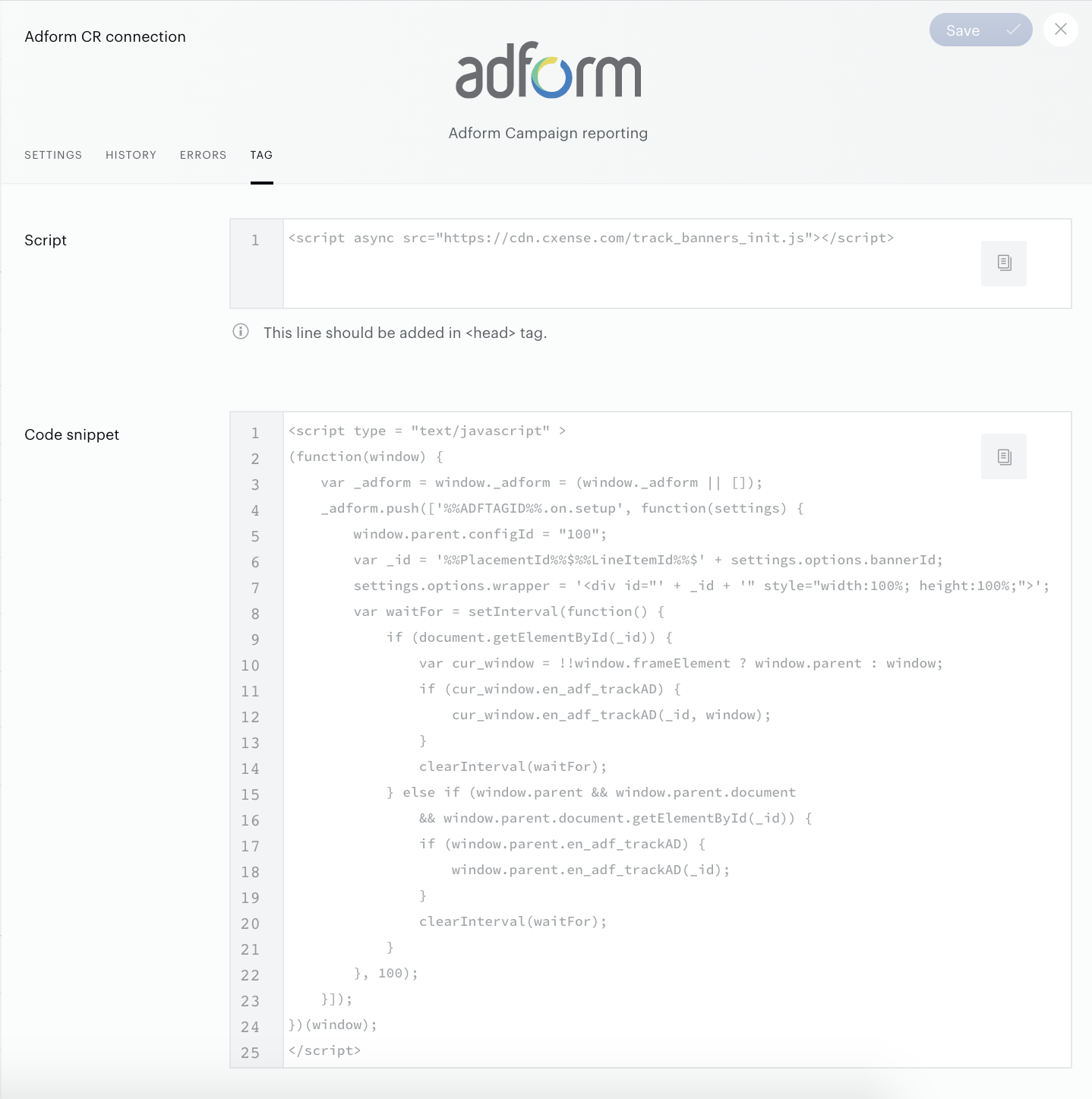
The сode in the Script field should be added to all of the websites. You can copy the code from the Tag tab of the connection form. You should send the code in the Code snippet to Adform to be able to define extra settings on Adform's side (to replace the wrapper for the customer).
Monitoring and update
In order to change settings (name of the project, list of campaigns or campaign rows) please find the needed connection on the list of existing connections (Audience→Connectivity →Connections) and choose the needed option in the menu:
