With the Google Ad Manager Campaign Reporting connection, you can import data to be used by Piano's Campaign Reporting functionality and accessible on the Campaigns tab.
Configuring Piano Audience for Google Ad Manager Campaign Reporting
-
Grant Piano's service account access to the data
This step is obligatory to be able to create and activate the import connection in the Piano Audience. Read details here.
-
Create a Google Ad Manager Campaign Reporting configuration
From the Piano Audience home page, go to the Connectivity tab → the Configurations tab. Hover on the Google Ad Manager / Google Ad Manager Campaign reporting icon and click the appearing Configure button.

-
Configure the connection
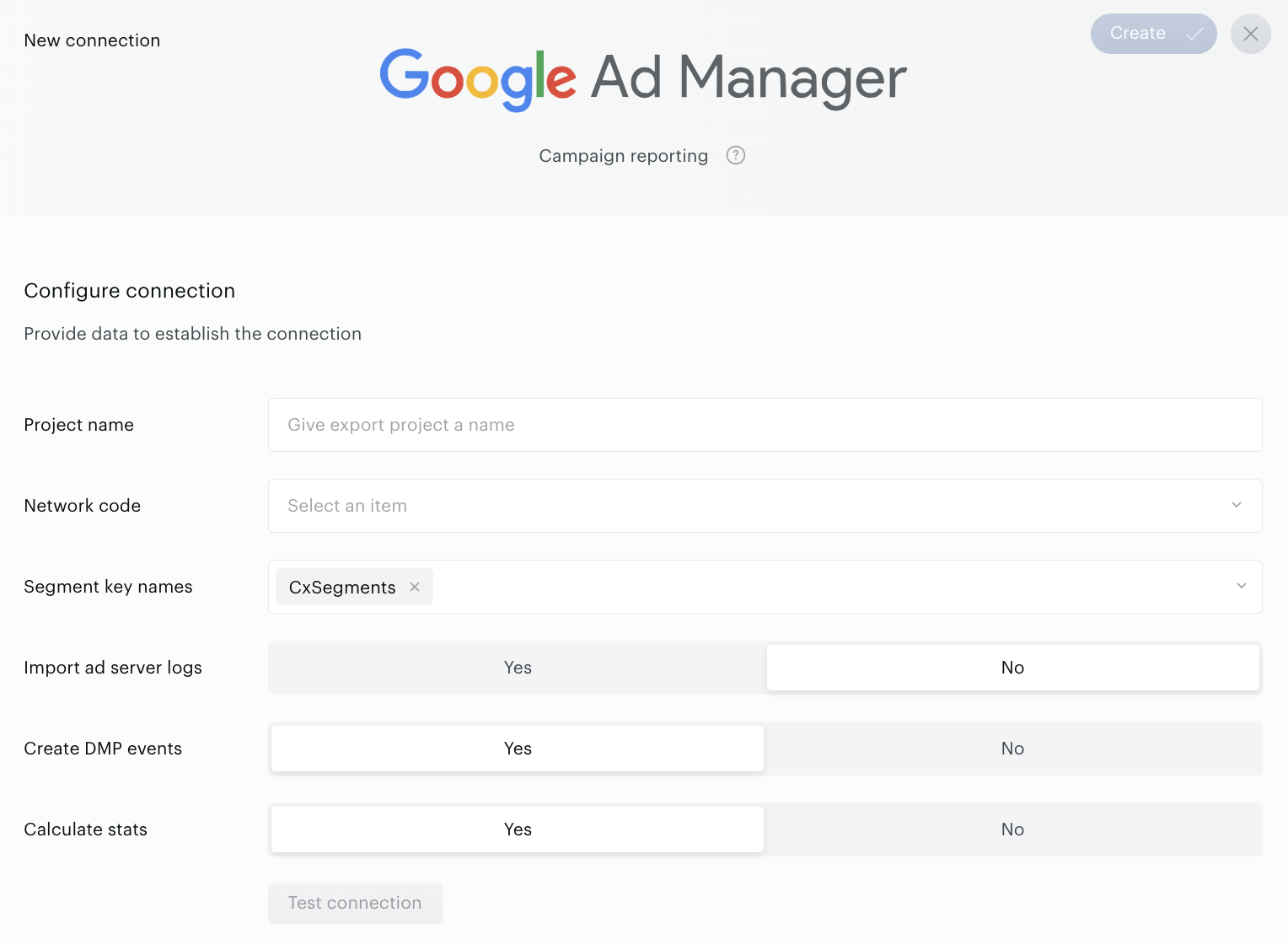
In the New Connection menu, you want to set:
-
Project name. To be shown in Piano Audience only, intended to simplify managing numerous integrations.
-
Network code. Your network code is a unique numeric identifier for your Ad Manager network. The code is not confidential as it appears in your page's Google Publisher Tags (GPT).
-
Sign in to Google Ad Manager.
-
Click Admin, Global settings, and then Network settings.
-
Find the value next to Network code.
-
-
The Segment key names parameter is available in both options: if the customer uses log files or tags. The default and predefined value of the Segment key names field for new or existing connections (if the parameter was not set before) is CxSegments. If the parameter value(s) have been customized, use the customized value(s); also, you can find them in the GAM export connection in the Targeting key name field.
-
Import ad server logs: Mark this parameter as selected if you use GAM log files; otherwise, the tags will be used.
-
If you're not using log files, configure the following:
-
Create Performance events
-
Calculate stats
These parameters should be configured if you create and activate this connection only to send data to Piano Analytics (for ARI only), and you do not need to have, for example, Campaign reporting reports in the Audience→Radar.
-
-
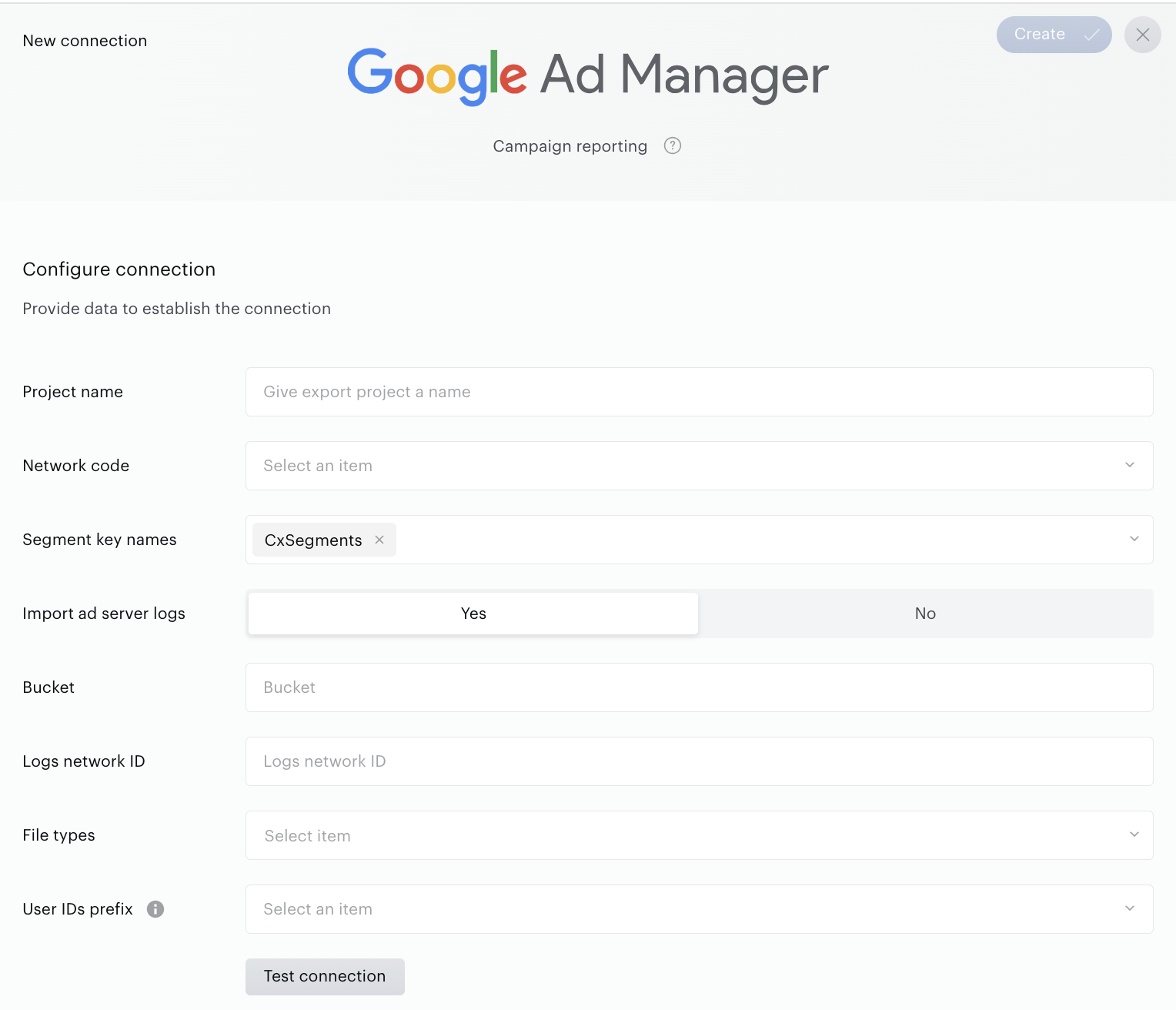
If you're using log files, fill in the following
-
Bucket. This parameter is used to get access to the Google Cloud Storage. Usually it's gdfp-[Ad Manager network code].
-
Logs network ID. The Network ID parameter is a part of log names (Data transfer report files); is used to match files in the provided Cloud Storage bucket.
-
File types. We support uploading all types of files.
-
User IDs prefix. It is obligatory to select a prefix if you want to generate Audience events based on data from ad server logs.
-
Be aware if you use log files (parameter Import ad server logs is selected), the ad tag should be configured. This step is obligatory. Find code examples here.
Set the parameters and click Test Connection.
A successful test connection is mandatory for moving to the next step of configuration. In case of any problems, you will see a message. If you don't know how to fix your problem, please contact the Support or Professional Services team.
After a successful test connection, the Create button at the top right of the window is enabled. Click it before you go on. The button will turn to Save, which you can use to save any changes in your connection.
-
Configure campaigns
Parameters set in this section affect the contents of Audience→Radar→Campaigns.
There are two options available in this section: "Autoimport" and ~Manually selected campaigns/campaign rows~ .
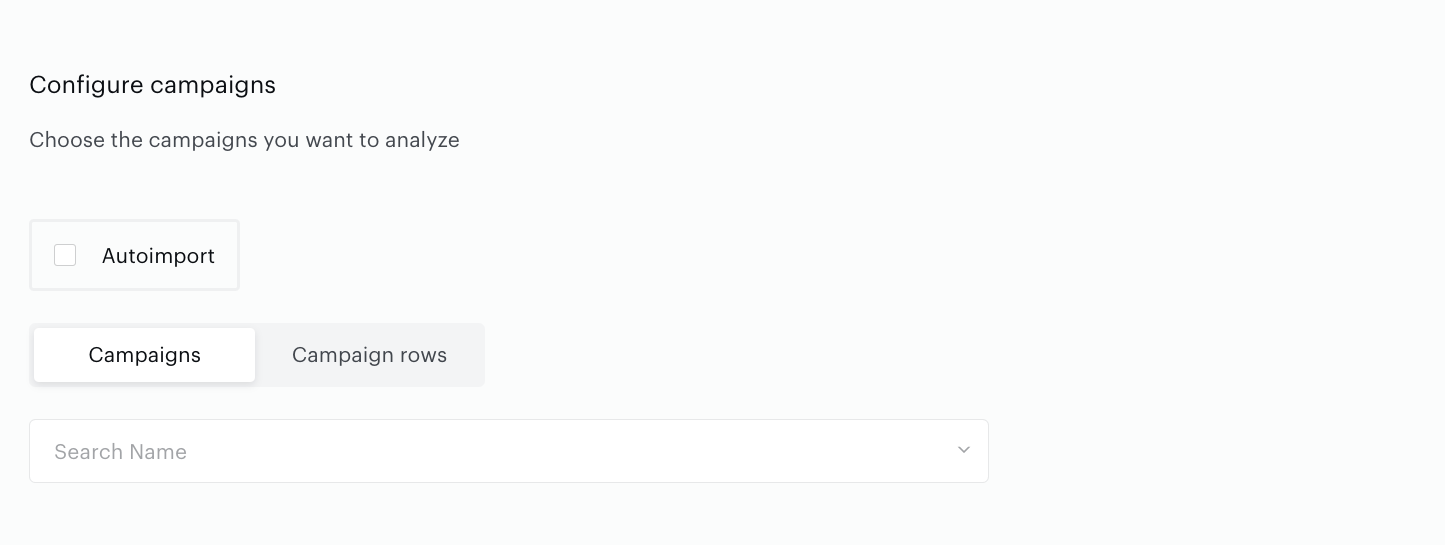
Use the Campaigns selector or the Campaign Rows selector to work with one or more specific campaigns/campaign rows.
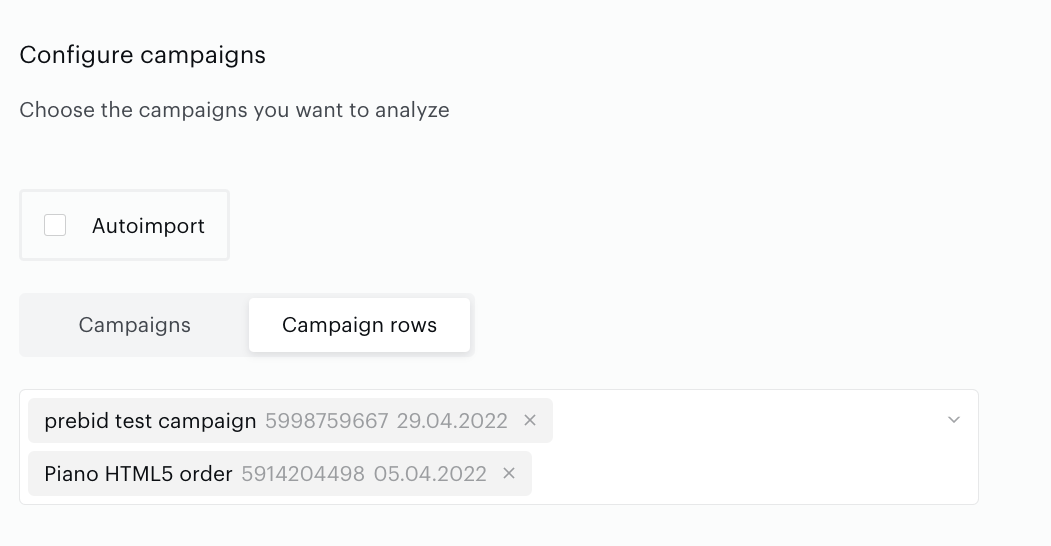
When you are just creating a new connection, the Campaigns and Campaign Rows selectors are empty.
To start working with the Campaign Reporting functionality, we recommend using "Autoimport".
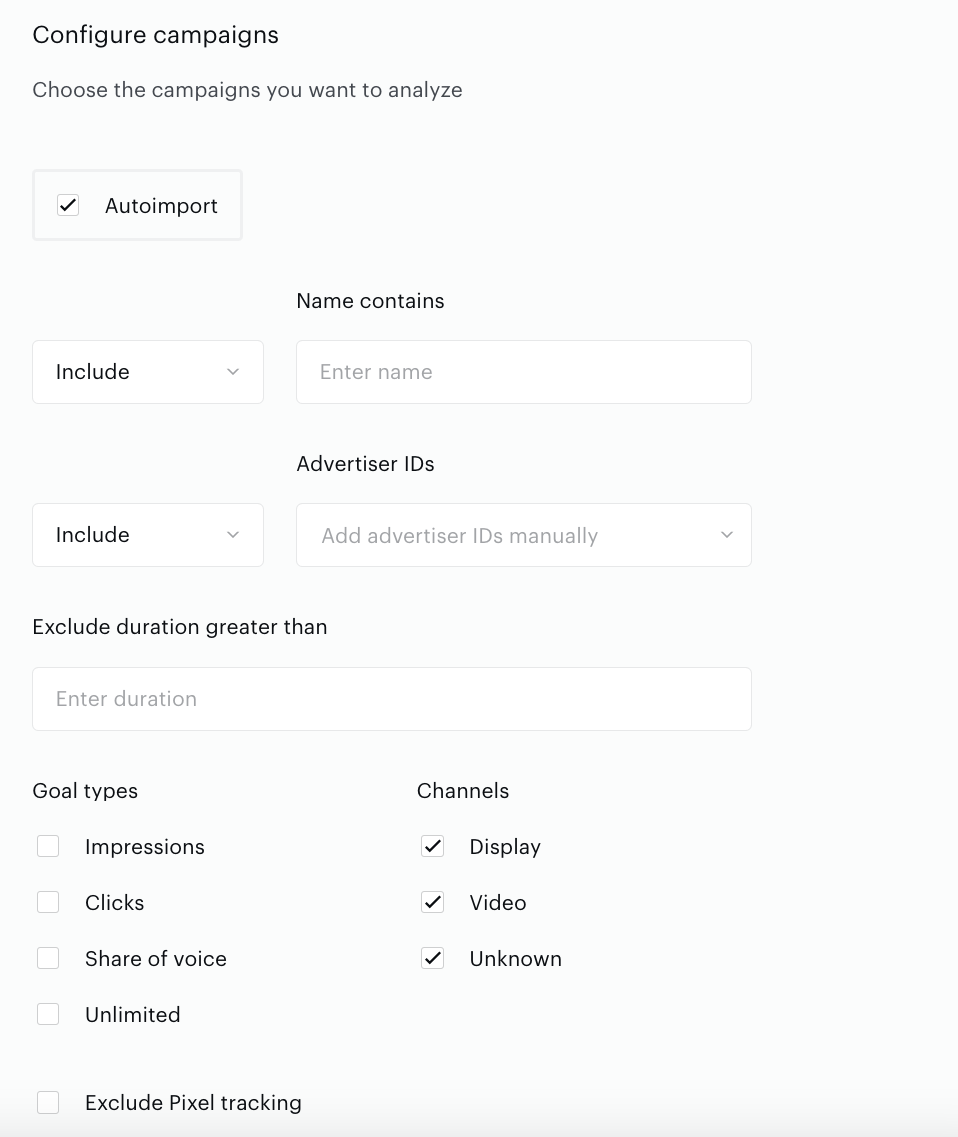
Define more settings using additional parameters, such as Advertiser IDs, Campaign names, Channels, Goal types, etc.
Don't forget to press the Save button.
-
Create a new connection using an existing configuration
If you have one GAM account (one network code) and want to use the Campaign Reporting functionality on more than one site group, you can create a new connection using an existing configuration.
In the Configure connection section, choose an existing configuration from the Network code selector.
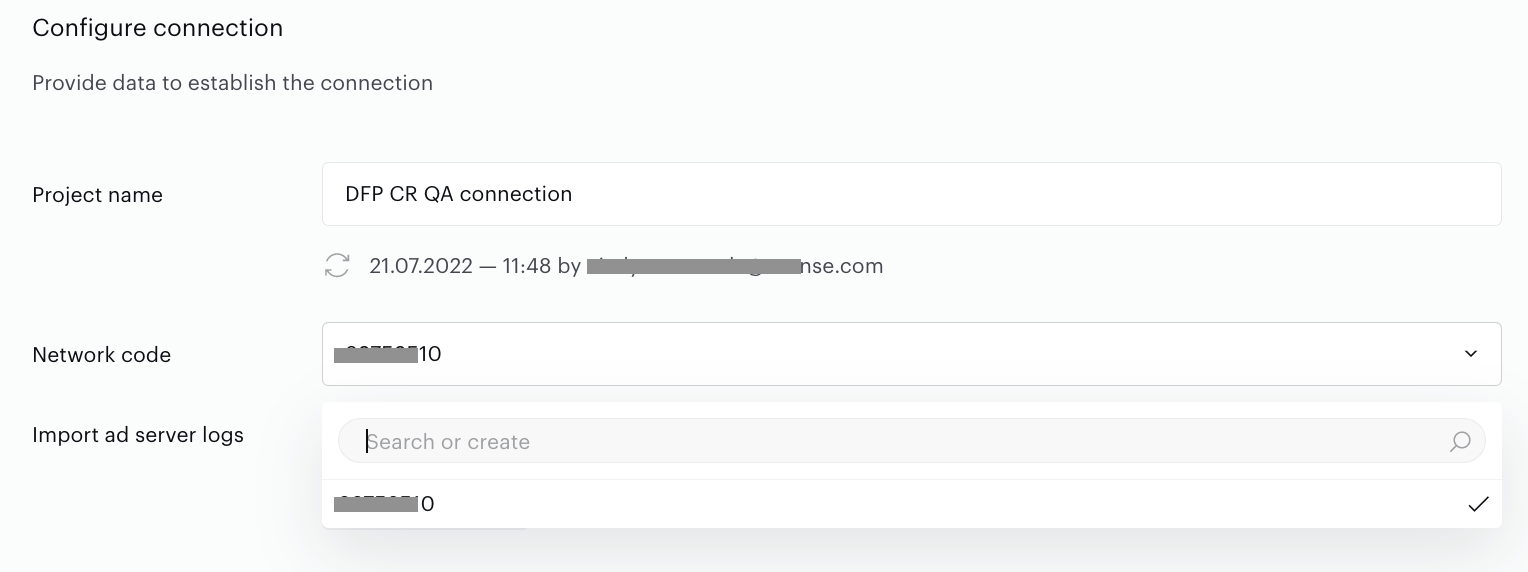
Then you can define the settings for the current site group.
Be aware that your changes can affect connections in other site groups using the chosen configuration (network code).

Implementation / Tags
Pay attention to the information below if you are using tags instead of log files.
Desktop
Following you'll find details about setting up Campaign Reporting for Desktop.
cx.js configuration
To enable campaign reporting and to start collecting ad impressions and viewability, you have to add the following option to the cx config:
var cX = window.cX || { callQueue: [], options: {campaignReporting: true } }
To collect ad clicks, you need to configure the wrapper; read details below.
Viewability events via cx.js script
In case you are using log files without licensing viewability events, you can now use our script in addition to the performance data import. That being said, we will measure viewability events and match them with imported events automatically. Please add the following line in order to enable this option:
var cX = window.cX || { callQueue: [], options: {campaignReporting: "viewability" } }
Be aware that this option will only work if log import is selected (parameter Import ad server logs is Yes) and the customer does not have access to viewability logs.
In-App
To enhance ad targeting with Google Ad Manager (GAM) on mobile apps, you can use Piano Audience SDK's data to set custom targeting parameters (cxprnd, cxid, and cxsiteid) in ad requests. The following Android and iOS examples demonstrate how to pass these parameters using the Google MobileAds SDK. Important: This approach is only effective if you import GAM log files into Piano for processing, as the targeting parameters (cxprnd, cxid, cxsiteid) are used to correlate ad impressions with Piano Audience.
Android
This example demonstrates how to integrate the Piano Audience SDK with the Google Mobile Ads SDK to set custom targeting parameters for a GAM banner ad on Android.
import android.content.Context
import com.google.android.gms.ads.AdSize
import com.google.android.gms.ads.admanager.AdManagerAdRequest
import com.google.android.gms.ads.admanager.AdManagerAdView
import com.cxense.cxensesdk.CxenseSDK
import com.cxense.cxensesdk.PageViewEvent

class AdManager(
    context: Context,
    adUnitId: String
) {
    private val adView: AdManagerAdView = AdManagerAdView(context).apply {
        setAdUnitId(adUnitId)
        setAdSizes(AdSize(400, 150))
    }

    fun loadAdWithCxenseTargeting(pageViewEvent: PageViewEvent, siteId: String) {
        // Retrieve targeting parameters
        val cxprnd = pageViewEvent.rnd // Page view random ID from Piano
        val cxid = CxenseSDK.getInstance().getUserId() // User ID from Piano

        // Build GAM ad request with custom targeting
        val adRequest = AdManagerAdRequest.Builder()
            .addCustomTargeting("cxprnd", cxprnd)
            .addCustomTargeting("cxid", cxid)
            .addCustomTargeting("cxsiteid", siteId)
            .build()

        // Load the ad
        adView.loadAd(adRequest)
    }
}
Integration Notes:
-
SDK Setup: Ensure the SDK is initialized before fetching parameters. Refer to the SDK documentation for initialization steps (e.g., CxenseSDK.initialize(context, siteId)).
-
PageViewEvent: The PageViewEvent object is typically obtained via a Cxense SDK callback, such as tracking a page view event.
-
Site ID: Pass your site ID as the
siteIdparameter. You can find this value in Piano Insight. This allows you to reuse the sample without modifying the code, as the site ID is likely already stored in your app’s configuration. -
Error Handling: Check for null values from pageViewEvent.rnd or CxenseSDK.getInstance().getUserId() and provide fallbacks (e.g., empty strings) to ensure robust ad requests. For example:
val cxprnd = pageViewEvent.rnd ?: ""
val cxid = CxenseSDK.getInstance().getUserId() ?: ""
iOS
This example shows how to use the Piano Audience SDK with the Google Mobile Ads SDK to set custom targeting parameters for a GAM banner ad on iOS, using Swift.
import GoogleMobileAds
import CxenseSDK

/// Manages Google Ad Manager (GAM) banner ads with Piano Audience targeting parameters.
class AdManager {
    private let siteId: String
    private let adView: GAMBannerView

    /// Initializes the AdManager with the Piano Audience' site ID, GAM ad unit ID, and view controller.
    /// - Parameters:
    ///   - siteId: The site ID, available in Piano Insight
    ///   - adUnitID: The GAM ad unit ID (e.g., "/42072217/TestUnit").
    ///   - viewController: The view controller presenting the ad.
    init(siteId: String, adUnitID: String, viewController: UIViewController) {
        self.siteId = siteId
        adView = GAMBannerView(adSize: GADAdSizeFromCGSize(CGSize(width: 400, height: 150)))
        adView.adUnitID = adUnitID
        adView.rootViewController = viewController
    }

    /// Loads a GAM banner ad with Piano Audience targeting parameters.
    /// - Parameter pageViewEvent: The PageViewEvent containing the page view random ID.
    func loadAdWithCxenseTargeting(pageViewEvent: PageViewEvent) {
        // Retrieve targeting parameters with fallbacks
        let cxprnd = pageViewEvent.rnd ?? "" // Page view random ID from Piano
        let cxid = Cxense.defaultUserId() ?? "" // User ID from Piano

        // Build GAM ad request with custom targeting
        let request = GAMRequest()
        request.customTargeting = [
            "cxprnd": cxprnd,
            "cxid": cxid,
            "cxsiteid": siteId
        ]

        // Load the ad on the main thread
        DispatchQueue.main.async {
            self.adView.load(request)
        }
    }
}
Integration Notes:
-
SDK Setup: Initialize the SDK as per its documentation. Ensure initialization completes before accessing defaultUserId or PageViewEvent.
-
PageViewEvent: The PageViewEvent object is typically provided via an SDK callback, such as tracking a page view.
-
Replace YOUR_SITE_ID with your static site ID, found in Piano Insight.
Creative wrapper and Creative template
Use the Tag tab of the connection form to define settings in GAM/GAM 360. The tab is not there by default but becomes available right after creating a new connection (clicking the Create button).
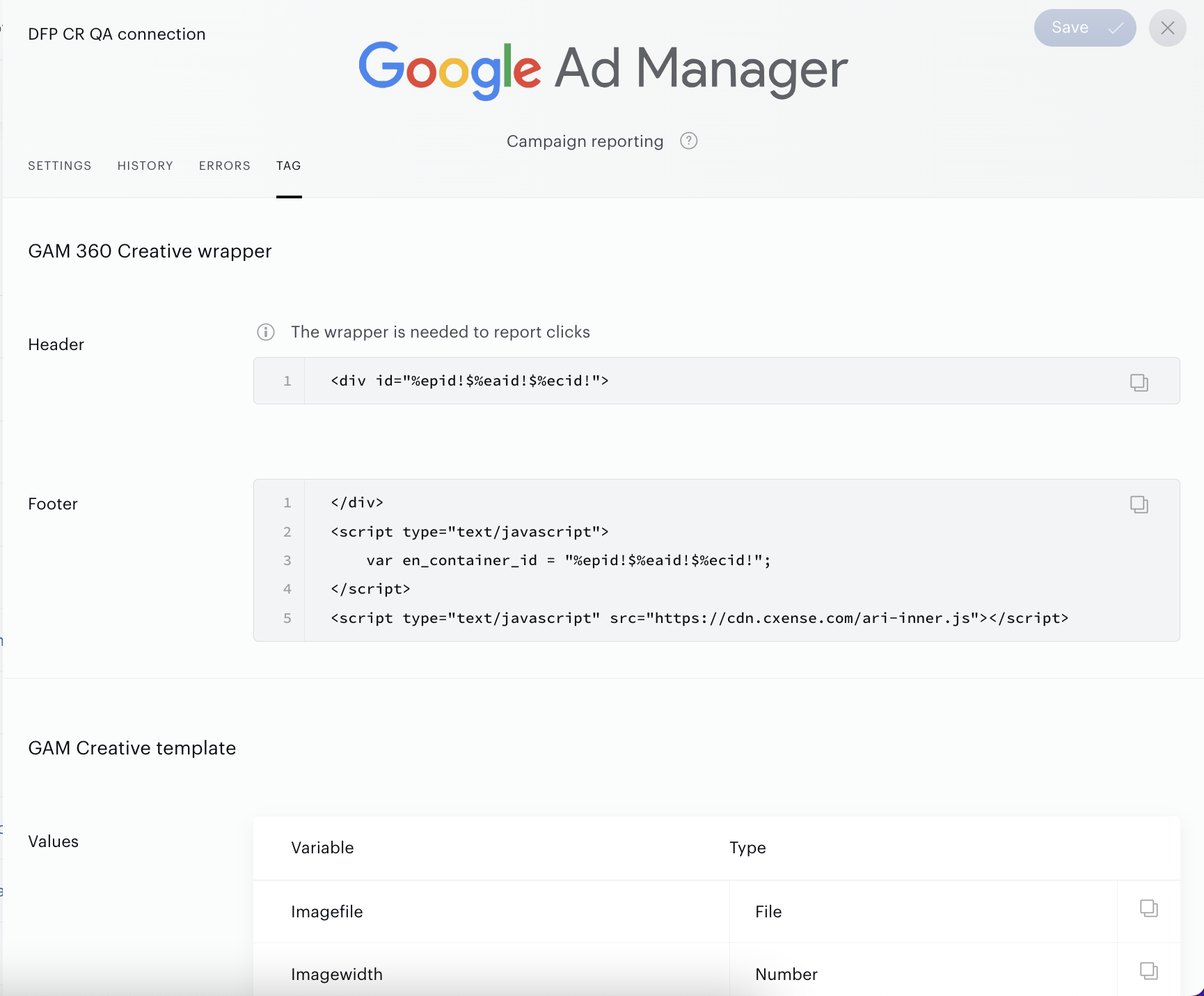
There are two options in the Tag tab:
-
Creative wrappers if you are using Google Ad Manager 360.
-
Creative template if you are using Google Ad Manager.
Creative wrappers
Read more here.
Header code:
<div id="%epid!$%eaid!$%ecid!">
Footer code:
</div>
<script type="text/javascript">
    var en_container_id = "%epid!$%eaid!$%ecid!";
</script>
<script type="text/javascript" src="https://cdn.cxense.com/ari-inner.js"></script>
Creative template
Read more here.
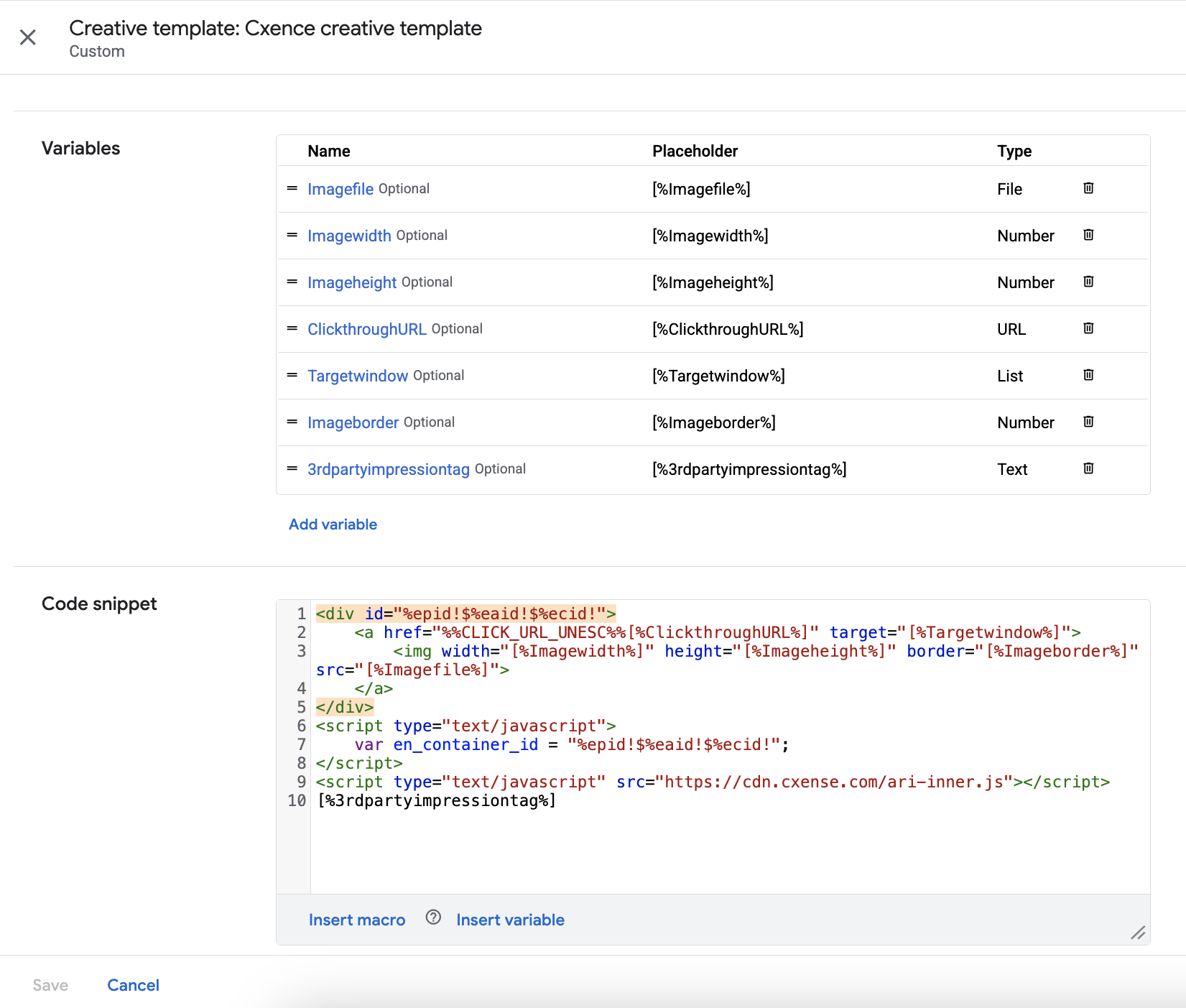
The information on this tab can be useful when defining settings in the GAM ad server.
Monitoring and update
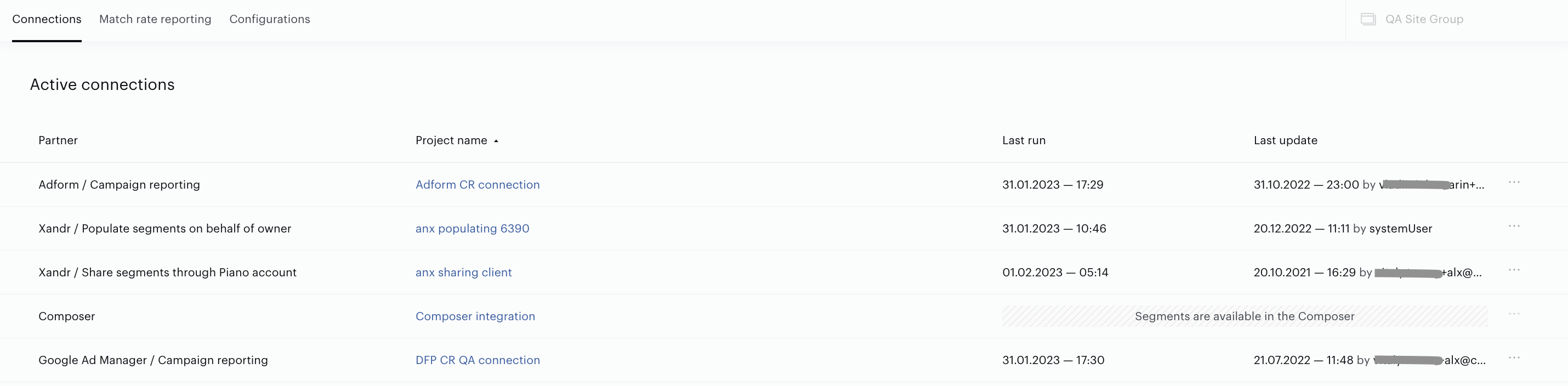
To edit settings (project name, list of campaigns or campaign rows) please find the needed connection on the list of existing connections (Audience→Connectivity→Connections) and choose the needed option in the menu.
Campaign reporting events usage
Once a Campaign reporting connection is configured, Piano Audience starts receiving marketing campaigns data and creates Piano Audience events based on it.
Piano Audience provides a wide range of opportunities for using these Performance events:
-
Campaign reporting feature available in the Audience→Radar→Campaigns. This feature consists of several analytical reports with data and metrics by Line Items from Google Ad Manager.
-
Segments created using the marketing campaigns data. It is possible to create segments using the results of the active and finished marketing campaigns.
-
Events reports are available in the Audience→Reporting. Both reports, Page view events and Performance events, support imported events. One can filter for the term "dfp" as it is part of the imported parameter name:
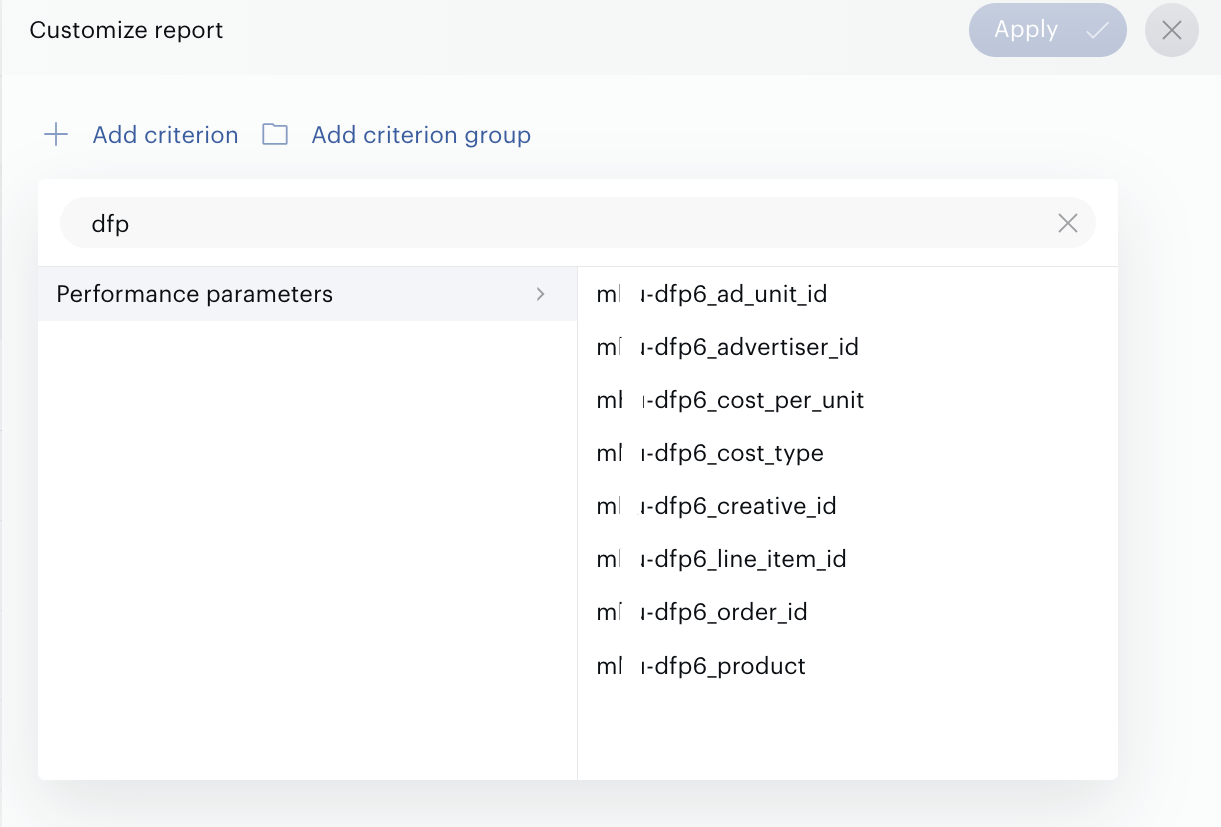
The exact mapping can be found as follows:
|
Piano Audience Parameter |
Google Ad Manager |
|
dfp_cr_ad_unit_id |
GAM Ad Unit Id |
|
dfp_cr_advertiser_id |
GAM Advertiser Id (you may also use Advertiser name in filters) |
|
dfp_cr_cost_per_unit |
CPC for click events, CPM/1000 for impression events |
|
dfp_cr_cost_type |
GAM Line Item’s cost type, usually can be “CPM”, “CPC” or “CPD” |
|
dfp_cr_creative_id |
GAM Creative id (you may use Creative name in filters as well) |
|
dfp_cr_campaign_id |
GAM Order Id (you may use Order name in filters as well) |
|
dfp_cr_campaign_row_id |
GAM Line Item Id (you may use Line Item name in filters as well) |
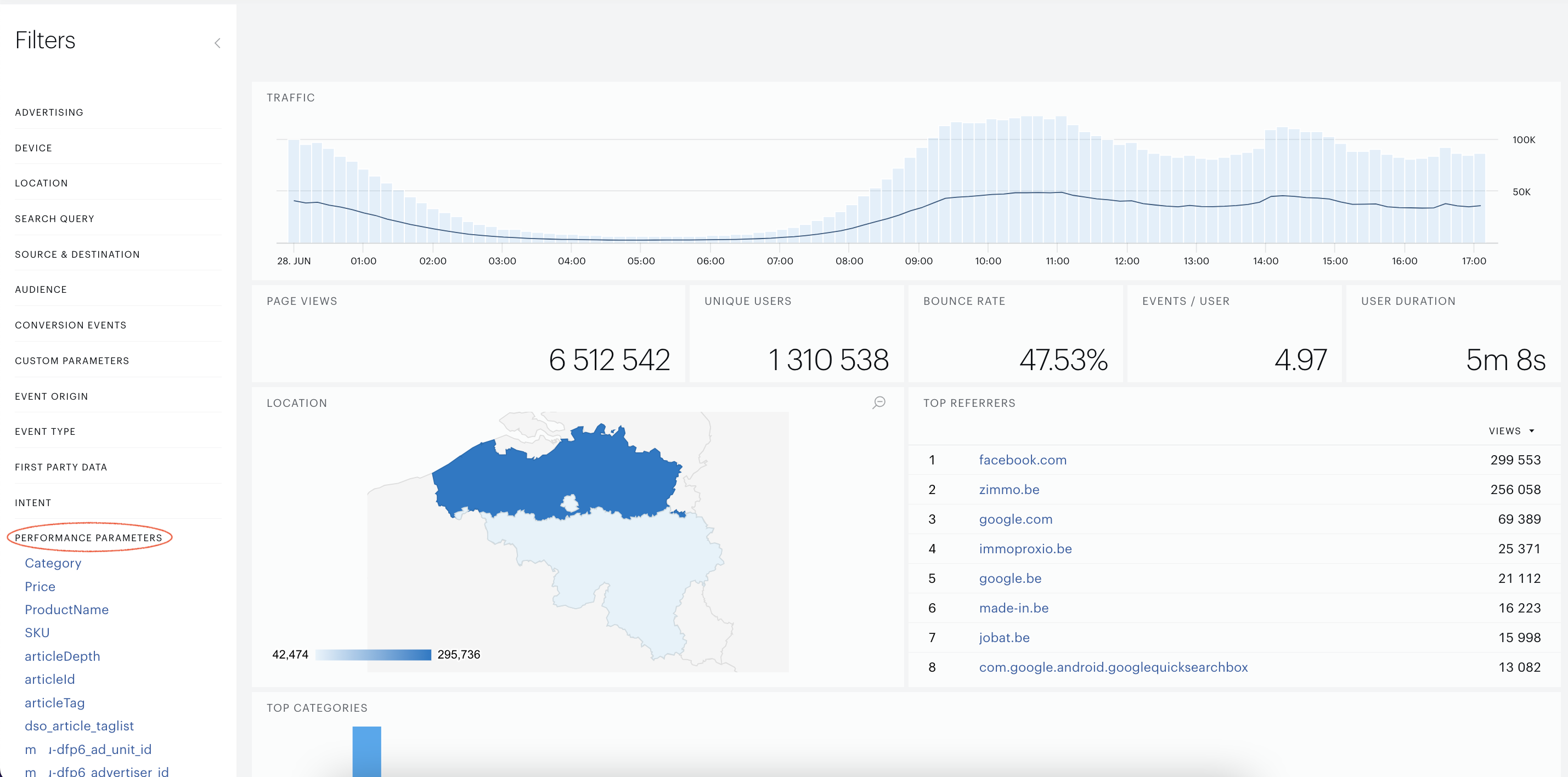
Insight is another Piano platform that supports events based on the marketing campaigns data imported from GAM.
The filter panel in the left part of the page supports events with the same names, as you can see in the Piano Audience: