
The System Configuration functionality exposes the ability for particular roles to modify system settings. Over time this administrative area will become more feature rich. It means that more control is placed in the hands of the Broker to be able to set-up and configure their deployment effectively.
This functionality is only available to the following roles:
-
Business Owner
-
System Administrator
Getting there
-
Access your desired environment
-
Production: https://cxad.cxense.com (or the specific url for your environment)
-
Sandbox: http://sandbox.cxad.cxense.com
-
-
Log in as someone who has one or more of the roles above allocated to them.
-
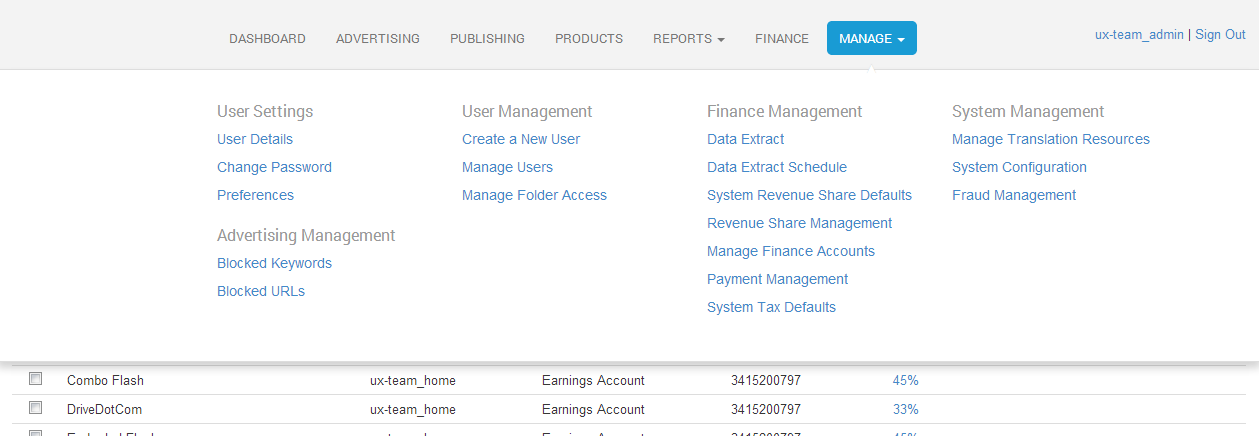
Click on the Manage tab select 'System Configuration' from the System Management list
Visual Guide
Self-Service Roles
Controls what roles are assigned to a user through the "Sign up as a self-service User" functionality. By default when a new broker instance is created self service functionality is disabled. This can be changed through the Self-Service Roles configuration. Impacts of various settings are described below.
Outcomes from specific settings for self service sign up functionality.
-
Check no options: Self-Service sign up is disabled meaning:
-
The "Sign up now" link on the login screen will not be displayed
-
Users will be prevented from accessing the sign up page. In sandbox this page is accessed by hitting http://sandbox.cxad.cxense.com/signup.
-
-
Check only Self-Service Advertiser: new users will be assigned Self-Service Advertiser role.
-
Check only Self-Service Publisher: new users will be assigned Self-Service Publisher role.
-
Check both Self-Service Advertiser and Self-Service Publisher: new users get both the Self-Service Advertiser and Self-Service Publisher roles.
User Defaults
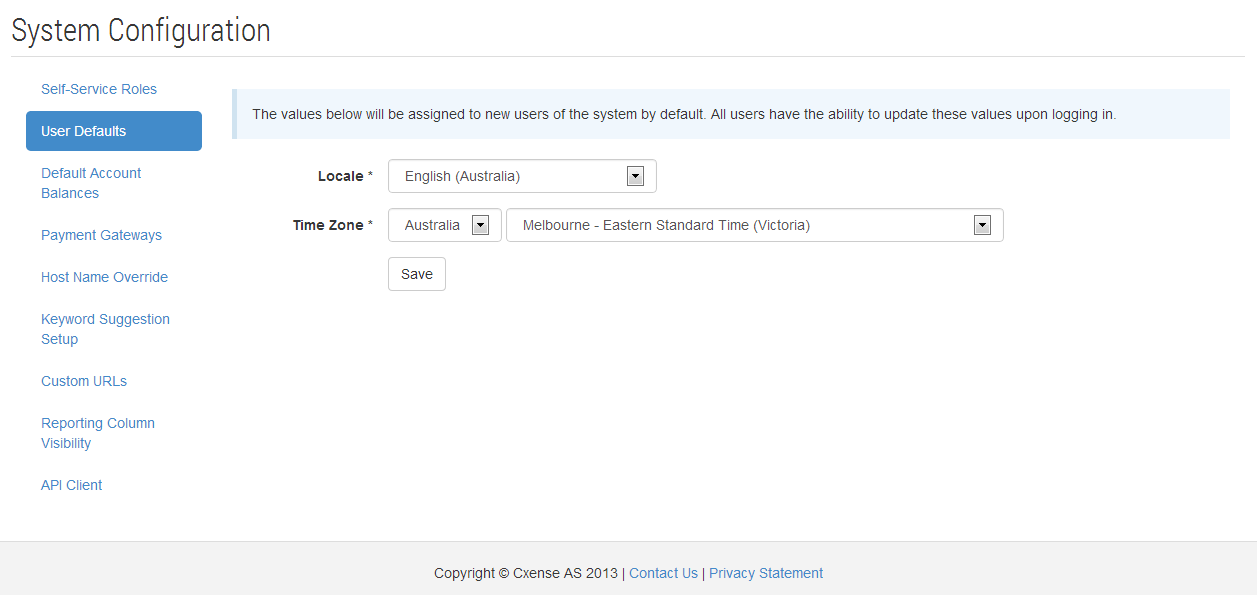
Controls the preferences assigned to users when they are initially created in the system. This may be in one of 2 ways;
-
Being created
-
Signing up themselves
These preferences are set when the user is initially created in the system. Modifications over time will only affect new users being created, it will not affect any existing user accounts. Upon logging in the user can modify their own preference settings as they see fit.
Payment Gateways
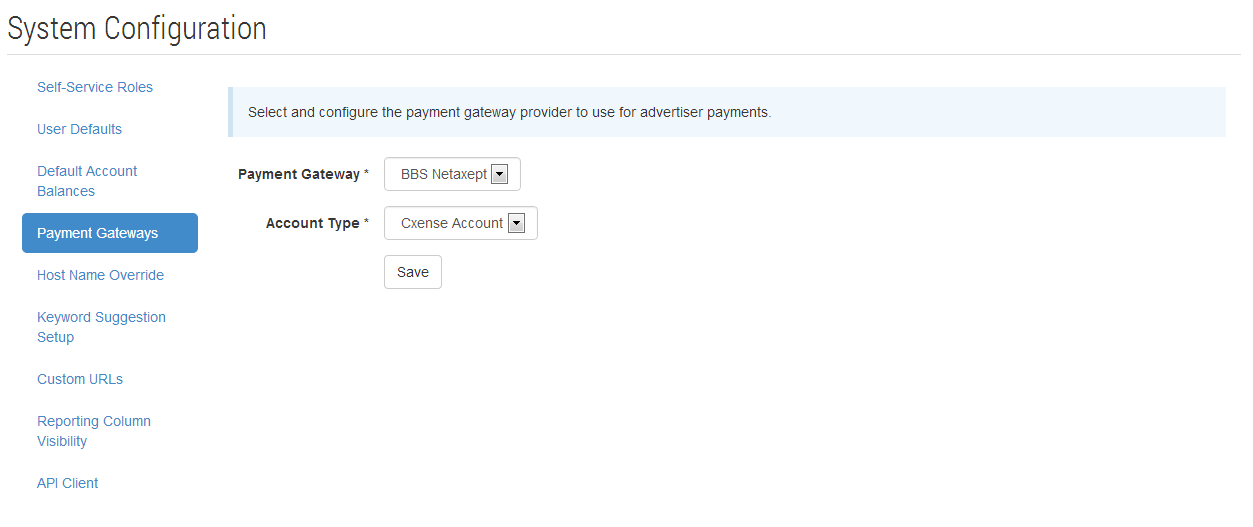
Select which payment gateway to use when advertisers make payments. cX::ad currently supports http://nets.eu or PayPal and only one may be selected. The account details provided by Nets or PayPal need to be entered before payments can be made.
An internet merchant account is required to accept payments from http://nets.eu . Please contact nets.eu and your bank to create one.
PayPal
A Business or Premier PayPal account is required to accept payment from PayPal. This can be created at PayPal. The API account credentials are then required to be entered into cX::ad - click here for instructions on obtaining your PayPal API credentials.
Host Name Override
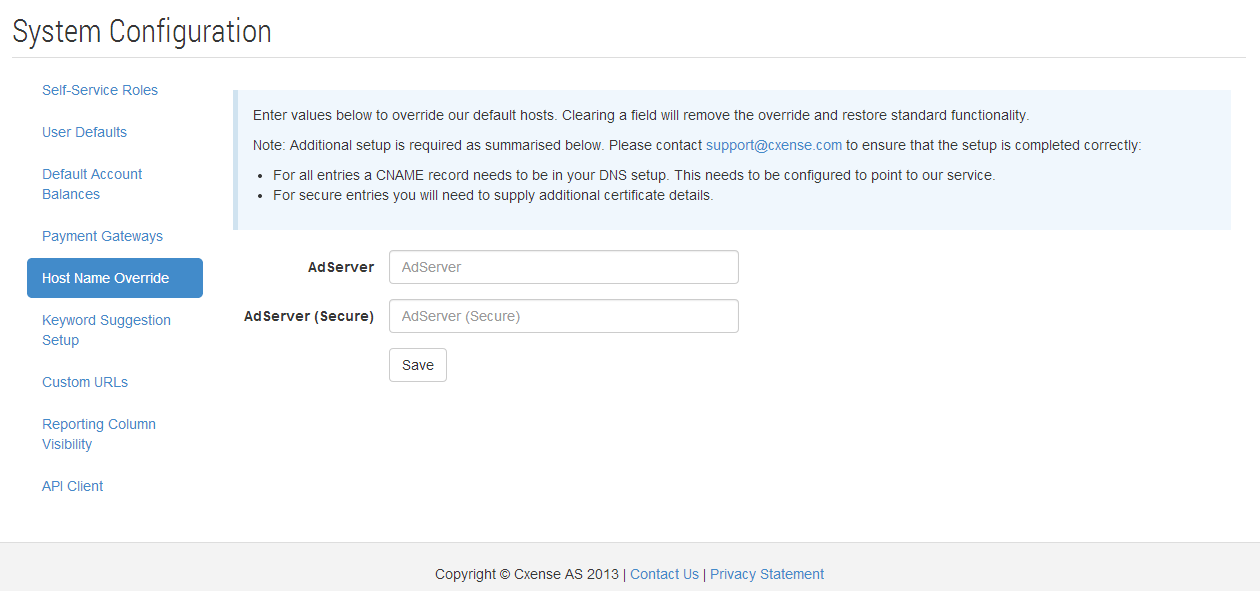
This functionality allows the modification of the host names used throughout cx::ad. Currently we support the following host name overrrides:
-
Ad Server's delivery URL (standard and secured): This will result in the code snippet as found in the AdSpace page having the host name used in preference to our own. It is important to note that there will be additional configuration required as stated in the help text of the page before the functionality will work correctly so it is best to do this prior to setting up AdSpaces in their final configuration.
Default Account Balances
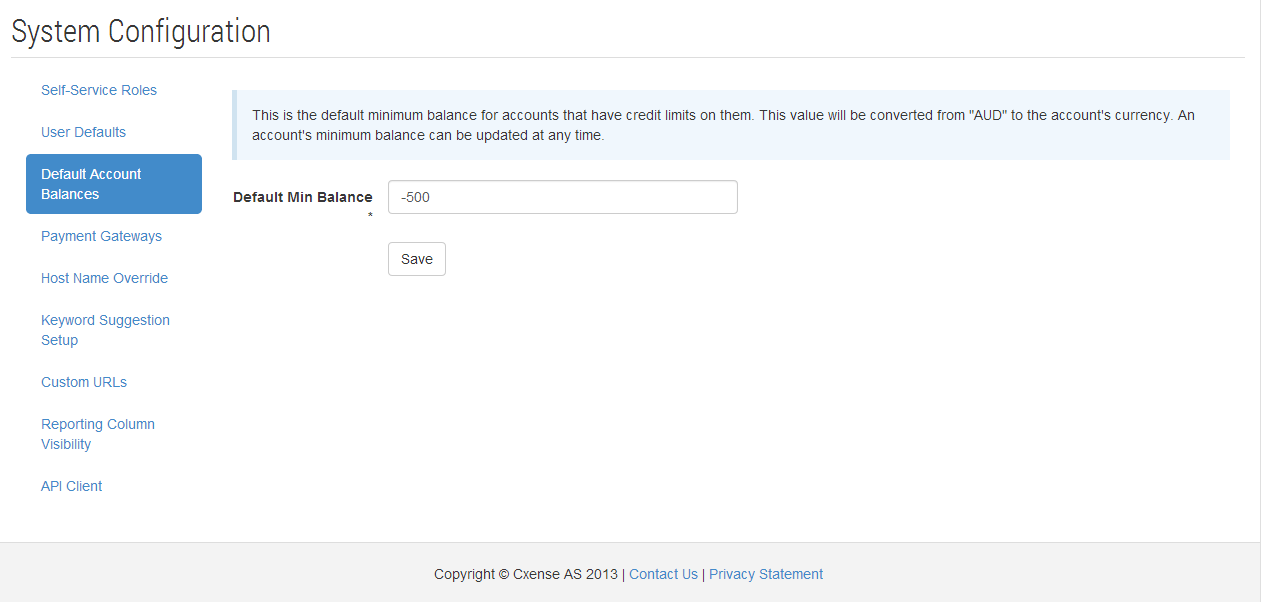
Control the default account minimum balances for both pre and post pay Billing and Earning account types. The values entered are mandatory and must be a number. There is no currency unit provided here as this is a relative limit that is applied to the account's currency when it is created. What does this mean? The example below gives an example of the impact to setting the minimum balance for a post pay account. It is based on the pinning rate for the broker being AUD.
-
Minimum pre pay balance: -1000
-
Pinning rate currency: AUD
-
New account currency: USD
-
Current exchange rate: 1 Australian dollar = 1.0307 U.S. Dollars
-
Minimum balance set against the new account = -1000AUD x 1.0307 = -1030.70USD
Alterations to these values will only affect new accounts created in the system. No existing accounts will have their minimum balances updated. If you wish to update existing minimum balances for individual accounts please refer to the Manage Accounts functionality.
Keyword Suggestion Setup
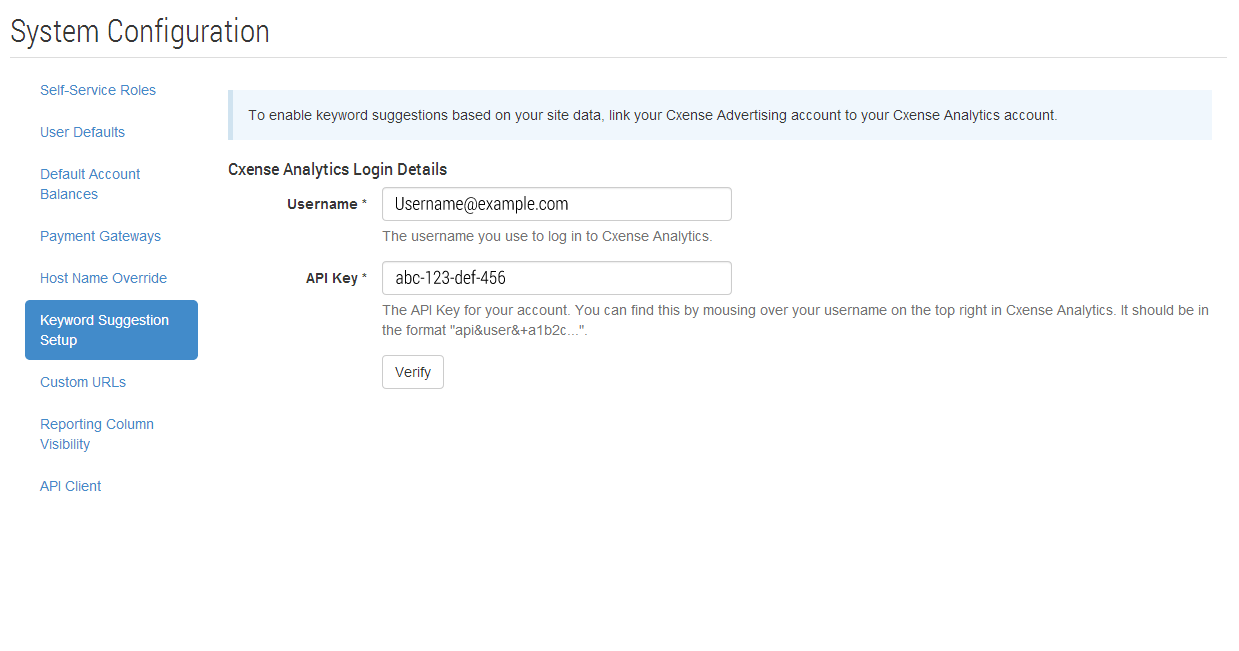
Soon this functionality will move locations to a more suitable place for configuring connections between Cxense Advertising and Cxense Analytics. Please see the documentation on Cxense Insight Integration for more detail.
Set up a connection to Cxense Analytics for the purpose of providing keyword suggestions. There are 3 steps to setting up the keyword suggestion functionality:
-
Enter your Cxense Analytics username and API key, and click verify. This will confirm that the details you have entered are correct.
-
Select the Cxense Analytics accounts that you want your users to be able to search for keywords, and whether you want the keywords returned to be based on the content of the web pages, or the user profiles of the users who visit those pages.
-
Select the Cxense Analytics keys that you would like keywords returned for.
Once this is set up, the "Automated Suggestions" tab will be available when using keyword targeting.
Custom URLs
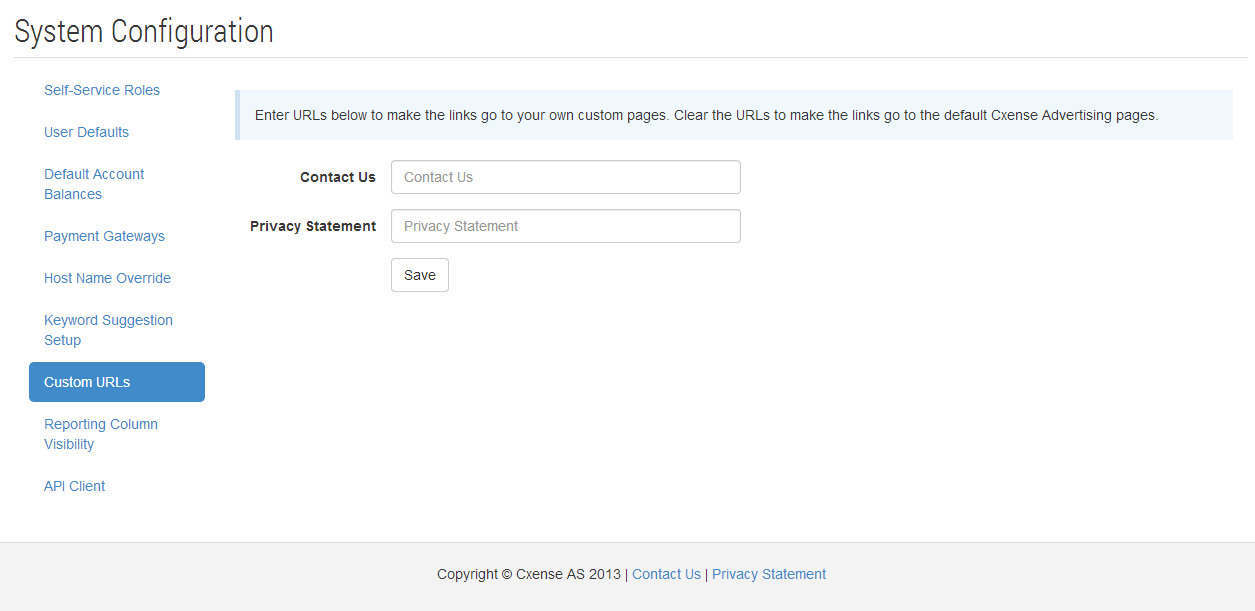
Enables different destinations to be supplied for some of the URLs in the UI. Adding your own urls into these fields will change the destination from the internal cX pages to wherever you choose. If a custom url is added we automatically append the current user's locale to it to allow the destination page to pick up on this. This will allow your page to present in the user's language they had configured when using cX::ad.
To restore default links simply clear the entries you no longer wish to customise and save.
Results from saving the custom values will be immediately available for all user in your system on next page visit.
The locale is added as the query string parameter "locale". There may be some work required on the destination site to ensure that the parameter is found and utilised correctly.
Column Visibility
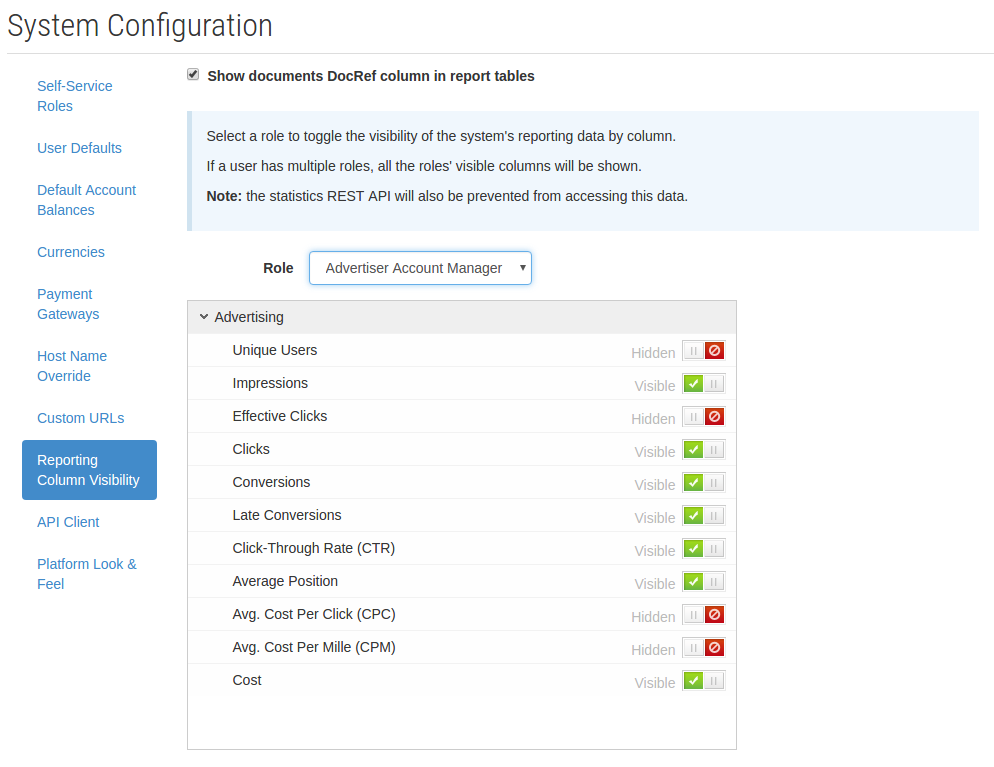
Column Visibility enables the System Manager to configure the visibility of columns per User Role.
-
Select a User Role, you are presented a list of all Columns available to that role
-
Toggle each line item using the visible/hidden buttons
This screen also allows DocRef's (object Ids) to be shown in all data tables. This setting is not role dependant and applies to all of the brokers users.
The changes are instant, and do not require a save button.
Publishing Column Examples
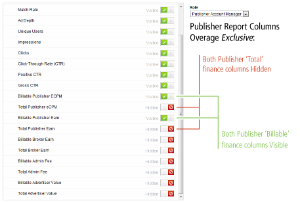
System Column Examples
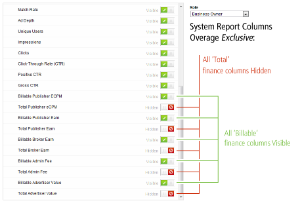
Ensure you review each role accordingly, especially with regard to columns including financial data.
An 'On' state will overrule an 'Off' state for users with multiple Roles.
For example, if a User has two roles: Self Service Advertiser, and Advertiser Account Manager, where the Impressions Column visibility is 'Off' for Self Service, but 'On' for Account mnanager, the resulting visibility will be 'On' ('On' state overrules the 'Off' state in all cases)
API Client
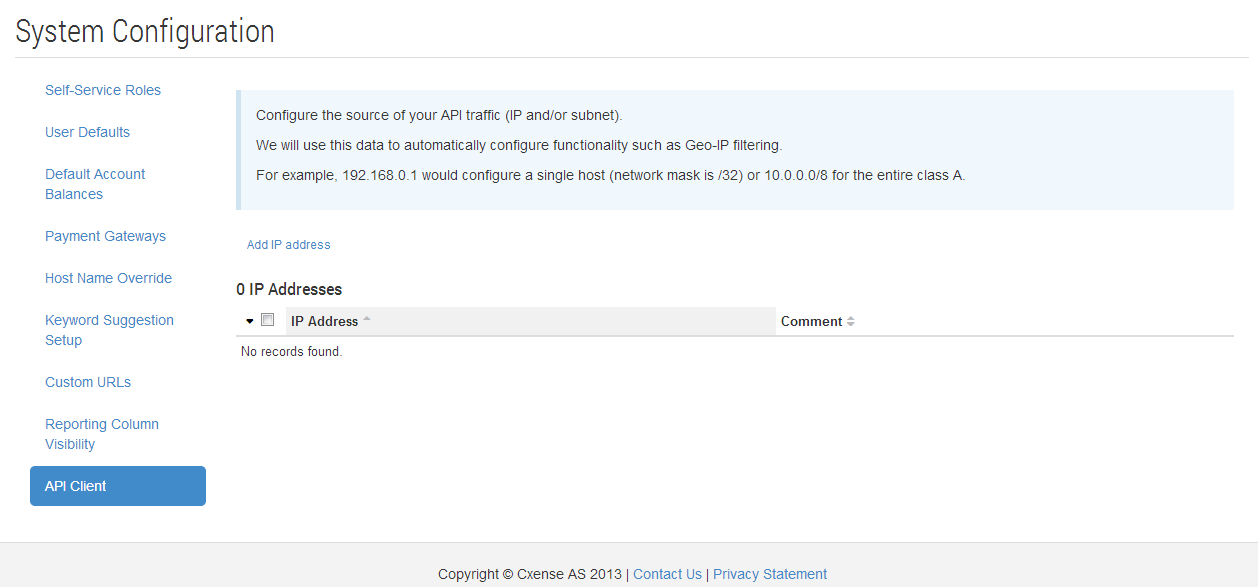
The API Client functionality allows you to manage the list of IP addresses (and optional subnets) that you use to send requests to Cxense Advertising.
We use this list of addresses in various ways, including filtering the set of IPs that are used for Geo-IP lookup.
Platform Look & Feel
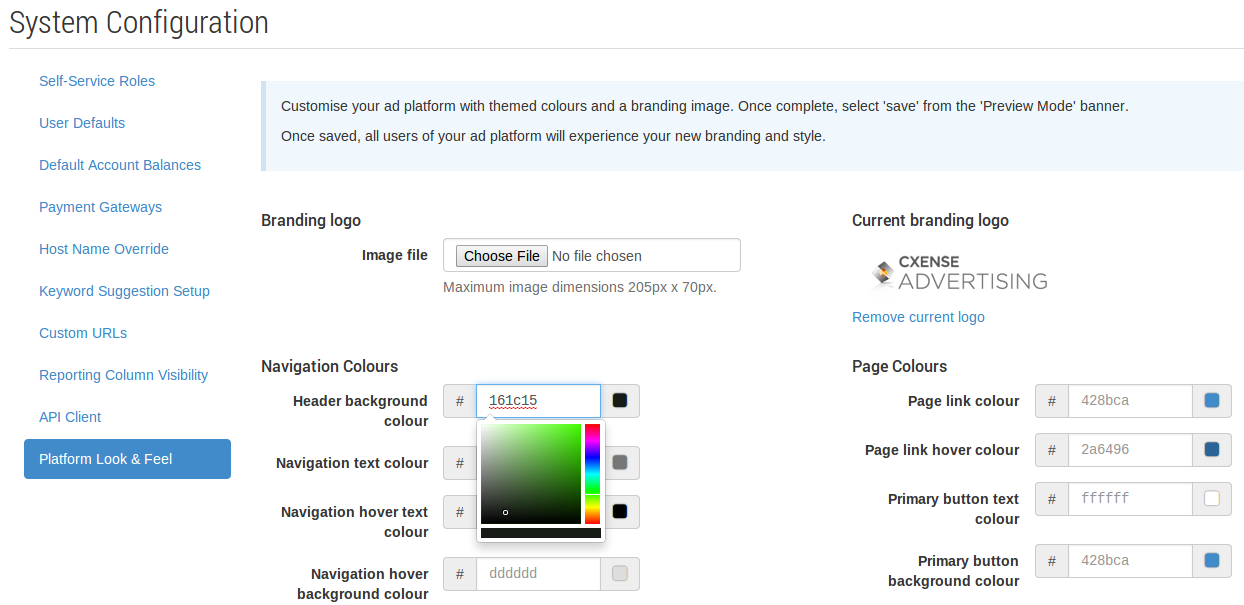
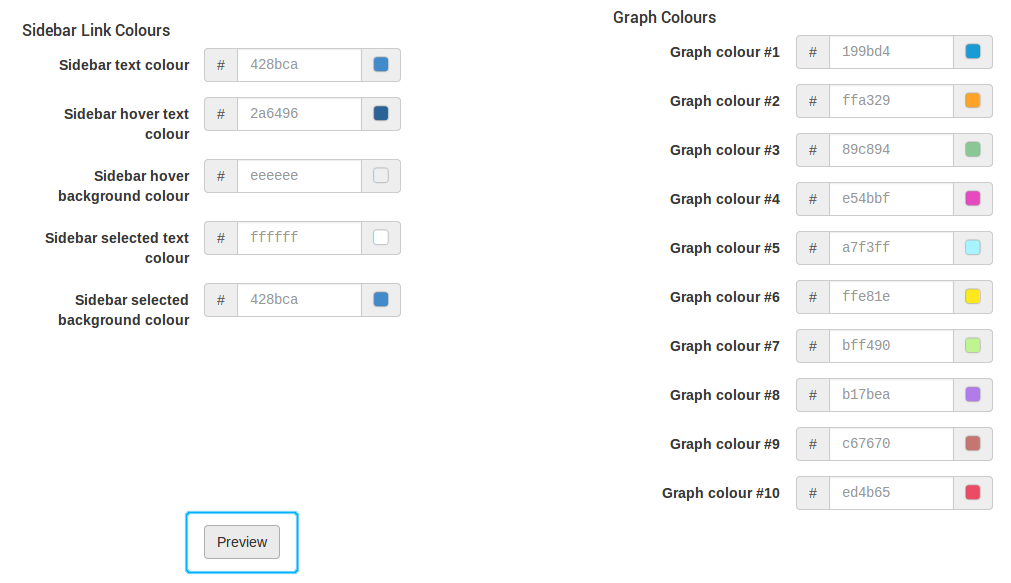
Enables the System Manager to customize the platform with logos and custom colours to truly represent their corporate brand and ensure consistency for their users.
-
Upload a banner logo image, favicon and / or make colour selections using the provided colour pickers.
-
Click the "Preview" button.
The interactive preview mode provides the ability to try out different styles before they are applied it to the platform.
To save the changes and apply them for all users, click the "Save" button in the notification panel. Clicking "Cancel" returns the Platform Look & Feel to the previous configuration.
Conversion Thresholds
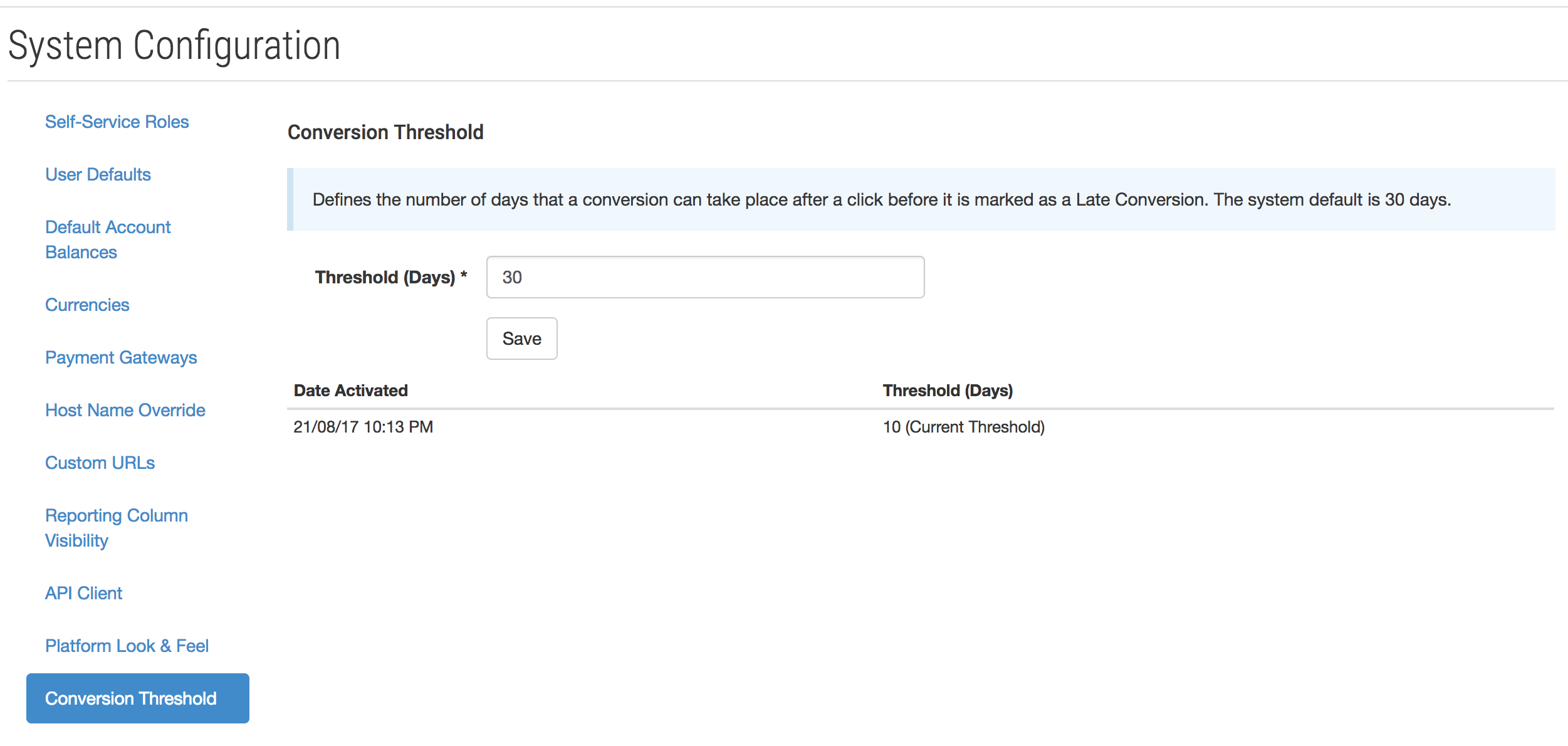
Allows the modification of conversion thresholds.
The conversion threshold is the number of days that defines the boundary between a conversion and a late conversion, i.e the number of days between a user clicking on an ad and the user performing the conversion action.
The default value is 30 days and all historic data prior to the first setting of a custom conversion threshold will use this value.
The system will record conversions and late conversions using the threshold active at the time of the conversion.
Warning
Changing of the threshold can add confusion to the meaning of past data. Try to limit the number of changes and only change when absolutely required.
The page lists the history of custom thresholds, including the timestamp each threshold became active. This threshold history may be required to interpret past stats data and reports, i.e. to determine what threshold value was in use when the conversion was recorded.
Authorised Clients
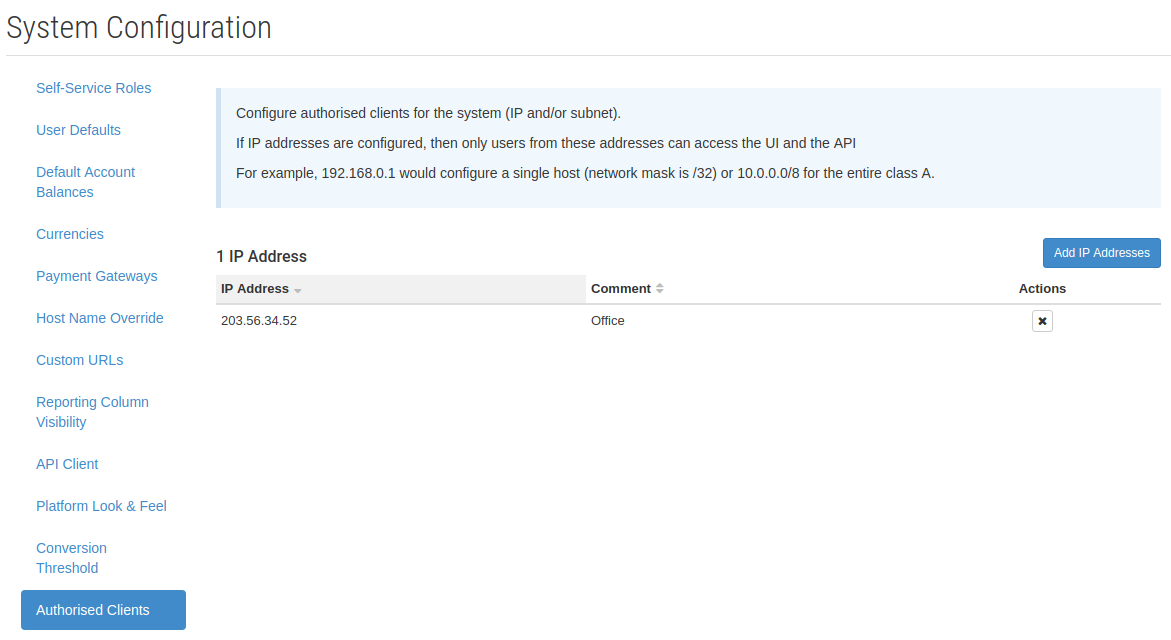
Allows the broker to whitelist IP addresses for system access.
If no IP addresses are defined, then any authorised user from any IP address can access the UI and the API.
Once IP addresses are defined, then only users accessing the UI or the API from one of the specified IP addresses will be granted access.
Warning
This feature should only be used if all users have static IP addresses. Enabling this feature may result in all users being prevented from logging in.
Please contact support if enabling this feature prevents all users from accessing the system.