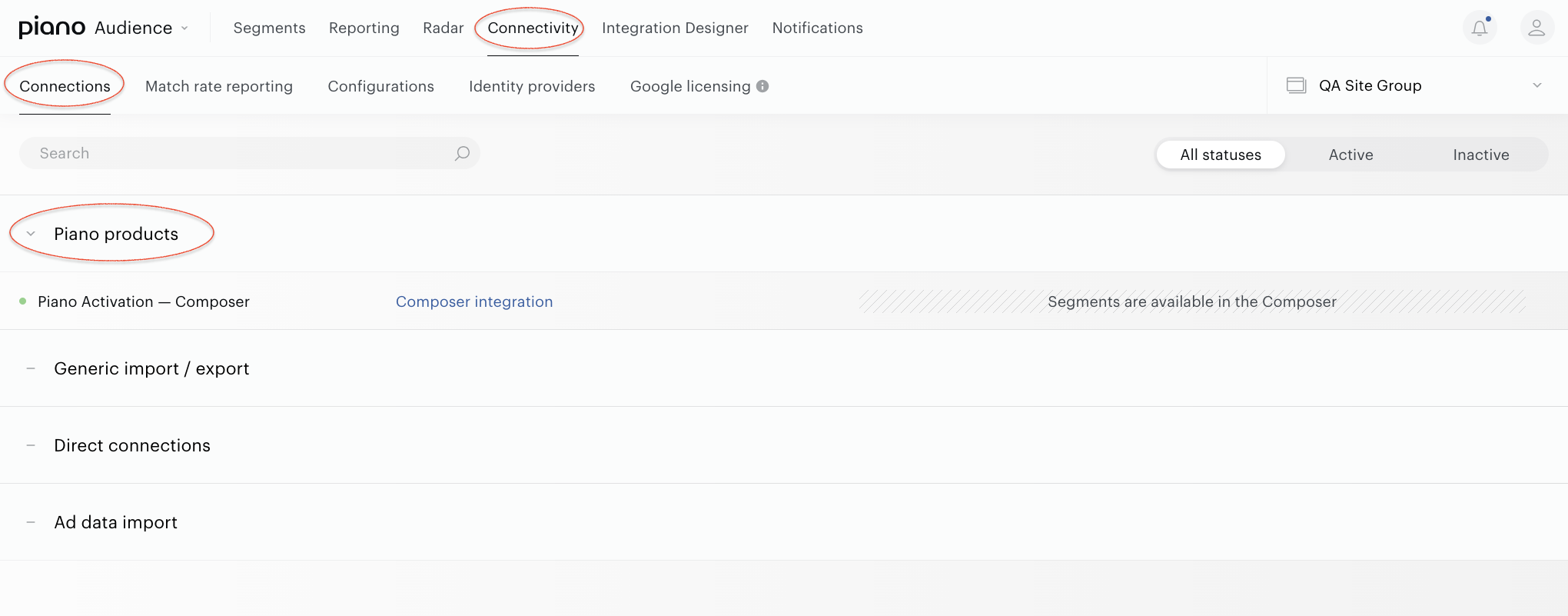
The Audience-Composer connection enables Piano Audience' custom segments to be used in creating experiences in Composer. Before you can use the integration, it must be configured by our Support Team. Make sure it's done.
Configuring Piano Audience
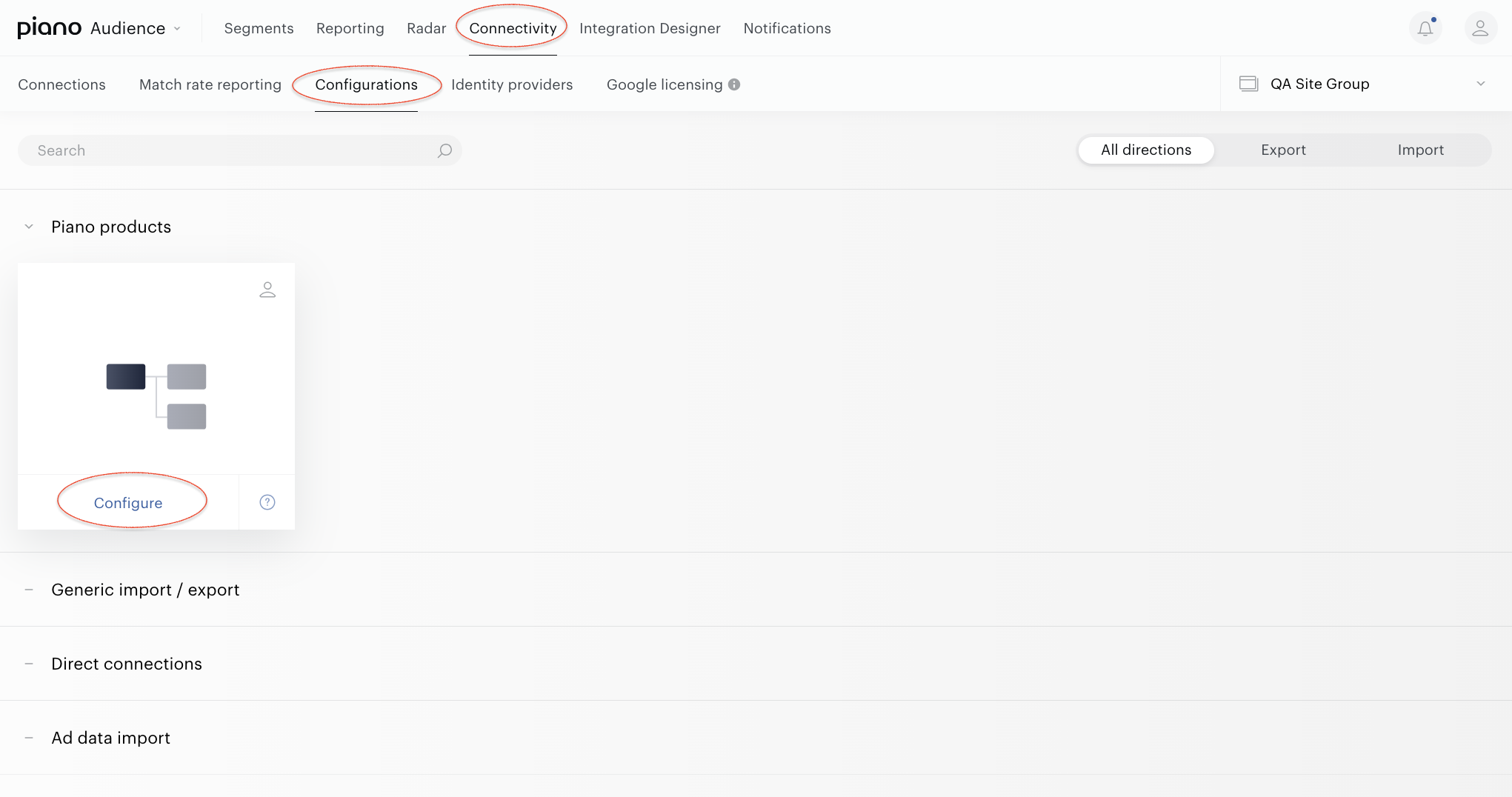
Select a site group. Go to Connectivity → Configurations. Hover the mouse on the Composer logo and click Configure to open the Composer integration window.
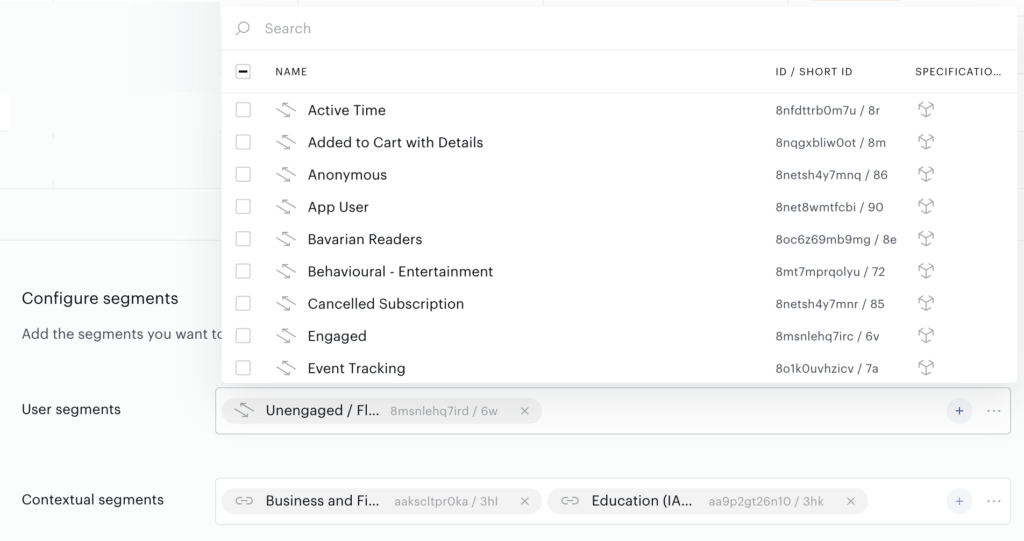
Scroll down to the Configure segments section and add the segments of your choice to the dedicated list of segments to be transferred to the Composer side. Make sure to select the desired segment type:
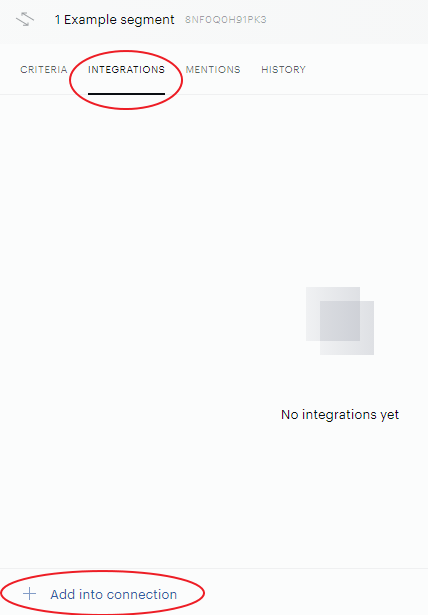
To add more segments later, you can go to the Segments tab, select one or more segments and click the Add into connection link appearing at the bottom of the screen.
Note: If your segment does not appear here, it is likely because your segment is Ungrouped. Add the desired segment to a segment group before trying again.

This button is also available in the Integrations tab of an individual segment.
When you are done selecting the segments and setting other parameters, click Save in the upper right corner. Your segments will be available in Composer in a couple of minutes.
Sharing User Profile Data
Piano Audience collects a wide range of user profile attributes for known users, such as subscription status, login history, registration responses, and demographic or behavioral data tied to identified user accounts. These attributes can be selectively shared with Piano Composer to drive user profile targeting.
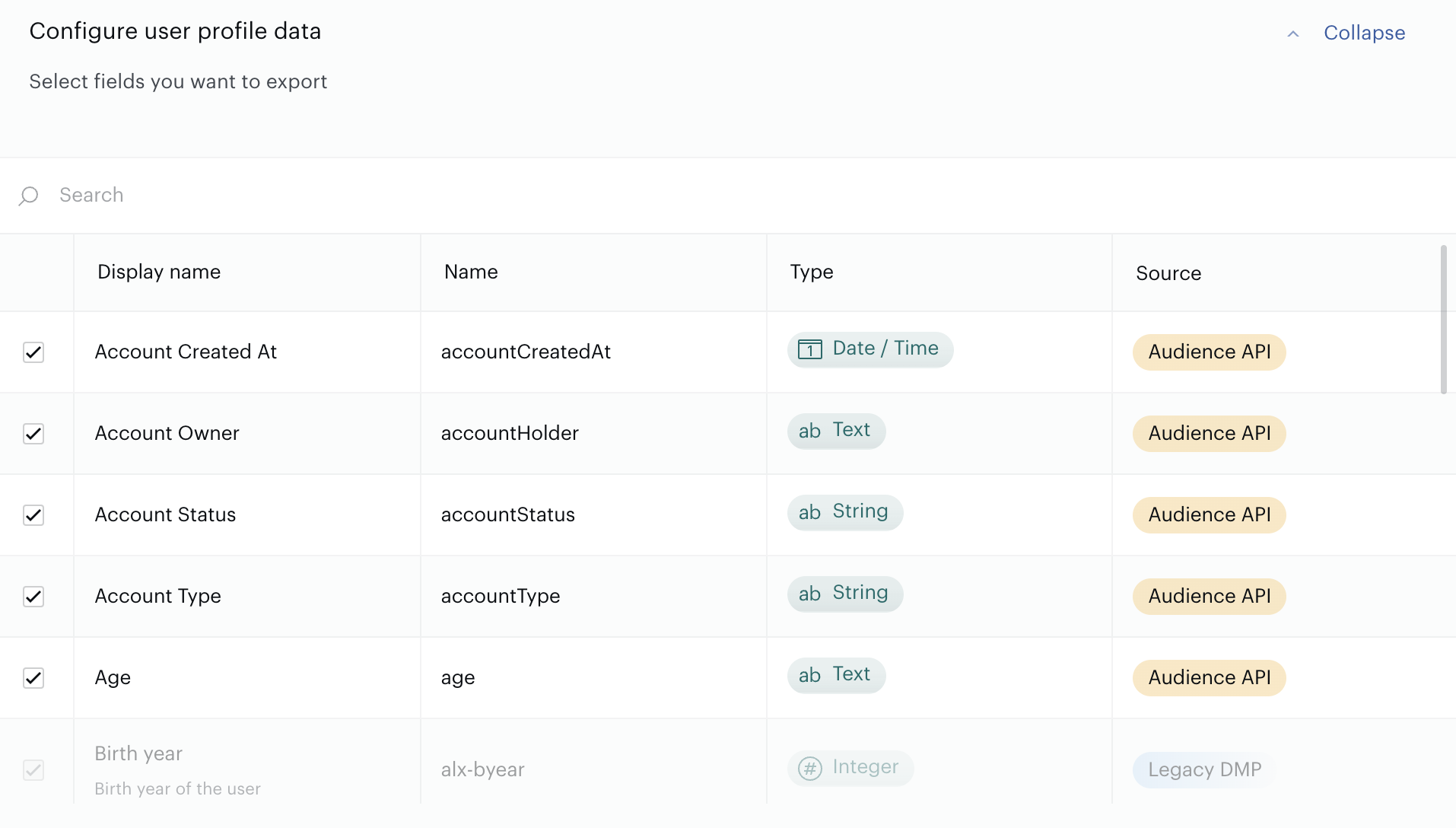
Configuration Steps for Attribute Selection
-
Select Attributes: In the Configure user profile data section, browse or search for attributes. Check the boxes next to the attributes you want to share with Composer.
-
Save the configuration to enable attribute syncing.
Best Practices
-
Choose Relevant Attributes: Select attributes that align with your campaign goals (e.g., subscription_tier for premium user targeting, last_login_timestamp for re-engagement campaigns).
-
Test Mappings: Before launching campaigns, test attribute-based rules in Composer to confirm accurate data flow and rule execution.
Attribute Limit
A maximum of 100 attributes can be enabled for Composer at any given time. If you need to enable more than 100 attributes, please contact Piano support at support@piano.io for assistance.
Limitations
-
Before you can use the Audience-Composer integration, it must be configured by our Client Service or Support team.
-
Only active segments (Usage parameter equals Full) can be transferred to Composer.
-
Segments must be classified under a segment group before they can be pushed to Composer.
-
There is a limit on the number of segments per type to be pushed to Composer: 50 segments per type adding up to 100 segments per site group. Segments can only be pushed from the site group that is configured for Composer 1x.
Only segments with the Custom category are counted. This means that predefined (standard) segments, for example, Interest or Sociodemographic segments, are not considered within the limit. -
A segment can't be deleted from an active Composer connection.
-
A segment can't be deleted from the Segment list in Piano Audience.
-
The segment groups that host your Composer segments can't be deleted; segments can't be moved to the Ungrouped group.
Monitoring and update
Now you can see your connection on the list of existing connections (Connectivity → Connections).
To change the settings (list of segments), find your connection on the list of existing connections and update.