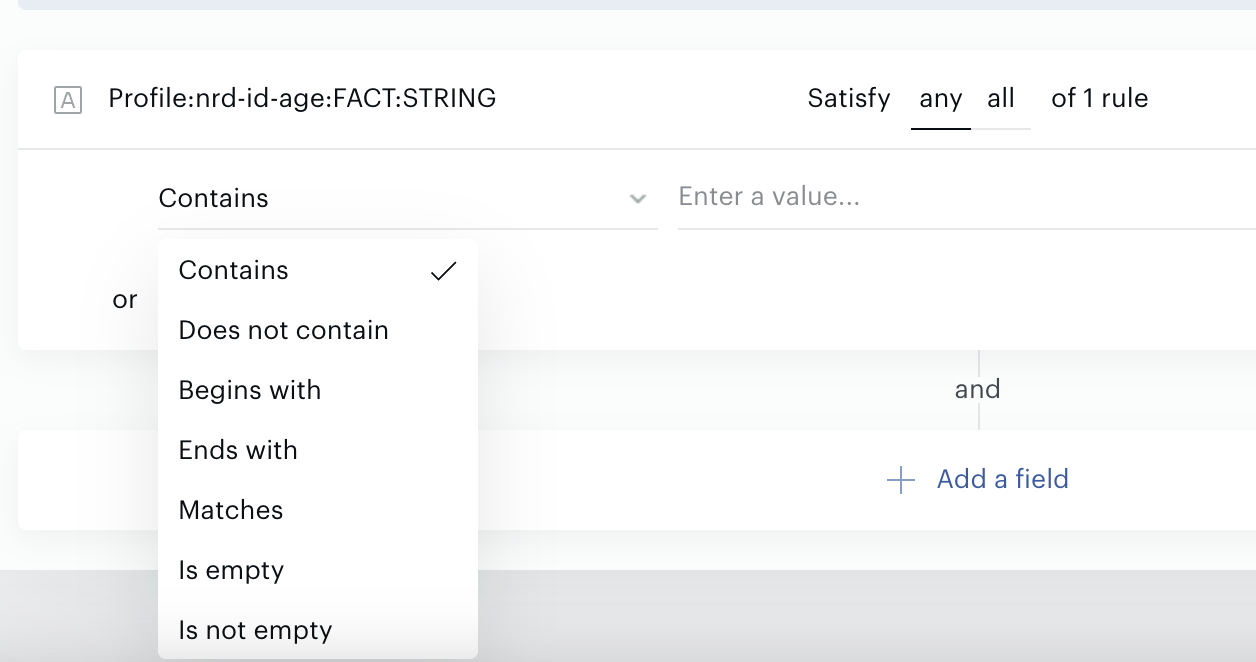
User Profile targeting is available within the User Segment card in Composer - a key module that determines which users in your audience will be eligible to see a particular experience. With this card, you can include or exclude users based on various criteria, such as predefined attributes, custom fields, and now, user profile data.
This new capability works in tandem with the Integration Designer, which provides an intuitive interface to manage data attributes from various sources. Any fields that have been enabled within the Destinations in Integration Designer will automatically appear in the User Profile targeting section of the User Segment card in Composer. To enable fields for User profile targeting, you would need to enable it via the Composer connector.
Please note: An Piano Subscriptions license is required to use this feature. Additionally, Identity Management or Identity Linking must be enabled.
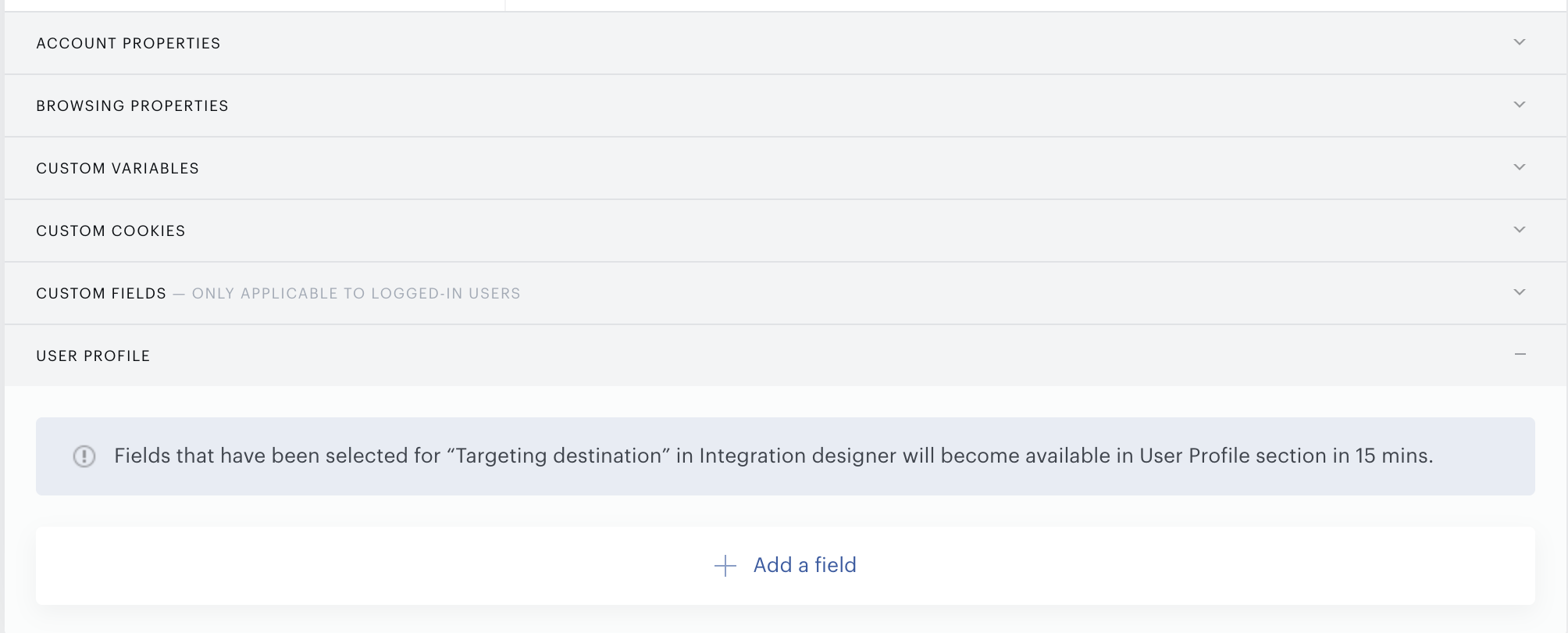
When navigating to the User profile section, click the "+" button to view all available data fields for targeting.
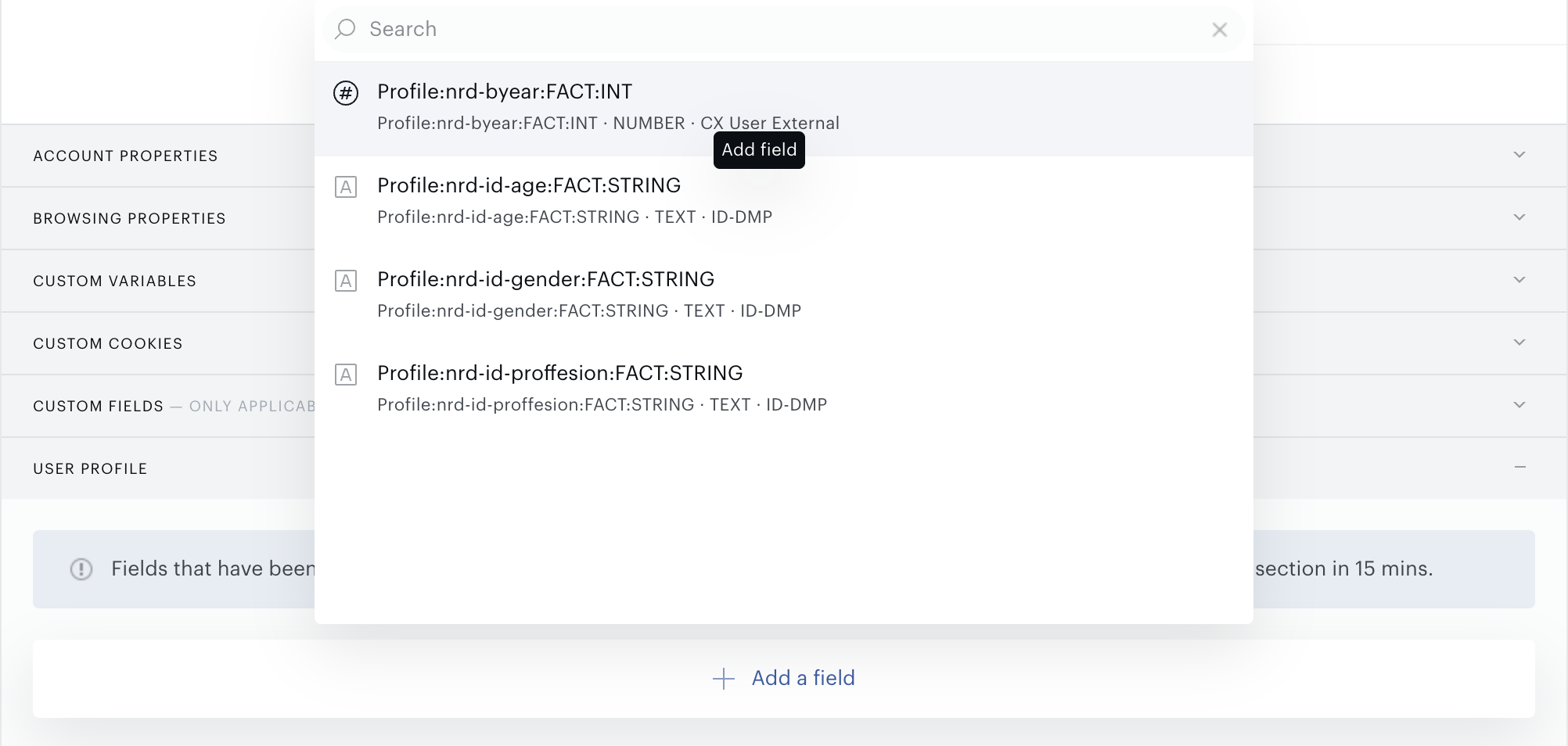
Key Data Field Details
When selecting the field in the User profile section, you’ll encounter the following key field details:
-
Display Name - The human-readable label for an attribute. You can modify this to make it more descriptive or user-friendly in the Integration Designer.
-
Name - The system name or key that refers to the attribute in our platform.
-
Type - Defines the type of data (e.g., string, number, boolean).
-
Source - Indicates where the data originates (e.g., Piano Management + Billing, Identity Management, or API ingestion).
To configure targeting criteria setup, simply click on a data field after selecting it to define the targeting criteria. Once it is done, you may enter the value for the data field:
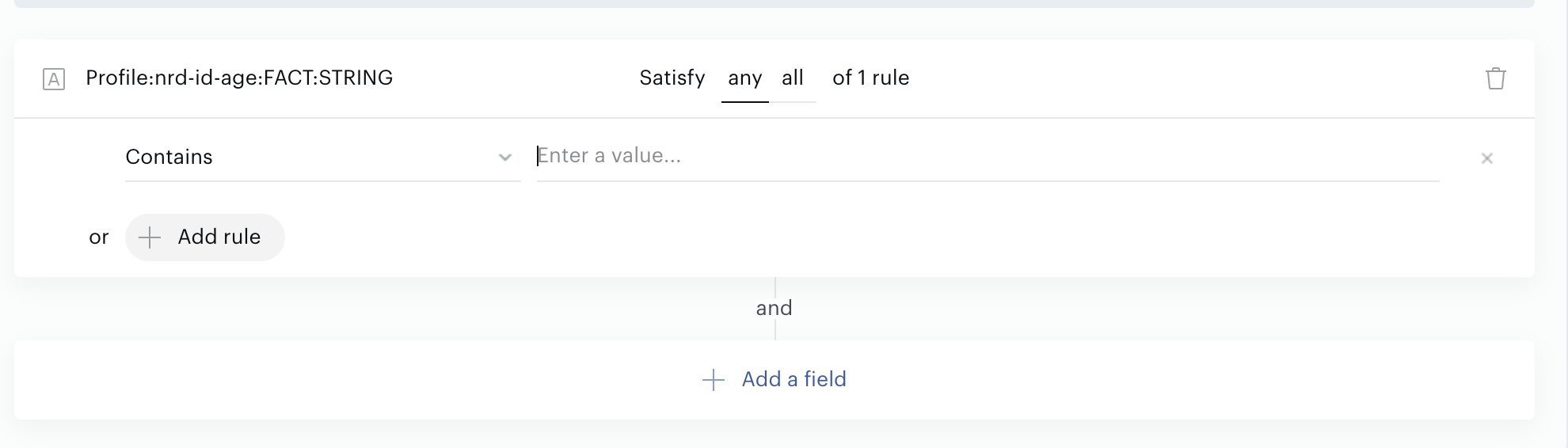
And select the appropriate operator and rule: