
Add Newly Registered Users to ESP Mailing Lists
First, edit your Integration code in Composer and add the ESP integration code below.
The Composer integration code itself should be placed before on your website.
Composer Integration Code
window.PianoESPConfig = {
  id: ::ID::
}
::ID:: – ESP integration code ID, which you can find in the ESP dashboard at Setup → Integrations → Choose relevant integration → Copy code and paste it to Composer integration code.
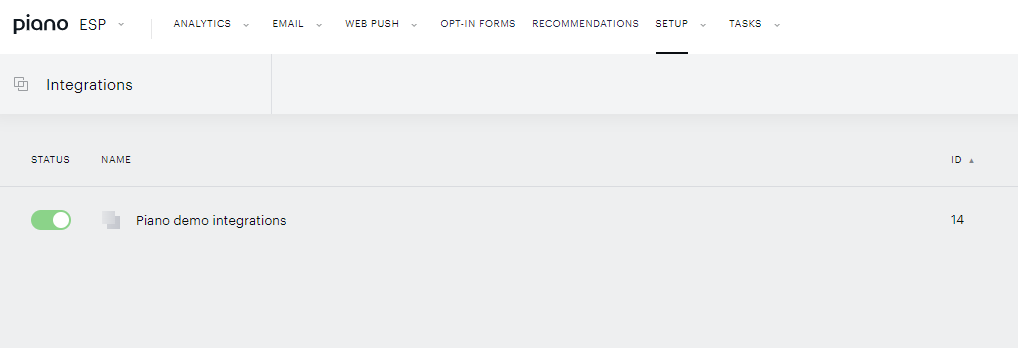
More information on how to implement this can be found here.
Then, go to Products → Сomposer and click Integrate.
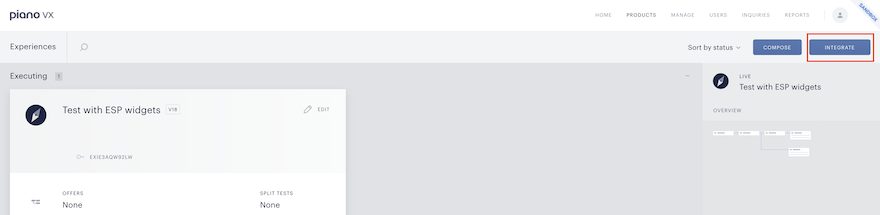
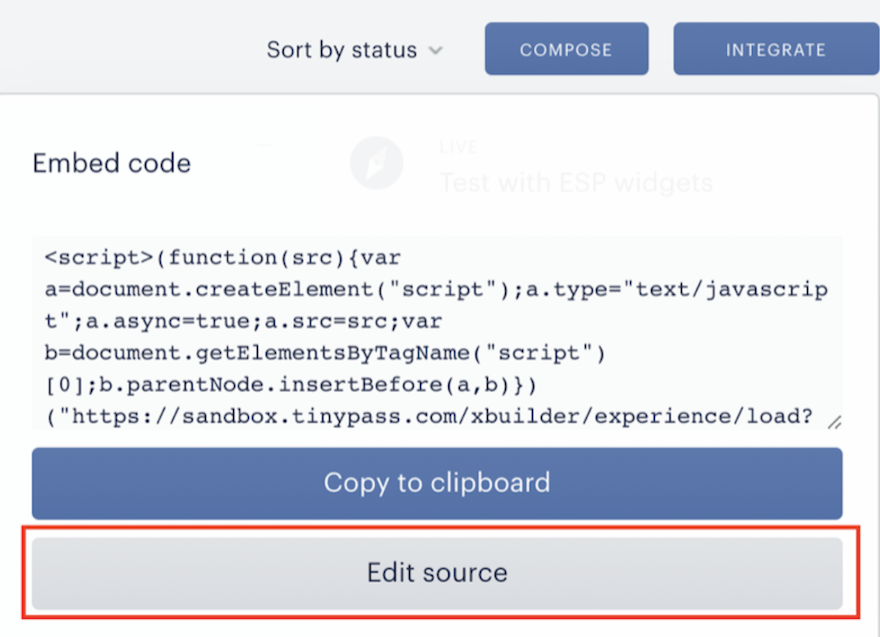
On the following pop-up, click on Edit source.
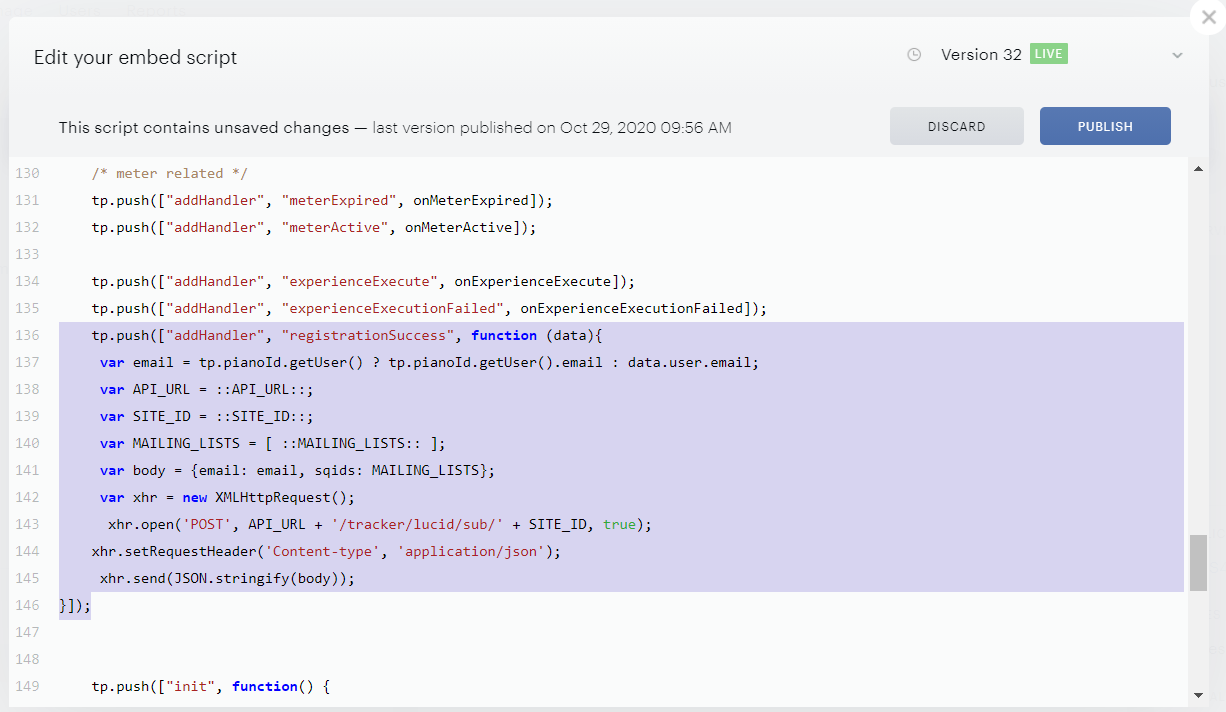
Scroll to the bottom and insert the following code before "init", function ():
|
Variable |
Description |
|---|---|
|
|
//api-esp.piano.io or //sandbox-api-esp.piano.io or //api-esp-ap.piano.io or //api-esp-eu.piano.io |
|
|
your site id in ESP |
|
|
array of IDs of Mailing Lists |
 tp.push(["addHandler", "registrationSuccess", function (data){
    var email = tp.pianoId.getUser() ? tp.pianoId.getUser().email : data.user.email;
    var API_URL = ::API_URL::;
    var SITE_ID = ::SITE_ID::;
    var MAILING_LISTS = [ ::MAILING_LISTS:: ];
    var body = {email: email, sqids: MAILING_LISTS};
    var xhr = new XMLHttpRequest();
    xhr.open('POST', API_URL + '/tracker/lucid/sub/' + SITE_ID, true);
    xhr.setRequestHeader('Content-type', 'application/json');
    xhr.send(JSON.stringify(body));
}]);
If your application is located on the AP (https://dashboard-ap.piano.io/) or EU Piano dashboard (https://dashboard-eu.piano.io/), you would also need to add the below code to your integration script:
AP Dashboard
tp.push(["setEspEndpoint", 'https://api-esp-ap.piano.io']);
EU Dashboard
tp.push(["setEspEndpoint", 'https://api-esp-eu.piano.io']);
Add Existing Registered Users to ESP Mailing Lists
First, edit the Integration code in Composer (as explained in the previous section) and add the ESP integration code.
window.PianoESPConfig = {
  id: ::ID::
}
::ID:: - ESP integration code ID (you can find it in the ESP dashboard at Setup → Integrations). Choose the necessary integration, copy the code, and paste it into your Composer integration code.
Then, create an experience in Composer. Select experience rules and user segments and set the condition for the event that should happen on your website.
For instance, if you want to add users to a mailing list after clicking on a certain element on your website, you should create the element and then add it as an event to the Interaction card in Composer (EVENT LISTENERS, On click event):
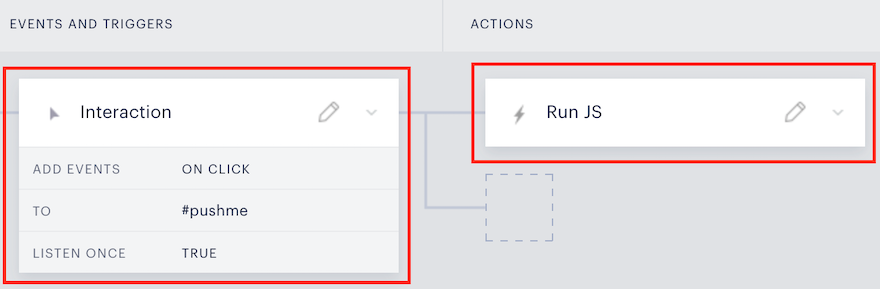
Then, add a Run JS action card for the created Interaction.
Insert the following code into a Run JS card in your canvas:
tp = window["tp"];
if(tp.hasOwnProperty('pianoId')) {
  var email = tp.pianoId.getUser().email;
  var API_URL = ::API_URL::;
  var SITE_ID = ::SITE_ID::;
  var MAILING_LISTS = [ ::MAILING_LISTS:: ];
  var body = {email: email, sqids: MAILING_LISTS};
  var xhr = new XMLHttpRequest();
  xhr.open('POST', API_URL + '/tracker/lucid/sub/' + SITE_ID, true);
  xhr.setRequestHeader('Content-type', 'application/json');
  xhr.send(JSON.stringify(body));
}
Mine users from ID to ESP Mailing lists
Edit the Integration script in Composer as described in the first section of this article, and add ESP integration code ID (Composer integration code should be placed before the ID).
window.PianoESPConfig = {
  id: ::ID::
}
Go to Composer → Users → Mine users
In Mine users, you can create a segment under certain conditions or skip this step to select all users:
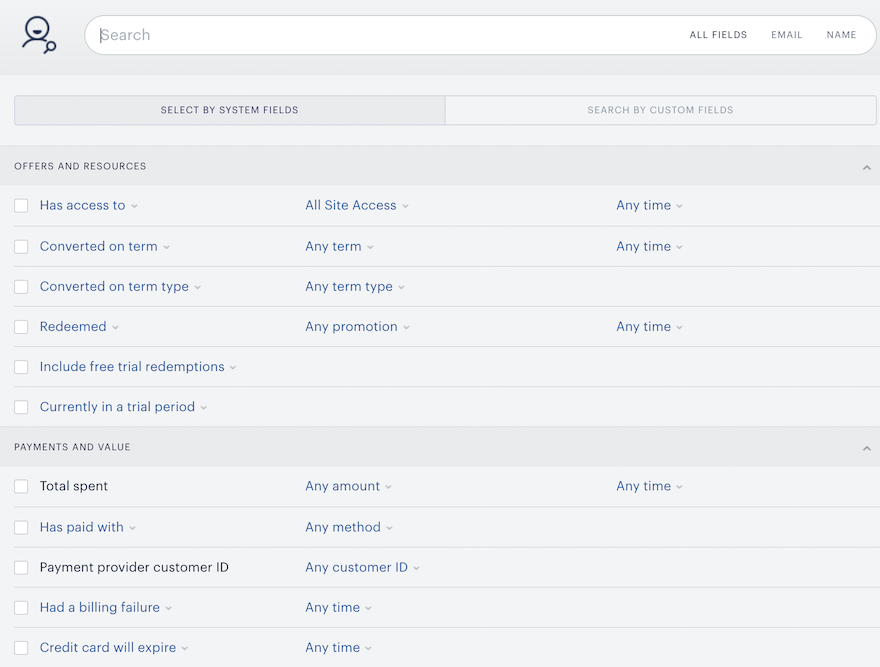
After you've selected the necessary users, you can transfer their emails to existing ESP mailing lists or create a new one.
Manage ESP Campaigns in My Account
Our ESP integration with Piano ID allows you to provide an option in My Account, where your users will be able to self-service their newsletter subscriptions for the ESP campaigns they are subscribed to.
This feature allows registered Piano ID users to manage their newsletters’ preferences based on ESP campaign subscriptions from the My Account page in a new Newsletters tab.
More information about this is available here.